
I love to observe and learn from what happens around me. It is one of the best ways to realize how much life has gifted us. I have been traveling a lot lately with my family, a mix of vacation and some work in between, and I get to see how my family enjoys every moment they have in hand. Free time is hard to find, but it is a wonderful break from the usual routine.
On a recent trip to Europe with my family, we had a train journey of more than three hours, and I wondered how I would spend it. I had a few books with me, but I chose not to read, because my daughter was around. As the train started, the first excitement slowly turned into “What next?”. Before I could think of an answer, my daughter jumped into her grandfather’s seat and started telling him something, and soon they were both busy watching the sky. Curious, I tried to figure out what they were up to. My daughter had made up a game: finding shapes and characters in the moving clouds. The two of them played it for a long time.
That scene is still fresh in my memory. It reminded me how the small things in life can be made enjoyable. The boredom of a long ride disappeared, simply by noticing something that was already there all along. Some stories must be experienced, and my words do not do full justice to what happened.
A Small Gem in SQL Server Management Studio
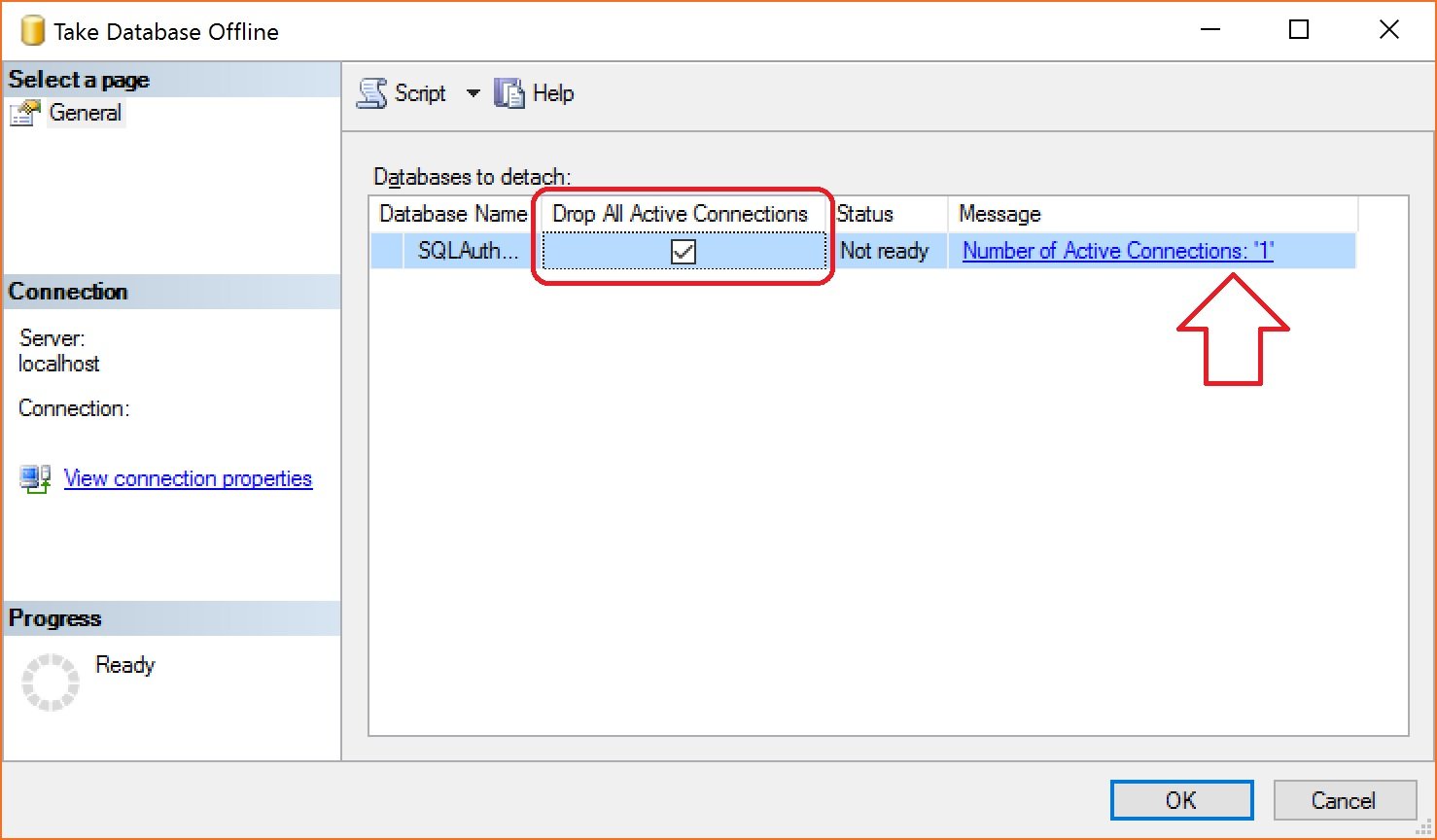
That moment brings me to one of the tips I presented in a session during the same Europe trip. It is about taking a database offline, and it is also about noticing something that was already in front of us. While working in SQL Server Management Studio 2016, I went to take a database offline (right click the database, Tasks, Take Offline) and found a neat checkbox in the dialog box: Drop All Active Connections. Right beside it, SSMS shows how many active connections are currently stopping the database from going offline.
If there are no active connections to the database, the dialog box looks like this:
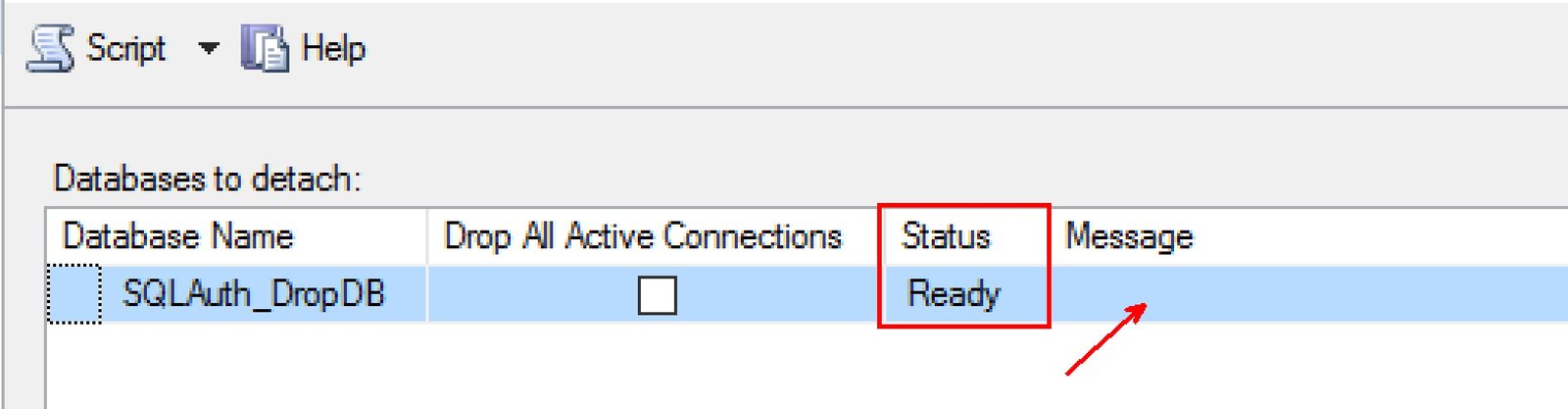
Before this option existed, a busy database often refused to go offline, and you had to find and close every connection yourself. Now SSMS tells you how many sessions are in the way and can close them for you in one step.
Taking a Database Offline With T-SQL
The same thing can be done with a script, which is handy when you need to repeat it or run it on many servers. First, check how many sessions are connected to the database:
SELECT COUNT(*) AS ActiveConnections
FROM sys.dm_exec_sessions
WHERE database_id = DB_ID(N'YourDatabase');
Then take it offline. WITH ROLLBACK IMMEDIATE does the same job as the Drop All Active Connections checkbox: it rolls back open transactions and disconnects every other session right away.
ALTER DATABASE YourDatabase SET OFFLINE WITH ROLLBACK IMMEDIATE;

-- Check the state
SELECT name, state_desc FROM sys.databases WHERE name = N'YourDatabase';

-- Bring it back when you are ready
ALTER DATABASE YourDatabase SET ONLINE;
When I ran this on a test database, the state changed to OFFLINE and then back to ONLINE, exactly as expected. Replace YourDatabase with your own database name.
A Word of Caution
- Disconnecting users is not gentle. Open transactions are rolled back and users lose their work in progress. Tell people before you do it on a shared server.
- Check before you run it. Look at who is connected first. The session you are about to disconnect might be an important job.
- Offline is not the same as detached. An offline database stays on the server with its files in place, and it comes back with one command.
It is a small addition to a dialog box, and one of those small pleasures: something that was already there, and we simply never noticed it. I was pleasantly surprised the first time I saw it. Do let me know if you have found similar hidden gems in the tools we use every day.
The best features are not always new, sometimes they are the ones we finally stop to notice.
Published by Pinal Dave on SQLAuthority. More of my work at pinaldave.com.
Discover more from SQL Authority with Pinal Dave
Subscribe to get the latest posts sent to your email.



8 Comments. Leave new
Awesome. Was annoying that I could do this during detach but not during offline. Wonderful improvements – shows someone who writes SSMS is actually using it too.
@Ian – Very True. Looks like feedbacks are being taken.
I have also faced this and practical requirement – DBalaji
Very True.
Is anyone getting Failed Login messages for offline databases when you open up a new query window on SSMS 2016? I just noticed this today
Was that a default database for your login?
No, the default is master. It’s not just me but everyone using ssms 2016, I have since turned off intellisense and that seemed to solve the problem
Great. Thanks for sharing the solution.