Commenting Out Code lets you switch off part of a script and run the rest. You switch it back on without retyping. It’s the quickest way to test a query. The danger is forgetting what you switched off, or leaving a destructive statement switched on.

Commenting Out Code With Two Shortcuts
In SSMS, select the lines you want to disable and press Ctrl+K, then Ctrl+C. Hold Ctrl, tap K, tap C, and release. SSMS puts two hyphens at the start of every selected line, and the text turns green.
Ctrl+K, then Ctrl+U takes the hyphens off again. The same two commands sit on the toolbar and in the Edit menu under Advanced. With nothing selected, they work on the line that holds the cursor.
These shortcuts write line comments, not block comments. That’s a good thing. Each line is switched off on its own, so a stray closing mark can’t swallow the rest of your script. The examples below use a small demo table. The setup script creates a database named SqlBasicsTesting if it is missing. The database is used only for this example. The script drops and rebuilds the demo table inside it, so run it on a test instance.
IF DB_ID(N'SqlBasicsTesting') IS NULL CREATE DATABASE SqlBasicsTesting;
GO
USE SqlBasicsTesting;
GO
DROP TABLE IF EXISTS dbo.CustomerOrder;
CREATE TABLE dbo.CustomerOrder
(
    OrderId int IDENTITY(1,1) PRIMARY KEY,
    CustomerName nvarchar(60) NOT NULL,
    OrderDate date NOT NULL,
    Status nvarchar(20) NOT NULL,
    Total decimal(8,2) NOT NULL
);
INSERT dbo.CustomerOrder (CustomerName, OrderDate, Status, Total)
VALUES (N'Green Leaf Cafe', '20260105', N'Shipped', 45.00),
       (N'Corner Stationers', '20260112', N'Shipped', 18.50),
       (N'Maple Tea House', '20260120', N'Cancelled', 60.00),
       (N'Hill Grocers', '20260203', N'Pending', 32.75),
       (N'Sunrise Pantry', '20260210', N'Shipped', 75.00),
       (N'Green Leaf Cafe', '20260218', N'Cancelled', 12.00);
Press Ctrl+K, then Ctrl+C on lines that are already commented, and SSMS adds a second pair of hyphens. Each Ctrl+K, then Ctrl+U removes one pair. If a block has been through the shortcut twice, you need to undo it twice. When a line stays dark after you uncomment it, look for a second pair.
Test a Query One WHERE Line at a Time
Say a report returns fewer rows than you expect. Which filter is responsible? Commenting out code is the fastest way to find out. Switch off one condition, run the query, and compare the row counts.
I start the WHERE clause with 1 = 1. That comparison never removes a row. Every real condition then sits on its own line that begins with AND. Any of those lines can go dark without breaking the syntax.
SELECT OrderId, CustomerName, Status, Total
FROM dbo.CustomerOrder
WHERE 1 = 1
  AND OrderDate >= '20260101'
  --AND Status = N'Shipped'
  AND Total > 20;
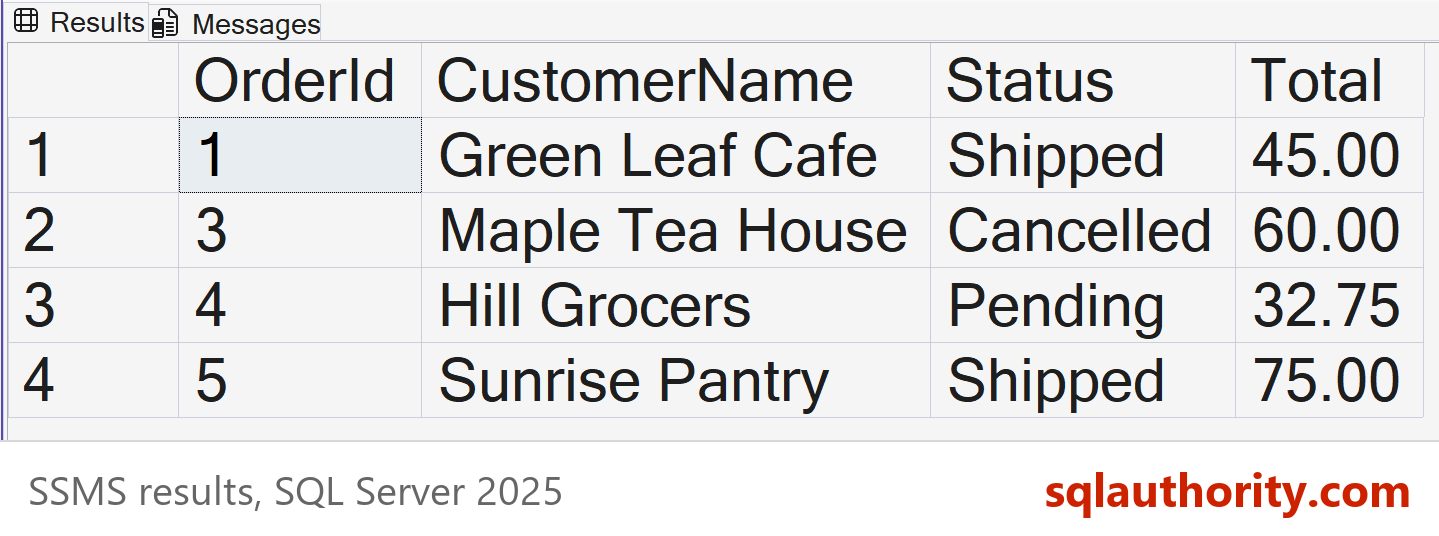
With all three conditions active, the query returns 2 rows. With the Status line switched off, as above, it returns 4. So the status filter was removing a cancelled order and a pending one. Now you know what that line does.
Switch off one line at a time. If you disable two filters together, you can’t tell which one changed the count. Put each line back before you test the next.
The same trick works for columns, with one catch. With commas at the end of each line, switching off the last column leaves a comma behind. The query then fails. Writing the commas at the start of each line avoids that. Any column line except the first can be switched off, and the query still parses.
SELECT OrderId
     , CustomerName
     --, Status
     , Total
FROM dbo.CustomerOrder;
The first column has no leading comma of its own. Switch it off and the comma on the next line is left in front of the new first column. Move that comma as well, or the query fails. Commenting out code in a column list also helps when a result grid is too wide to read. Hide the columns you don’t need for this check, and bring them back when you finish. Nothing is deleted, so nothing has to be remembered.
Block Comments and the GO Trap
A block comment suits a long stretch of code. Put the opening mark above the stretch and the closing mark below it. That’s two edits instead of one per line.
Watch out for GO. It isn’t a T-SQL statement. SSMS and sqlcmd read it as a command. They split your script into batches before SQL Server sees any of it.
A block comment that contains a GO line can fail, but it depends on the client. A tool that splits the script at that GO opens the comment in one batch. It closes in the next. Both batches then report a missing end comment mark. Test how your own tool behaves with a small script before you rely on it.
The safe habit is to put two hyphens in front of every line, GO included. Select the whole stretch and press Ctrl+K, then Ctrl+C. Every disabled line is then a plain comment, whichever tool reads it.
-- Disabled with line comments, so it is safe whether or not the tool splits on GO.
-- DELETE FROM dbo.CustomerOrder WHERE Status = N'Cancelled';
-- GO
-- SELECT COUNT(*) AS OrdersLeft FROM dbo.CustomerOrder;
Leave a Safety Comment Above a DELETE
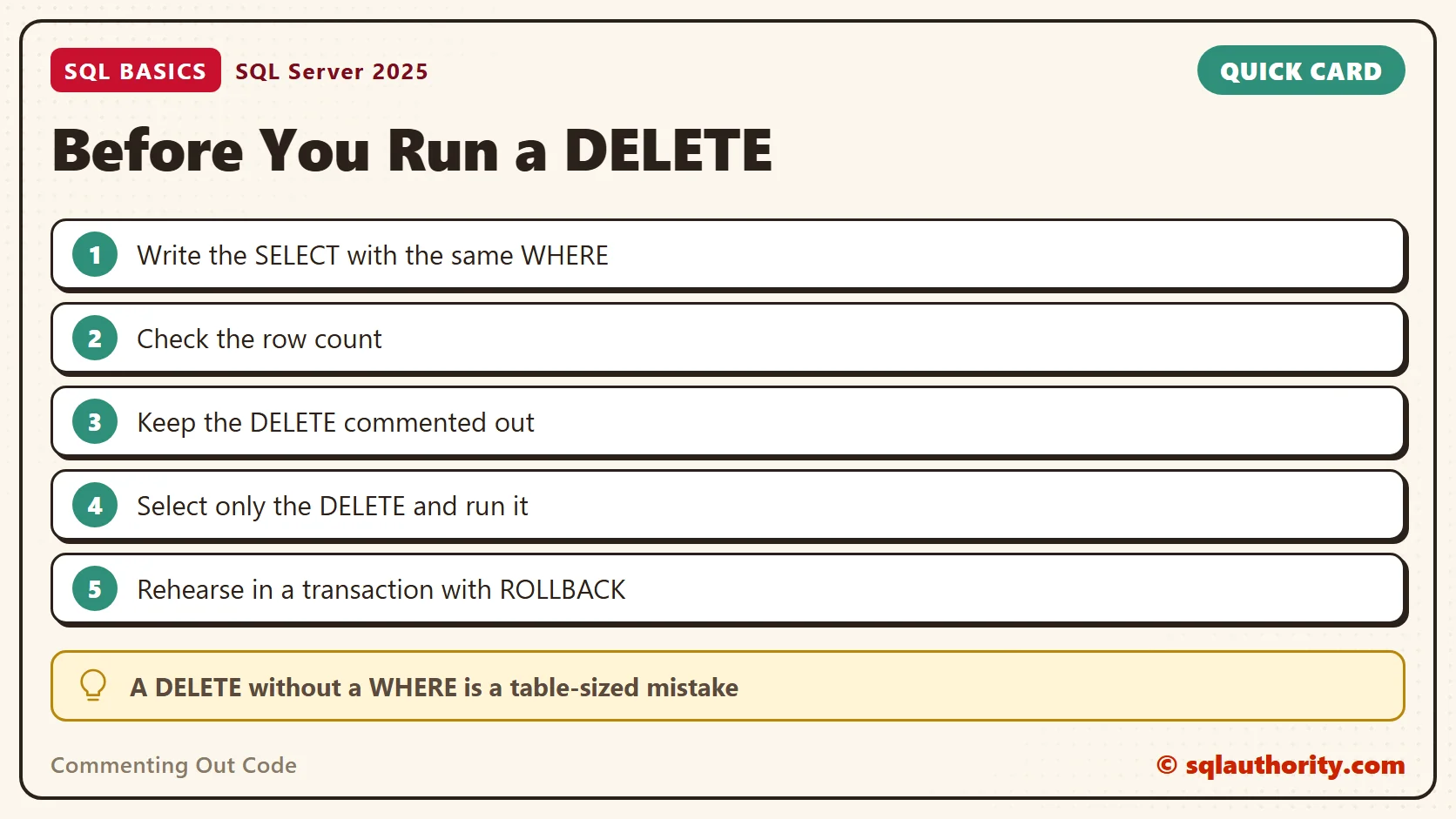
Disabled code is risky when someone presses F5 on the whole window. A DELETE that was left active runs without a question. So keep the destructive statement commented out, and write a note above it that says how to use it.
-- SAFETY: run the SELECT first and check the count. Then select only the DELETE line and run it.
SELECT COUNT(*) AS RowsToDelete FROM dbo.CustomerOrder WHERE Status = N'Cancelled';
-- DELETE FROM dbo.CustomerOrder WHERE Status = N'Cancelled';
The SELECT should return 2. SSMS runs only the highlighted text when you highlight something. That’s why the note says to select the DELETE by itself. My habit is to write the SELECT first, then copy its WHERE clause into the DELETE.
For a stronger test, wrap the statement in a transaction and roll it back. The row count shows what the DELETE would have done, and the table stays untouched. If you already ran the real DELETE above, run the setup script again first. The table then has its six rows.
BEGIN TRANSACTION;
DELETE FROM dbo.CustomerOrder WHERE Status = N'Cancelled';
SELECT @@ROWCOUNT AS RowsDeleted;
ROLLBACK TRANSACTION;
SELECT COUNT(*) AS OrdersAfterRollback FROM dbo.CustomerOrder;
You should see RowsDeleted as 2 and OrdersAfterRollback as 6. Run the whole block together, so the ROLLBACK is never left behind.
Clean Up Before You Save
A script full of half-disabled lines is a trap for the next reader. Before I save a script for anyone else, I read it top to bottom. I look for hyphens in front of code. Each one gets deleted, or gets a comment that explains why it stays.
If a line has to stay disabled, say why and for how long. A note such as “off until finance confirms the new rule” tells the next person that the line is deliberate. Without it, they have to guess whether it’s a leftover or a decision.
The worst leftovers are disabled filters. A query saved with its Status line still switched off returns different rows than the reader expects. Put the line back, run the full script once from the top, and compare the counts you noted earlier.
SSMS shows comments in green by default, so disabled code stands out in a long file. Press Ctrl+F and search for two hyphens followed by DELETE or UPDATE. Commenting out code should leave nothing behind that surprises a stranger.
Related reading
SQL Code Comments: Notes Your Future Self Can Read
SSMS Keyboard Shortcuts Worth Learning
What Is a Transaction in SQL Server?
Commenting out is not a safety net, it is a promise to check before you save.
Published by Pinal Dave on SQLAuthority. More of my work at pinaldave.com.
Discover more from SQL Authority with Pinal Dave
Subscribe to get the latest posts sent to your email.