To Add IP Address to Firewall rules, I first confirm the intended Azure SQL network path. A home connection prompted this walkthrough.

The customer keeps control of their computer and credentials during my consultation. Their current public address fell outside the permitted rules. That prevented the home connection to Azure SQL.
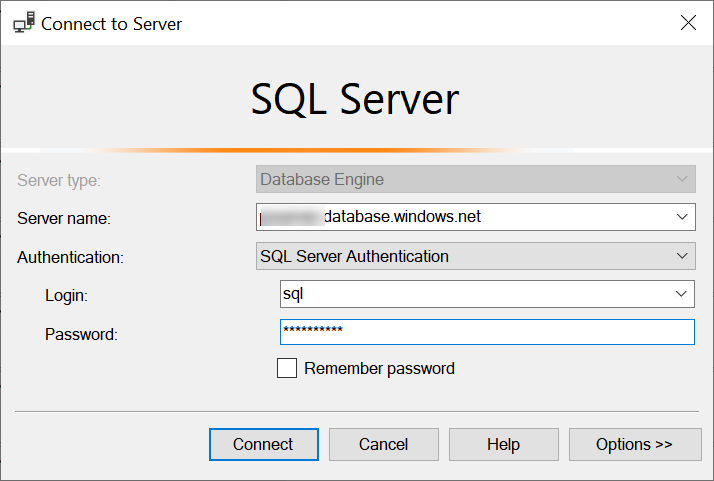
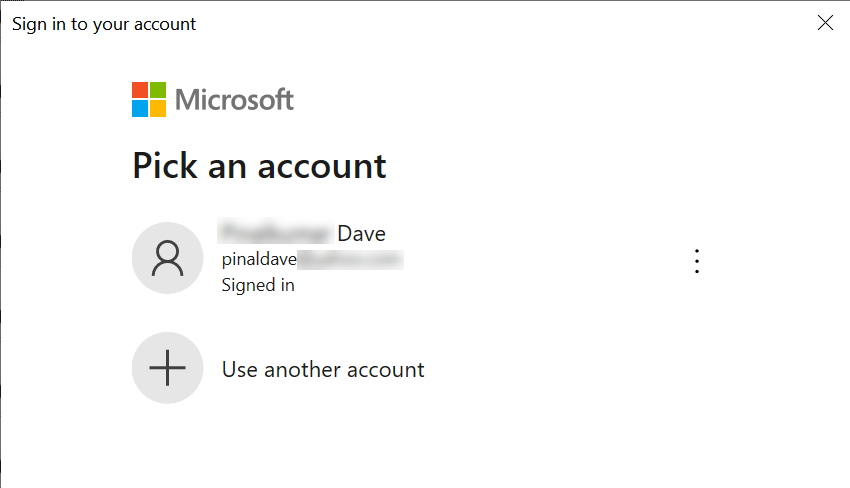
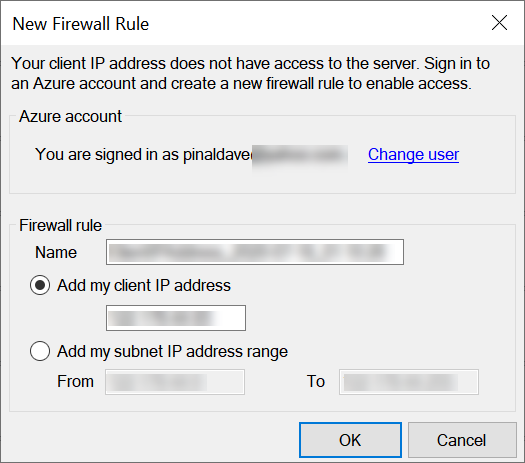
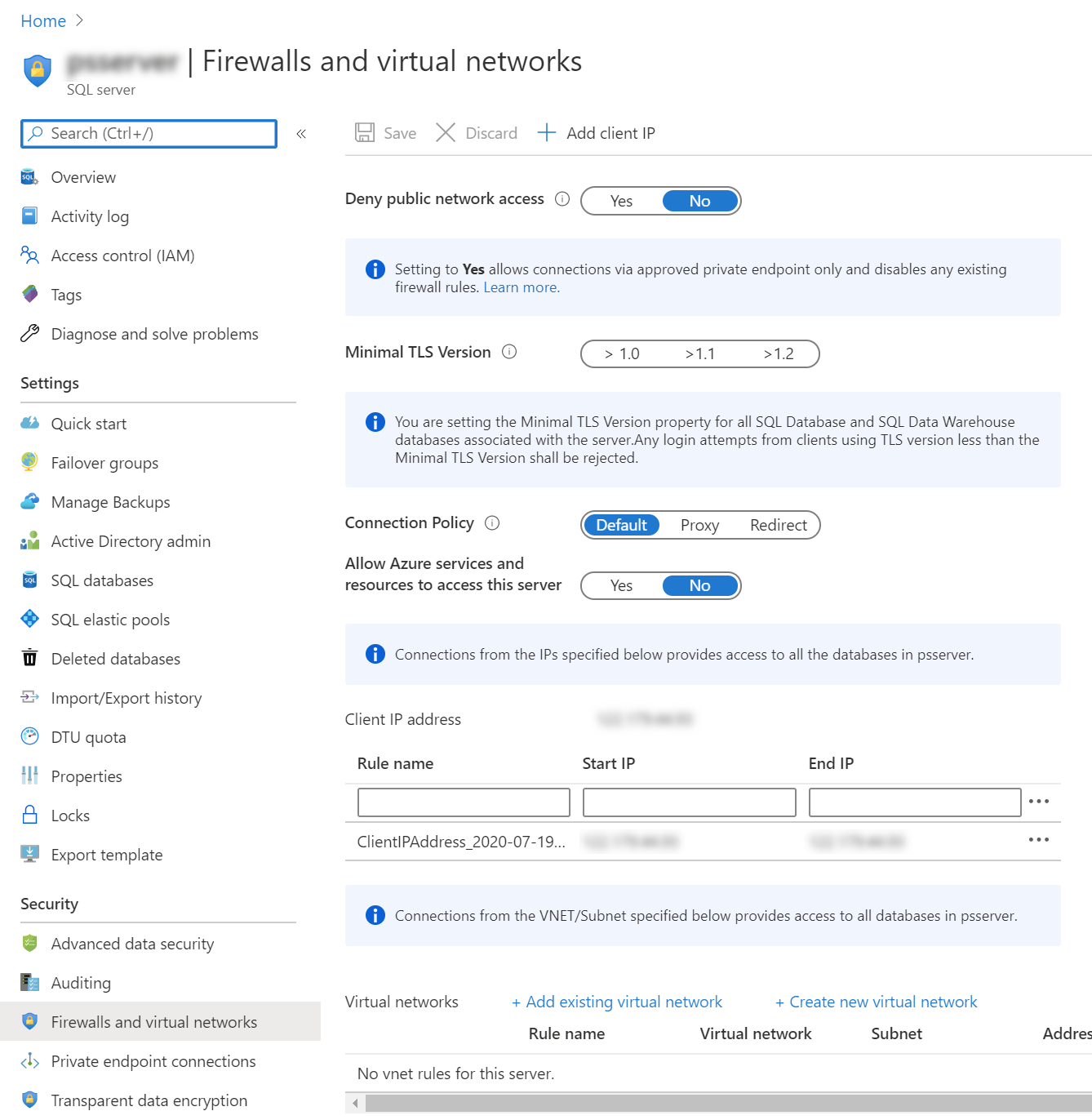
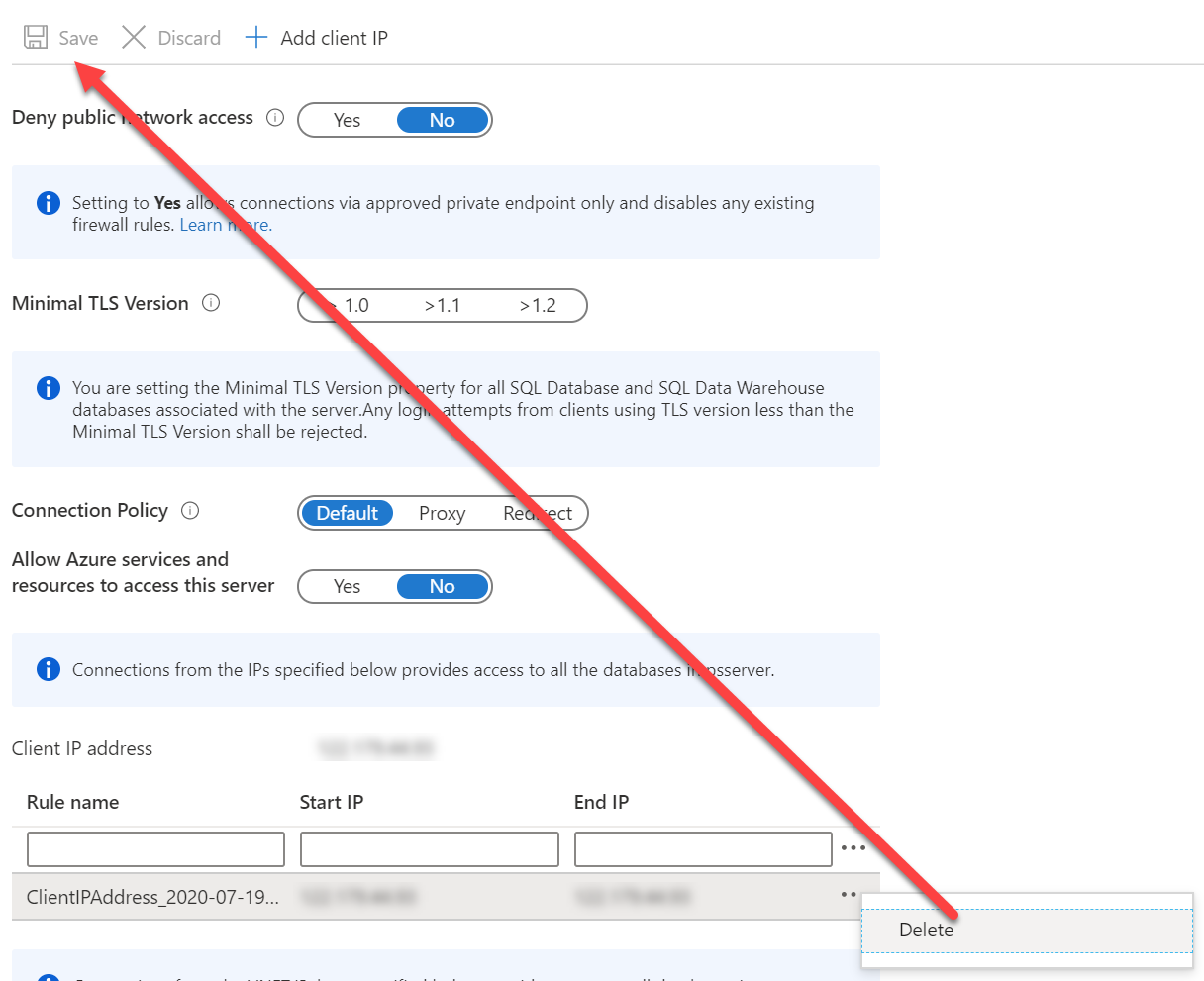
- Identify the logical server and the client’s current public egress IP, including the effect of a VPN or network gateway.
- Have an authorized administrator open the server’s Networking settings in the Azure portal.
- For an approved public-endpoint configuration, allow the narrow required address or range and save the change.
- Retry the connection and separately verify the SQL identity and database permissions.
The old SSMS sign-in dialog offered a convenient rule-creation path. Current clients don’t necessarily expose that same workflow. Private endpoints require their own routing and DNS. Don’t enable public access to bypass that design.
Review existing rules with their owners before removal. Save approved changes and test affected clients. Avoid unrestricted ranges or broad Azure-service access solely to remove the error.
Reference: Azure SQL server firewall procedure.
Related reading
A firewall permission is not database authorization, it is permission to reach the endpoint over the network.
Published by Pinal Dave on SQLAuthority. More of my work at pinaldave.com.
Discover more from SQL Authority with Pinal Dave
Subscribe to get the latest posts sent to your email.