Azure SQL firewall rules decide which IP addresses can reach your server, and T-SQL manages them. You can list the rules, add one, change its range and remove it, all from a query window. There is one thing T-SQL can’t do, and it is covered at the end.

Two Levels of Rules
A logical server in Azure SQL Database keeps its firewall rules at two levels. A server-level rule lets an address reach every database on the server. It is stored in the master database. A database-level rule lets an address reach one database only, and it is stored in that database. When a client connects, Azure checks the database-level rules first and the server-level rules next. These views and procedures belong to Azure SQL Database. A managed instance has no firewall rules of this kind.
The statements below run on Azure SQL Database, which this test machine can’t reach. The test server here is SQL Server 2025, so none of the statements was run. Everything below follows the documented behavior. The addresses are placeholders in angle brackets. Replace them with your own.
List the Server-Level Rules
Connect to the master database of the logical server as the server admin. The view sys.firewall_rules shows one row for each rule. The columns create_date and modify_date help you spot rules that nobody has touched for years.
-- Run in the master database of the logical server
SELECT id, name, start_ip_address, end_ip_address, create_date, modify_date
FROM sys.firewall_rules
ORDER BY name;
Read the ranges first. A rule that spans a wide block of addresses is the one to question. A rule that starts and ends at the all-zero address is the special entry that lets Azure services in.
Add or Change a Rule
The procedure sp_set_firewall_rule takes a name and a start and end address. For one address, use the same value twice.
-- Run in the master database
EXECUTE sp_set_firewall_rule @name = N'OfficeNetwork',
    @start_ip_address = '<office address>', @end_ip_address = '<office address>';
Rule names are unique. Run the procedure again with the same name and a different range. Azure updates the rule instead of adding a second one. This statement widens the rule from one address to a block of ten.
-- Run in the master database
EXECUTE sp_set_firewall_rule @name = N'OfficeNetwork',
    @start_ip_address = '<first address>', @end_ip_address = '<tenth address>';
A new or changed rule can take up to five minutes to take effect. If a client is still blocked after that time, compare its real address with the rule.
Remove a Rule
Removal needs only the name.
-- Run in the master database
EXECUTE sp_delete_firewall_rule @name = N'OfficeNetwork';
Check the list afterward. If a rule has gone, the next query on sys.firewall_rules no longer returns its name.
Spot an Open Door
Audit Azure SQL firewall rules for two things. The first is a rule that opens the server to every address. The second is a rule that nobody has touched for a long time. It belongs to a person or project that could be gone. Both checks are plain queries on the same view.
-- Run in the master database
SELECT name, start_ip_address, end_ip_address
FROM sys.firewall_rules
WHERE start_ip_address LIKE N'0.%' AND end_ip_address LIKE N'255.%';

SELECT name, start_ip_address, end_ip_address, modify_date
FROM sys.firewall_rules
WHERE modify_date < DATEADD(YEAR, -1, GETDATE())
ORDER BY modify_date;
The first query looks for a rule from an address beginning with 0 to one beginning with 255. Such a rule covers almost every address. The query should return no rows. Any row it returns is a rule that lets the whole internet reach the server’s sign-in page. The second returns the old rules. Each one deserves a question: who is this for, and is it still needed?
Database-Level Rules
Database-level rules work the same way, with their own view and procedures, and they run in the user database. Use them when one application server should reach one database and nothing else.
-- Run in the user database
SELECT id, name, start_ip_address, end_ip_address, create_date, modify_date
FROM sys.database_firewall_rules
ORDER BY name;

EXECUTE sp_set_database_firewall_rule @name = N'ReportingServer',
    @start_ip_address = '<reporting server address>', @end_ip_address = '<reporting server address>';

EXECUTE sp_delete_database_firewall_rule @name = N'ReportingServer';
Find the Address Azure Sees
The address in a rule has to be the one Azure sees. That is your public address, not the one on your own machine. A home or office network translates private addresses to a public one. A client that is blocked gets error 40615, and the message names the address that Azure saw. Copy that address into the rule. A rule built from the local address of a laptop never matches.
The One Thing T-SQL Can’t Do
You could argue that T-SQL is the best way to manage firewall rules, since it fits into scripts. It is, with one limit. The statements above run over a connection, and a connection needs a rule that already lets you in. The first server-level rule has to come from another tool. Use the Azure portal, PowerShell with New-AzSqlServerFirewallRule, or the Azure CLI with az sql server firewall-rule create. After that, T-SQL is enough.
The same limit explains a common lockout. Remove the rule for your own address and the next connection is refused. Keep a second way in before you delete rules.
What to Remember
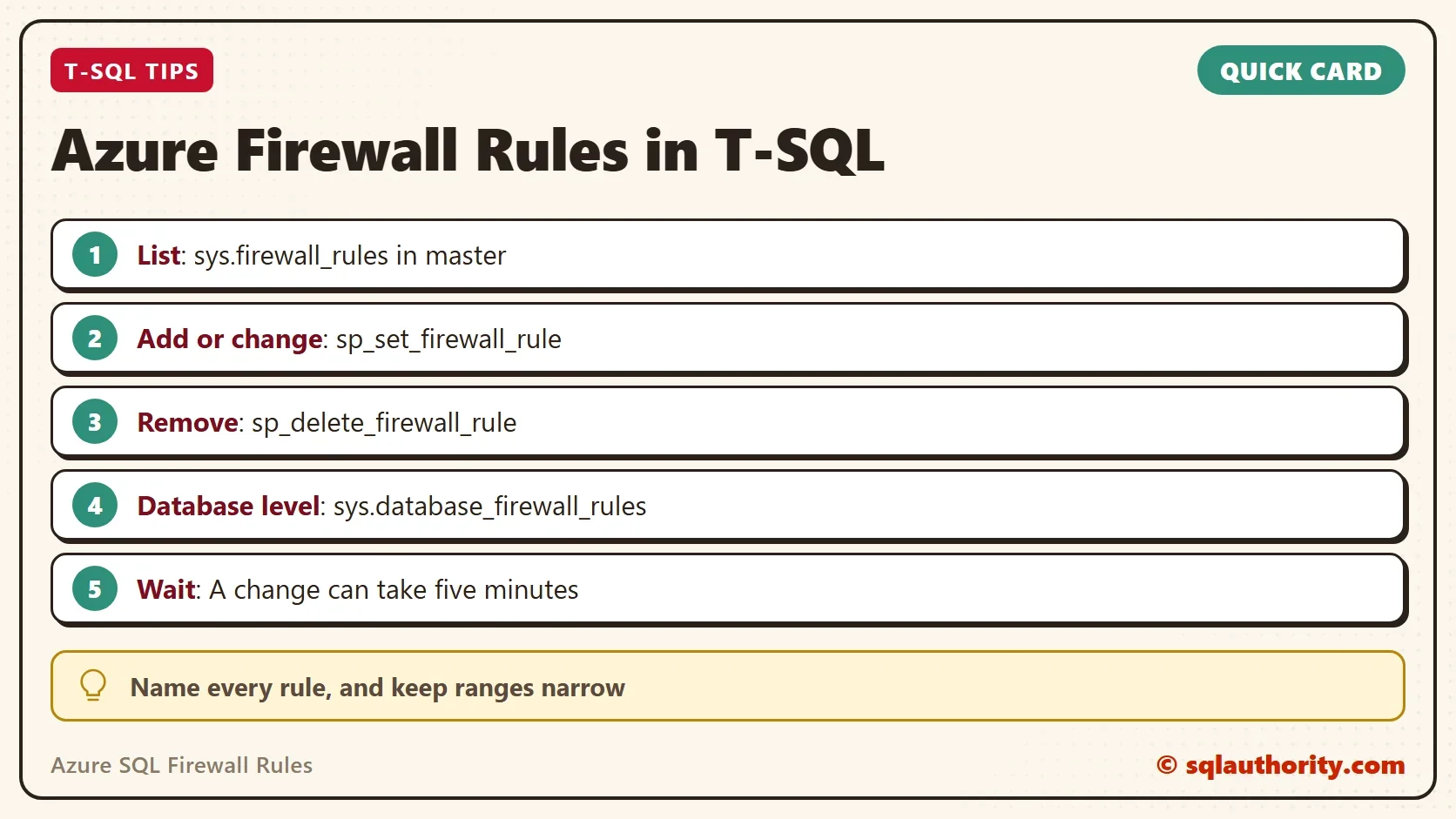
Use sys.firewall_rules to see what is open, sp_set_firewall_rule to add or change, and sp_delete_firewall_rule to remove. Give every rule a name that says who it is for, and keep each range as narrow as the need. Review create_date and modify_date every few months, and remove the rules that nobody can explain.
Azure SQL firewall rules are the first line of defense, not the only one. Sign-in rules and permissions still apply once a client gets through.
A firewall rule is not a convenience, it is a door you have to remember you opened.
Published by Pinal Dave on SQLAuthority. More of my work at pinaldave.com.
Discover more from SQL Authority with Pinal Dave
Subscribe to get the latest posts sent to your email.