
Visible offline schedulers are CPUs that Windows shows and SQL Server refuses to use. One query finds them in seconds.

The Case
A client upgraded a server from 2 CPUs to 8 and saw no improvement. That was surprising, because the CPU count had quadrupled. The CPU pressure query from Query for CPU Pressure: Sample the Scheduler Queue showed heavy pressure, which made it stranger.
The next step was to read the schedulers. SQL Server runs one scheduler for each CPU it uses. The client’s output showed one scheduler VISIBLE ONLINE and seven VISIBLE OFFLINE. Only one of the eight CPUs was doing any work.
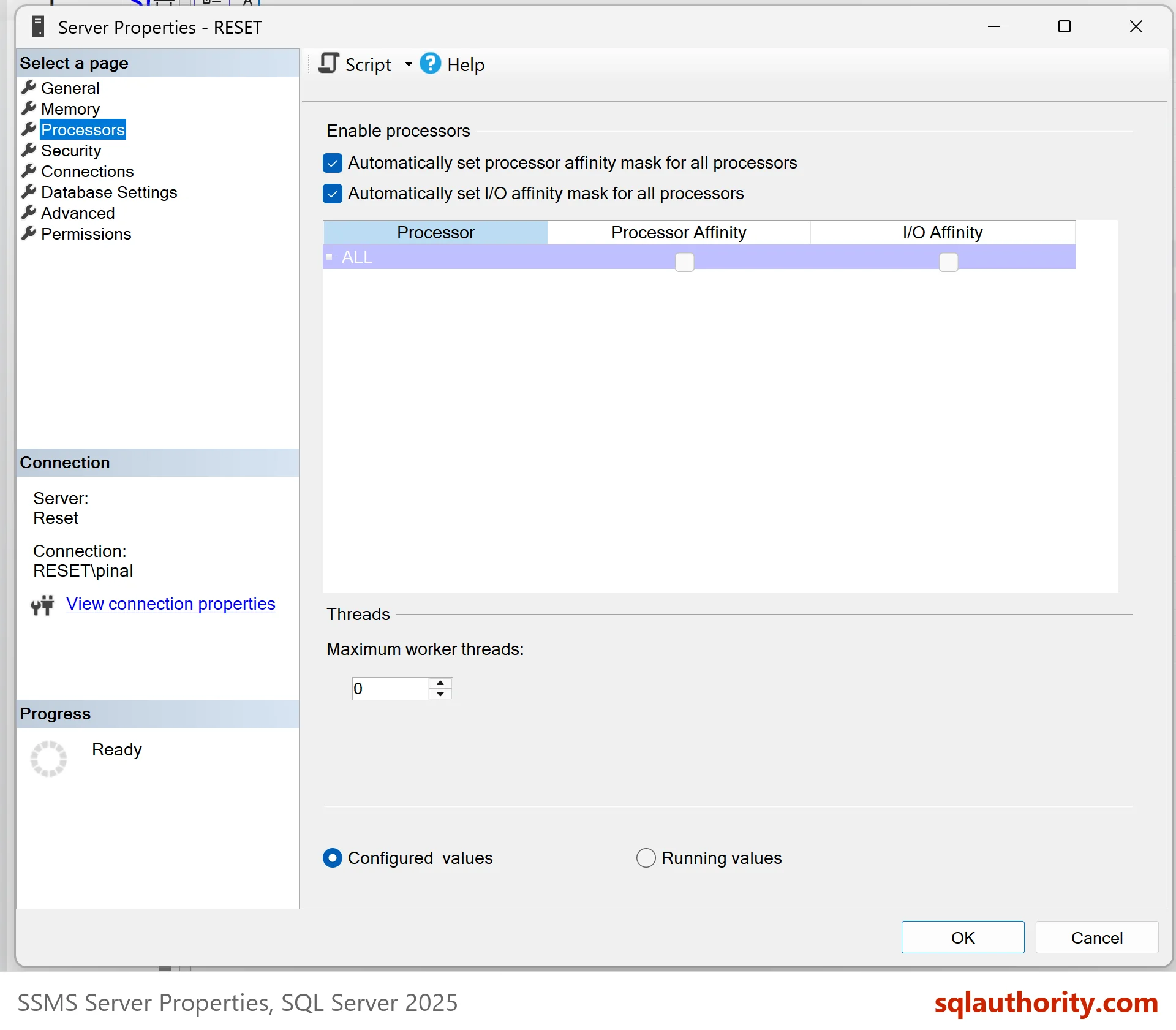
The cause was in Server Properties. On the Processors page, processor affinity was set by hand to one CPU. Ticking the box to set the affinity mask automatically for all processors brought the other seven online. No restart was needed, and performance improved at once.
Read the Scheduler Status
A scheduler is SQL Server’s own scheduling unit for a CPU. The view sys.dm_os_schedulers lists them with a status. On the test server, the dedicated admin connection has scheduler_id 1048576, and the hidden schedulers have higher numbers. Older versions used 255 for the dedicated admin connection. In both cases, a filter below 255 keeps the ones that run your queries.
SELECT s.status, COUNT(*) AS Schedulers
FROM sys.dm_os_schedulers AS s
WHERE s.scheduler_id < 255
GROUP BY s.status
ORDER BY s.status;
| status | Schedulers |
|---|---|
| VISIBLE ONLINE | 16 |
The test server has 16 CPUs and 16 visible online schedulers. That is the healthy picture. VISIBLE ONLINE means the CPU takes user work. VISIBLE OFFLINE means the CPU exists, but SQL Server won’t schedule work on it.
Compare With the CPUs Windows Sees
The next query puts the three numbers side by side. It reads the CPU count Windows reports, the schedulers that are online and offline, and the affinity type.
SELECT i.cpu_count AS CpusSeenByWindows,
       SUM(CASE WHEN s.status = N'VISIBLE ONLINE'  THEN 1 ELSE 0 END) AS SchedulersOnline,
       SUM(CASE WHEN s.status = N'VISIBLE OFFLINE' THEN 1 ELSE 0 END) AS SchedulersOffline,
       i.affinity_type_desc AS AffinityType
FROM sys.dm_os_sys_info AS i
CROSS JOIN sys.dm_os_schedulers AS s
WHERE s.scheduler_id < 255
GROUP BY i.cpu_count, i.affinity_type_desc;| CpusSeenByWindows | SchedulersOnline | SchedulersOffline | AffinityType |
|---|---|---|---|
| 16 | 16 | 0 | AUTO |
Any number above 0 in SchedulersOffline deserves a look. This query lists the offline ones by scheduler and CPU.
SELECT s.scheduler_id, s.cpu_id, s.status, s.is_online
FROM sys.dm_os_schedulers AS s
WHERE s.scheduler_id < 255 AND s.status = N'VISIBLE OFFLINE'
ORDER BY s.scheduler_id;
On the test server it returns no rows, which is the result you want. On the client’s server it would have returned seven rows.
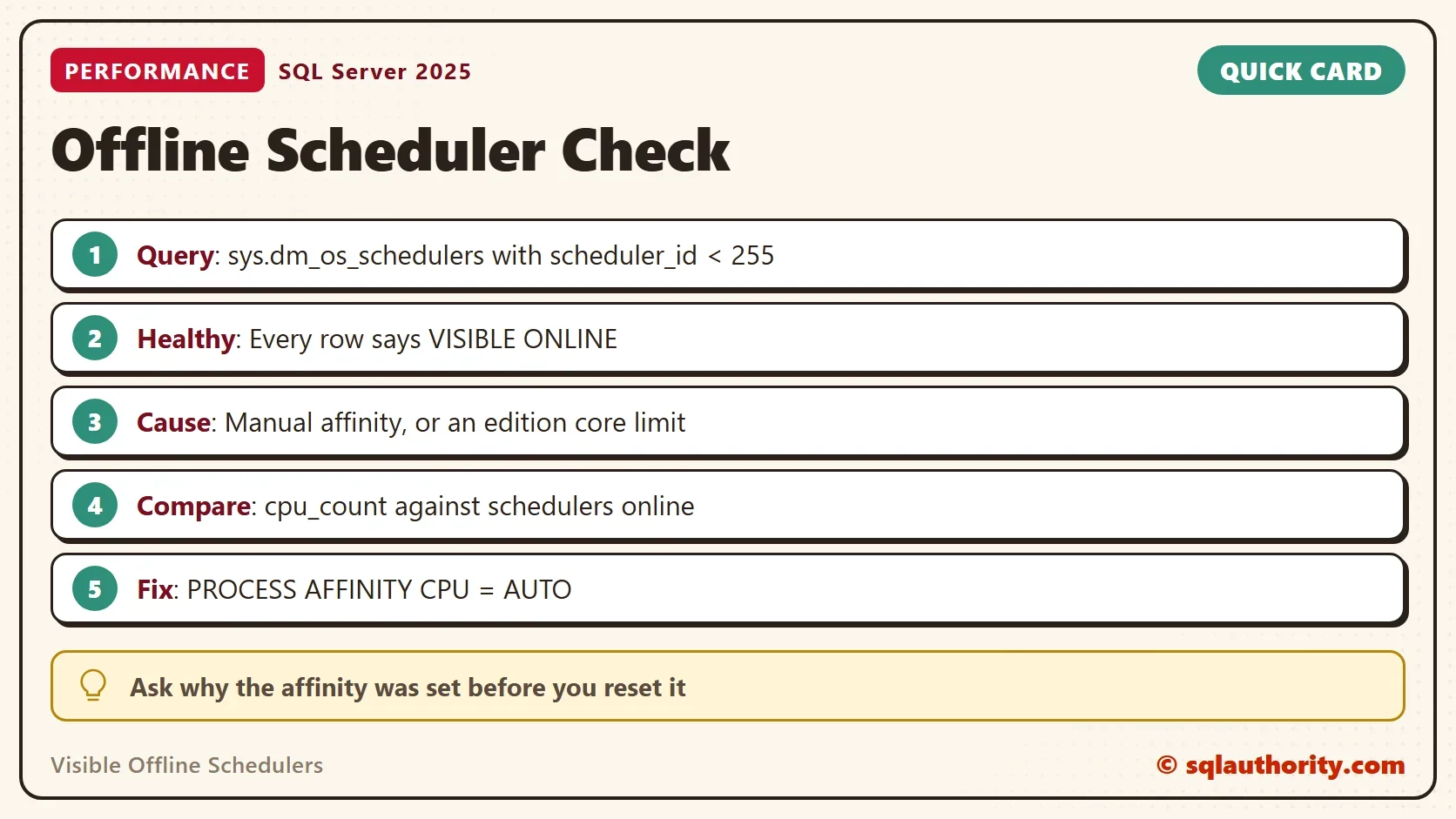
Why does one online scheduler hurt so much? Every query then shares one CPU. Tasks wait in the runnable queue for their turn, and the queue grows with each new session. The CPU pressure query shows that queue as heavy pressure, even though seven CPUs sit idle. That is why the client’s numbers looked strange.
After any hardware change, review the related settings too. The test server has 16 CPUs and a max degree of parallelism of 2. A change in the CPU count is a good moment to check that the value still fits.
Find Out Why a CPU Is Offline
Two causes to check first. The first is affinity set by hand, as in the client’s case. The second is an edition limit. Standard edition caps the CPUs SQL Server can use. A virtual machine with many sockets can show offline schedulers even with automatic affinity. This query shows the affinity side.
SELECT i.affinity_type_desc AS AffinityType,
       i.process_physical_affinity AS ProcessAffinity,
       c.value_in_use AS AffinityMask
FROM sys.dm_os_sys_info AS i
CROSS JOIN sys.configurations AS c
WHERE c.name = N'affinity mask';| AffinityType | ProcessAffinity | AffinityMask |
|---|---|---|
| AUTO | {{0,ffff}} | 0 |
AUTO means SQL Server chooses its CPUs. MANUAL means someone restricted them. The process affinity column shows the processor group and a mask in hex. The value ffff is 16 bits, one for each of the 16 CPUs. A mask of 1 would mean CPU 0 only, which is the client’s case. The old affinity mask option from sp_configure is 0 here, which means it isn’t used.
Fix It
The Server Properties page and a T-SQL statement do the same thing. The statement below sets the affinity back to automatic. It changes the server, so run it only after you know why the setting was made. The undo is in a comment.
ALTER SERVER CONFIGURATION SET PROCESS AFFINITY CPU = AUTO;
-- Undo, only if you restricted the CPUs on purpose. Example for CPU 0 only:
-- ALTER SERVER CONFIGURATION SET PROCESS AFFINITY CPU = 0;
After the change, run the status query again. All schedulers should read VISIBLE ONLINE. If visible offline schedulers remain, check the edition and the license limit next.
You could argue that affinity has good uses. Pinning an instance to some CPUs can limit a noisy neighbor on a shared host. It can also keep work on one NUMA node. That is true. The problem isn’t affinity. The problem is affinity that nobody remembers.
What to Remember
After any CPU change, count the visible online schedulers. If the number is lower than the CPU count, you have visible offline schedulers. Find the reason before you tune any query. Pair this check with the pressure measure in Measure CPU Pressure in SQL Server with Waits and Schedulers.
A silent offline scheduler is not a hardware problem, it is a setting nobody remembers.
Published by Pinal Dave on SQLAuthority. More of my work at pinaldave.com.
Discover more from SQL Authority with Pinal Dave
Subscribe to get the latest posts sent to your email.




1 Comment. Leave new
Good one. I liked the statement the journey is always more fun than the destination.
Life should be a journey not destiny. :)