
A Configuration Manager WMI error locks you out of SQL Server Configuration Manager. I solved this error about three years ago with another method, in my earlier post on the WMI provider error. The other day I faced it again, and this time I used a different method.

The Error
I was working on a Comprehensive Database Performance Health Check for a client when I suddenly received this error:
SQL Server Configuration Manager
Cannot connect to WMI provider. You do not have permission or the server is unreachable. Note that you can only manage SQL Server 2005 and later servers with SQL Server Configuration Manager.
Why It Happens
Configuration Manager talks to SQL Server through a WMI provider. The mofcomp tool compiles the provider definition file back into the WMI repository, which registers the provider again.

How to Check
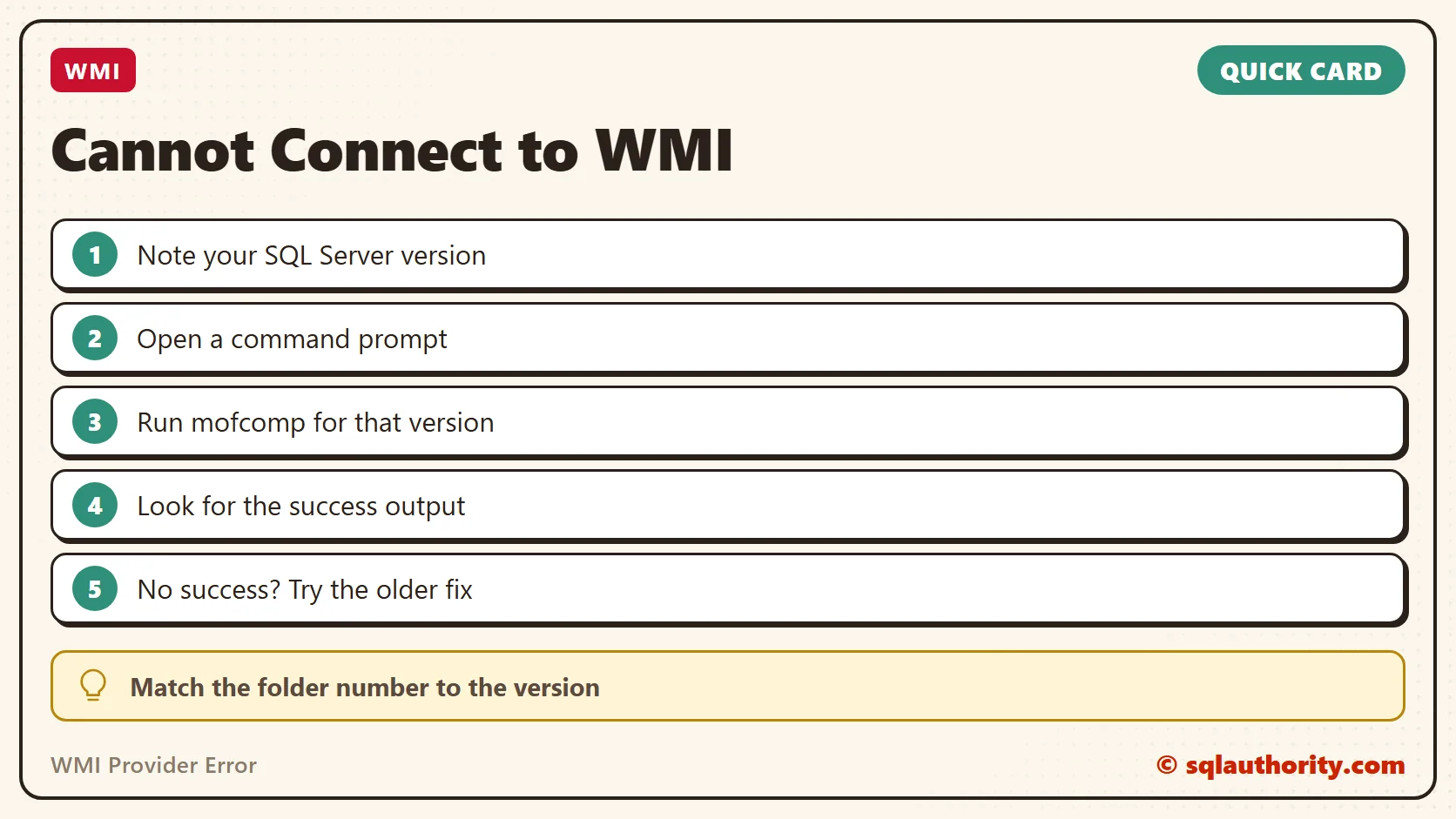
Note which version of SQL Server is installed on the machine. The folder number in the mofcomp command depends on it:
- SQL Server 2005: 90
- SQL Server 2008 and 2008 R2: 100
- SQL Server 2012: 110
- SQL Server 2014: 120
- SQL Server 2016: 130
- SQL Server 2017: 140
- SQL Server 2019: 150
The Fix
Open a command prompt on the local machine and run the command for the version that is installed:
mofcomp "%programfiles(x86)%\Microsoft SQL Server\90\Shared\sqlmgmproviderxpsp2up.mof"
mofcomp "%programfiles(x86)%\Microsoft SQL Server\100\Shared\sqlmgmproviderxpsp2up.mof"
mofcomp "%programfiles(x86)%\Microsoft SQL Server\110\Shared\sqlmgmproviderxpsp2up.mof"
mofcomp "%programfiles(x86)%\Microsoft SQL Server\120\Shared\sqlmgmproviderxpsp2up.mof"
mofcomp "%programfiles(x86)%\Microsoft SQL Server\130\Shared\sqlmgmproviderxpsp2up.mof"
mofcomp "%programfiles(x86)%\Microsoft SQL Server\140\Shared\sqlmgmproviderxpsp2up.mof"
mofcomp "%programfiles(x86)%\Microsoft SQL Server\150\Shared\sqlmgmproviderxpsp2up.mof"
Confirm It Worked
When you run the command, it gives you a success output. Then open SQL Server Configuration Manager again.
If you do not get success for any reason, follow the steps in my earlier post.
How to Prevent It
Keep both fixes handy. Try mofcomp first, and the older steps if it does not succeed. If you know another tip, tell me in the comments. I will add it to this post with credit to you.
This WMI error is not a dead end, it is a provider that needs to be registered again.
Published by Pinal Dave on SQLAuthority. More of my work at pinaldave.com.
Discover more from SQL Authority with Pinal Dave
Subscribe to get the latest posts sent to your email.




3 Comments. Leave new
Thank you so much, it worked beautifully :)
Thanks! as usual you solve my problem. It worked in SQL Server 2019, while the other webpages suggested to reinstall Sql Server, here with a one line command you did the trick. Thank you!
Thanks Pinal, I’m using 2022, do you maybe have a script for that?
You are always my first stop, your assistance is highly appreciated :)