
An authentication mode greyed out in SSMS means the Security page can’t show the value it reads. The server still runs in some mode. Read that mode with a short query, with the registry value SSMS uses, or from the error log. Then decide whether anything needs repair.

What an Authentication Mode Greyed Out Page Means
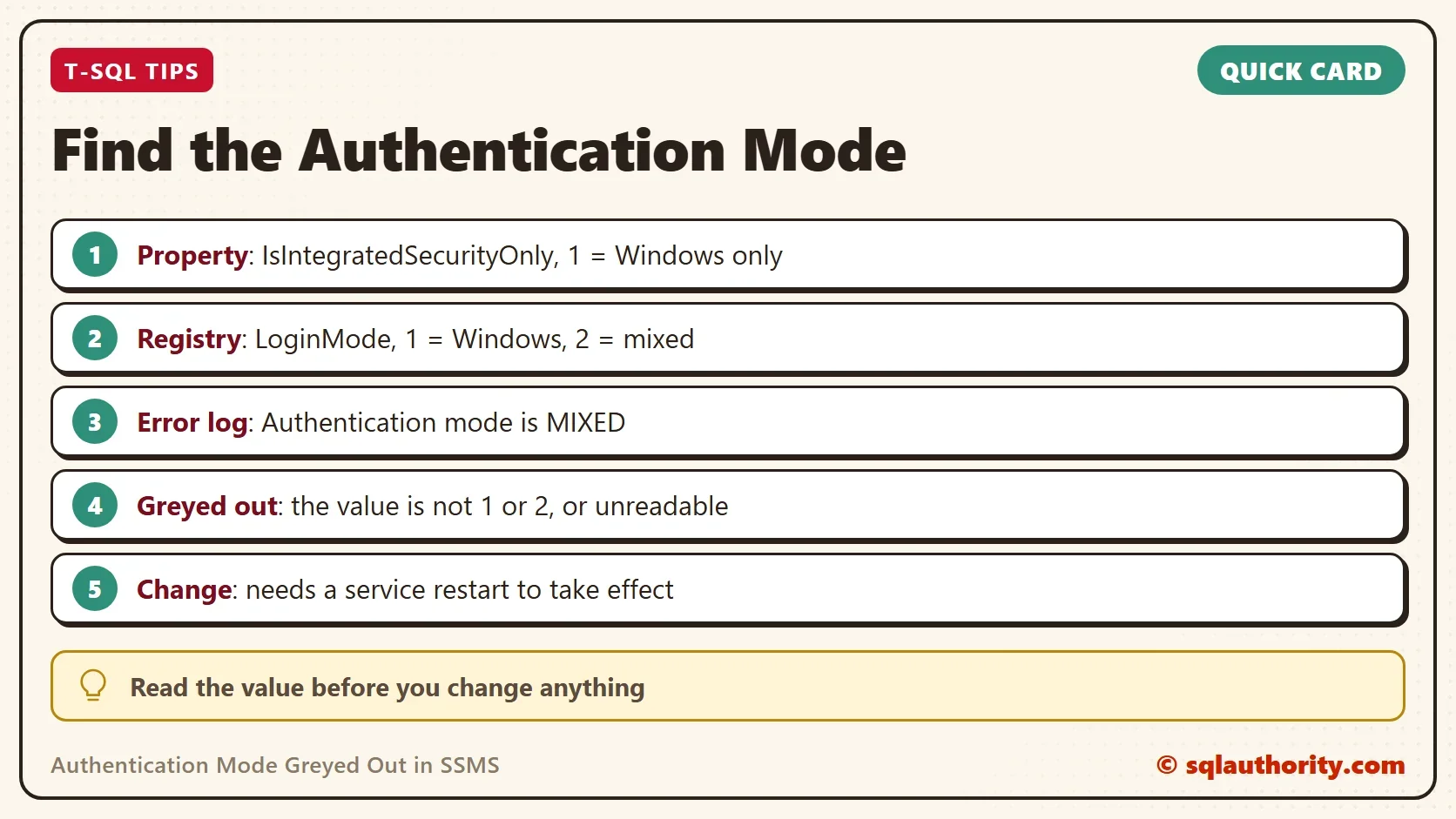
Open Server Properties and select the Security page. SSMS runs a small script to fill the option group. The group offers two choices, Windows Authentication mode and SQL Server and Windows Authentication mode. In an old SSMS 18 trace, that script read one registry value, named LoginMode, through the extended procedure xp_instance_regread. A value of 1 selects the first option, and a value of 2 selects the second.

If the value is anything else, no option can be selected. The group is greyed out with nothing checked. The same happens when the read fails. Both causes leave the server itself running in some mode, so the first job is to find out which one.
The two modes differ in who can connect. Windows Authentication mode accepts only Windows accounts. The mixed mode also accepts SQL logins, such as sa and the logins that applications use. A change of mode takes effect after the SQL Server service restarts.
Read the Mode With SERVERPROPERTY
The quickest check needs no registry access. SERVERPROPERTY reports IsIntegratedSecurityOnly, which is 1 for Windows Authentication only and 0 for both modes. The query turns the number into words. When the page is greyed out, this is the fastest check.
SELECT CASE CAST(SERVERPROPERTY('IsIntegratedSecurityOnly') AS int)
            WHEN 1 THEN N'Windows Authentication'
            WHEN 0 THEN N'Windows and SQL Server Authentication'
END AS AuthenticationMode;| AuthenticationMode |
|---|
| Windows and SQL Server Authentication |
Read the Value SSMS Reads
The next script reads the registry value itself. If you see the greyed-out page, run this script and look at LoginMode. A 1 or a 2 means the registry is fine, and the problem sits in how SSMS reads it. Any other number, or an error, points at the registry. The procedure is not part of the official documentation, so use it to read, never to build a feature.
DECLARE @LoginMode int;
EXEC master.dbo.xp_instance_regread N'HKEY_LOCAL_MACHINE', N'Software\Microsoft\MSSQLServer\MSSQLServer', N'LoginMode', @LoginMode OUTPUT;
SELECT @LoginMode AS LoginMode;
| LoginMode |
|---|
| 2 |
On the test server, the value is 2, which means both modes. The same script also ran for a login with no special rights, without an error. That login could not read the error log (Msg 27219). Test it with the account that sees the greyed-out page.
Read the Mode From the Error Log
The error log has a third source. SQL Server writes a line at every start that names the mode. The line sits in the log that was current at startup, so look in the archives when it is missing. For the first archive, run sp_readerrorlog 1, 1, N'Authentication mode'. Reading the log needs the sysadmin role or securityadmin. A login without those roles fails with message 27219.
CREATE TABLE #AuthLine (LogDate datetime, ProcessInfo nvarchar(50), LogText nvarchar(max));
INSERT INTO #AuthLine EXEC sys.sp_readerrorlog 0, 1, N'Authentication mode';
SELECT TOP (1) LogText FROM #AuthLine ORDER BY LogDate DESC;
DROP TABLE #AuthLine;
| LogText |
|---|
| Authentication mode is MIXED. |
The two possible lines are Authentication mode is WINDOWS-ONLY and Authentication mode is MIXED. If all three sources agree and the page is still greyed out, the cause is not the stored mode. Check the account that opens Server Properties, because the reason is assumed and wasn’t reproduced here. If they disagree, trust the error log for what the server started with.
Repair a Bad Registry Value
When LoginMode holds a number other than 1 or 2, write the correct number back. A reader reported that this repaired the page, and the statement in that report wrote a 1. Choose the value you want. A 1 switches the server to Windows Authentication only, and the SQL logins stop working after the restart. The change needs a service restart. It edits the registry. Export the key first, try the statement on a test server and write down the old value.
-- Change LoginMode to the value you want: 1 = Windows Authentication, 2 = Windows and SQL Server Authentication
EXEC master.dbo.xp_instance_regwrite N'HKEY_LOCAL_MACHINE', N'Software\Microsoft\MSSQLServer\MSSQLServer', N'LoginMode', REG_DWORD, 2;
-- Undo: run the same statement with the old value, then restart the service
The block is shown for reading and isn’t part of the demo, because it edits the server’s registry. The safer way to change the mode is the Security page itself, once the radio buttons work again.
When a Greyed-Out Page Doesn’t Matter
You could argue that an authentication mode greyed out in SSMS can be ignored, since the server runs fine. That’s true until you need to change the mode or add a SQL login for an application. It also fails when an auditor asks which mode is on. The three reads above answer all of that in a minute. Fix the registry value only when they show a problem.
What to Remember
An authentication mode greyed out in SSMS means SSMS could not match the stored value to its two options. Read the real mode with SERVERPROPERTY, with LoginMode and with the error log. A value of 1 means Windows only, and a value of 2 means both. Change the value on a test server first, and restart the service afterward.
A greyed-out page is not a missing setting, it is a value SSMS could not read.
Published by Pinal Dave on SQLAuthority. More of my work at pinaldave.com.
Discover more from SQL Authority with Pinal Dave
Subscribe to get the latest posts sent to your email.



3 Comments. Leave new
Thank you for your posting.
And if you just want to know which it is you can use this script.
SELECT
CASE SERVERPROPERTY(‘IsIntegratedSecurityOnly’)
WHEN 1 THEN ‘Windows Authentication’
WHEN 0 THEN ‘Windows and SQL Server Authentication’
END AS [Authentication Mode]
Solution for above mentioned problem of authentication option grayed out is as below, please run below script..
It worked for me
USE [master]
GO
EXEC xp_instance_regwrite N’HKEY_LOCAL_MACHINE’,
N’Software\Microsoft\MSSQLServer\MSSQLServer’,
N’LoginMode’, REG_DWORD, 1
GO