You can set LPIM in Configuration Manager since SQL Server 2019, without editing the local security policy by hand. LPIM stands for Lock Pages in Memory. It is a Windows privilege, and the property now sits on one tab. Setting LPIM in Configuration Manager takes one change and one restart.

What the Privilege Does
Windows can take memory back from a running process when the machine runs short. SQL Server keeps its buffer pool in memory. A trim can slow it down. The Lock Pages in Memory privilege lets the service lock pages in physical memory. Windows cannot page out a locked page. Whether you need it depends on your server. Lock Pages in Memory: When to Enable It and How to Check covers that decision. This post covers the how.
Where the Property Lives
Older versions asked you to open the Local Security Policy. You went to User Rights Assignment and added the service account to Lock pages in memory. That route still works. The SQL Server 2019 Configuration Manager adds a shortcut. Open it as an administrator. Select SQL Server Services, right-click the Database Engine service of your instance, and choose Properties. The Advanced tab lists the property Lock Pages in Memory. Its description says that it grants the privilege to the service account.
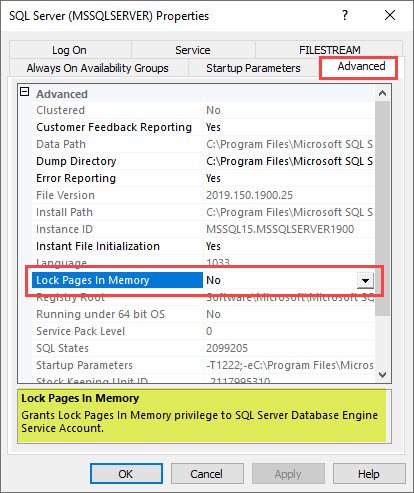
Change the value and apply it. The service account then appears in the policy list on its own, so you skip the manual steps. The privilege reaches the service only when the service starts. Restart it, and plan that restart for a quiet moment.
The same tab holds a second property, Instant File Initialization. Both appear in the provider that Configuration Manager reads, so both can be read from a script.
Read the Property From PowerShell
Configuration Manager reads its settings through a WMI provider. You can read the same provider yourself, and it changes nothing. The namespace carries the version number of the engine, 17 for SQL Server 2025 and 15 for SQL Server 2019. The command below lists both properties for every SQL Server service on the machine. It is PowerShell, not T-SQL, so run it in a PowerShell window.
Get-CimInstance -Namespace root\Microsoft\SqlServer\ComputerManagement17 -ClassName SqlServiceAdvancedProperty |
    Where-Object { $_.PropertyName -in 'LOCKPAGES', 'INSTANT_FILE_INIT' } |
Select-Object ServiceName, PropertyName, PropertyNumValue| ServiceName | PropertyName | PropertyNumValue |
|---|---|---|
| MSSQL$SQLDEV | INSTANT_FILE_INIT | 0 |
| MSSQL$SQLDEV | LOCKPAGES | 0 |
A value of 0 means the privilege is not granted. The service name is MSSQL$ followed by your instance name, or MSSQLSERVER for a default instance. A value of 1 would mean that the privilege is granted (documented, not shown here).
Check the Result With T-SQL
After the restart, ask SQL Server itself. The column sql_memory_model_desc names the memory model. CONVENTIONAL means ordinary memory. LOCK_PAGES means the buffer pool uses locked pages, and LARGE_PAGES means it uses large pages. The second query shows how many kilobytes are locked right now. The third one reads the memory cap, which comes first in the next section.
SELECT sql_memory_model_desc FROM sys.dm_os_sys_info;

SELECT locked_page_allocations_kb, large_page_allocations_kb FROM sys.dm_os_process_memory;

SELECT name, value_in_use FROM sys.configurations WHERE name = N'max server memory (MB)';
| sql_memory_model_desc |
|---|
| CONVENTIONAL |
| locked_page_allocations_kb | large_page_allocations_kb |
|---|---|
| 0 | 0 |
| name | value_in_use |
|---|---|
| max server memory (MB) | 2147483647 |
On the test server the privilege is off. The model reads CONVENTIONAL, and no pages are locked. After a restart with the privilege granted, the model reads LOCK_PAGES. If it still says CONVENTIONAL, the service did not pick up the privilege. Check that you restarted the right service. Check that the policy lists the account the service runs under.
Cap the Memory First
The third query shows 2,147,483,647 megabytes, which is the default and means no cap. The machine has about 32,000 megabytes. Windows can no longer trim a locked buffer pool by force. An instance with no cap can then grow until Windows and every other service starve. Set max server memory below the physical memory, and leave room for Windows and other programs. In Management Studio, open Server Properties and the Memory page. Write down the old value before you change it.
I set the cap first and grant the privilege second. That order lets you undo each step on its own. Setting LPIM in Configuration Manager comes last for that reason. A wrong cap is a quick fix with no restart. A wrong privilege needs a service restart to undo.
Is LPIM Worth the Risk?
You could argue that locked pages are a risk. A locked page cannot be paged out, so a badly sized instance hurts the machine it runs on. That is true. The privilege fits a server where SQL Server is the main tenant, with a cap that leaves room for Windows. It does not fit a shared machine with no cap. Judge it by what happens on your server when memory runs short, not by a rule.
What to Remember
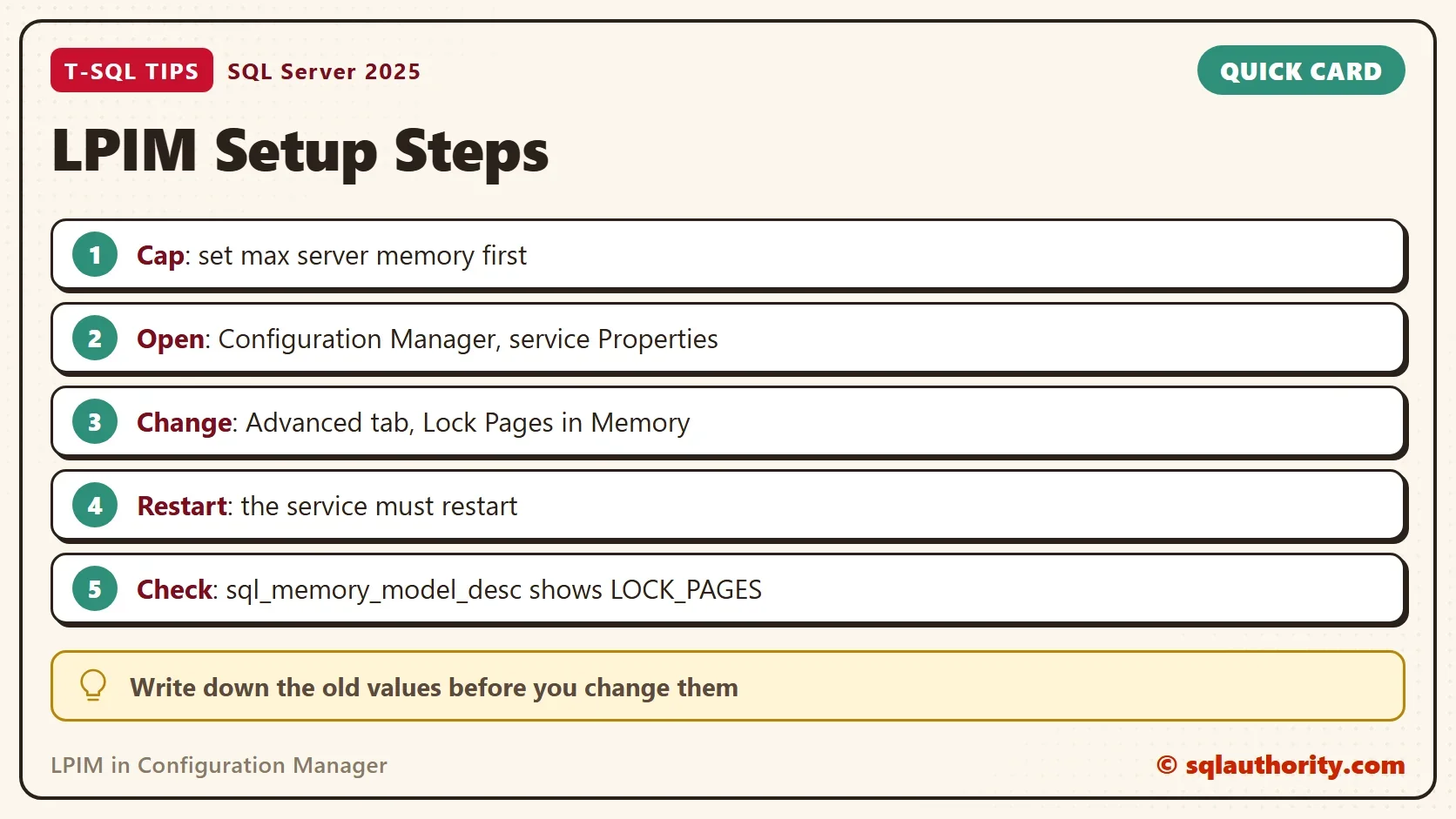
The LPIM in Configuration Manager property grants the same privilege as the local security policy, in one place. Set the memory cap first. Grant the privilege, restart the service, and read sql_memory_model_desc. Keep a note of the old value of each setting, so each change has an undo.
The details of the memory views are in a sibling post, LPIM Memory Model: Check It With sys.dm_os_sys_info. This post changes nothing on the test server, so there is nothing to clean up.
Lock Pages in Memory is not a tuning switch, it is a promise that SQL Server keeps its memory.
Published by Pinal Dave on SQLAuthority. More of my work at pinaldave.com.
Discover more from SQL Authority with Pinal Dave
Subscribe to get the latest posts sent to your email.