
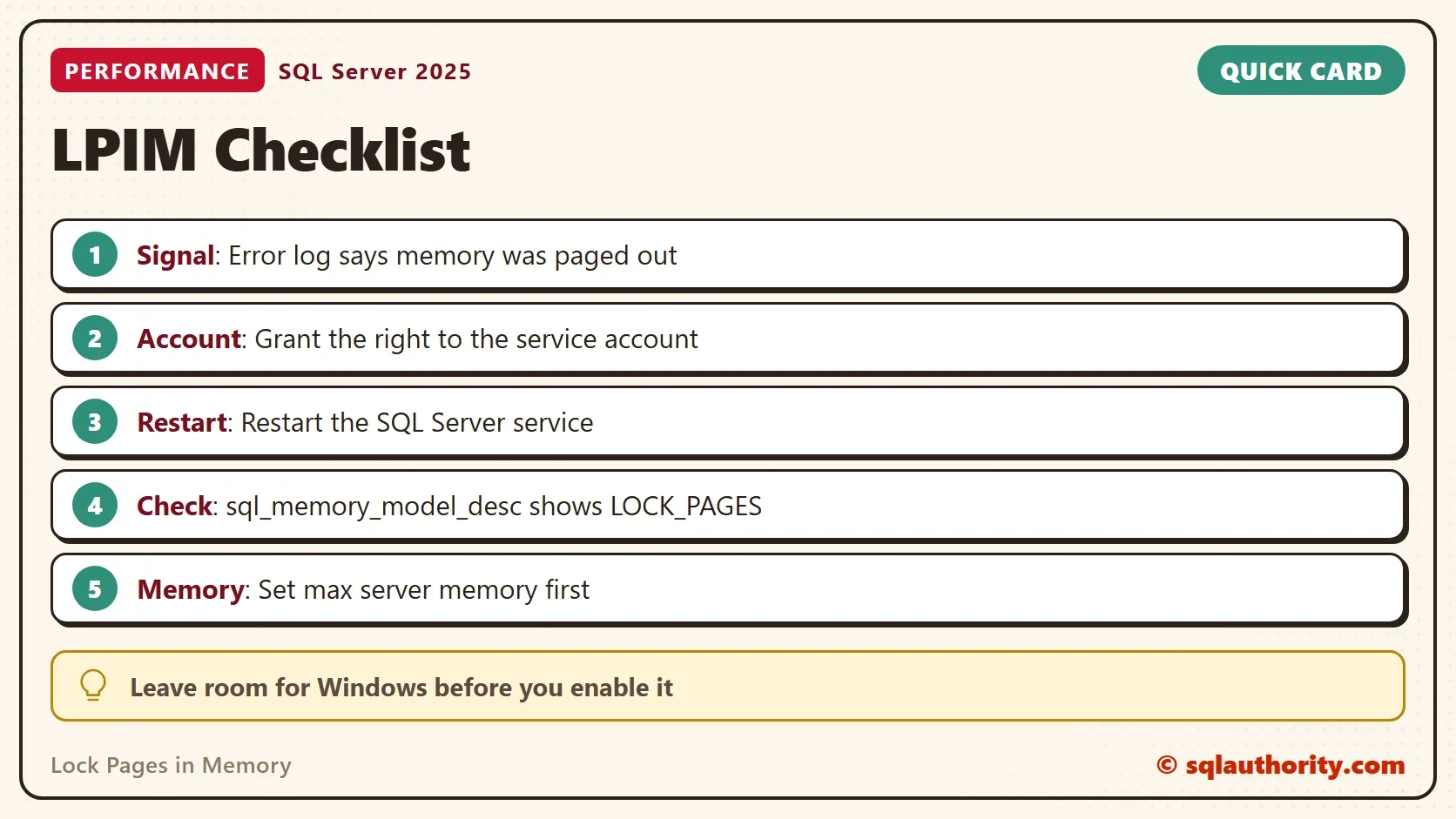
Lock Pages in Memory is a Windows right that stops Windows from paging out the memory of SQL Server. It protects the buffer pool, the cache that holds your data pages. It is not a speed setting, and it needs a partner setting.

What the Right Does
When a machine runs short of memory, Windows can trim a running program. It writes some of that memory to the page file. For most programs that is fine. For SQL Server it is expensive, because the buffer pool exists to avoid disk reads. A page that Windows moved to disk must be read back before a query can use it.
Lock Pages in Memory locks pages in physical memory, so Windows can’t move them. SQL Server can use it only when its service account holds the right. Without it, the instance uses the conventional memory model. With it, the model is LOCK_PAGES. The right is a Windows policy, not a SQL Server setting. A migration to a newer Windows version can lose it. One migration showed exactly that, and performance came back after the right was granted again and the service restarted.
Read the Signs
SQL Server writes a message to its error log when a significant part of its memory has been paged out. It is error 17890. The next script searches the current log for it and counts the messages.
CREATE TABLE #ErrorLog (LogDate datetime, ProcessInfo nvarchar(50), LogText nvarchar(max));
INSERT INTO #ErrorLog EXEC sys.sp_readerrorlog 0, 1, N'paged out';
SELECT COUNT(*) AS PagedOutMessages, MIN(LogDate) AS FirstSeen, MAX(LogDate) AS LastSeen FROM #ErrorLog;
DROP TABLE #ErrorLog;
The query needs the sysadmin or securityadmin role. This development server runs a normal Windows desktop next to SQL Server. Its current log held many of these messages when this post was tested. Each one reads like the message below.
A significant part of SQL Server process memory has been paged out. This may result in a performance degradation. Duration: 0 seconds. Working set (KB): 760080, committed (KB): 1491616, memory utilization: 50%.
The working set is the memory that is in RAM, and committed is what the process has asked for. Here only half of it was in RAM. A server with regular messages like this has a reason to enable the right. A server with none doesn’t.
Check What the Instance Uses Today
Two queries show the account to grant and the memory model in use. The service account is the one that needs the right. The second query also returns the max server memory setting, which matters for the next section.
SELECT servicename, service_account, startup_type_desc, status_desc
FROM sys.dm_server_services
WHERE servicename LIKE N'SQL Server (%';

SELECT i.sql_memory_model_desc AS MemoryModel,
       p.locked_page_allocations_kb AS LockedPagesKB,
       c.value_in_use AS MaxServerMemoryMB
FROM sys.dm_os_sys_info AS i
CROSS JOIN sys.dm_os_process_memory AS p
CROSS JOIN sys.configurations AS c
WHERE c.name = N'max server memory (MB)';| servicename | service_account | startup_type_desc | status_desc |
|---|---|---|---|
| SQL Server (SQLDEV) | NT Service\MSSQL$SQLDEV | Automatic | Running |
| MemoryModel | LockedPagesKB | MaxServerMemoryMB |
|---|---|---|
| CONVENTIONAL | 0 | 2147483647 |
CONVENTIONAL and 0 KB mean this instance doesn’t use locked pages. After the change, the model reads LOCK_PAGES and the locked amount is large. A model of LARGE_PAGES means large page allocations, which is a different feature.
Grant the Right
The steps run on the Windows machine, not in SQL Server. Open Local Security Policy, or the Group Policy Editor on a machine that has it. Go to Local Policies, then User Rights Assignment, and open Lock pages in memory. Add the service account from the first query. On a domain, ask for a Group Policy change instead.
Then restart the SQL Server service. The right takes effect only at the next start. Run the memory model query again to confirm the result.
Set Max Server Memory First
This is the step people skip. Locked pages can’t be paged out, so Windows can’t take that memory back when it runs short. The default of 2147483647 MB places no limit at all. With the right in place, the operating system and every other program fight for what SQL Server leaves behind.
Set max server memory to a value that leaves room for Windows and other services. Count any other instance on the machine too. In SSMS, open Server Properties and the Memory page. Write down the old value of Maximum server memory before you change it. If two instances share a server, the instance without the right is the one that Windows can trim.
Does max server memory alone protect you? No. It is a limit SQL Server sets for itself. Without the right, Windows can still trim the working set below that limit.
Does It Fix the Plan Cache?
Lock Pages in Memory doesn’t control the plan cache. Plans leave the cache for reasons inside SQL Server, such as memory pressure, a restart or DBCC FREEPROCCACHE. If plans disappear and the log has no paged-out messages, look at those causes first.
When You Can Skip It
You could argue that a server with plenty of free memory doesn’t need the right. That’s correct. A machine that never runs short never pages out SQL Server. The right is for a server where the log shows paged-out messages, or where other programs share the memory.
What to Remember
Check the error log for paged-out messages before you change anything. Grant Lock Pages in Memory to the service account, set max server memory and restart the service. Then read the memory model again. Revisit max server memory whenever the machine gets more RAM or another instance.
Locked memory is not free memory, it is memory that only SQL Server can give back.
Published by Pinal Dave on SQLAuthority. More of my work at pinaldave.com.
Discover more from SQL Authority with Pinal Dave
Subscribe to get the latest posts sent to your email.



4 Comments. Leave new
Alternatively, you can also use PowerShell + dbatools:
Set-DbaPrivilege -ComputerName $env:computername -Type LPIM
(just sharing with others – I know Pinal Dave knows about dbatools)
If you use LPIM, be sure to not over set the SQL Server max memory so that the OS and other apps have sufficient memory, as SQL will not give it up. I have heard reputable sources say that setting LPIM has a significant positive impact on performance.
However, the only specific scenario I actually saw myself was on a system running multiple SQL Server instances. I wanted to flush the buffer cache of one instance, in which LPIM was not set, hence SQL Server released the memory to the OS. On running queries to repopulate the buffer cache, this was horrifically slow, 3-4 MB/s. The disk IO system could support 1-2GB/s. This issue did not occur on system start (OS boot).
My interpretation is that the OS can allocate memory (on behalf of a process) reasonably well at the beginning. However, after many processes as running, allocating and deallocating memory via the OS, at some point, allocating on a busy (8 processor socket, 64 cores) OS becomes very difficult
LPIM is not a bad thing, but what you described “While the investigation of the system, I realized that the plan cache duration of various queries was often removed from the system. ” has nothing to do with LPIM.
Hi,
Suppose I have configured MAX Memory setting and not enabled LPIM. Would OS still be able to pressurize sql to release memory if it needs. If no then what’s the use of LPIM.