
The availability group restore error appears when automatic seeding and a manual restore both fill the same secondary. The database still joins the group, so the error is easy to ignore.
The Situation
A client had an availability group that a vendor had built. The team wanted to add one more database through the wizard. They chose the option for a fresh backup and restore. The SSMS release they used was old and offered no automatic seeding choice.
The wizard ended with an error, yet the database was added to the group. That availability group restore error raised a question. Is it harmless, and what does it mean? The answer sits in the seeding mode of the replica.
What the Error Looks Like
The wizard showed this text. The server name is the client’s own.
Restoring database log resulted in an error. (Microsoft.SqlServer.Management.HadrTasks)
Restore failed for Server 'SQLSERVER-1'. (Microsoft.SqlServer.SmoExtended)
System.Data.SqlClient.SqlError: This BACKUP or RESTORE command is not supported on a database mirror or secondary replica. (Microsoft.SqlServer.Smo)
Scripting the wizard and running the script by hand gave the same failure. On the secondary replica, it printed these messages from T-SQL.
Msg 3059, Level 16, State 2, Line 29
This BACKUP or RESTORE command is not supported on a database mirror or secondary replica.
Msg 3013, Level 16, State 1, Line 29
RESTORE LOG is terminating abnormally.
Later steps of the script reported message 41145. It is informational, and it says the database had already joined the group.
Why the Database Was Added Anyway
The ERRORLOG on both replicas explained it. The primary showed two backups for the database. One went to a disk file, which was the manual backup. The other went to a virtual device, which is how automatic seeding sends the data. The secondary showed two restores in the same way.
The replica was set to automatic seeding. The old wizard sent the data through seeding and also ran its own backup and restore. The seeding finished first, so the restore reached a database that was already a secondary. SQL Server refuses a restore on a secondary database, and the message says so.
Check the Seeding Mode
Read the seeding mode of every replica before you add a database. This query lists it for each group. A replica in AUTOMATIC mode seeds a database by itself as soon as it joins.
SELECT ag.name AS AvailabilityGroup, ar.replica_server_name AS Replica, ar.seeding_mode_desc AS SeedingMode
FROM sys.availability_groups AS ag
JOIN sys.availability_replicas AS ar ON ar.group_id = ag.group_id
ORDER BY ag.name, ar.replica_server_name;
The test server has no availability group, so the query returns no rows. The query still runs on any instance. On a real group, a row per replica appears. Two more queries show the state after an add. The first reads the history of automatic seeding, and the second reads the roles of the replicas.
SELECT s.start_time, s.completion_time, s.current_state, s.failure_state_desc, s.error_code
FROM sys.dm_hadr_automatic_seeding AS s
ORDER BY s.start_time DESC;

SELECT ar.replica_server_name AS Replica, ars.role_desc AS CurrentRole, ars.is_local AS IsLocal
FROM sys.availability_replicas AS ar
JOIN sys.dm_hadr_availability_replica_states AS ars ON ars.replica_id = ar.replica_id;
Fix the Restore Error
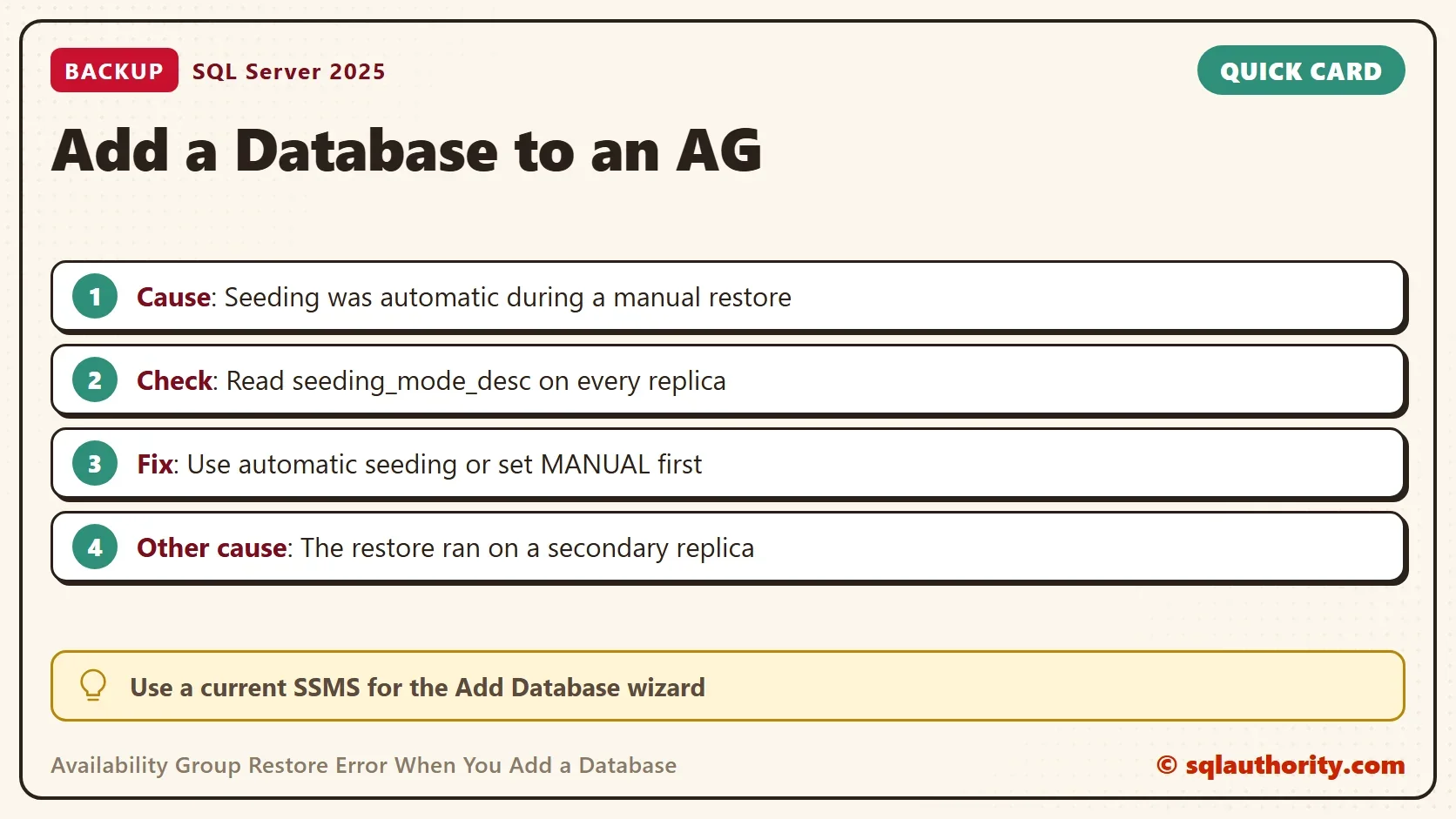
There are two clean paths to clear the availability group restore error. Let automatic seeding do the work, or switch the replica to manual seeding before you restore. In the old comparison, a newer SSMS release wrote one extra statement. It set the seeding mode to manual whenever the backup and restore option was chosen. Use a current release for the wizard.
To switch a replica by hand, run the statement below on the primary replica. It changes the group configuration. Replace the group and replica names with yours. The undo follows in its own block.
ALTER AVAILABILITY GROUP [YourGroup]
MODIFY REPLICA ON N'YourSecondaryReplica' WITH (SEEDING_MODE = MANUAL);
The undo is the same statement with AUTOMATIC. It sits in its own block, as a comment, so a paste of the first block cannot undo the change.
-- undo
-- ALTER AVAILABILITY GROUP [YourGroup]
-- MODIFY REPLICA ON N'YourSecondaryReplica' WITH (SEEDING_MODE = AUTOMATIC);
After the switch, restore the full and log backups to the secondary with NORECOVERY. Then join the database with the wizard, or run ALTER DATABASE … SET HADR AVAILABILITY GROUP on the secondary. With automatic seeding, skip the restore and let the group send the data. For that, the secondary must allow the group to create databases. Run the next statement on the secondary. It changes a permission, and DENY is its undo.
ALTER AVAILABILITY GROUP [YourGroup] GRANT CREATE ANY DATABASE;
A Second Cause: Restoring on the Wrong Replica
The same message appears for another reason. A restore on a server where the database is already a secondary fails in the same way. One administrator hit this after moving a group to another node. The fresh restore went to the node that now held the secondary role. Restoring on the correct node fixed it. Check the roles first, with the replica roles query above.
You could argue that the error is benign, because the database joined the group. The data side is fine. The trouble is the noise. A script or job that treats any error as a failure stops halfway. A habit of ignoring one error hides the next real one.
What to Remember
When you see the availability group restore error, read the seeding mode before you do anything else. One cause is automatic seeding plus a manual restore. A restore on a secondary replica is another.
Use a current SSMS for the Add Database wizard. Keep the undo statement for any seeding change, and confirm the database shows as synchronized after the add.
A benign error is not harmless, it is a warning that two steps did the same job.
Published by Pinal Dave on SQLAuthority. More of my work at pinaldave.com.
Discover more from SQL Authority with Pinal Dave
Subscribe to get the latest posts sent to your email.


2 Comments. Leave new
I faced the same error today.
I had this error, because I did something stupid.
‘*******************************************************************************************************************
Recently in an Ao-AG. I have moved one AO-AG that had my errant database to a seperate AO-AG group. Originally the AO-AG group was on the Primary node-1 in the Primary Datacenter. However, a while back I had move it to the secondary node2 in the in the Primary Datacenter. Thus, I got the error while trying to restore a fresh copy of the database to Secondary node-1 in the Primary Datacenter. So this was my operational error. Once I perform the Migration/Restore to the Primary nod-2 in the Primary datacenter the problem no longer existed. Since this was a migration there were not delay issues from customers.
‘*******************************************************************************************************************
Environment: SQL Server 2017 ENT with 8 AO-AG group and Listeners. Two nodes in both Primary and Secondary datacenters.
‘*******************************************************************************************************************