
The In-Memory OLTP migration checklist shows which tables and stored procedures can move to memory-optimized objects. It also says why the others can’t. Management Studio generates it with a wizard. The wizard reads your objects and writes one report for each, and it leaves your data alone.

What the Checklist Does
In-Memory OLTP keeps a table entirely in memory. It arrived in SQL Server 2014, and it suits tables with heavy write traffic. Not every table can move, because some features and data types have no memory-optimized form. A table that can’t move would stop the project halfway.
The wizard finds those problems early. It checks each table and stored procedure you choose. For each one it writes an HTML report that says whether the object can move. A stored procedure is checked for the natively compiled form. The wizard generates reports only. It doesn’t change the database.
Size Up the Job First
A few T-SQL queries tell you which tables deserve a report. The first script builds a small demo database with four tables. Orders has the most rows and two extra indexes. ImportLog takes the most space, and it is a heap with no primary key and one trigger. Every other table has a primary key.
IF DB_ID(N'MigrationCheckDemo') IS NULL CREATE DATABASE MigrationCheckDemo;
GO
USE MigrationCheckDemo;
GO
DROP TABLE IF EXISTS dbo.Orders, dbo.Countries, dbo.SessionState, dbo.ImportLog;
CREATE TABLE dbo.Orders (
    OrderID    int           NOT NULL PRIMARY KEY,
    CustomerID int           NOT NULL,
    OrderDate  datetime2(0)  NOT NULL,
    Total      decimal(10,2) NOT NULL
);
CREATE INDEX IX_Orders_Customer ON dbo.Orders (CustomerID);
CREATE INDEX IX_Orders_Date ON dbo.Orders (OrderDate);
CREATE TABLE dbo.Countries (
    CountryCode char(2)      NOT NULL PRIMARY KEY,
    CountryName nvarchar(60) NOT NULL
);
CREATE TABLE dbo.SessionState (
    SessionID   uniqueidentifier NOT NULL PRIMARY KEY,
    Payload     nvarchar(200)    NOT NULL,
    LastTouched datetime2(0)     NOT NULL
);
CREATE TABLE dbo.ImportLog (
    LoadedAt datetime2(0)  NOT NULL,
    Message  nvarchar(200) NOT NULL
);
GO
CREATE TRIGGER dbo.trg_ImportLog_Insert ON dbo.ImportLog AFTER INSERT AS SET NOCOUNT ON;
GO
INSERT INTO dbo.Orders (OrderID, CustomerID, OrderDate, Total)
SELECT TOP (100000) ROW_NUMBER() OVER (ORDER BY (SELECT NULL)),
       ABS(CHECKSUM(NEWID())) % 5000,
       DATEADD(MINUTE, -ABS(CHECKSUM(NEWID())) % 500000, '2026-10-01'),
       ABS(CHECKSUM(NEWID())) % 50000 / 100.0
FROM sys.all_objects AS a CROSS JOIN sys.all_objects AS b;
INSERT INTO dbo.Countries (CountryCode, CountryName)
VALUES ('US', N'United States'), ('CA', N'Canada'), ('MX', N'Mexico'), ('GB', N'United Kingdom'), ('IN', N'India');
INSERT INTO dbo.SessionState (SessionID, Payload, LastTouched)
SELECT TOP (20000) NEWID(), REPLICATE(N'x', 150), SYSDATETIME()
FROM sys.all_objects AS a CROSS JOIN sys.all_objects AS b;
INSERT INTO dbo.ImportLog (LoadedAt, Message)
SELECT TOP (50000) SYSDATETIME(), REPLICATE(N'm', 100)
FROM sys.all_objects AS a CROSS JOIN sys.all_objects AS b;
The three queries below check three things. Does the server support In-Memory OLTP? Does the database have a memory-optimized filegroup? What does each table look like? Memory-optimized tables need a special filegroup, and durable ones need a primary key.
SELECT CAST(SERVERPROPERTY('IsXTPSupported') AS int) AS IsXTPSupported;

SELECT COUNT(*) AS MemoryOptimizedFilegroups FROM sys.filegroups WHERE type = 'FX';

SELECT t.name AS TableName,
       SUM(CASE WHEN ps.index_id IN (0, 1) THEN ps.row_count ELSE 0 END) AS TableRows,
       CAST(SUM(ps.reserved_page_count) * 8 / 1024.0 AS decimal(10,1)) AS ReservedMB,
       (SELECT COUNT(*) FROM sys.indexes AS i WHERE i.object_id = t.object_id AND i.index_id > 0) AS IndexCount,
       CASE WHEN EXISTS (SELECT 1 FROM sys.key_constraints AS k
                         WHERE k.parent_object_id = t.object_id AND k.type = 'PK') THEN 'Yes' ELSE 'No' END AS HasPrimaryKey,
       (SELECT COUNT(*) FROM sys.triggers AS tr WHERE tr.parent_id = t.object_id) AS TriggerCount
FROM sys.tables AS t
JOIN sys.dm_db_partition_stats AS ps ON ps.object_id = t.object_id
GROUP BY t.object_id, t.name
ORDER BY ReservedMB DESC;| IsXTPSupported |
|---|
| 1 |
| MemoryOptimizedFilegroups |
|---|
| 0 |
| TableName | TableRows | ReservedMB | IndexCount | HasPrimaryKey | TriggerCount |
|---|---|---|---|---|---|
| ImportLog | 50000 | 10.9 | 0 | No | 1 |
| SessionState | 20000 | 6.8 | 1 | Yes | 0 |
| Orders | 100000 | 6.5 | 3 | Yes | 0 |
| Countries | 5 | 0.1 | 1 | Yes | 0 |
The server supports the feature, and the database has no memory-optimized filegroup yet. A move needs one first. The table list shows the size of each table, because memory-optimized tables live in memory. Row count and size are the first filter. ImportLog has no primary key, so it needs one before a durable memory-optimized table can replace it. The TriggerCount column matters because the wizard reports unsupported features, and a table with a trigger needs a closer look.
This query only helps you choose. The wizard report decides which objects can move, and why.
Run the Wizard Step by Step
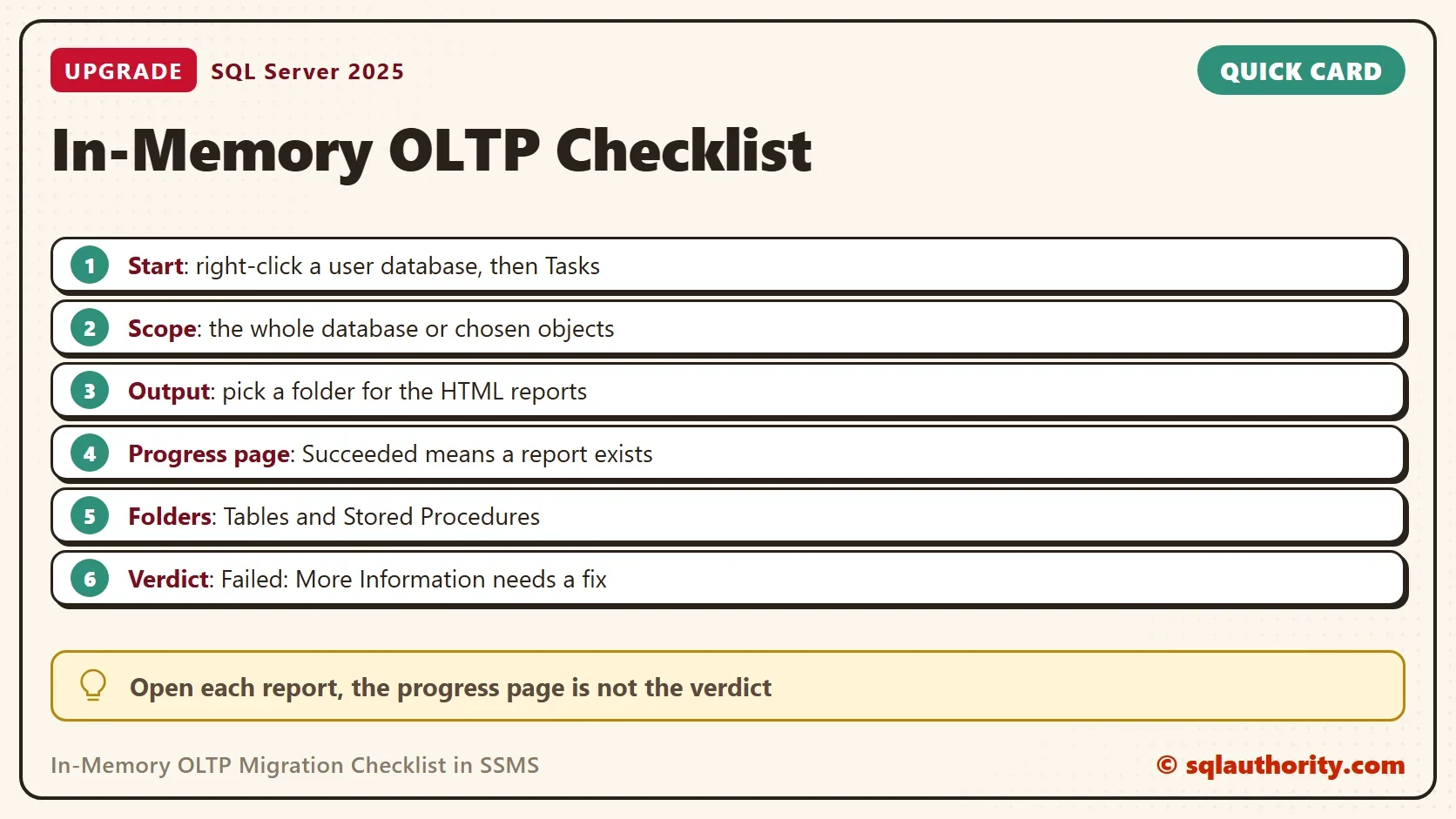
Open Management Studio and connect to the server. Expand Databases and right-click a user database. Point to Tasks and choose Generate In-Memory OLTP Migration Checklists. The menu entry isn’t offered for system databases. The wizard opens with an introduction page, so click Next.
The next page asks where to save the reports. Choose a folder on your own machine. You can also choose the scope. Keep the whole database, or pick specific tables and stored procedures. A first run over everything suits a small database. A hand-picked list is faster for a large one.
The summary page repeats your choices, so click Finish. The progress page then lists every object with Succeeded or Failed. Read that result carefully. Succeeded means the wizard created the report for that object. It doesn’t mean the object passed. The verdict is inside the report.
Read the Reports
Open the output folder of the In-Memory OLTP migration checklist. It holds a folder named after the database, and below it a Tables folder and a Stored Procedures folder. Each object has its own HTML file. Open one in a browser.
A passing object shows a successful validation result, and you have nothing to fix. A failing object shows Failed: More Information. The link opens the documentation for the blocking feature. Fix the cause, or leave the object on disk. A database that keeps most tables on disk and moves a few hot ones is a normal result.
You could argue that the Memory Optimization Advisor is enough, because it checks a single table too. For one table, that is true. The advisor is a separate wizard, offered from the table’s own menu. For fifty tables, one checklist run gives every answer at once, and the reports can be shared with a team.
Versions and Limits
The entry appears in Management Studio 22 for user databases. Older versions of Management Studio also have it, but this was checked only in version 22. The target of a migration has to be SQL Server 2014 or later, because In-Memory OLTP began there. A passing In-Memory OLTP migration checklist says an object can move. It doesn’t say the move will make anything faster. Test a real workload on a copy, and compare the numbers before you decide.
What to Remember
Size up the tables with a query, then run the wizard on the objects that matter. Read the report for each object, and treat the progress page as a status only. Plan for the filegroup and the primary keys that a move needs.
When you finish with the demo, run the cleanup script.
USE master;
GO
IF DB_ID(N'MigrationCheckDemo') IS NOT NULL
BEGIN
    ALTER DATABASE MigrationCheckDemo SET SINGLE_USER WITH ROLLBACK IMMEDIATE;
    DROP DATABASE MigrationCheckDemo;
END;
A checklist is not a decision, it is the list of questions to answer before one.
Published by Pinal Dave on SQLAuthority. More of my work at pinaldave.com.
Discover more from SQL Authority with Pinal Dave
Subscribe to get the latest posts sent to your email.



5 Comments. Leave new
Pinal, thanks. It would seem helpful if you could indicate for readers which versions of both SSMS and SQL Server support this.
Good Point. I have always used latest and greatest available :)
Fair enough, but of course not everyone can. Are you affirming that you would or would not be updating this post to clarify things. It’s just not clear from your answer.
I appreciate that you’re very busy and do post so much already. Just want to set expectations for other readers who may be interested to know.
Hi Charlie,
SQL Server changes so much nowadays. It is impossible to keep count on when various features were introduced. I personally have no idea when this feature was added. However, it works in the latest version of SQL Server and the latest SSMS when the blog post was written.
I have stopped providing information about version as it had created a lot of confusion for people and also there are many different varieties. Additionally, some features of SSMS works with some earlier version of SQL Server as well. It is an impossible task, in all reality.
To answer your question, if you install the latest SQL Server and SSMS on the date when the blog was written, you will see this feature. I will be not updating the blog post with version information.
Hi Charlie,
As per my knowledge, this feature is available from SQL Server 2016. So, if anybody installs SQL Server 2016, they can be able to use the feature in SSMS.
Thanks,
Srini