
A setup permission setting error stopped a brand-new SQL Server 2016 install at the end. A client contacted me for quick help with it. They were installing SQL Server 2016 on Windows Server 2016, and the message said updating permission setting for file failed.

The Error
Setup showed this message:
Updating permission setting for file 'H:\System Volume Information\WPSettings.dat' failed. The file permission setting was supposed to be set to 'D: P(A;OICI;FA;;;BA)(A;OICI;FA;;;SY)(A;OICI;FA;;;CO)(A;OICI;FA;;;S-1-5-80-3880718306-3832830129-1677759213-2598158969-1052248003)'.
Click 'Retry' to retry the failed action, or click 'Cancel' to cancel this action and continue setup.
What Happened
The error had a Retry option, but retrying wasn’t going to change anything. I looked into the configuration file, ConfigurationFile.ini, and found the client was using the H drive for TempDB. The location they had given for TempDB was the root directory of the H drive.
Why It Happens
Setup needs to set permissions on the folders it uses. From the error message, I concluded that setup couldn’t add the permissions it needs on the root of a drive. The path in the message, System Volume Information, sits in that root.
How to Check
Open the setup configuration file, ConfigurationFile.ini, and read the TempDB location. If it points at the bare root of a drive, such as H:\, you have found the cause.
The Fix
I asked the client to create a folder and use it as the TempDB location instead. We cancelled the setup, and the client reverted the snapshot to the initial state, where SQL Server was not installed. They then created the folder for TempDB.
For the system databases, user databases and backups, the client had already created folders.
Confirm It Worked
After creating the folder, the installation was successful.
How to Prevent It
Give every file location its own folder before you start setup. That covers TempDB, the system databases, the user databases and the backups. Never point any of them at the root of a drive.
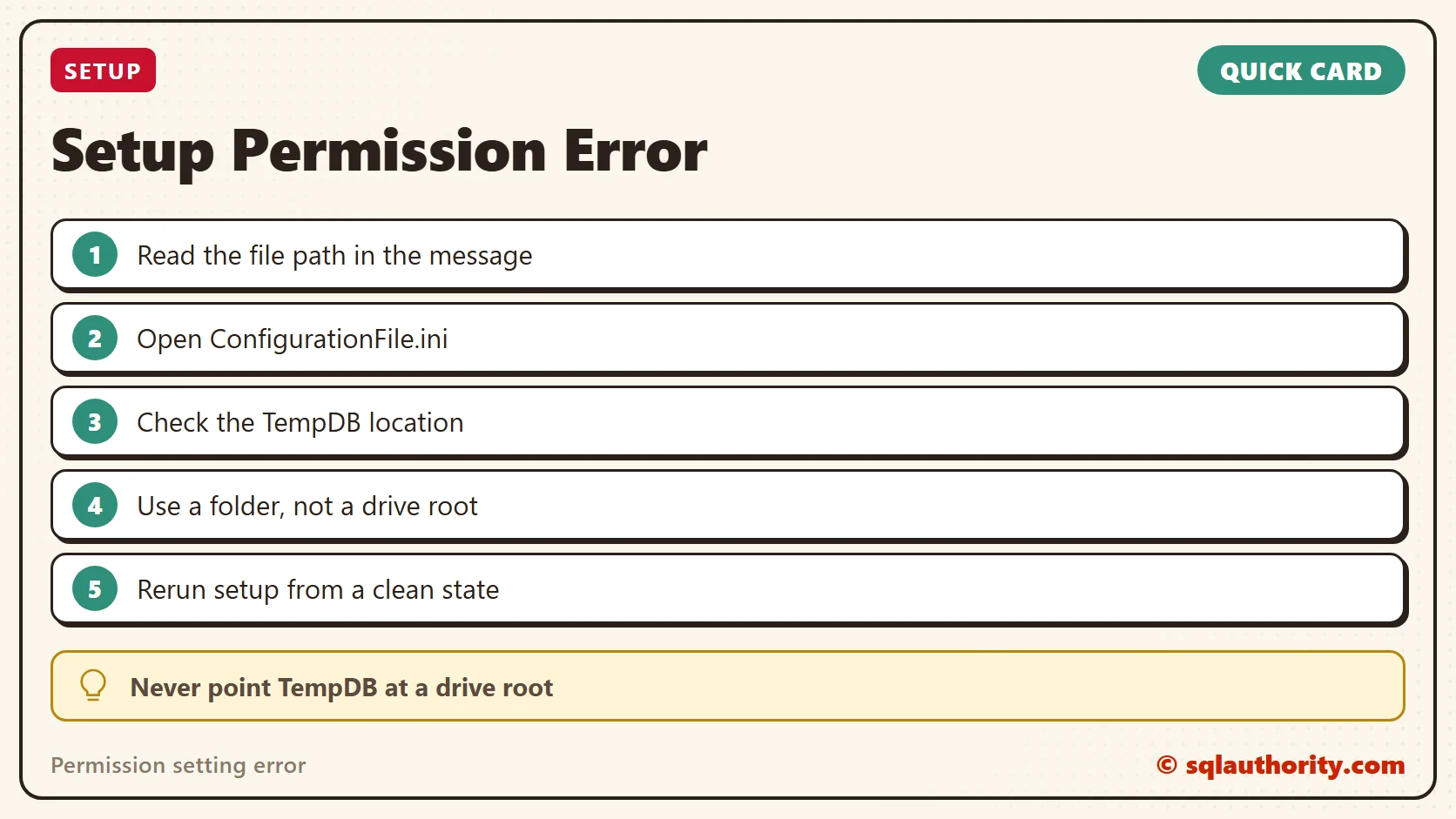
A drive root is not a place for TempDB, it is the place where folders start.
Published by Pinal Dave on SQLAuthority. More of my work at pinaldave.com.
Discover more from SQL Authority with Pinal Dave
Subscribe to get the latest posts sent to your email.



3 Comments. Leave new
Resolved
First to view this hidden folder (System Volume Information) click on view tab and select Hidden Items and also go to options tab click on view tab and unselect Hide Protected Operating System File (Recommended).
To resolve issue I go to G:System Volume Information folder and right click on file ResumeKeyFilter.Store click on properties and in security tab add your installation user, in my case I’m using domain user called grid and add this user for permission.
Thanks for sharing this Mubeen,
Thank you Ghouse M Khan-Mubeen :)