
Rename MDF file extension in four moves. Take the database offline, tell SQL Server the new file name, rename the file, and bring the database online. The order matters, because SQL Server and Windows each keep their own record of the file name. If the two disagree, the database won’t start.

Why the Extension Matters
SQL Server doesn’t care what a data file is called. It reads the file header, not the name, so a data file works with any extension. The names .mdf, .ndf and .ldf are only a convention.
The convention still pays off. Backup tools, antivirus exclusions and monitoring scripts match files by extension. The next DBA also expects to see .mdf, .ndf and .ldf in the data folder. A file with another extension, say .dat from an old template, is easy to miss in all of those places.
Check the Logical Names First
A database file has two names. The logical name lives inside SQL Server. The physical name is the path on disk. Every step that changes a file asks for the logical name, and this is where most attempts fail. A common slip is using the physical path where the logical name belongs. SQL Server then answers that the file doesn’t exist.
The demo creates a database named FileRenameDemo, with a data file that has a wrong extension. Run it on a test server. Change the folder to one that exists on yours. The SQL Server service account needs rights on it.
IF DB_ID(N'FileRenameDemo') IS NULL
CREATE DATABASE FileRenameDemo
ON PRIMARY (NAME = N'FileRenameDemo_data', FILENAME = N'D:\data\FileRenameDemo.dat')
LOG ON (NAME = N'FileRenameDemo_log', FILENAME = N'D:\data\FileRenameDemo_log.ldf');
SELECT name AS LogicalName, type_desc AS FileType, physical_name AS PhysicalName
FROM sys.master_files
WHERE database_id = DB_ID(N'FileRenameDemo')
ORDER BY file_id;
| LogicalName | FileType | PhysicalName |
|---|---|---|
| FileRenameDemo_data | ROWS | D:\data\FileRenameDemo.dat |
| FileRenameDemo_log | LOG | D:\data\FileRenameDemo_log.ldf |
The FileType column tells you what a file is, whatever its name says. That matters when a log file wears an MDF name, which also happens. The type decides which file gets which new name. Don’t guess from the extension.
The Four Steps
Step one is to take the database offline. This closes the files, so Windows lets go of them. The ROLLBACK IMMEDIATE option rolls back open transactions and disconnects everyone, so run it in a maintenance window.
Step two is to tell SQL Server the new name. MODIFY FILE changes the catalog only. Nothing moves on disk.
ALTER DATABASE FileRenameDemo SET OFFLINE WITH ROLLBACK IMMEDIATE;
ALTER DATABASE FileRenameDemo MODIFY FILE (NAME = N'FileRenameDemo_data', FILENAME = N'D:\data\FileRenameDemo.mdf');
SQL Server answers with the following message. It is output, not code to run.
The file "FileRenameDemo_data" has been modified in the system catalog. The new path will be used the next time the database is started.
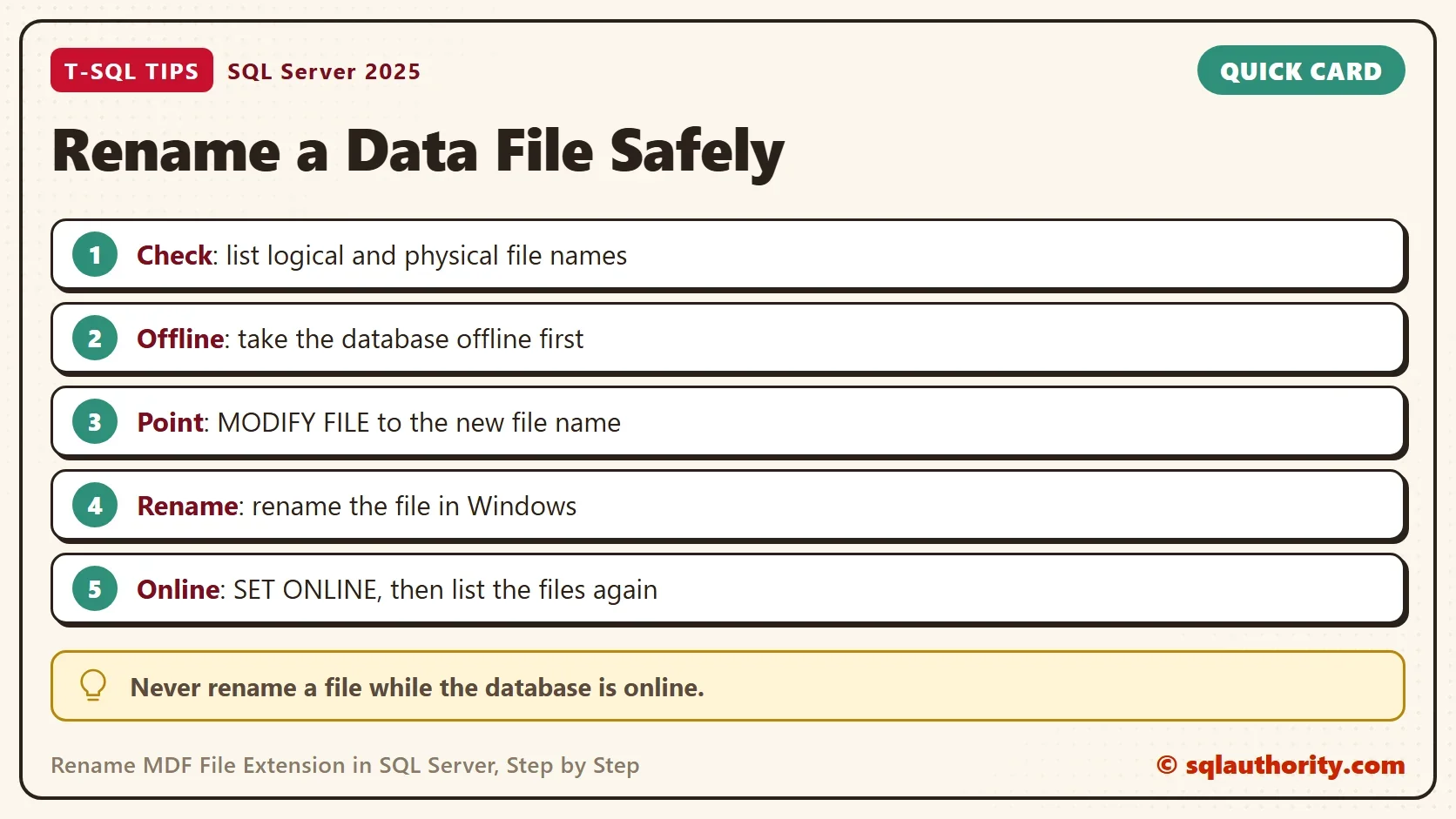
Step three happens outside SQL Server. In File Explorer, rename FileRenameDemo.dat to FileRenameDemo.mdf. In PowerShell, run Rename-Item with the old path and the new name. Do it only while the database is offline. SQL Server keeps its files open while the database is online, and Windows refuses the rename.
Step four brings the database back and proves the result. The second query shows the physical name SQL Server now uses.
ALTER DATABASE FileRenameDemo SET ONLINE;
SELECT name AS LogicalName, physical_name AS PhysicalName, state_desc AS FileState
FROM FileRenameDemo.sys.database_files;
After a real rename, the second query returns two rows, with the physical names D:\data\FileRenameDemo.mdf and D:\data\FileRenameDemo_log.ldf. Run before the rename, SET ONLINE fails, and the second query fails with Msg 945, because the database can’t open.
The same steps work for an .ndf file or a log file. A log file that wears an .mdf name gets the same four steps, with its own logical name. A database with several files needs one MODIFY FILE statement per file, and all of them come before SET ONLINE.
When the Names Don’t Match
Suppose you run SET ONLINE before step three. The catalog says FileRenameDemo.mdf, and the folder still holds FileRenameDemo.dat. SQL Server can’t open the file.
Msg 5120, Level 16, State 101, Line 1
Unable to open the physical file "D:\data\FileRenameDemo.mdf". Operating system error 2: "2(The system cannot find the file specified.)".
Msg 5181, Level 16, State 5, Line 1
Could not restart database "FileRenameDemo". Reverting to the previous status.
Msg 5069, Level 16, State 1, Line 1
ALTER DATABASE statement failed.
The database now shows RECOVERY_PENDING in sys.databases. Nothing is lost, because the files are untouched. Make the two names agree again. Either rename the file, or run MODIFY FILE with the name the file has on disk. Then run SET ONLINE a second time, and the state returns to ONLINE. Here the file still ends in .dat, so this is the fix.
ALTER DATABASE FileRenameDemo MODIFY FILE (NAME = N'FileRenameDemo_data', FILENAME = N'D:\data\FileRenameDemo.dat');
ALTER DATABASE FileRenameDemo SET ONLINE;
Run this fix only after a failed SET ONLINE. If you did rename the file, the catalog is already right.
If MODIFY FILE answers Msg 5041, you passed a path where the logical name belongs. Read the name from the first query and try again.
Should You Rename at All?
You could argue that a working database should keep its odd extension. SQL Server runs fine, and every change brings downtime and risk. That’s a fair view for a database nobody touches.
The cost of renaming is a few minutes offline. The cost of leaving it is a file that exclusion lists and scripts ignore. I weigh the two for each server. Where scripts, antivirus rules or backup tools match by extension, I rename MDF file extension values to match. Where nothing does, I leave a stable server alone and write the name down.
What to Remember
To rename MDF file extension values safely, read the logical names and file types first. Then go offline, point SQL Server at the new name, rename the file, and go online. Verify with a query, not by looking at the folder.
This procedure covers user databases. System databases need extra steps. Try the sequence on a test database before a production one. When you finish with the demo, remove it. DROP DATABASE deletes the files under whatever names the catalog holds.
USE master;
GO
ALTER DATABASE FileRenameDemo SET SINGLE_USER WITH ROLLBACK IMMEDIATE;
DROP DATABASE FileRenameDemo;
A file extension is not a setting, it is a promise to the next person who opens the folder.
Published by Pinal Dave on SQLAuthority. More of my work at pinaldave.com.
Discover more from SQL Authority with Pinal Dave
Subscribe to get the latest posts sent to your email.




6 Comments. Leave new
Recent one event occur in my organization attack the ransomware and corrupted MDF ,ndf and ldf file . I have seen ransomware affected c certain kindly of extension witch is one the SQL data file . Then i realize if i changed SQL data file then we can save .
Hi Pinal,
The last screenshot seems to have been inserted by mistake as it still shows file with .pdf extension instead of .mdf extension.
Fixed the issue as they were reversed. Thanks for bringing to attention.
In which scenarios can we change the extension of the database files?
Why Microsoft didn’t restrict the extension to mdf and ldf?
Hi i have same scenario instead of PDF the LDF file is named as MDF and there now two MDF files and i want to change one MDF file to LDF and im using the above query’s, but its showing file name doesn’t exist ???
Use logic file name instead of the physical name.
MODIFY FILE (name = ‘[SQLAuthorityCom]’,—-use logic file name(the first column of database-properties-files)