
Script upgrade mode can temporarily reject logins while SQL Server completes an update. In this 2017 client case, the log stopped at deleting the Utility Information collection set. The general error hid a specific operation.

What the Log Showed
The client had followed my earlier article about login failures during script upgrade mode. Their startup log included these messages. The login name is omitted here.
Creating [dbo].[fn_sysutility_mi_get_batch_manifest] function
Deleting collection set "Utility Information"...
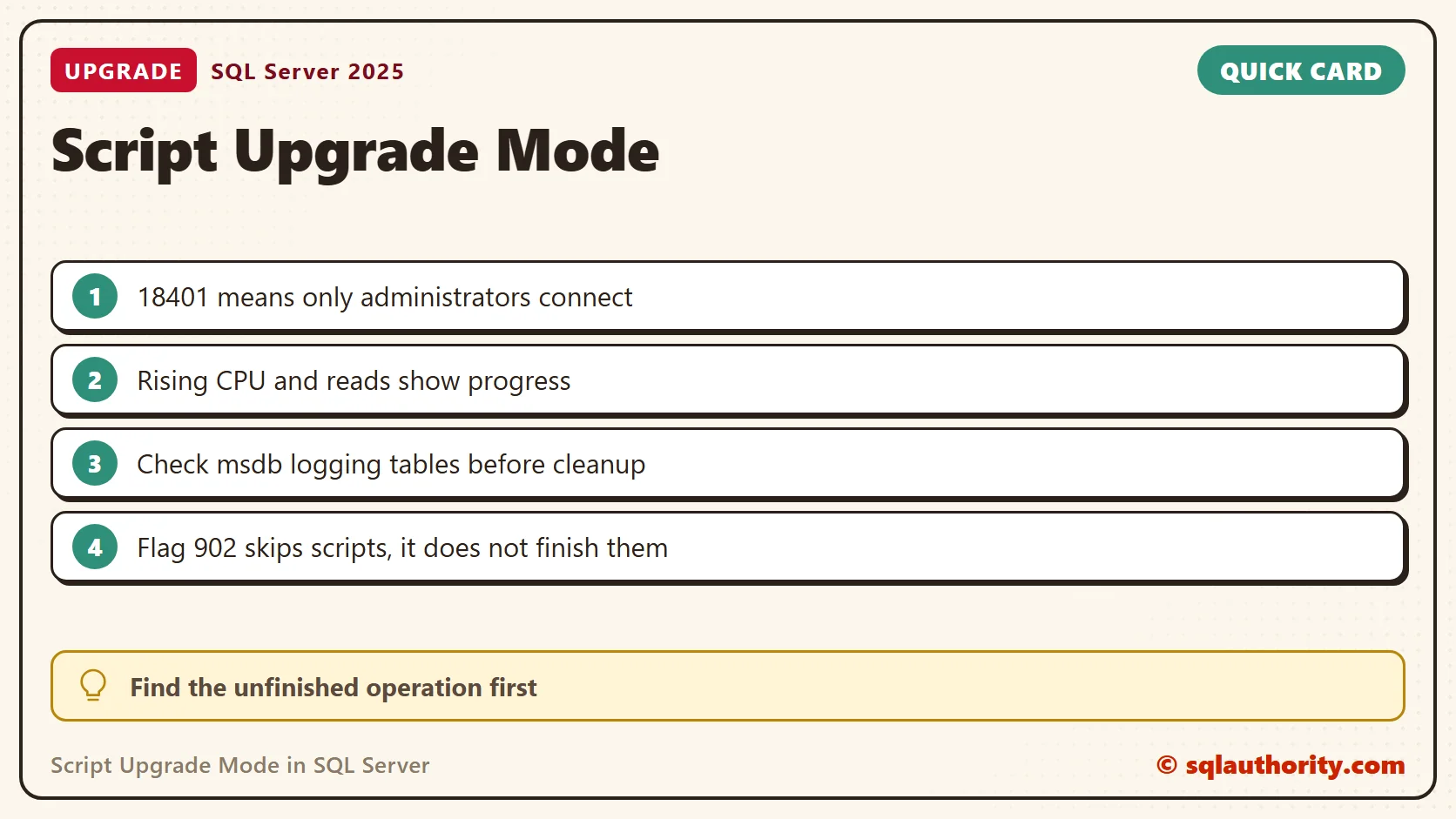
Error: 18401, Severity: 14, State: 1.
Reason: Server is in script upgrade mode. Only administrator can connect at this time.
Updating SQL Server involves more than replacing files. Startup scripts also update database objects. A login failure with error 18401 does not show that the upgrade is stuck. It does not name the cause either.
Read the Message and Check Progress
This query returns the exact text of error 18401 on your build.
SELECT message_id, severity, text FROM sys.messages WHERE message_id = 18401 AND language_id = 1033;
It says that only an administrator can connect. So connect as a sysadmin, or through the dedicated administrator connection, and look at what is running. Take two readings about ten seconds apart.
SELECT r.session_id, r.status, r.command, r.wait_type, r.cpu_time, r.logical_reads, r.total_elapsed_time
FROM sys.dm_exec_requests AS r
WHERE r.session_id <> @@SPID AND r.status IN ('running', 'runnable', 'suspended')
ORDER BY r.total_elapsed_time DESC;
I tested the idea with a busy loop in a second session. Its cpu_time went from 4,019 to 14,081 between the two readings. Its logical_reads went from 19,781 to 58,160. A request that moves is working. A request with flat numbers and one wait type for minutes deserves a closer look. I assume upgrade scripts show up here like any request. I could not enter script upgrade mode to check.
Save the setup logs and the complete ERRORLOG sequence. Compare the timestamps and look for later progress or an explicit script failure. Restarting an instance over and over, without knowing its current work, adds more interruptions.
Check the msdb Logging Tables
This investigation focused on the msdb logging objects behind the collection set cleanup. More than 400,000 records were reported there. That number was a clue in this case, not a limit that makes deletion safe.
With an authorized connection, this query reads approximate row counts from partition metadata, so it does not scan the tables. It does not bypass upgrade mode.
SELECT s.name AS SchemaName, o.name AS ObjectName, SUM(p.rows) AS ApproximateRows
FROM msdb.sys.objects AS o
JOIN msdb.sys.schemas AS s ON s.schema_id = o.schema_id
LEFT JOIN msdb.sys.partitions AS p ON p.object_id = o.object_id AND p.index_id IN (0, 1)
WHERE o.name IN (N'sysssislog', N'syscollector_execution_log_internal')
GROUP BY s.name, o.name
ORDER BY s.name, o.name;
SELECT name, is_system, is_running, collection_mode FROM msdb.dbo.syscollector_collection_sets ORDER BY name;
On my instance both tables hold zero approximate rows, and the four system collection sets exist and are stopped. Utility Information is one of them. The counts are approximate, and object availability depends on the version. No rows can mean absent objects or limited visibility. An empty result does not prove that an instance needs no cleanup.
Keep the Historical Cleanup in Context
The original fix used trace flag 902 for temporary access. The team backed up msdb and removed the accumulated logging data. They then removed the flag and restarted normally, and the upgrade completed in that environment.
We did not find out why so much logging data had built up. The first guesses about packages and heavy logging were not confirmed. That gap matters when you decide whether another server has the same problem.
I would not turn this outcome into a rule to delete internal msdb rows. Confirm the failed operation, keep backups and use the supported fix for your version. Review retention in the component that owns the history.
Finish the Upgrade, Not Only the Startup
Trace flag 902 skips the startup upgrade scripts, and it does not complete them. Use it only in a controlled troubleshooting session. Remove the bypass after the cause is fixed, so the required scripts can finish.
Verify the final setup result, a normal startup log and the application connections. Look into the history retention problem too, if it contributed to the failure. A login that works under a bypass does not prove a successful upgrade.
To prevent a repeat, check the size of the msdb history tables before you update, and back up msdb first. Record the start time of the update and read the ERRORLOG at the end. A short note like that turns the next surprise into a quick check.
Script upgrade mode is not a reason to erase history, it is a reason to identify the unfinished operation.
Published by Pinal Dave on SQLAuthority. More of my work at pinaldave.com.
Discover more from SQL Authority with Pinal Dave
Subscribe to get the latest posts sent to your email.




1 Comment. Leave new
Thanks this have save my live. After failed patching SP2 CU12 for SQL2016 server was exactly in this state. Your advice’s have helped me.