A Visual Studio 2010 Shell error interrupted a SQL Server patch in this 2017 case. The setup screen named the component, but a package path in its log explained the failure. This is a legacy installation case, not a requirement to install that shell for modern SQL Server tools.

Follow the Component Log
The useful file was VC10Redist_Cpu64_1.log. It identified a package in the SQL Server 2012 setup update cache. These were the relevant lines:
Product: C:\Program Files\Microsoft SQL Server\110\Setup Bootstrap\Update Cache\KB3045318\GDR\redist\VisualStudioShell\VC10SP1\vc_red.msi
MSI error: 2203
System error: -2147287037
MainEngineThread is returning 3
Start with the setup summary. This script searches the setup logs on a machine for the exit code and the failing component lines. It reads files only. On my PC it found the exit code 3010 from my own SQL Server 2025 setup.
Get-ChildItem "$env:ProgramFiles\Microsoft SQL Server\*\Setup Bootstrap\Log" -Recurse -Include Summary.txt, Detail.txt -ErrorAction SilentlyContinue |
    Select-String -Pattern 'MSI error|MainEngineThread is returning|Exit code \(Decimal\)' |
    Select-Object -First 10 Path, LineNumber, Line
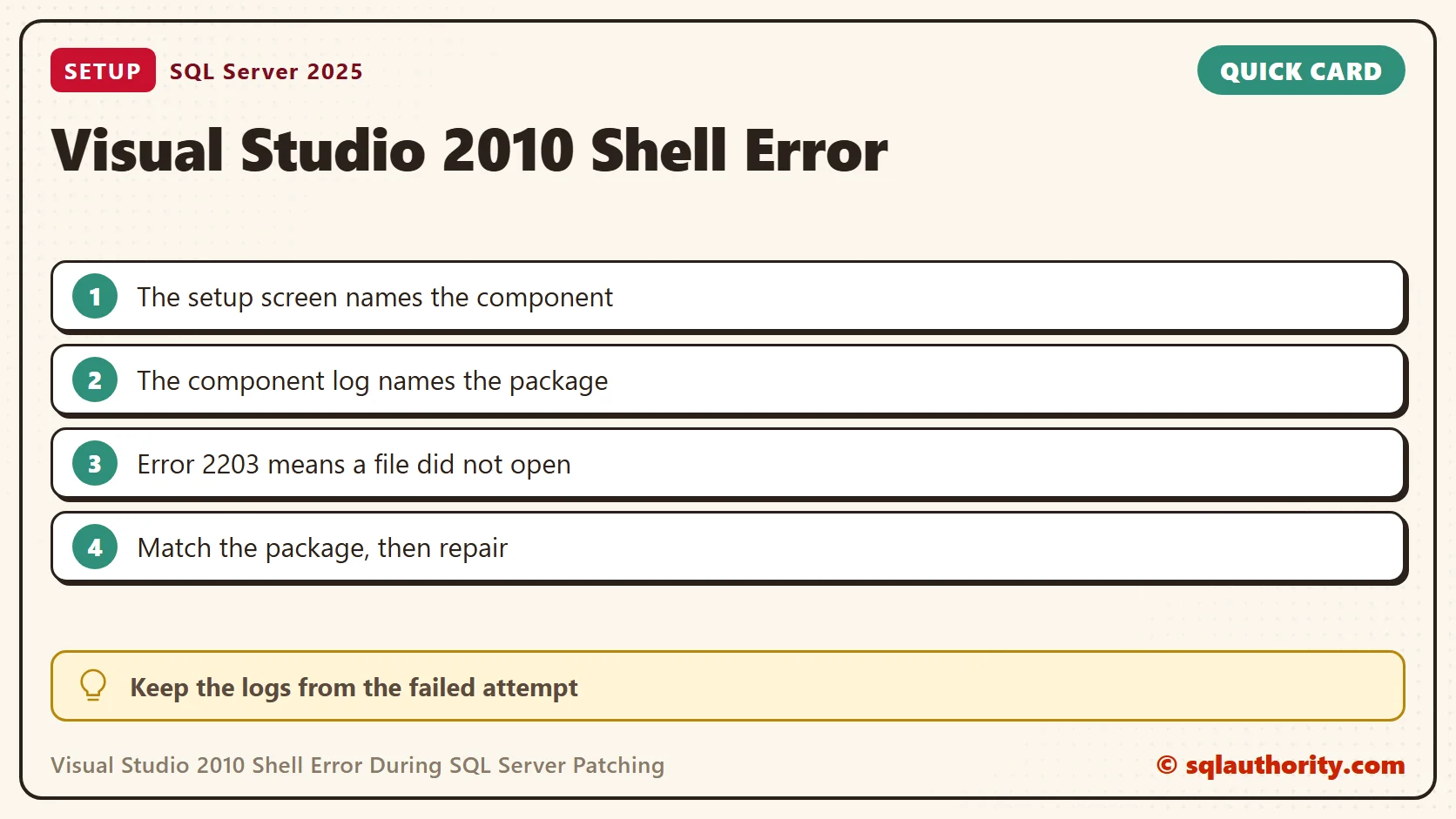
What MSI Error 2203 Means
Windows Installer error 2203 says the installer could not open a database file. The package path in the log tells you which one. The system error is a Windows code in hexadecimal disguise. This line converts it.
'0x{0:X8}' -f (-2147287037 -band 0xFFFFFFFF)It returns 0x80030003, which is the structured storage error for path not found. So the installer looked for vc_red.msi at the logged path and found nothing. A component name on the setup screen does not prove that the shell itself is damaged.
Check the Logged Path
Do not trust the folder name from memory. Read the path from the log and test it. This script takes the package path from the Product: line, then checks the file and its folder. I ran it on a copy of the four lines from the original case. Both checks returned False on my PC, which has no such folder.
Select-String -Path .\VC10Redist_Cpu64_1.log -Pattern '^Product: (.+\.msi)' | ForEach-Object {
    $package = $_.Matches[0].Groups[1].Value
    [pscustomobject]@{ Package = $package; FileFound = Test-Path -LiteralPath $package; FolderFound = Test-Path -LiteralPath (Split-Path $package) }
}
In the original case, the folder was there and vc_red.msi was not. We never established why it had disappeared. If the folder is missing too, write that down. It changes how much of the package set you need to restore. The idea that someone removed it to save space was only a possibility.
What Resolved This Particular Case
We downloaded the same KB3045318 update package again. Its extracted files held vc_red.msi under VC10SP1\x64. The original fix restored that file to the VC10SP1 location the failed operation expected.
KB3045318 is a SQL Server 2012 SP1 GDR security update. That package and folder layout belong to this historical case. They are not the right repair inputs for every Visual Studio 2010 Shell error.
Match the Missing Package Before You Repair
- Keep Summary.txt, Detail.txt and the component log from the failed attempt.
- Record the full requested path, package name, product version, architecture, language and update branch.
- Check whether the file is missing or inaccessible. If it exists, follow the recorded access error instead.
- Get the matching package from a trusted source. A different vc_red.msi with a similar name is not a substitute.
- Follow the supported setup repair for that product, and keep the current files before you change anything.
Do not delete the SQL Server update cache or the Windows Installer cache to free space. They are separate folders, and both can hold files that maintenance needs. Do not copy the installer cache of another computer over this one.
Verify the Patch, Not the Dialog
After the package is back, run the intended patch again. Then confirm the result on the instance, because a closed dialog proves nothing. This query reads the build and the update level. On my SQL Server 2025 instance it returned 17.0.5015.4, RTM, CU9 and KB5126967.
SELECT SERVERPROPERTY('ProductVersion') AS ProductVersion,
       SERVERPROPERTY('ProductLevel') AS ProductLevel,
       SERVERPROPERTY('ProductUpdateLevel') AS UpdateLevel,
       SERVERPROPERTY('ProductUpdateReference') AS UpdateReference;
Record the date, the package and the build next to the logs. The next patch then starts from a known good state. Keep the successful logs with the failed ones. For another package or a newer product, trace its own logged path first. The old folder name is evidence from this case, not a destination for every patch.
A familiar installer file name is not proof of a matching package, it is one detail to verify before repair.
Published by Pinal Dave on SQLAuthority. More of my work at pinaldave.com.
Discover more from SQL Authority with Pinal Dave
Subscribe to get the latest posts sent to your email.