
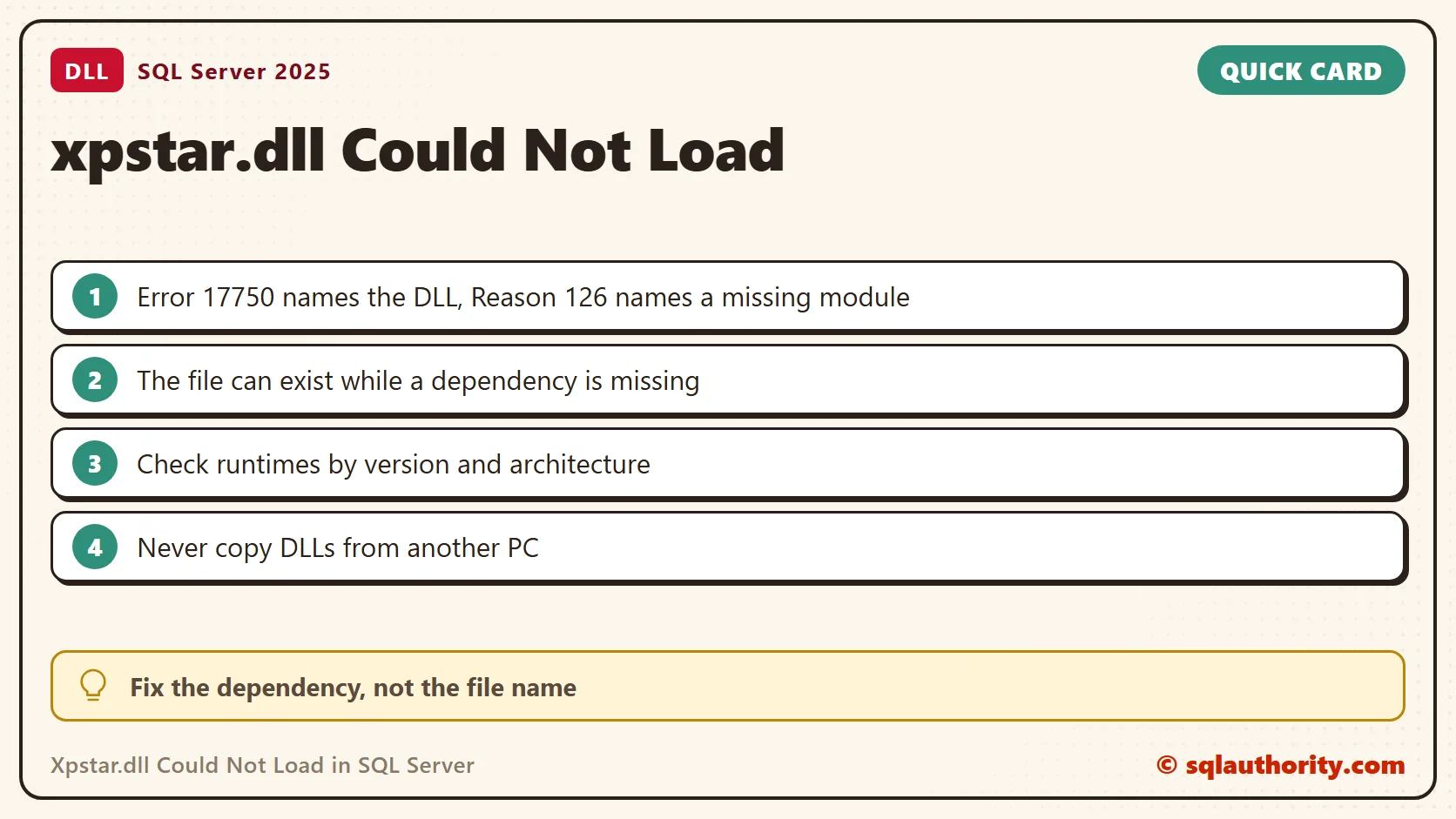
An xpstar.dll loading error can name a DLL that is already present. The missing component can be one of its dependencies. That difference explained a client’s failed SQL Server patch in this 2017 case.

Read Both Parts of the Error
The patch reached the service start stage, but SQL Server did not start normally. The ERRORLOG contained this message.
Error: 17750, Severity: 16, State: 0.
Could not load the DLL xpstar.dll, or one of the DLLs it references.
Reason: 126(The specified module could not be found.).
The same log reported a failure opening Install\SqlTraceCollect.dtsx, with operating system error 3. Keep that evidence. One missing dependency does not explain every later setup message.
We found xpstar.dll in the Binn folder of the instance, which was SQL Server 2012. Seeing the file there ruled out one thing: that this file was absent. It did not check the DLLs that the file needs. Reason 126 means a module could not be found, and on my PC net helpmsg 126 prints exactly that.
The Second Failure Exposed Another Clue
During troubleshooting, the team attempted a special startup and then opened SQLCMD. SQLCMD itself displayed this error before it made any connection.
The program can't start because ATL100.DLL is missing from your computer.
That was a client program loading error, separate from the Database Engine log. ATL100.DLL belongs to the Visual C++ 2010 ATL runtime family. The second failure made the runtime installation worth checking.
Check the File, Its Loaded Version and the Runtimes
The first block reads the text of error 17750 and runs an extended procedure that lives in xpstar.dll. It then asks which copy of the DLL the engine loaded.
SELECT message_id, severity, text FROM sys.messages WHERE message_id = 17750 AND language_id = 1033;
EXEC master.dbo.xp_fixeddrives;
SELECT name, description, file_version FROM sys.dm_os_loaded_modules WHERE name LIKE N'%xpstar%';
On my SQL Server 2025 instance the engine loaded xpstar.dll from the instance Binn folder. The version was 2025.170:5015.4, and the resource DLL came with it. The load happens on first use of a procedure, so run one before you look.
The next block checks the file on disk and three VC++ 2010 runtime DLLs in both system folders. It then prints the installed runtime packages. A DLL in only one folder can still fail a program of the other architecture.
$bin = 'C:\Program Files\Microsoft SQL Server\MSSQL17.SQLDEV\MSSQL\Binn'
Get-Item "$bin\xpstar.dll" | Select-Object Name, Length, @{ n = 'Version'; e = { $_.VersionInfo.FileVersion } } | Format-List
'atl100.dll', 'msvcr100.dll', 'msvcp100.dll' | ForEach-Object { $name = $_; 'System32', 'SysWOW64' | ForEach-Object { [pscustomobject]@{ Dll = $name; Folder = $_; Found = Test-Path (Join-Path $env:WINDIR "$_\$name") } } } | Format-Table -AutoSize
$keys = 'HKLM:\SOFTWARE\Microsoft\Windows\CurrentVersion\Uninstall\*', 'HKLM:\SOFTWARE\WOW6432Node\Microsoft\Windows\CurrentVersion\Uninstall\*'
Get-ItemProperty $keys -ErrorAction SilentlyContinue | Where-Object DisplayName -like 'Microsoft Visual C++ 20*' | Sort-Object DisplayName | Select-Object DisplayName, DisplayVersion | Format-Table -AutoSize
On my PC all three DLLs exist in both folders. The Visual C++ 2010 and 2022 packages are installed for both architectures. A machine that fails the same program shows a missing row or a missing package. The repair target is then a package, not a file.
Keep the Workaround in Its Historical Context
The original case recorded a request to install the relevant component from SQL Server media. It also recorded copying the missing DLL from a working computer. SQLCMD then opened, and SQL Server started normally.
I would not recommend the file copy as a general repair. A matching filename does not prove its architecture, its version or its registration. Repair the component with its own trusted installer instead of borrowing DLLs or renaming a different file.
What to Check Before Repairing
- Save the failed patch logs and the ERRORLOG. Record the instance, the original build, the target update and the failing component.
- Check that the named DLL exists in the right instance folder, and record any loader or dependency error separately.
- Identify the exact runtime package and architecture that the failing program needs.
- Use the supported repair for that installation, and review the media and the maintenance impact first.
- Retry the patch only after you correct the diagnosed problem, then check its completion status.
The original investigation also used single-user and trace flag startup options. They are not a dependency repair. Keep them out of a routine startup command, and never leave an upgrade bypass enabled.
Finally, verify a normal SQL Server startup, the expected build and application connectivity. Opening SQLCMD is useful, but it does not prove that the whole patch completed. Keep the failed and the repaired logs together, because the pair shows exactly what changed.
A DLL filename is not the complete dependency chain, it is one place to begin checking the failed program.
Published by Pinal Dave on SQLAuthority. More of my work at pinaldave.com.
Discover more from SQL Authority with Pinal Dave
Subscribe to get the latest posts sent to your email.


1 Comment. Leave new
This fixed my problem. Thank you!