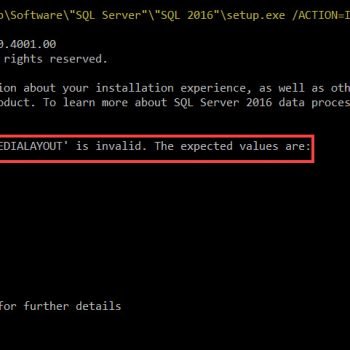
The specified driver is invalid error can stop SQL Server Setup even when no driver is at fault. In this 2017 case, a SQL Server 2012 installation failed on three features. The setup summary never named the real problem, so the logs had to.
Start With the Failed Component
Summary.txt reported failures for Database Engine Services, Full-Text and Replication. The Database Engine section held these lines.
Component name: SQL Server Database Engine Services Instance Features
Component error code: 0x84BB0001
Error description: The specified driver is invalid.
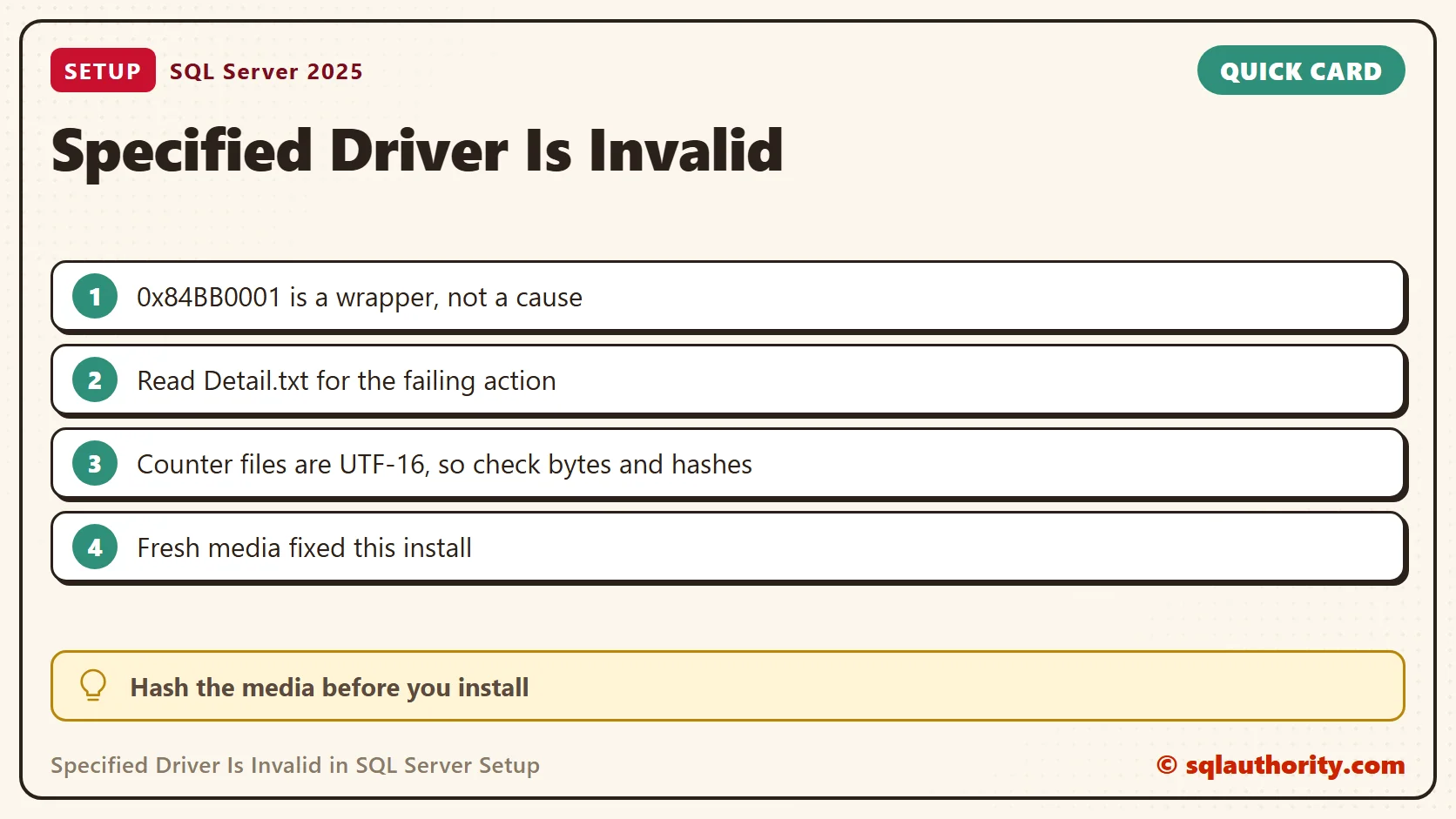
The error code 0x84BB0001 is a general setup failure code. It also appears in other install failures, including one with a TLS cause. The code alone proves nothing. Detail.txt shows the operation that failed, and that operation is what you fix.
The next-step text suggested resolving the error, removing the failed feature and running setup again. That did not mean every SQL Server component on the computer had to go. I wanted the earlier failure before choosing any repair.
Read Detail.txt for the Failing Action
An older SQL Server 2005 article on this message did not match this SQL Server 2012 case. Detail.txt pointed to performance counter registration through lodctr. The instance was named SQLCAP and used a custom install drive.
lodctr: 'E:\Program Files\Microsoft SQL Server\MSSQL11.SQLCAP\MSSQL\Binn\perf-MSSQL$SQLCAPsqlctr.ini'
Two counter files held unreadable characters when we opened them: sqlctr.ini and perf-MSSQL$SQLCAPsqlctr.ini. The same files on a working laptop were readable. The path and the instance name belong to that installation, so replace them with your own.
These commands find the newest setup log and search it. On a healthy log they find no component error lines. On a failed run the same search lands on the failing operation. SQL Server 2025 keeps its logs under the folder named 170. SQL Server 2012 uses the folder named 110.
$log = 'C:\Program Files\Microsoft SQL Server\170\Setup Bootstrap\Log'
$detail = Get-ChildItem $log -Recurse -Filter Detail.txt | Sort-Object LastWriteTime -Descending | Select-Object -First 1
Select-String -Path "$log\Summary.txt" -Pattern 'Final result', 'Exit code', 'Component error code', 'Error description'
Select-String -Path $detail.FullName -Pattern 'lodctr', '0x84BB0001' | Select-Object -First 5
Check the Counter Files and the Media
Unreadable text is a clue, not a verdict. Counter files are Unicode text. On my SQL Server 2025 instance all four start with the bytes FF FE, the UTF-16 byte order mark. An editor that assumes plain ANSI text shows garbage for a healthy file. Compare the size and the hash with a working copy of the same build instead.
$bin = 'C:\Program Files\Microsoft SQL Server\MSSQL17.SQLDEV\MSSQL\Binn'
Get-ChildItem $bin -Filter '*ctr.ini' | ForEach-Object {
    $b = [IO.File]::ReadAllBytes($_.FullName)
    [pscustomobject]@{ File = $_.Name; Bytes = $b.Length; FirstTwoBytes = ($b[0..1] | ForEach-Object { $_.ToString('X2') }) -join ' '; Sha256 = (Get-FileHash -Algorithm SHA256 -Path $_.FullName).Hash.Substring(0, 12) }
} | Format-Table -AutoSize
typeperf -q 'MSSQL$SQLDEV:General Statistics' | Select-Object -First 4
My instance lists the four files and all four begin with FF FE. The typeperf line proves that Windows has the instance counters registered. Run the same commands on a working machine and on the failing one, then compare the output.
What Resolved This Installation
The same installation media failed on another computer. We obtained a fresh copy of the media, and SQL Server installed successfully. That result pointed to damaged media in this case.
The error wording tempts people to replace an ODBC driver right away. Here the failing action involved performance counter files. A driver reinstall would not have touched the evidence.
Likely Causes and How to Confirm Each
| Cause | How to confirm it | Status in this case |
|---|---|---|
| Damaged or incomplete media | Run the same media on a second computer and compare file hashes with the source | Failed on a second computer |
| Unreadable counter files | Compare size and hash with a working copy of the same build | Unreadable characters in two files |
| Damaged counter registry | typeperf -q lists the instance counters; none listed means a registry problem | Not tested here |
| Wrong or missing path | Test-Path on the file named in the lodctr line | Custom drive E: |
A damaged counter registry is a documented cause. The documented repair is lodctr /R from an elevated prompt. I did not run it, and I would try it only after the media is ruled out.
Use the Same Investigation Order
- Save Summary.txt, Detail.txt and the component logs from the failed attempt.
- Record the SQL Server version, architecture, media source and the exact failed feature.
- Read the messages around the first failure and find the file or operation it names.
- Check the media against its trusted source, and fetch a fresh copy if the check fails.
- Follow the recovery steps for that version and feature, and keep existing databases and other instances safe.
Prevent It
Copy the media to a local disk and compare its hash with the source before you install. Keep the logs from every failed run next to the successful one. If the instance is SQL Server 2012, plan its replacement separately, because that version is out of support.
An installation error is not a repair plan, it is the starting point for reading the failed action.
Published by Pinal Dave on SQLAuthority. More of my work at pinaldave.com.
Discover more from SQL Authority with Pinal Dave
Subscribe to get the latest posts sent to your email.