
Question: How do I fix SQL Server Setup’s failed “Setup account privileges” rule? Read the failed rule and Setup log to identify the missing Windows user right, then correct the effective policy for the authorized setup account.

During an interview at a large organization, a DBA reported an installation failure. It gave us a practical problem to put in front of the candidate, who solved it. The useful part was not memorizing an error; it was following the evidence.

Clicking Failed showed this rule result:

Find the missing right in the log
The original SystemConfigurationCheck_Report.htm named HasSecurityBackupAndDebugPrivilegesCheck. The corresponding Detail.txt entry said the process had SeSecurity and SeBackup, but did not have SeDebug.

- SeBackupPrivilege: Back up files and directories.
- SeDebugPrivilege: Debug programs.
- SeSecurityPrivilege: Manage auditing and security log.
In this case, the missing right was Debug programs. The original wording about the “second one” was easy to misunderstand; the log is the authority.
Inspect the effective Windows policy
Open Local Security Policy with secpol.msc, then Local Policies, User Rights Assignment. The original screenshot shows an empty Debug programs assignment:
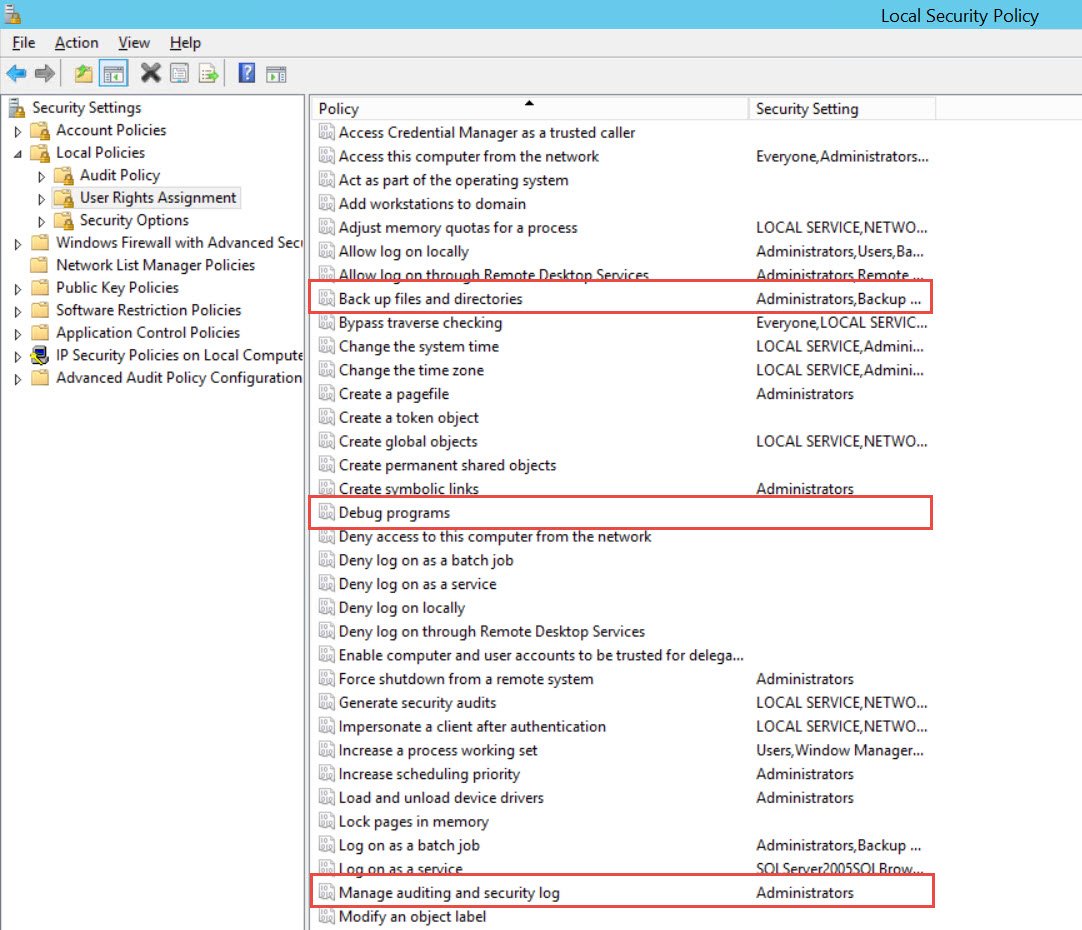
I had removed the default Administrators assignment during hardening on that test machine. Restoring the intended account policy and restarting the machine allowed Setup to proceed. On a managed server, coordinate with the policy owner: a domain policy can override local edits.
Run Setup elevated with an authorized account. After a rights change, refresh the account’s logon token as required and rerun the checks. Do not broadly grant Debug programs to ordinary users, bypass the failed check or assume database sysadmin membership fixes a Windows process privilege.
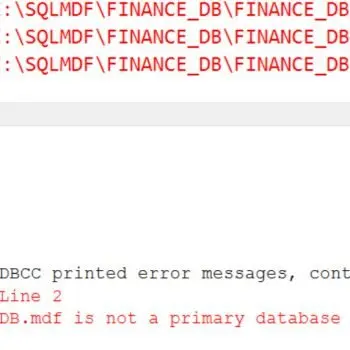
These four screenshots document the historical SQL Server 2014 incident. A current Setup version may label screens differently, so read its current report and Detail.txt instead of assuming the same missing right.
Published by Pinal Dave on SQLAuthority. More of my work at pinaldave.com.
Discover more from SQL Authority with Pinal Dave
Subscribe to get the latest posts sent to your email.


20 Comments. Leave new
Hi I’m not sure whether I’m posting in the right platform but I’m trying to calculate hours worked between 8 – 16:30 excluding weekends, after-hours, holidays, and lunch time. Was able to find help except for excluding lunch hours. How do I exclude lunch hours in my calculation.
When the steps above do not work what do you do?
In my case the permissions reflected only after reboot thanks.
On Windows Server 2012, I am not able to add or remove any group or user for the Debug Programs Policy. The two buttons are greyed out.
@Raj – that happens when they are controlled via group policy. You should contact you domain admin to make that changes.
Jim. if you are unable to Add the Permission, Skip the check by running setup from the command line as so :-
Setup.exe /ACTION=Install /SkipRules=HasSecurityBackupAndDebugPrivilegesCheck
Thanks for the tip, works for me
The above works for me- thanks a lot!
I used: SQLEXPRADV_x64_ENU.exe /ACTION=Install /SkipRules=HasSecurityBackupAndDebugPrivilegesCheck
thank you my hero, i was having a hard time trying to run the installer.
Keiran’s tip worked!
How do you run the setup from the command line? My manage auditing and security log is greyed out. Please help out
You can open command prompt, browse to folder which contains setup.exe and run below command
Setup.exe /ACTION=Install /SkipRules=HasSecurityBackupAndDebugPrivilegesCheck
I have not tested.
hi
i am unable to install sql 2012 and the error is “setup account privileges failed” and when itried to skind the rules through that above given command its not installing properly in between the installation getting error,please tell me any other alternative solution that i can install .
Pinal Dave Please give me your email id that i can forward the error screen shot which i got after running that command”Setup.exe /ACTION=Install /SkipRules=HasSecurityBackupAndDebugPrivilegesCheck”
it is pinal @ sqlauthority.com
If it can help someone :
I had to go out of the AD to be able to install sqlserver without debug rights.
After that you can reintegrate the AD.
Why doesn’t the article complete the details? *HOW* do I continue to fix the problem???
Worked for me:
press Win + R to open cmd.
browse to the folder of the SQL instalation, in my case “C:\SQL2019\ExpressAdv_ENU” with this command:
cd C:\SQL2019\ExpressAdv_ENU
A new line will be created waiting for the command:
Setup.exe /ACTION=Install /SkipRules=HasSecurityBackupAndDebugPrivilegesCheck
Press enter, enjoy.
Unable to add permission in that case how to uninstall SQL server instance.
This has been very useful! Thank you!