I try to refrain from talking about licensing related topics because they seem to be complicated and have tons of permutations and combinations. Having said that, in the recent past, I was baffled to see this query land to my Inbox which was interesting and needed some attention from me. I could have easily put it under the rug and forget but this kept haunting me for a long time. So I decided to check with a couple of senior DBA’s who manage 1000’s of servers and how they manage doing something like this. So I called up, learnt a few tips around licensing and this is what I have assimilated from the discussion. Though this discussion and facts stand true as on date of publication of this blog, some of the nuances might change maybe in the future. That might make some of the licensing terms void. But the process to change license key will always be something useful to you in my opinion.
SQL Server can be purchased via various channels like MSDN, Volume License, Full Packaged Product (FPP) or OEM. Sometimes it may happen that:
- You have installed SQL Server from MSDN media and later you purchased media via Volume License channel and you want to update the license key used by SQL Server.
- You have an MSSQL install that was purchased by one department, but now a new department wants to take over the install and want to use their own license.
The steps to update product key is simple. Actually, these are the same steps which are required to upgrade the edition of SQL Server. While changing product key, there is no “real” edition upgrade.
- Run setup.exe from the media.
OR
If you have SQL already installed, then you can also launch “Installation Center” by going to Start->Programs ->Microsoft SQL Server 2008[R2]->Configuration Tools-> SQL Server Installation Center[(64-bit)].
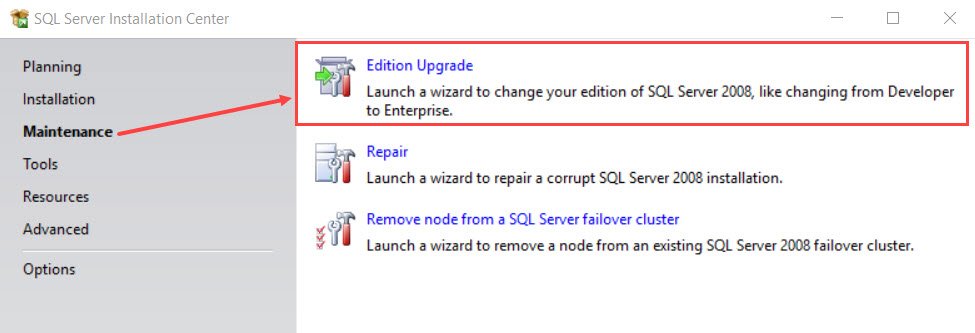
- You would get below screen titled “SQL Server Installation Center”
- Go to “Maintenance” and click on “Edition Upgrade” as shown below
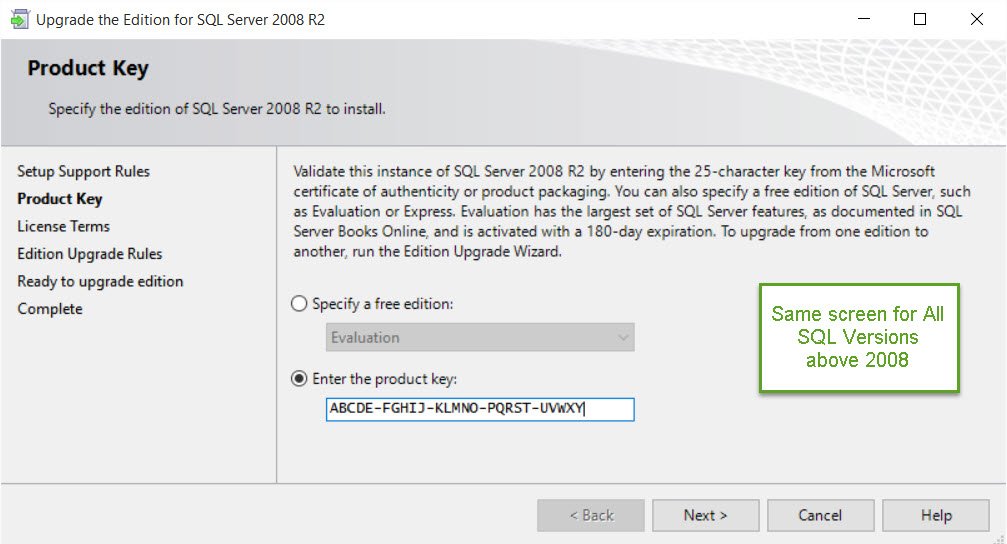
- Go through the wizard and make sure that new key is entered in below screen.
If you have a requirement to do this on multiple server and going through the setup wizard is not an option, then you can use below command line also.
For Default Instance:
Setup.exe /q /ACTION=EditionUpgrade /INSTANCENAME=MSSQLSERVER /PID=<PID key for new edition>” /IACCEPTSQLSERVERLICENSETERMS
For Named Instance:
Setup.exe /q /ACTION=EditionUpgrade /INSTANCENAME=InstanceName /PID=<PID key for new edition>” /IACCEPTSQLSERVERLICENSETERMS
Have you ever changed product key? What have you done in the past? What techniques have you used to perform this task? Do let me know about your experiences too.
Reference: Pinal Dave (https://blog.sqlauthority.com)