
A conference attendee once gave me a good restore question: “I have a .bak file and want to restore it as a new database. What do I need to know first?” The word new matters. My old four-step answer included switching a database to SINGLE_USER, which is a concern when replacing an existing database, not a prerequisite for creating a new one.

First identify the backup set and the files it contains. The name ending in .bak does not tell you the database name or how many data files are inside. For this lab backup, I inspect the header and file list:
RESTORE HEADERONLY
FROM DISK = N'D:\SqlBackups\AdventureWorks2025.bak';

RESTORE FILELISTONLY
FROM DISK = N'D:\SqlBackups\AdventureWorks2025.bak';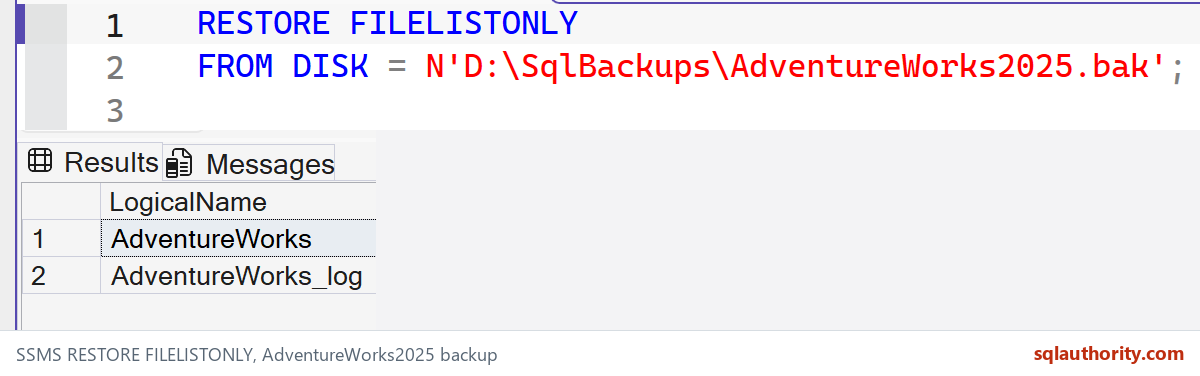
Next choose a target database name and file paths on the SQL Server machine. Here is the corresponding new-database restore example. Review the header’s backup position, confirm the destination folders exist, and change the names and paths to match your own backup before running it:
IF DB_ID(N'AdventureWorksRestored') IS NOT NULL
    THROW 50010, 'Choose a new target name before restoring.', 1;

RESTORE DATABASE AdventureWorksRestored
FROM DISK = N'D:\SqlBackups\AdventureWorks2025.bak'
WITH FILE = 1,
     MOVE N'AdventureWorks'
       TO N'D:\SqlData\AdventureWorksRestored.mdf',
     MOVE N'AdventureWorks_log'
       TO N'D:\SqlLogs\AdventureWorksRestored_log.ldf',
     RECOVERY;
The MOVE names on the left come from FILELISTONLY; the paths on the right are the new physical destinations. If you will apply differential or log backups next, use NORECOVERY until the last restore instead of recovering immediately. Replacing an existing database needs a separate plan for active connections and data preservation. Do not add REPLACE merely to make an error disappear.
My earlier restore script walkthrough has more detail. For this interview question, the sequence is: inspect the backup, map every logical file, choose the new destination, then restore and verify.
Published by Pinal Dave on SQLAuthority. More of my work at pinaldave.com.
Discover more from SQL Authority with Pinal Dave
Subscribe to get the latest posts sent to your email.



8 Comments. Leave new
there is no need to set the database in multiuser again. The restore proces does that for you..and im missing the “replace” keyword. You need that to overwrite the existing database..
Thanks for adding your comment eelcodrost.
Now i am getting the mentioned error in DR Server 2012 web edition,Service pack : RTM.
Initially i have taken the full backup from primary and restored in DR with replace,standby=’dbname.tuf’ it is in sync till threshold(45 mins) limit after that restore job getting succeeded with the following error ” *** Error: Could not log history/error message.(Microsoft.SqlServer.Management.LogShipping) ***
*** Error: ExecuteNonQuery requires an open and available Connection. The connection’s current state is closed.(System.Data) *** ”
1.Backup job getting success–Full admin rights given
2.Copy job getting success—Full rights given to folder
3.Restore job getting success with above mentioned errors.
Agent running on same id primary & DR.
Server is running on Work group not in domain
I am suspecting that latest service pack will clear this above mentioned error . Correct me if i am wrong..
Please review the recent post and reply me ASAP.
I generally look at profiler to find the source of the error.
Msg 3180, Level 16, State 1, Line 2
This backup cannot be restored using WITH STANDBY because a database upgrade is needed. Reissue the RESTORE without WITH STANDBY.
Msg 3013, Level 16, State 1, Line 2
RESTORE DATABASE is terminating abnormally.
Hi. Thank you for this post. I followed your instructions, but I got stuck in the end with something unexpected.
I have administrative access to a web server in which I have deployed an ASP.NET application which uses SQL Server for data storage. The DBMS is SQL Server 2014 and it’s based in a different machine in the LAN. All I have to access the DBMS is a SQL user which owns the dbo schema on the database ‘mydb’.
I can’t execute
RESTORE FILELISTONLY
FROM DISK = ‘D:\BackUpYourBaackUpFile.bak’
GO
because it gives me the error “CREATE DATABASE permission denied in database ‘master'”.
I resorted to using “exec sp_helpdb ‘mydb'” to get the logical name of the mdf and the ldf file.
I needed to restore a backup of ‘MyDb’ taken from a local instance. In order to do this I created a shared folder on the web server, shared with Everyone with Read/Write permissions and I executed the following script
—-Make Database to single user Mode
ALTER DATABASE MyDb
SET SINGLE_USER WITH
ROLLBACK IMMEDIATE
GO
—-Restore Database
RESTORE DATABASE MyDb
FROM DISK = ‘\\webserver\everyone\mydbbackup.bak’
With Replace,
MOVE ‘MyDbMdfLogicalName’ TO ‘D:\Data\MyDb.mdf’,
MOVE ‘MyDbLdfLogicalName’ TO ‘D:\Data\MyDb_log.ldf’
GO
—-Make Database to multi user Mode
ALTER DATABASE MyDb SET MULTI_USER
GO
The script completed successfully, but after it had finished I realized that it had overwritten the user rights on the database locking me out! I had to call the DBA to give me back the access to the db.
Is there a way to restore a backup without loosing user rights?
Thank you.
Small correction, the DBMS is SQL Server 2012 Standard.
I was expecting some feedback by now…