
Msg 864 means a buffer pool extension file is larger than SQL Server allows for the memory it has. On SQL Server 2014, the setting was accepted and the service then failed to start. This post gives the cause, the safe checks and the way back in.

What Buffer Pool Extension Does
Buffer pool extension, or BPE, lets SQL Server use a file on a local SSD as a second cache level. RAM is the first level. When RAM is full, clean pages move to the file instead of leaving the cache. A later read then comes from the SSD and not from the data disk.
Only clean pages go to the file, so the data stays safe if the file is lost. BPE works on SQL Server for Windows only, and not in every edition. You turn it on with ALTER SERVER CONFIGURATION, a file path and a size. I did not turn it on for this post.
Where the Error Comes From
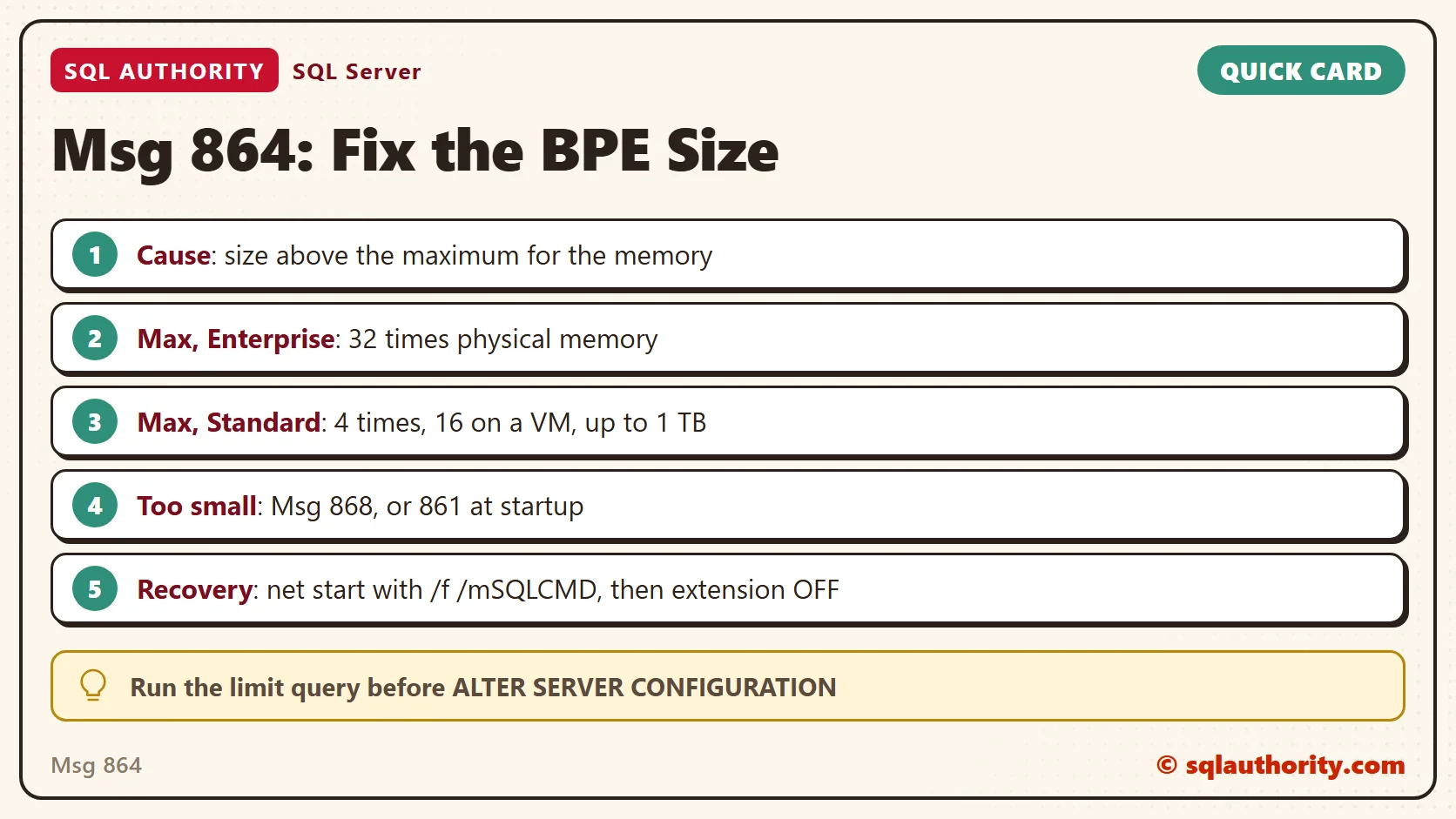
SQL Server compares the size you ask for with the memory in the machine. A size above the maximum raises Msg 864, and the extension stays off. The current documentation sets these limits:
| Edition | Largest extension | Smallest extension |
|---|---|---|
| Enterprise and Developer | 32 times physical memory | Larger than the smaller of physical memory and max server memory |
| Standard, physical machine | 4 times physical memory, up to 1 TB | Same rule |
| Standard, virtual machine | 16 times physical memory | Same rule |
A size below the minimum raises error 868, or error 861 at startup. The 2014 documentation counted the multiple against max server memory, and it gave Standard 4 times on every machine. The current text counts physical memory, allows 16 times on a virtual machine, and caps Standard at 1 TB. Earlier versions capped it at 512 GB.
On SQL Server 2014 Standard, a size over the limit passed through ALTER SERVER CONFIGURATION. The cost came at the next start. The service tried to build the cache and wrote a line about allocating buffers for it. Then it logged error 864 and stopped.
Four Checks That Change Nothing
First, ask whether the extension is on. The view returns one row, and it is read-only.
SELECT path, state_description, current_size_in_kb
FROM sys.dm_os_buffer_pool_extension_configuration;
| path | state_description | current_size_in_kb |
|---|---|---|
| NULL | BUFFER POOL EXTENSION DISABLED | NULL |
The path and size are NULL because my test server never had BPE. I ran every check here on SQL Server 2025 Enterprise Developer.
Second, test a planned size against the limits before you ask for it. The script reads physical memory and max server memory, then judges three sizes in gigabytes. Replace the three numbers with yours.
DECLARE @PhysicalMB bigint = (SELECT physical_memory_kb / 1024 FROM sys.dm_os_sys_info);
DECLARE @MaxServerMB bigint = (SELECT CAST(value_in_use AS bigint) FROM sys.configurations WHERE name = N'max server memory (MB)');
DECLARE @VmType int = (SELECT virtual_machine_type FROM sys.dm_os_sys_info);
DECLARE @MaxExtensionMB bigint = CASE WHEN SERVERPROPERTY('EngineEdition') = 3 THEN @PhysicalMB * 32
                                      ELSE LEAST(@PhysicalMB * CASE WHEN @VmType = 0 THEN 4 ELSE 16 END, 1048576) END;
DECLARE @MinExtensionMB bigint = LEAST(@PhysicalMB, @MaxServerMB);
SELECT p.PlannedGB, @PhysicalMB AS PhysicalMB, @MinExtensionMB AS MinMB, @MaxExtensionMB AS MaxMB,
       CASE WHEN p.PlannedGB * 1024 > @MaxExtensionMB THEN N'Over the maximum: Msg 864'
            WHEN p.PlannedGB * 1024 <= @MinExtensionMB THEN N'Under the minimum: Msg 868'
            ELSE N'Inside both limits' END AS Verdict
FROM (VALUES (8), (50), (2000)) AS p (PlannedGB);| PlannedGB | PhysicalMB | MinMB | MaxMB | Verdict |
|---|---|---|---|---|
| 8 | 32212 | 32212 | 1030784 | Under the minimum: Msg 868 |
| 50 | 32212 | 32212 | 1030784 | Inside both limits |
| 2000 | 32212 | 32212 | 1030784 | Over the maximum: Msg 864 |
My server has 32,212 MB of physical memory, so the Enterprise maximum is 1,030,784 MB. On a Standard virtual machine the same query would use 16 times instead. Max server memory is at its default here, so physical memory sets the minimum.
Third, read what SQL Server says. The message catalog holds the exact text of each error.
SELECT message_id, severity, text
FROM sys.messages
WHERE language_id = 1033 AND message_id IN (861, 864, 868, 5866)
ORDER BY message_id;
| message_id | severity | text |
|---|---|---|
| 861 | 10 | Buffer pool extension size must be larger than the physical memory size %I64d MB. Buffer pool extension is not enabled. |
| 864 | 10 | Attempted to initialize buffer pool extension of size %1ld KB, but maximum allowed size is %2ld KB. |
| 868 | 10 | Buffer pool extension size must be larger than the current memory allocation threshold %I64d MB. Buffer pool extension is not enabled. |
| 5866 | 10 | Max server memory specified – %I64d MB is greater than the buffer pool extension size – %I64d MB. Buffer pool extension would be disabled on restart. |
Message 864 names two sizes, what you asked for and the maximum allowed, both in KB. Subtract one from the other to see how far over you are. Message 5866 is a warning. Raising max server memory above the extension size switches the extension off at the next restart.
Fourth, search the error log. The first parameter is the log number. The second selects the SQL Server log. The third is the search text.
EXEC sys.sp_readerrorlog 0, 1, N'buffer pool extension';
| LogDate | ProcessInfo | Text |
|---|---|---|
| 2026-10-05 06:26:15.340 | Server | Buffer pool extension is already disabled. No action is necessary. |
That is the one line on my server. If a bad size ever stops a start, search for the same words and for the number 864 first.
The Fix When the Service Will Not Start
Start SQL Server with minimal configuration, turn the extension off, then restart normally. Run these steps from a command prompt opened as administrator:
- Start the service:
net start MSSQLSERVER /f /mSQLCMD. A named instance usesnet start MSSQL$InstanceName /f /mSQLCMD. - Connect:
sqlcmd -S (local) -E. For a named instance, use-S .\InstanceName. - Turn the extension off:
ALTER SERVER CONFIGURATION SET BUFFER POOL EXTENSION OFF;thenGO. - Stop the service:
net stop MSSQLSERVER. - Start it normally from Services, or with
net start MSSQLSERVER.
The /f switch starts minimal configuration, which exists for settings that stop the server from starting. It also places the server in single-user mode. The /m switch with SQLCMD lets only one sqlcmd connection in, so a monitoring tool cannot take the single seat.
I did not run these steps. My test server never had BPE on, and I will not break it to prove a recipe. They follow Microsoft’s documented startup options. After the restart, pick a size inside the limits, enable the extension again and restart once more.
Write the new size down next to the physical memory it was based on. Resizing a virtual machine later changes the limits, and the old size can fall outside them. Run the limit query again after every memory change.
When the Extension Helps
BPE helps when the busy data is bigger than RAM but smaller than the SSD. It also needs a workload that mostly reads. The file holds clean pages only. A write-heavy workload gains little, because dirty pages never go to the file.
Adding RAM is the first fix, since RAM is faster than any SSD. Reach for BPE when the server cannot take more memory and has fast local flash. Whether your workload gains is something only a test shows. Measure reads from disk on a copy of the server, before and after.
The size matters beyond the limits. The documentation advises a ratio of 1:16 or less between RAM and file. It names 1:4 to 1:8 as the lower range.
A Fair Objection
You could say the size check is wasted effort, because SQL Server rejects a bad size on its own. Fair point. The current documentation says Msg 864 comes back and the extension stays off. On 2014 the bad size was accepted, and the bill arrived at a restart.
I could not test the 2025 behavior, since that needs the extension on. One query before the change is cheaper than a service that will not start.
A Short Checklist
- Run the limit query with your planned size before
ALTER SERVER CONFIGURATION. - Set max server memory first. The minimum rule depends on it.
- Use a local SSD. Slow or remote storage defeats the purpose.
- Restart once after the first enable to get the full benefit.
- Test before production. Avoid turning it off on a busy server, because the buffer pool shrinks when you do.
- Keep the five recovery steps in your runbook, with the right service name.
These checks create nothing on the server, so there is nothing to clean up.
Msg 864 is not a broken server, it is a size that did not fit the memory.
Published by Pinal Dave on SQLAuthority. More of my work at pinaldave.com.
Discover more from SQL Authority with Pinal Dave
Subscribe to get the latest posts sent to your email.



7 Comments. Leave new
Wow you saved my day. Why it lets you set an invalid value is beyond comprehension … computing 101!!!!!
coderanger – thanks for the comment.
Thank you writing this article. It helped me understand the issue.
You are the best
Rizwan – I am glad that you liked it.
you are the master!
Hi Pinal, this article is now missing some steps – it jumps from 3. to 6. (missing 4. and 5.). Can you please fix it? Thanks
fixed.