
Autocomplete and code formatting save time, and they prevent mistakes, when they are set up well. SSMS has the first built in. For the second, it gives you the building blocks and leaves the style to you. The rest covers what each one does in SSMS 22, and what to do when it stops working.

What IntelliSense Does
The autocomplete in SSMS is called IntelliSense. It reads the names of tables, columns and procedures from the server you are connected to. It then offers them as you type. Type a table alias and a dot, and a list of its columns appears. Pick one with the arrow keys and press Tab or Enter.
It does more than lists. Parameter info shows the arguments of a function or procedure while you type the call. Quick info shows the type of a column when you hover over it. Misspelled names get a red underline before you run the query. That last one saves the most time, because the error appears while you can still fix it cheaply.
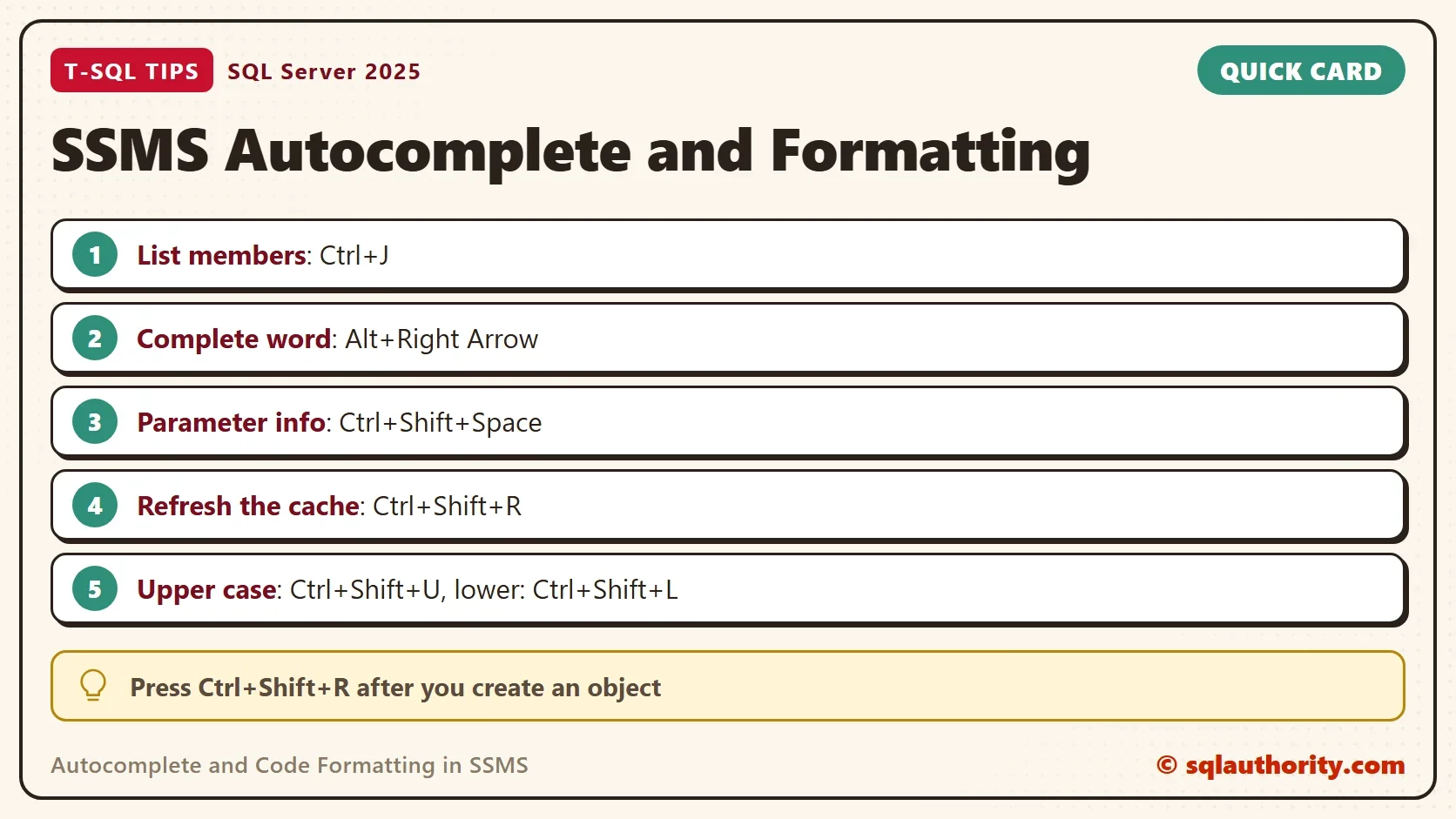
Learn four shortcuts, which work in SSMS 22. Ctrl+J opens the list of members. Alt+Right Arrow completes the word you started. Ctrl+Shift+Space shows the parameter info. Ctrl+Shift+R refreshes the local cache. The last one fixes most complaints, as the next section explains.
Why IntelliSense Stops Working
IntelliSense keeps a local cache of object names. When you create a table, the cache doesn’t know about it. The table gets a red underline even though the query runs. Press Ctrl+Shift+R and the underline goes away. That’s the most common reason for the red lines people report.
There are three other reasons. IntelliSense needs a connection, so a query window that isn’t connected has no names to offer. IntelliSense isn’t available when the window is in SQLCMD mode. And it can be switched off. Look under Tools, Options, Text Editor, Transact-SQL, IntelliSense, or at the toggle in the Query menu. Check those three before you suspect the server.
Formatting Is a Choice Before It Is a Tool
Autocomplete and code formatting solve different problems. Autocomplete saves typing, and formatting saves reading. Formatting means line breaks, indentation and keyword case. It doesn’t change what a query does. SSMS gives you the building blocks. Ctrl+Shift+U makes the selection upper case, and Ctrl+Shift+L makes it lower case. Tab and Shift+Tab indent a selection. A separate formatting tool reformats a whole query. Pick one that everyone on your team can run, so the style stays the same.
Beware of the casing shortcut. It changes everything you selected, including object names and text in quotes. On a database with a case sensitive collation, an uppercased table name can stop existing. An uppercased string literal is a different value. Select keywords only, or let a formatting tool do it.
A style that works has six rules. Write keywords in upper case. Put each clause on its own line. Put each column of a long select list on its own line. Give every table an alias with AS. Indent a continued condition under its clause. End each statement with a semicolon. The rules aren’t magic, but one set applied everywhere beats five good sets.
The Same Query, Two Ways
One query, written in a hurry, returns the first four databases and their recovery models. The marker column is there so we can find the query in the plan cache later.
select 'FormatMarker' as Marker,d.name,d.recovery_model_desc from sys.databases d where d.database_id<5 and d.state=0 order by d.name
Now the same query in the style above.
SELECT 'FormatMarker' AS Marker,
       d.name,
       d.recovery_model_desc
FROM sys.databases AS d
WHERE d.database_id < 5
  AND d.state = 0
ORDER BY d.name;| Marker | name | recovery_model_desc |
|---|---|---|
| FormatMarker | master | SIMPLE |
| FormatMarker | model | FULL |
| FormatMarker | msdb | SIMPLE |
| FormatMarker | tempdb | SIMPLE |
Both queries return these four rows. A reviewer can see each condition in the second one. A diff tool shows a changed condition as one changed line, not as a changed wall of text.
What Formatting Does to the Plan Cache
Formatting doesn’t change the result or the plan. It does change the cache. SQL Server stores a plan under the exact text of the query. Two spellings of one query are two cache entries. This query counts the entries that contain our marker, and the distinct query hashes among them.
SELECT COUNT(DISTINCT qs.sql_handle) AS TextVariants, COUNT(DISTINCT qs.query_hash) AS QueryHashes
FROM sys.dm_exec_query_stats AS qs
CROSS APPLY sys.dm_exec_sql_text(qs.sql_handle) AS t
WHERE t.text LIKE N'%FormatMarker%' AND t.text NOT LIKE N'%dm_exec_query_stats%';
| TextVariants | QueryHashes |
|---|---|
| 2 | 1 |
Two text variants, one query hash. The hash identifies queries with the same logic. SQL Server sees one query written two ways, and it keeps a plan for each spelling. The cost is small for a handful of queries. For an application that builds many spellings of one query, the cache fills with near copies. Consistent formatting in the code that generates the text keeps that waste down.
You Could Argue It Is Only Cosmetics
It’s a fair argument. The server doesn’t care how a query looks. People do, and people make the mistakes. A condition hidden at the end of a long line is the one that gets lost in a review. A consistent layout lets your eyes find the join, the filter and the sort in the same place each time.
I’d add one more practical point. Turn on a formatting habit before you need it. Reformatting a long procedure that someone else wrote is slow. The first reformat also creates a noisy change that hides the real edits. Format as you write.
What to Remember
Autocomplete and code formatting reward a small amount of setup. Use IntelliSense for names and parameter info, and press Ctrl+Shift+R when it falls behind. Check the connection, SQLCMD mode and the Options page when it stops. Agree on a short formatting style, and apply it with a tool the whole team can run. Use the casing shortcut on keywords only.
Format the query once, and stop arguing about it. Then spend the attention you saved on the logic.
Formatting is not decoration for the query, it is a kindness to the next person who reads it.
Published by Pinal Dave on SQLAuthority. More of my work at pinaldave.com.
Discover more from SQL Authority with Pinal Dave
Subscribe to get the latest posts sent to your email.




3 Comments. Leave new
RedGate has a similar suite which is very good.
The Redgate product is very good but costs thousands of Dollars
i have been using this for almost a year (the free version) and i like it. it also works on servers where the standard autocomplete dousn’t work for some reason