
Check your SQL Server version before you do anything else. It is the first question I ask on every engagement, and the answer is wrong about a third of the time. People tell me the version they installed, not the version that is running. Those two drift apart the moment somebody applies an update, or fails to.

The One Query
Run this and you have the whole picture. It works on every version from SQL Server 2008 onward, and it needs no special permission.
SELECT SERVERPROPERTY('ProductVersion')     AS ProductVersion,
       SERVERPROPERTY('ProductLevel')       AS ProductLevel,
       SERVERPROPERTY('ProductUpdateLevel') AS UpdateLevel,
       SERVERPROPERTY('Edition')            AS Edition,
       SERVERPROPERTY('MachineName')        AS MachineName,
       SERVERPROPERTY('InstanceName')       AS InstanceName;
This is what my own server returned while I was writing this post:
ProductVersion  ProductLevel  UpdateLevel  Edition
17.0.4085.5     RTM           CU8          Enterprise Developer Edition (64-bit)

MachineName  InstanceName
focus        SQLDEV
Six values, and each one answers a different question. Most people know only the first.
Reading the Build Number
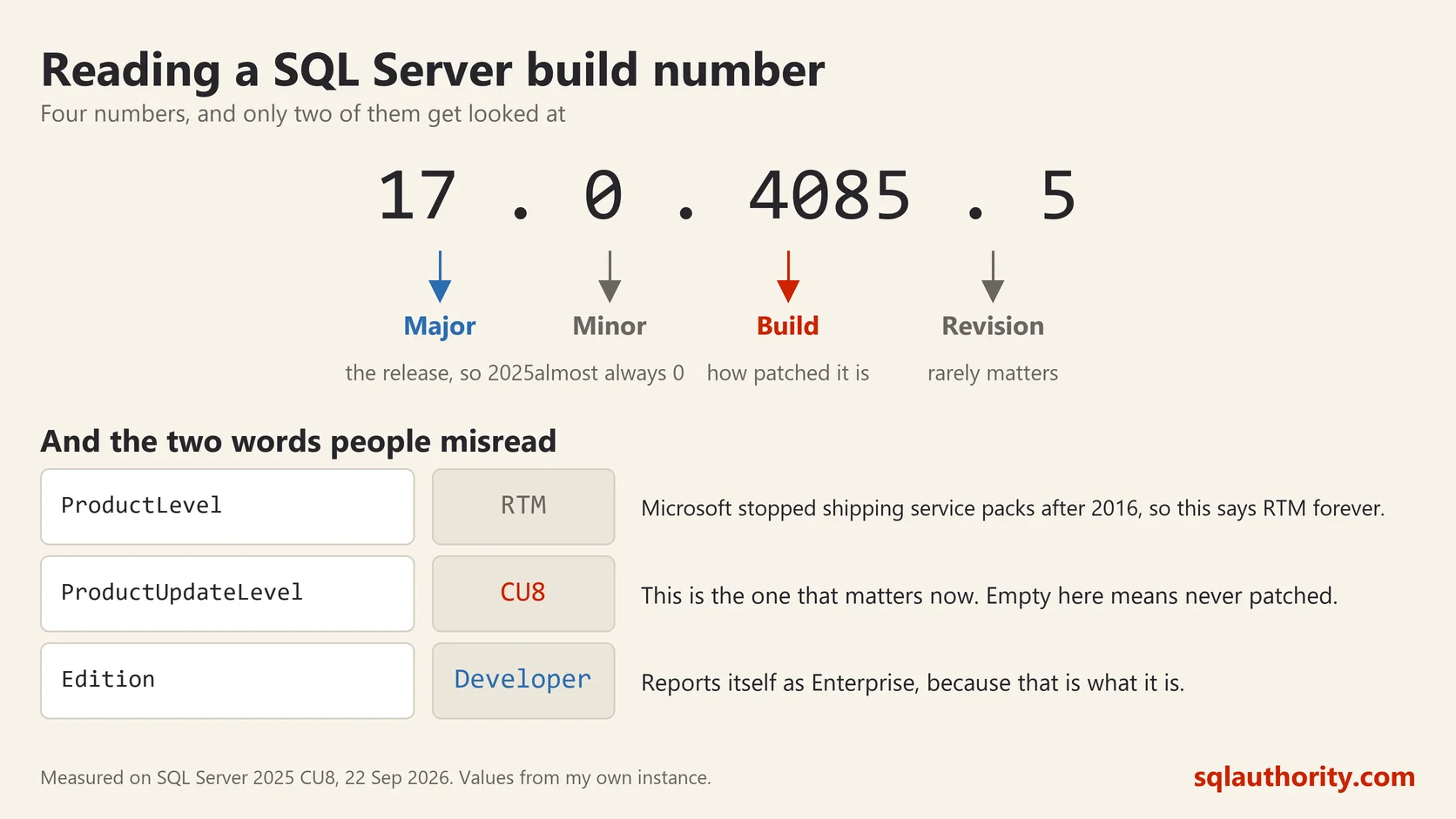
ProductVersion is four numbers, and the first one is the release. 17 is SQL Server 2025. 16 is 2022, 15 is 2019, 14 is 2017, 13 is 2016, 12 is 2014, 11 is 2012. If you remember that the major number is two ahead of nothing obvious, you are not alone, which is why people look it up every time.
The third number is the one that tells you how patched the server is. Mine reads 4085, and a fresh install of the same release would read considerably lower. That number moving up is the only real proof that an update landed.
Level and Update Level Are Different
ProductLevel says RTM, SP1, SP2 and so on. Microsoft stopped shipping service packs after SQL Server 2016, so on anything newer this will say RTM forever. That confuses people into thinking their server was never patched.
ProductUpdateLevel is the value that matters now. Mine says CU8, meaning cumulative update 8. On a modern SQL Server, RTM plus a cumulative update is a fully patched server. RTM on its own, with UpdateLevel empty, is a server nobody has touched since installation.
Edition Is Not Version
These two get mixed up constantly. Version is the release year. Edition is what you are licensed to use: Express, Developer, Standard, Enterprise.
Edition decides your limits. It caps how much memory the engine will use, how many cores it will touch, and which features are even present. A query that runs on one server and not on another, with the same version on both, is usually an edition difference.
There is also a machine readable form, which is easier to test against in a script:
SELECT SERVERPROPERTY('EngineEdition') AS EngineEdition;It returns a small number. 2 is Standard, 3 is Enterprise or Developer, 4 is Express, 5 is Azure SQL Database and 8 is Azure SQL Managed Instance. That last pair is the quickest way for a script to know it is running in Azure rather than on a machine you can walk up to.
Which Instance Am I Even On?
One machine can run several instances of SQL Server side by side, each with its own version, its own patch level and its own databases. MachineName and InstanceName tell you where you actually landed.
Mine reports the machine as focus and the instance as SQLDEV. A default instance returns NULL for InstanceName, which is itself useful to know. I have watched people patch one instance and test another, then report that the update did nothing.
The Old Way, and Why I Stopped
Everybody learns this one first:
SELECT @@VERSION;It returns one long block of text with the version, the build date, the edition and the operating system all run together. It is fine for a quick look and painful for anything else, because you have to pull it apart with string functions to use any single part of it.
SERVERPROPERTY gives you the same facts already separated into columns. Use @@VERSION when you want to read something, and SERVERPROPERTY when you want a script to make a decision.
What I Do With the Answer
On a health check I run that query on every instance and put the results in one table. Two things fall out almost every time.
The first is an instance several cumulative updates behind the others, usually because it was built later by somebody else and never joined the patching routine. The second is an edition surprise, most often Developer Edition quietly running something real, which is a licensing problem and not a technical one.
Neither shows up in a monitoring dashboard. Both take one query to find.
The version you installed is not the version you are running, it is only the version you remember.
This post was rewritten from scratch in September 2026. The original, published on 2010-12-19, was a short announcement about something that no longer exists. The address is the same, the subject is now a basic idea worth keeping.
Published by Pinal Dave on SQLAuthority. More of my work at pinaldave.com.
Discover more from SQL Authority with Pinal Dave
Subscribe to get the latest posts sent to your email.



2 Comments. Leave new
Hey, hey… wait a minute!
On the page linked above you can read:
“Supported Operating Systems:Windows 7;Windows Server 2008;Windows Server 2008 R2;Windows Vista”
No Windows 2003 server support???
No Windows XP support???
Please tell me that it’s not true!
Hi Dave,
As this RTM service pack 4 is released. can we install it on production sysytem as confused or any further update MS will do for this SP4 pack
please suggest
Thanks,
Abhi