During my recent, training I was asked by a student if I know a place where he can download spatial files for all the countries around the world, as well as if there is a way to upload shape files to a database. Here is a quick tutorial for it.
You can download the spatial file from here. If you cannot find the spatial file you are looking for, please leave a comment here, and I will send you the necessary details. Unzip the file to a folder and it will have the following content.

Then, download Shape2SQL tool from SharpGIS. This is one of the best tools available to convert shapefiles to SQL tables. Afterwards, run the .exe file.
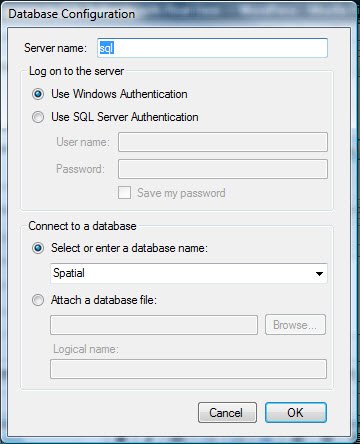
When the file is run for the first time, it will ask for the database properties. Provide your database details.
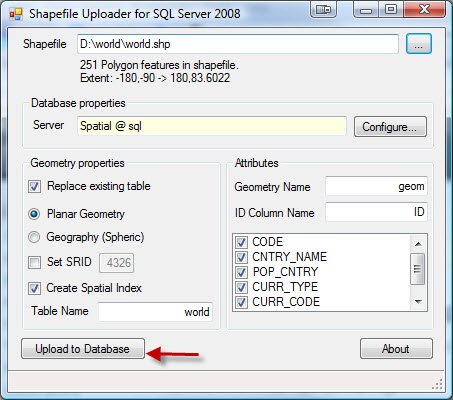
Select the appropriate shape files and the tool will fill up the essential details automatically. If you do not want to create the index on the column, uncheck the box beside it. The screenshot below is simply explains the procedure. You also have to be careful regarding your data, whether that is GEOMETRY or GEOGRAPHY. In this example, it is GEOMETRY data.
Click “Upload to Database”. It will show you the uploading process. Once the shape file is uploaded, close the application and open SQL Server Management Studio (SSMS).

Run the following code in SSMS Query Editor.
USE Spatial
GO
SELECT *
FROM dbo.world
GO
This will show the complete map of world after you click on Spatial Results in Spatial Tab.


In Spatial Results Set, the Zoom feature is available. From the Select label column, choose the country name in order to show the country name overlaying the country borders.
Let me know if this tutorial is helpful enough. I am planning to write a few more posts about this later.
Note: Please note that the images displayed here do not reflect the original political boundaries. These data are pretty old and can probably draw incorrect maps as well. I have personally spotted several parts of the map where some countries are located a little bit inaccurately.
DOWNLOAD SHAPE FILE
Reference : Pinal Dave (https://blog.sqlauthority.com)