CROSS APPLY VALUES can turn a fixed set of columns into rows without dropping their NULL values. I make any missing-value filter explicit. That keeps the reshaping step separate from the decision to exclude data.
A spreadsheet-style input may have one amount column per month. A row-based report may need a month label and one amount column instead. The treatment of a missing month matters during that conversion.

Define the output rows directly
The source has two customers and three month columns. All amounts use a compatible decimal type. Customer one is missing February, and customer two is missing January.
The VALUES expression defines three rows for each source row. Each row contains a month ordinal, a month label and the corresponding amount. CROSS APPLY lets those expressions reference the current customer’s columns.
I keep the ordinal for sorting rather than relying on alphabetical month labels. The first result includes a missing-value indicator. The second repeats the same reshape with an explicit IS NOT NULL filter.
WITH Source AS
(
    SELECT CustomerId, JanAmount, FebAmount, MarAmount
    FROM (VALUES
        (1, CAST(10 AS decimal(10,2)), CAST(NULL AS decimal(10,2)), CAST(30 AS decimal(10,2))),
        (2, NULL, 20, 0)
    ) AS v(CustomerId, JanAmount, FebAmount, MarAmount)
)
SELECT s.CustomerId, m.MonthName, m.Amount,
       CASE WHEN m.Amount IS NULL THEN 1 ELSE 0 END AS IsMissing
FROM Source AS s
CROSS APPLY (VALUES (1, 'Jan', s.JanAmount),
                    (2, 'Feb', s.FebAmount),
                    (3, 'Mar', s.MarAmount)) AS m(MonthOrdinal, MonthName, Amount)
ORDER BY s.CustomerId, m.MonthOrdinal;

WITH Source AS
(
    SELECT CustomerId, JanAmount, FebAmount, MarAmount
    FROM (VALUES
        (1, CAST(10 AS decimal(10,2)), CAST(NULL AS decimal(10,2)), CAST(30 AS decimal(10,2))),
        (2, NULL, 20, 0)
    ) AS v(CustomerId, JanAmount, FebAmount, MarAmount)
)
SELECT s.CustomerId, m.MonthName, m.Amount
FROM Source AS s
CROSS APPLY (VALUES (1, 'Jan', s.JanAmount),
                    (2, 'Feb', s.FebAmount),
                    (3, 'Mar', s.MarAmount)) AS m(MonthOrdinal, MonthName, Amount)
WHERE m.Amount IS NOT NULL
ORDER BY s.CustomerId, m.MonthOrdinal;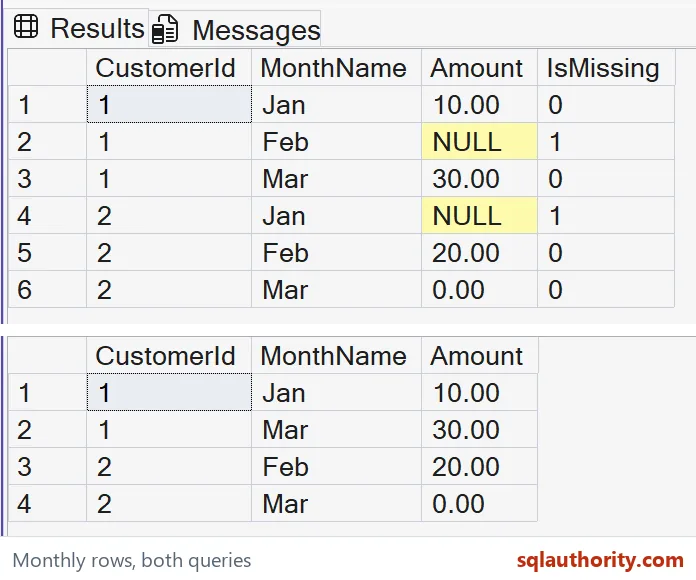
Read the six-row result
The complete expected first result has six rows. Each customer contributes January, February and March. Two of those rows have NULL amounts because the corresponding source columns were missing.
Customer two’s March amount is zero and remains a populated numeric value. It is not a missing month. The IsMissing diagnostic should therefore be zero for that row.
A VALUES row is still a row when its amount expression is NULL. This construction does not use the amount as a condition for producing the row. The output preserves the fixed set of requested month positions.
The filtered second result has four rows. It excludes the two missing amounts and retains the zero amount. That reduction follows the WHERE predicate, not the reshape itself.

Keep the column and type contract visible
This technique describes a fixed set of columns in the query text. Adding a fourth month column requires updating the VALUES expression. It does not discover arbitrary columns automatically or create a dynamic schema transformation.
Each position in the VALUES constructor needs compatible types. The amount position here uses decimal values and typed missing input. Mixing unrelated text labels and numbers in that position would create a different conversion problem.
The month label is a separate output field from the amount. That separation makes sorting, filtering and display choices easier to explain. Keep a proper date or period identifier if the report spans multiple years.
The example uses three short labels only to focus on reshaping. They are not a complete calendar dimension. A production report still needs the appropriate period meaning and any required source identifiers.
Decide what missing rows should mean
I preserve missing amounts first when completeness is part of the review. A downstream process can then distinguish a missing month from an absent customer. Filtering immediately can hide those positions from later checks.
Sometimes the report intentionally lists only populated amounts. The second query shows that rule explicitly with IS NOT NULL. Document that choice so a shorter result is not mistaken for complete period coverage.
Replacing NULL with zero would express another rule entirely. It would claim a numeric amount for a missing source. The example deliberately avoids that substitution and retains the original zero as a separate case.
Both queries are read-only and include complete source values. Compare the full six-row result before introducing the four-row filter. That provides a simple check that no fixed column was omitted or assigned the wrong label.
Preserve every requested column as a row first, then filter missing values only when the reporting rule requires it.
CROSS APPLY VALUES is not a filter, it is a reshape that keeps every column.
Published by Pinal Dave on SQLAuthority. More of my work at pinaldave.com.
Discover more from SQL Authority with Pinal Dave
Subscribe to get the latest posts sent to your email.