
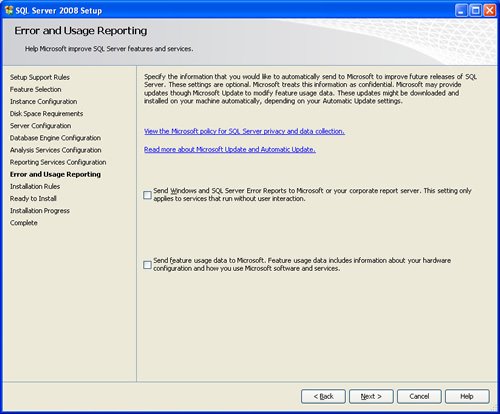
SQL SERVER 2008 has been released for some time and I have got numerous request about how to install SQL Server 2008. I have created this step by step guide Installation Guide. Images are used to explain the process easier.
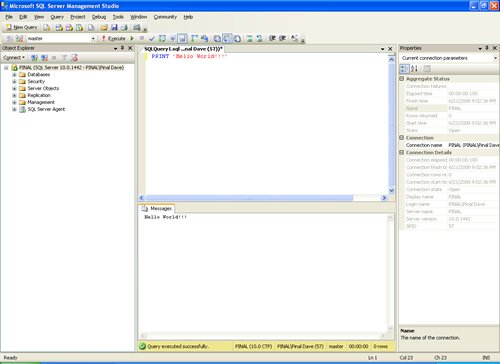
SQL Server 2008 is a major improvement from SQL Server 2005. Honestly, I still see lots of people still using SQL Server 2000. I would like to say it is time to upgrade and move to the next version of SQL Server. In SQL Server 2000, DBA had to use two different tools to maintain the database as well as the query database, specifically SQL Server Enterprise Manager and SQL Server Query Analyzer. With the release of SQL Server 2005 both of these tools are combined into one tool: SQL Server Management Studio. For a while DBA who were fans of Query Analyzer requested to bring it back, but as they keep on using SQL Server Management Studio (SSMS) they realized that it was much more convenient if every task related to SQL Server could be accomplished using SSMS. With the release of SQL Server 2008 Microsoft has upgraded SSMS with many new features as well as added tons of new functionalities requested by DBAs for long time.








Reference : Pinal Dave (https://blog.sqlauthority.com)




402 Comments. Leave new
Very Nice.
Where will be other things like surface area configuration , help e.t.c
Great , it was very useful to me
I do not agree with you. u’re liarr #rawrr haha :3
are you really a dba?
Thank a lot. This doc was really nice to have , and was very useful to me.
:)
Hi,
I think u have missed the image for Analytical services configuration … instead u have placed two copies of Database Services configuration ..
mee too noticed the same …..
Cannot install server 2008 evaluation
installs setup support files and then stops.
Running xp.
any help would be appreciated
Thanks for such a useful post!
it really helped me!
Take care! :)
This was God Sent!
THANK YOU PINAL DAVE THANK YOU AND WELL DONE.
The screen asking for account and password was misleading as you needed to direct it system folders.
I want to sent money to Pinal Dave as he saved me lots of time.
Thankful,
Marty
Hi its nice Guide but you missed the comments on each step its just a screen shot document needs to be more clear -thanks
Thanks, it was very useful to me
when on set accounts (page “Service accounts”)
were received messages as:
“The credentials you provided for the SQL Server Agent service are invalid. To continue, provide a valid account and password for the SQL Server Agent service.”, …
(.. and really presented two same images,
see madhan raj note)
@VladimirS – I assume you solved your credentials issue since this post? I’m having the same issue now, and I’m a bit stumped. I tried using my own windows domain account, which the msdn docs seem to suggest should work, but I get the same error. Any ideas?
You had missed an image. But, it was of great help. Also, comments for some of the steps would have been more helpful
Sir,
Realy Good Manual
Thanks Lot
REgards,
Ramesh Chandra
Hi there,
I facing some problems when try to connect to SSRS 2008.
When I go to ‘Reporting Services Configuration Manager’, I can see the default server name, the report server instance not auto detects the ‘ReportServer’ database that available in the database.
When I click ‘Find’, it prompt out ‘Invalid Class’ warning message.
How can i solve it?
Thanks.
regards,
Sim
thanks…its really helpful :)
Dear how to install sql server 2008 with Unicode…
Thanks for that – very helpful. Especially for the service accounts which are not populated by default. I can never remember what should run as system, local service, network service etc..!
Now can I have a custom step-by-step guide to setting it up on my network?… :)
Very help full!!!!
Thanks….!!!
GRACIAS POR EL MANUAL ME SIRVIO PARA MI COMO PAR AMIS ALUMNOS OK BYE
You are the Man!!!.. Simple and neat. Good work.
Hi
my sqlserver failed with access denied error :
unable to connect to ssqlserver now.
please find below details :
Log Name: Application
Source: .NET Runtime Optimization Service
Date: 9/2/2009 7:45:10 AM
Event ID: 1101
Task Category: None
Level: Error
Keywords: Classic
User: N/A
Computer: xxxx
Description:
.NET Runtime Optimization Service (clr_optimization_v2.0.50727_32) – Failed to compile: W:\Program Files\Microsoft SQL Server\100\Tools\Binn\VSShell\Common7\Tools\VDT\DataDesigners.dll . Error code = 0x8007000b
Waiting for your reply
hi
thax for ur steps , i have a question,
i had installed it and then uninstall and after awhile i needed to install it again , the setup file can’t start it show the command prompt screen for less than a second and close it and nothing start ,what shall i do??
your reply is highly appreciated
This is a good tutorial, but I have not seen anything special about it, since the author is just placed the screen shots of the installation process. I think that it should be much more helpfull if he have explained the steps, why we should select certain options and why we should not select certain options. The explanation of certain options would have helped much more in this tutorial.
Thanks