
To install SSMS, download the installer from Microsoft, run it, and connect to your SQL Server. SSMS is the SQL Server Management Studio, the program where most people write queries and manage databases. It’s free, and it works with a server on your own machine or on another one.

Why SSMS Is a Separate Download
In older releases, SSMS arrived with the SQL Server setup disc. It no longer does. SSMS is its own download, and the SQL Server engine doesn’t need it. That split solves a real problem. Many people who work with SQL Server never install the engine. They need the tool on a laptop, and the server lives somewhere else.
The split also means two version numbers. The server has one, and SSMS has its own. A new SSMS can talk to servers older than itself. Servers from long ago fall outside the list of versions it supports. If you manage one, check the supported list on Microsoft’s SSMS page first.
Get and Run the Installer
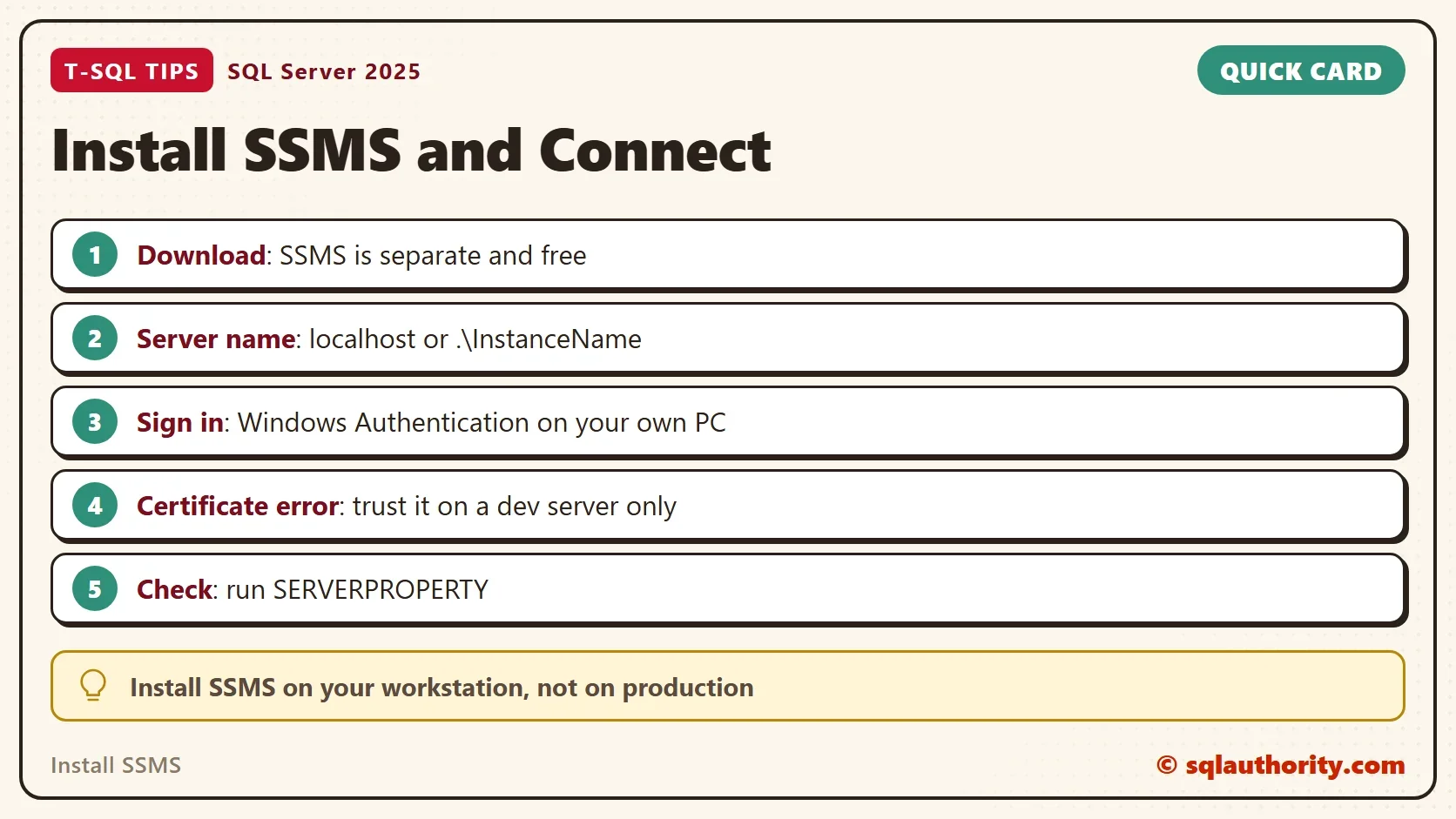
Open Install SQL Server Management Studio on Microsoft’s site and choose the current release, SSMS 22. The download is a small installer file named vs_SSMS.exe. It’s small because it fetches the real components when you run it. So the machine needs internet access during setup.
Run the installer. It asks where to put SSMS. When setup finishes, start SSMS from the Start menu.
Install SSMS on your own workstation. You could argue that installing it on a database server is convenient, because you can work on the spot. It’s also a habit that leaves query tools, add-ins and stray files on a production machine. A workstation with SSMS and a network connection does the same job.
Make Your First Connection
The connection window asks for four things. The first is the server type, which stays on Database Engine. The second is the server name. For a default instance on your own computer, type localhost or a single dot. For a named instance, add its name after a backslash, as in .\SQLEXPRESS. For a server on the network, type its name.
The third is the authentication. On your own machine, choose Windows Authentication, and SSMS signs you in with your Windows account. Choose SQL Server Authentication only when your administrator gave you a login and password. The fourth is encryption, and it deserves its own section, because it’s where most first connections fail.
The Certificate Error on a First Connection
Recent SSMS releases connect with encryption set to Mandatory. A server that holds a certificate the computer doesn’t trust is refused. The message says the certificate chain was issued by an authority that is not trusted.
For your own development server, tick Trust server certificate in the connection window. That box tells SSMS to skip the certificate check. It’s a fair shortcut on a machine you own. It isn’t a fix for a production server. There, install a certificate that your computers trust, and leave the check on.
Check That the Connection Works
A window full of databases doesn’t prove much. This query asks the server for its own version, so you know what you connected to. It reads no table and creates nothing.
SELECT SERVERPROPERTY('ProductMajorVersion') AS MajorVersion,
       SERVERPROPERTY('ProductVersion')      AS ProductVersion,
       SERVERPROPERTY('ProductLevel')        AS ProductLevel,
       SERVERPROPERTY('ProductUpdateLevel')  AS UpdateLevel,
SERVERPROPERTY('Edition') AS Edition;| MajorVersion | ProductVersion | ProductLevel | UpdateLevel | Edition |
|---|---|---|---|---|
| 17 | 17.0.5005.3 | RTM | CU9 | Enterprise Developer Edition (64-bit) |
Your values will differ. Major version 17 is SQL Server 2025. The edition tells you whether you reached a Developer, Express or Standard server. Compare it with the version that you expected. A mismatch here, such as a server one version older than planned, explains many later surprises.
The SSMS version is a separate fact. Open Help, About to read it. Keep both numbers in mind when you ask for help or report a problem.
Keep It Current
New SSMS releases arrive regularly, and they fix bugs and add features. SSMS 22 installs through the Visual Studio style installer, which also checks for updates. If an update is offered, run it, or download the installer again. Read the release notes before an update on a machine you rely on for work.
When a feature looks disabled, look at the server edition or at a missing component before you blame SSMS. SSMS itself comes in one edition, and it doesn’t switch features off for a smaller server. The Import and Export Wizard can save an Integration Services package only when that component is installed. A missing Save option is a component question, not an Express edition question.
What to Remember
SSMS is a separate, free download. To install SSMS, run the installer and type the server name. Pick Windows Authentication on your own machine. Trust the certificate only on a development server. Then run the version query, so you know what you are talking to.
If you teach or support others, give them the same steps in the same order. The certificate message is the one that stops people, and a single sentence about it saves a support call.
SSMS is not part of the server, it is the window you use to talk to it.
Published by Pinal Dave on SQLAuthority. More of my work at pinaldave.com.
Discover more from SQL Authority with Pinal Dave
Subscribe to get the latest posts sent to your email.




1 Comment. Leave new
I downloaded the latest version of Management Studio via the link, it’s great and a big improvement over previous versions but there are a couple of issues in that it thinks it’s the SQL Express version and so disables certain features (e.g. saving data imports and exports as SSIS packages) even though I’m using it connected to a 2012 Enterprise server. Is there anyway of switching the mode or do I have to install from somewhere else to get these parts working?