
To install the WideWorldImporters sample database, restore its backup file in SSMS and check the result. It is a restore, not a script. That’s why the install fails in a few predictable ways. A short check at the end is worth the time.

What You’re Installing
The WideWorldImporters sample database is Microsoft’s database for the features that came after AdventureWorks. It stores a wholesale company’s sales, purchases and warehouse stock. It uses temporal tables, JSON columns, columnstore indexes and memory optimized tables. You get data to practice each one.
It comes in two versions. The Full version includes the memory optimized tables. The Standard version leaves them out. A separate data warehouse database, WideWorldImportersDW, is a different download and a different restore. Use the Standard file when you don’t want the memory optimized tables. Use it too when the Full restore fails for lack of memory or disk space.
The download links change over time, so I keep them in one place. The current guide covers both sample databases: Install AdventureWorks and WideWorldImporters. Get the backup file there, and come back for the restore and the checks.
Before You Restore
Check the disk space first. On the test server, the installed copy holds a 1,024 MB primary file and a 2,048 MB user data file. The log file takes 100 MB. That adds up to 3,172 MB, about 3 GB. The restore allocates the full file sizes. A restore to a nearly full disk fails late and wastes your time.
Then check where the backup file sits. The SQL Server service reads the file, not you, so the folder must allow the service account to read it. A backup file in Downloads can fail with operating system error 5. That folder sits in your user profile. Copy it to a folder that the service account can read, such as the default backup folder.
Restore It in SSMS
In SSMS 22, open Object Explorer, right-click Databases and choose Restore Database. Under Source, choose Device, click the button with three dots, choose Add, and select the backup file. Click OK. SSMS lists the backup set it found.
Leave the destination name as WideWorldImporters. If a database with that name exists, restore under another name or choose to overwrite it on the Options page. Open the Files page and read the paths. A fresh install lists four files. They are a primary data file, a user data file, a log file and the memory optimized container. Click OK, and wait for the message that the restore completed.
The full walk through the dialog is in Restore a Database in SSMS: Step by Step. If you prefer T-SQL, the file mapping is explained in Restore Database Backup Using T-SQL, Step by Step.
Check the Install
A database that appears in Object Explorer isn’t proof of a good restore. Three read only queries give you proof. The first reads the database’s settings. The second lists its files with their sizes. The third counts rows in three tables.
SELECT name, compatibility_level, recovery_model_desc, state_desc FROM sys.databases WHERE name = N'WideWorldImporters';
| name | compatibility_level | recovery_model_desc | state_desc |
|---|---|---|---|
| WideWorldImporters | 130 | SIMPLE | ONLINE |
The state must be ONLINE. The compatibility level is 130, the level of SQL Server 2016, which is where the database was built. The restore keeps it, so the database behaves like a 2016 database until you change that. Raise the level only after you test your own queries against the new behavior. The recovery model is SIMPLE, so the database has no log backups to manage.
SELECT type_desc, name, CAST(size * 8 / 1024.0 AS decimal(10,1)) AS SizeMB FROM sys.master_files WHERE database_id = DB_ID(N'WideWorldImporters') ORDER BY file_id;
| type_desc | name | SizeMB |
|---|---|---|
| ROWS | WWI_Primary | 1024.0 |
| LOG | WWI_Log | 100.0 |
| ROWS | WWI_UserData | 2048.0 |
| FILESTREAM | WWI_InMemory_Data_1 | 0.0 |
The four files match the Files page. The last one is the memory optimized container. It has a FILESTREAM type and no size of its own, because it is a folder. If you restored the Standard version, that row isn’t there.
USE WideWorldImporters;
GO
SELECT (SELECT COUNT(*) FROM Sales.Orders) AS Orders,
       (SELECT COUNT(*) FROM Sales.Customers) AS Customers,
       (SELECT COUNT(*) FROM Warehouse.StockItems) AS StockItems;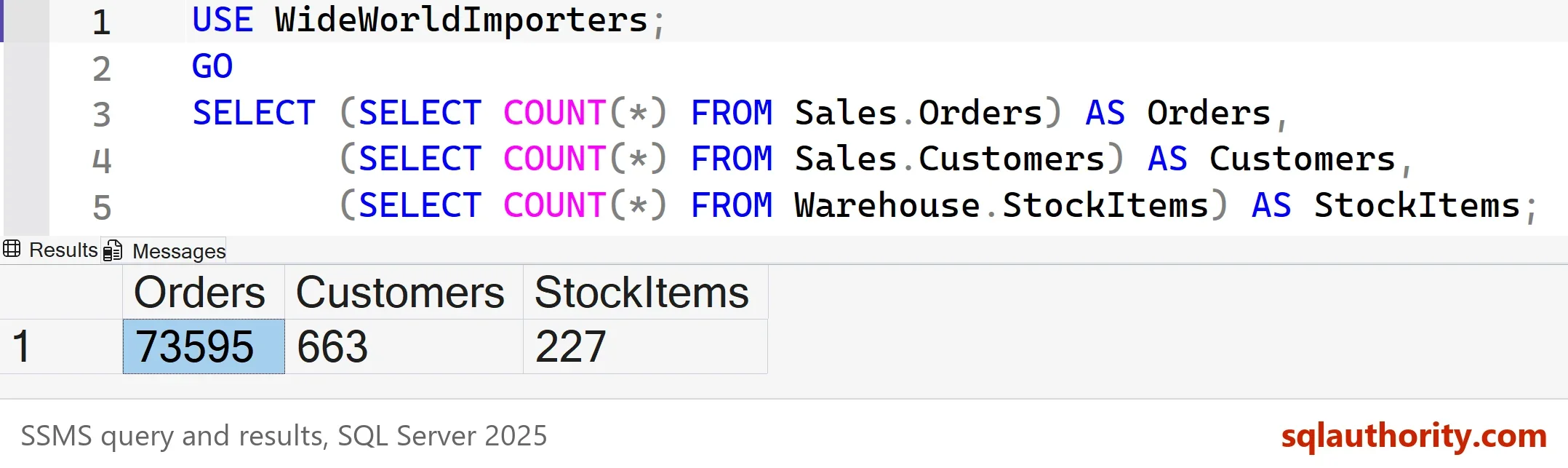
These counts come from the original data, so yours should match: 73,595 orders, 663 customers and 227 stock items. A different number points to a partial or modified copy. The next query reads a JSON column. Each stock item stores extra facts as JSON text, and the query groups them by the country of manufacture.
SELECT TOP (3) JSON_VALUE(CustomFields, '$.CountryOfManufacture') AS Country, COUNT(*) AS StockItems
FROM Warehouse.StockItems
GROUP BY JSON_VALUE(CustomFields, '$.CountryOfManufacture')
ORDER BY COUNT(*) DESC, Country;
| Country | StockItems |
|---|---|
| China | 207 |
| Japan | 12 |
| USA | 8 |
When the Restore Fails
Three errors are worth knowing. Operating system error 5 means the service account can’t read the backup folder. Move the file and try again. A message that a file can’t be overwritten means these file names are already in use. Restore under a new name or relocate the files. A message about memory optimized tables means too little free memory or disk space. Free some, or use the Standard file.
You could argue that AdventureWorks is enough, since you already know it. For classic joins and aggregates it is. WideWorldImporters earns its place when you want temporal tables, JSON or columnstore data to practice on. Install it for that, and keep it away from real work.
What to Remember
Check disk space. Put the backup where the service account can read it. Restore with Device as the source, and read the Files page before you click OK. Then run the three checks: state, files and counts. A WideWorldImporters sample database that passes all three is ready to use. The check takes a minute, and it saves you a long debugging session on a half restored copy.
To remove the database later, drop it in Object Explorer or with DROP DATABASE. Nothing here creates anything beyond the database itself, so there is no cleanup script.
A sample database is not a script you run, it is a backup you restore and then check.
Published by Pinal Dave on SQLAuthority. More of my work at pinaldave.com.
Discover more from SQL Authority with Pinal Dave
Subscribe to get the latest posts sent to your email.




3 Comments. Leave new
Instead of creating number of repor (.rdl) is there any way to generate the report using dynamic parameter ,data set and fields
Example : In entry project i will create only one report (table format) , But different store procedure based on dataset , number of columns report should generate
Error messages:
Source: mscorlib
Target Site: Void WinIOError(Int32, System.String)
Message: Access to the path ‘G:\SQL2012_FILES\MSSQL11.MSSQLSERVER\MSSQL\ReplData\unc\KAUSHIK-PC_DB_REPLICATION_REPLI_PUB\20160810205346\’ is denied.
Stack: at System.IO.__Error.WinIOError(Int32 errorCode, String maybeFullPath)
at System.IO.Directory.InternalCreateDirectory(String fullPath, String path, DirectorySecurity dirSecurity)
at System.IO.Directory.CreateDirectory(String path, DirectorySecurity directorySecurity)
at Microsoft.SqlServer.Replication.Utilities.CreateDirectoryWithExtendedErrorInformation(String directory)
at Microsoft.SqlServer.Replication.Snapshot.SnapshotProvider.CreateSnapshotFolders()
at Microsoft.SqlServer.Replication.Snapshot.SqlServerSnapshotProvider.GenerateSnapshot()
at Microsoft.SqlServer.Replication.SnapshotGenerationAgent.InternalRun()
at Microsoft.SqlServer.Replication.AgentCore.Run() (Source: mscorlib, Error number: 0)
Can we upgrade to SQL Server 2016 now, or should we wait for SP1? We are currently in SQL Server 2008r2.