
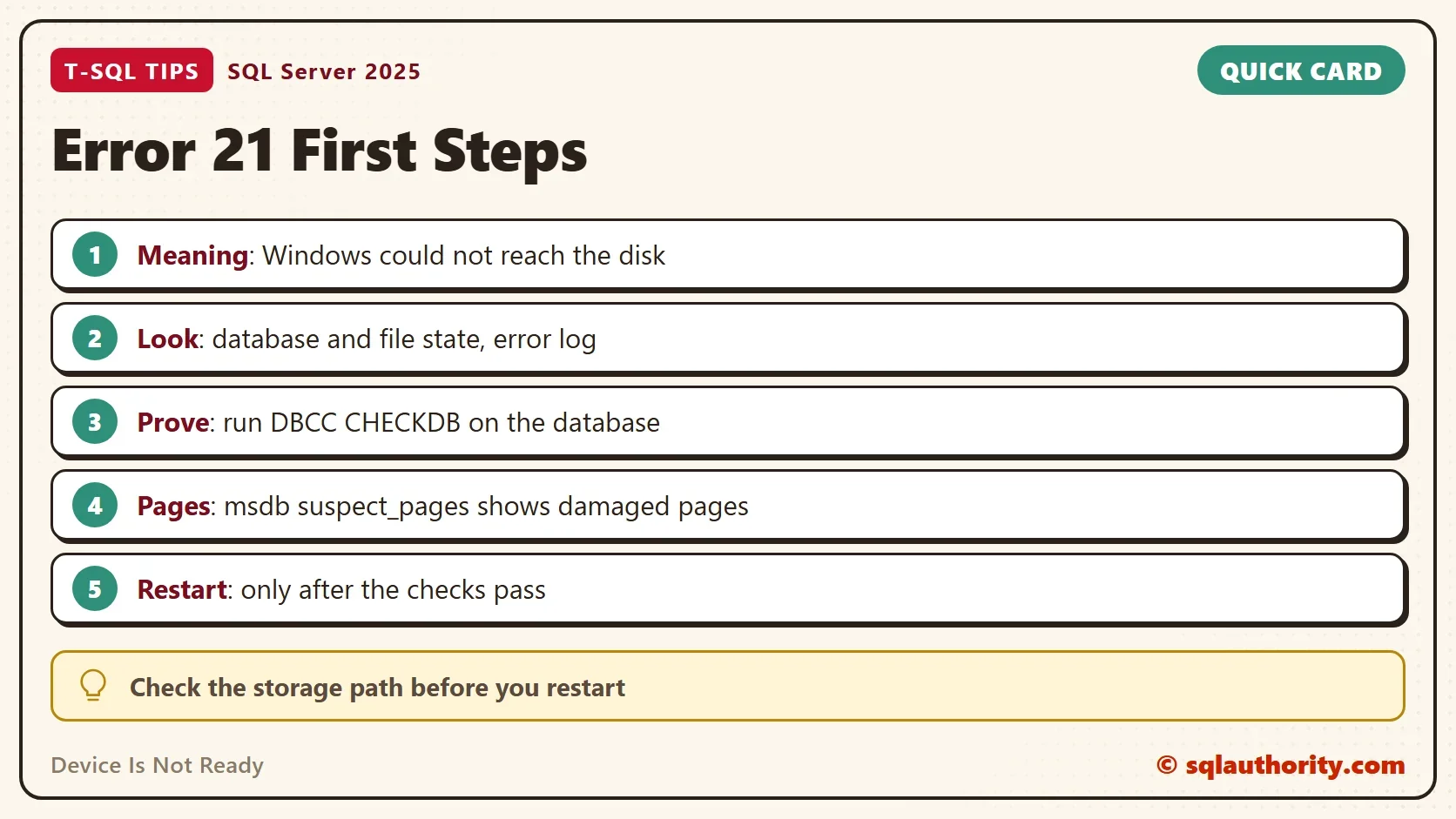
Device Is Not Ready is the Windows message behind operating system error 21. SQL Server reports it inside error 823. The text sounds scary, because it tells you to check the database for damage right now. It points to the disk path first, and only a check can rule out the data.

What the Message Says
A client of mine panicked over this message and wrote to me at once. It reads as follows.
The operating system returned error 21(The device is not ready.) to SQL Server during a read at offset 0x00000004e92000 in file 'D:\data\AdventureWorks.mdf'. Additional messages in the SQL Server error log and operating system error log may provide more detail. This is a severe system-level error condition that threatens database integrity and must be corrected immediately. Complete a full database consistency check (DBCC CHECKDB). This error can be caused by many factors; for more information, see SQL Server Books Online. (Microsoft SQL Server, Error: 823)
Error 823 means SQL Server asked Windows to read a page and Windows failed. Error 21 is the reason Windows gave. The device is not ready when the disk is offline or still starting. It is also not ready when the path to it broke a moment ago. SQL Server cannot tell a brief outage from real damage, so the message always asks for a consistency check. This post covers error 21 during a read of a data file.
Where a Device Is Not Ready Error Comes From
The cause sits below SQL Server, in the storage path. In the client’s case, a network problem kept SQL Server from reaching the database file. Other causes follow the same pattern:
- Network or shared storage. A SAN, an iSCSI target or a file share dropped and came back.
- A changed disk. The error has appeared right after a disk was changed on an Azure virtual machine.
- Fast Startup on a workstation. Turning off Fast Startup on Windows 11 cleared the error in one reported case.
- A managed service. The provider owns the disk, so open a support case and let them check it.
The first two are about the path to the file. A disk that no longer answers cannot be read, whatever state its pages are in.
Read the State Before You Touch Anything
These checks only read. The demo creates a small database named DeviceCheckDemo, so the queries have something to show. Replace the name with your own database during a real incident.
IF DB_ID(N'DeviceCheckDemo') IS NULL CREATE DATABASE DeviceCheckDemo;
GO
USE DeviceCheckDemo;
GO
DROP TABLE IF EXISTS dbo.Readings;
CREATE TABLE dbo.Readings (ReadingID int NOT NULL PRIMARY KEY, Note nvarchar(50) NOT NULL);
INSERT INTO dbo.Readings VALUES (1, N'Sensor one'), (2, N'Sensor two');
The first query lists the database state, the state of each file and the volume that holds it. A SUSPECT or RECOVERY_PENDING database can point to a path that is still down. So can a file that is not ONLINE.
SELECT d.name, d.state_desc AS DatabaseState, mf.type_desc AS FileType, mf.state_desc AS FileState, vs.volume_mount_point
FROM sys.databases AS d
JOIN sys.master_files AS mf ON mf.database_id = d.database_id
CROSS APPLY sys.dm_os_volume_stats(mf.database_id, mf.file_id) AS vs
WHERE d.name = N'DeviceCheckDemo'
ORDER BY mf.type_desc;
| name | DatabaseState | FileType | FileState | volume_mount_point |
|---|---|---|---|---|
| DeviceCheckDemo | ONLINE | LOG | ONLINE | C:\ |
| DeviceCheckDemo | ONLINE | ROWS | ONLINE | C:\ |
Your drive letter will differ. Then look for damaged pages and for earlier errors. The table msdb.dbo.suspect_pages records pages that failed with error 823 or 824. The error log search finds earlier reports of error 21.
SELECT COUNT(*) AS SuspectPages FROM msdb.dbo.suspect_pages WHERE database_id = DB_ID(N'DeviceCheckDemo');
EXEC sys.sp_readerrorlog 0, 1, N'returned error 21';
| SuspectPages |
|---|
| 0 |
The error log search returns no rows on a healthy server. On an affected server, each row shows the time of one failed read. A cluster of rows in a short window points to an outage, not to one bad page.
Read the Windows Log Too
SQL Server sees only the result of the failed read. Windows records what happened to the disk. Open Event Viewer, go to the System log, and look at the minutes before the SQL Server error. Disk, volume and storage driver events at the same time confirm a path problem. A cluster or a hypervisor log can add the cause when the disk sits behind a network.
Prove the Database Is Healthy
The message asks for DBCC CHECKDB, and it is the right step. The check reads every page and reports damage. With NO_INFOMSGS it prints nothing for a healthy database, so silence is the good result.
DBCC CHECKDB (N'DeviceCheckDemo') WITH NO_INFOMSGS, ALL_ERRORMSGS;
A clean result after a short outage points to a path problem, and the data are consistent. Errors in the result mean real damage, and the answer is the last good backup, not another restart. On a large database, the check takes time, so run it in a quiet window and read the final line.
Should You Restart SQL Server?
In the client’s case, restarting the SQL Server services made the error disappear. That worked because the network path was back, and the restart opened the files again. A restart repairs nothing. If pages are damaged, SQL Server meets them again after the restart. A database in trouble must also go through recovery first.
You could argue that a restart is the quickest fix and the client proved it. It is quick when the path has recovered. It is risky when the cause is damage. With real corruption, get an expert before you start the service again. Run the read-only checks and DBCC CHECKDB first. Restart only when they pass and the path is back, then run DBCC CHECKDB again.
Catch It Early
You should not learn about error 823 from a user. SQL Server Agent can raise an alert when it logs error 823, 824 or 825. The alert can email an operator. Add error 833, which warns that a read or write took longer than 15 seconds. Then you hear about a slow disk before it fails. Set these alerts once on every production instance.
What to Remember
When the Device Is Not Ready error appears, look at the storage path before you look at the data. Check the database and file state, the error log and the Windows System log, then run DBCC CHECKDB. Errors 824 and 825 deserve the same attention. A read-retry warning, error 825, means a read failed once and then worked. Treat it as an early sign of a weak path. When you finish the demo, drop the database.
USE master;
GO
ALTER DATABASE DeviceCheckDemo SET SINGLE_USER WITH ROLLBACK IMMEDIATE;
DROP DATABASE DeviceCheckDemo;
A device that is not ready is not damage, it is a question to answer before you restart.
Published by Pinal Dave on SQLAuthority. More of my work at pinaldave.com.
Discover more from SQL Authority with Pinal Dave
Subscribe to get the latest posts sent to your email.



6 Comments. Leave new
Pinal, we received this error when we changed the disk in Azure.
Thank you very much sir. it was solve my problem
Works like a charm. Thanks.
The operating system returned error 21(The device is not ready.) to SQ
Server during a read at offset 0x0000000017 c000 in file
“D: RDSDBDATA\DATA\
mdf. Additional messages in the SQL Server error log and operating system error log may provide more detail. This is a severe system-level error condition that threatens database integrity and must be corrected immediately. Complete a full database consistency check (DBCC CHECKDE. This error can be caused by many factors; for more information, see SQL Server Books Online
how to solve
In my case I had to turn off fast startup (Windows 11) to solve the problem.