
SSMS command line options open Management Studio already pointed at a server and a database. The list below comes from the usage text inside SSMS 22, which is the one place that stays current.

Find SSMS.exe First
SSMS 22 installs under Program Files, in a folder named for the release. The program is SSMS.exe. On the test PC the full path is C:\Program Files\Microsoft SQL Server Management Studio 22\Release\Common7\IDE\SSMS.exe. That folder is not on the path, and there is no registered short name. On the test PC, typing SSMS.exe in a plain prompt finds nothing. Use the full path, or add the folder to your PATH.
If you are not sure where your copy lives, ask PowerShell. The search below only reads the disk. On the test PC it returned the path above.
Get-ChildItem 'C:\Program Files\Microsoft SQL Server Management Studio*' -Recurse -Filter SSMS.exe | Select-Object -ExpandProperty FullName
The quoting depends on the shell. PowerShell needs the call operator, because the path has spaces. A Command Prompt needs the start command with an empty title. Both lines below open SSMS on a local instance named SQLDEV. Change the instance to yours. Each line opens a window.
& "C:\Program Files\Microsoft SQL Server Management Studio 22\Release\Common7\IDE\SSMS.exe" -S .\SQLDEV -d master -nosplash
start "" "C:\Program Files\Microsoft SQL Server Management Studio 22\Release\Common7\IDE\SSMS.exe" -S .\SQLDEV -d master -nosplash
The Switches SSMS 22 Lists
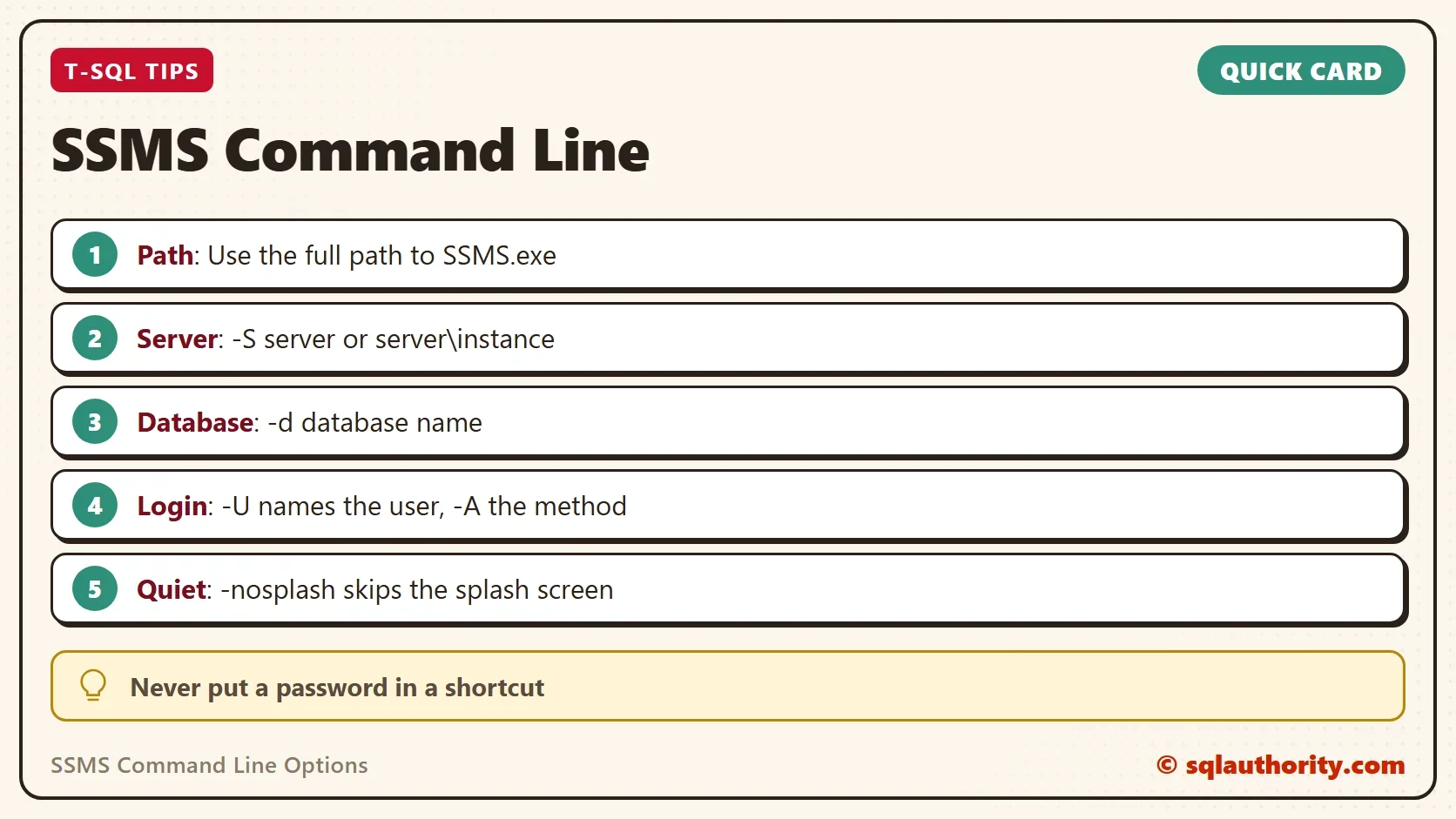
SSMS 22 keeps a usage text in its installation. The text includes an Unknown Switch message for anything the program does not know. The command form is SSMS.exe, then optional file names, then the switches. The table below copies the SSMS command line options from that text.
| Switch | What it does |
|---|---|
| -S <server> | The instance to connect to. Use the server name for a default instance, or server\instance_name for a named instance |
| -d <database> | The database to connect to |
| -U <user> | The SQL Server login to connect with |
| -A | The authentication method, such as ActiveDirectoryDefault, ActiveDirectoryPassword or SqlPassword |
| -C | Trusts the server certificate without validation |
| -N <option> | The encryption option: Optional, Mandatory or Strict. The default is Mandatory |
| -i <hostname> | A different expected CN or SAN in the server certificate |
| -dn <name> | A display name for the connection |
| -nosplash | Suppresses the splash screen |
| -log <file> | Writes SSMS activity to a file, for troubleshooting |
Put the Options Together
A server and a database are the common pair. For a default instance, give the server name alone. For a named instance, add a backslash and the instance name, as the usage text says. The -dn switch gives the connection a readable name, which helps when several windows are open. File names come first, so a script can open on a connection. The file name below is an example.
& "C:\Program Files\Microsoft SQL Server Management Studio 22\Release\Common7\IDE\SSMS.exe" "C:\Scripts\health-check.sql" -S .\SQLDEV -d master -dn "Health check" -nosplash
A shortcut with these switches starts SSMS pointed at one server and one database. Whether it connects without a prompt depends on the authentication method. Use the log switch when SSMS misbehaves. It writes its activity to a file that you can read or send to someone who helps you.
& "C:\Program Files\Microsoft SQL Server Management Studio 22\Release\Common7\IDE\SSMS.exe" -S .\SQLDEV -log "C:\Temp\ssms-activity.log"
The -C switch deserves care. It tells SSMS to trust whatever certificate the server shows. That is acceptable on a development server with a self-signed certificate. On a production server it removes a safety check. Use -N Strict there, or install a proper certificate.
Turn the Command Into a Shortcut
A shortcut saves the switches. Copy the SSMS shortcut and open its properties. In the Target field, keep the quoted path to SSMS.exe and add the switches after the closing quote. Give the shortcut a name that says the server and the database, such as Orders on SQLDEV. A colleague who opens it starts on the right server and database.
Keep one shortcut for each place you visit regularly. Put them in a folder, and the folder becomes a small menu of servers. Never store a password in the Target field. Anyone who can open the properties can read it.
Do Not Put a Password in the Command
The old versions of SSMS had a -P switch that carried the password. A reader found that SSMS 18 had dropped it, and the login window appeared before any password could be typed. The usage text of SSMS 22 lists no -P and no -E either. The old Windows authentication switch is not in the list. The usage text does not say whether -E still works. If a connection prompt appears, choose Windows Authentication there.
That is a good change. A shortcut or a script that holds a password leaves it readable to anyone who can read the file. Use an authentication method that needs no stored password, such as ActiveDirectoryDefault with -A. When a password is needed, type it in the SSMS window. None of the SSMS command line options should carry one.
Is the Command Line Worth It?
You could argue that saved connections are easier. For a fixed set of servers they are. Registered Servers and the connection dialog remember what you chose. The command line wins when something else has to start SSMS. A script, a ticket link or a shortcut for a colleague can do that. The colleague needs one database and nothing else.
What to Remember
Use the full path to SSMS.exe. Pass the server with -S and the database with -d. Add -nosplash for a quick start and -log when you need to troubleshoot. Check the SSMS command line options against the usage text of your own release, because the list changes between versions.
A shortcut is not a place to keep a password, it is a place to keep a server name.
Published by Pinal Dave on SQLAuthority. More of my work at pinaldave.com.
Discover more from SQL Authority with Pinal Dave
Subscribe to get the latest posts sent to your email.



2 Comments. Leave new
Well, i’m using v18 and every time i try this command, it try to login BEFORE asking my password which is extremly annoying. At least before, we had a -P parameter to provide the password.
Thank you so, so much … it was very helpful.