
AUTO_UPDATE_STATISTICS_ASYNC is the setting that cleared a new wait type, WAIT_ON_SYNC_STATISTICS_REFRESH, for my client. I met it during a Comprehensive Database Performance Health Check engagement. I had never seen it before in my career. Let’s learn how to resolve it.

The Error
The wait type was the symptom:
WAIT_ON_SYNC_STATISTICS_REFRESHWhy It Happens
Statistics are one of the most important elements in SQL Server. They decide the execution plan, so it’s a good idea to keep them updated with the latest data. The script in How to Find Outdated Statistics tells you how old yours are.
In most cases, SQL Server updates statistics in one of these two ways:
- If auto update and auto create statistics are on, you don’t need to worry. SQL Server does the work itself.
- If they are off, you update the statistics manually when the changes reach the default threshold. That is 500 rows plus 20% of the table in older versions. From SQL Server 2016 at compatibility level 130, large tables use a lower, dynamic threshold.
This works well in most cases and gives better query performance. There are edge cases where a statistics update slows things down. So many people turn these settings off and update at night, when the server isn’t busy. Then the data changes during the day, and SQL Server keeps using the statistics from the previous night.
The one-line summary: keep auto update and auto create statistics on, and also update statistics manually at night. I’ve concluded this after more than ten years in SQL Server performance tuning.
Now, when does WAIT_ON_SYNC_STATISTICS_REFRESH show up? It shows up when auto update statistics is on and the statistics are stale. This is the small algorithm the engine follows:
- The query is executed.
- SQL Server decides whether the statistics are updated or stale.
- If the statistics are stale, SQL Server halts the query and updates them. This is step 2a.
- If the statistics are updated, SQL Server looks for the plan in the cache. It uses the cached plan or builds a new one from the available statistics.
- The query runs.
If the statistics are current, step 2a isn’t needed. If they need an update, step 2a adds a delay the first time. After that, the queries run fine. On a huge table or a busy server, that delay can make your queries slow.
How to Check
See how old your statistics are with the script in the post linked above. Then look at the top waits during the slow period. If you see WAIT_ON_SYNC_STATISTICS_REFRESH, the queries are waiting on a statistics update.
The Fix
Step 2a adds the delay because SQL Server updates the statistics synchronously. You can change that to asynchronous at the database level, in T-SQL or in SSMS. With the async option on, the query doesn’t wait for the update and uses the existing statistics.
USE [master]
GO
ALTER DATABASE [YourDBName]
SET AUTO_UPDATE_STATISTICS_ASYNC ON WITH NO_WAIT
GO
In SQL Server Management Studio, open the database properties. On the Options page, set Auto Update Statistics Asynchronously to True.

Confirm It Worked
Once we changed this setting, the WAIT_ON_SYNC_STATISTICS_REFRESH problem disappeared right away. The queries started to run fast.
How to Prevent It
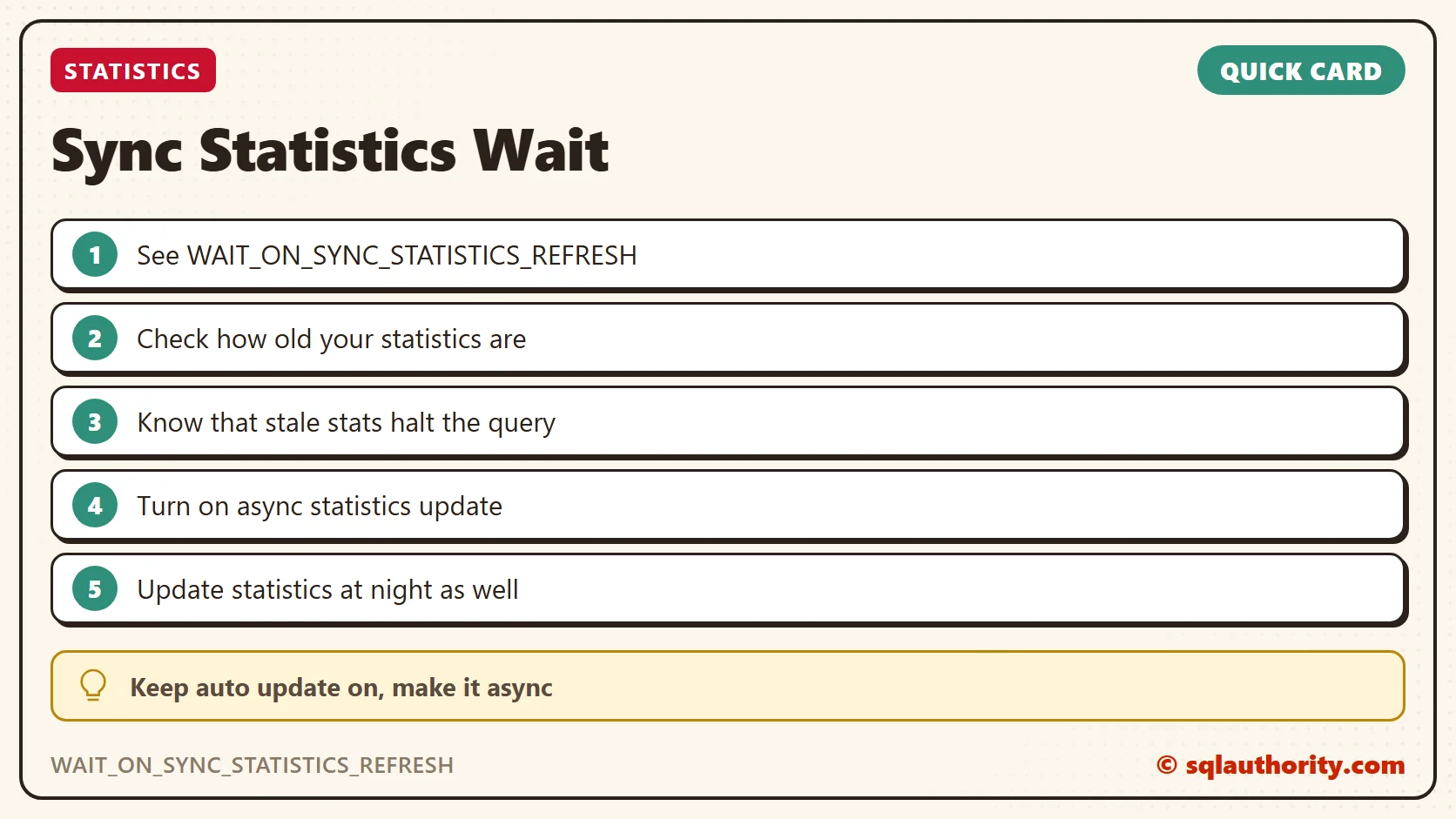
Keep auto update and auto create statistics on, turn on the asynchronous option, and still update statistics manually at night.
A statistics wait is not a slow query, it is a query waiting for a better map.
Published by Pinal Dave on SQLAuthority. More of my work at pinaldave.com.
Discover more from SQL Authority with Pinal Dave
Subscribe to get the latest posts sent to your email.




2 Comments. Leave new
I always set this option on every database. This should be set on by default
“You can easily change that to synchronous by changing the following settings at the database level in either SSMS or via T-SQL.”
Do you mean change that to “Asynchronous” by ……?
But thanks for the information. It helps for my client.