The idle CPU condition tells SQL Server Agent when the CPUs are quiet enough to start a job. Two numbers define it, and a job schedule can wait for it.

The Question Behind the Option
SQL Server Agent runs backups, index maintenance, consistency checks and most other scheduled work. When you build a job schedule, one option is easy to misread. It says Start whenever the CPUs become idle. A fair question follows: what decides that the CPUs are idle?
The answer is a pair of settings on the Agent itself. They are the idle CPU condition, and the schedule option uses them.
Where the Two Numbers Live
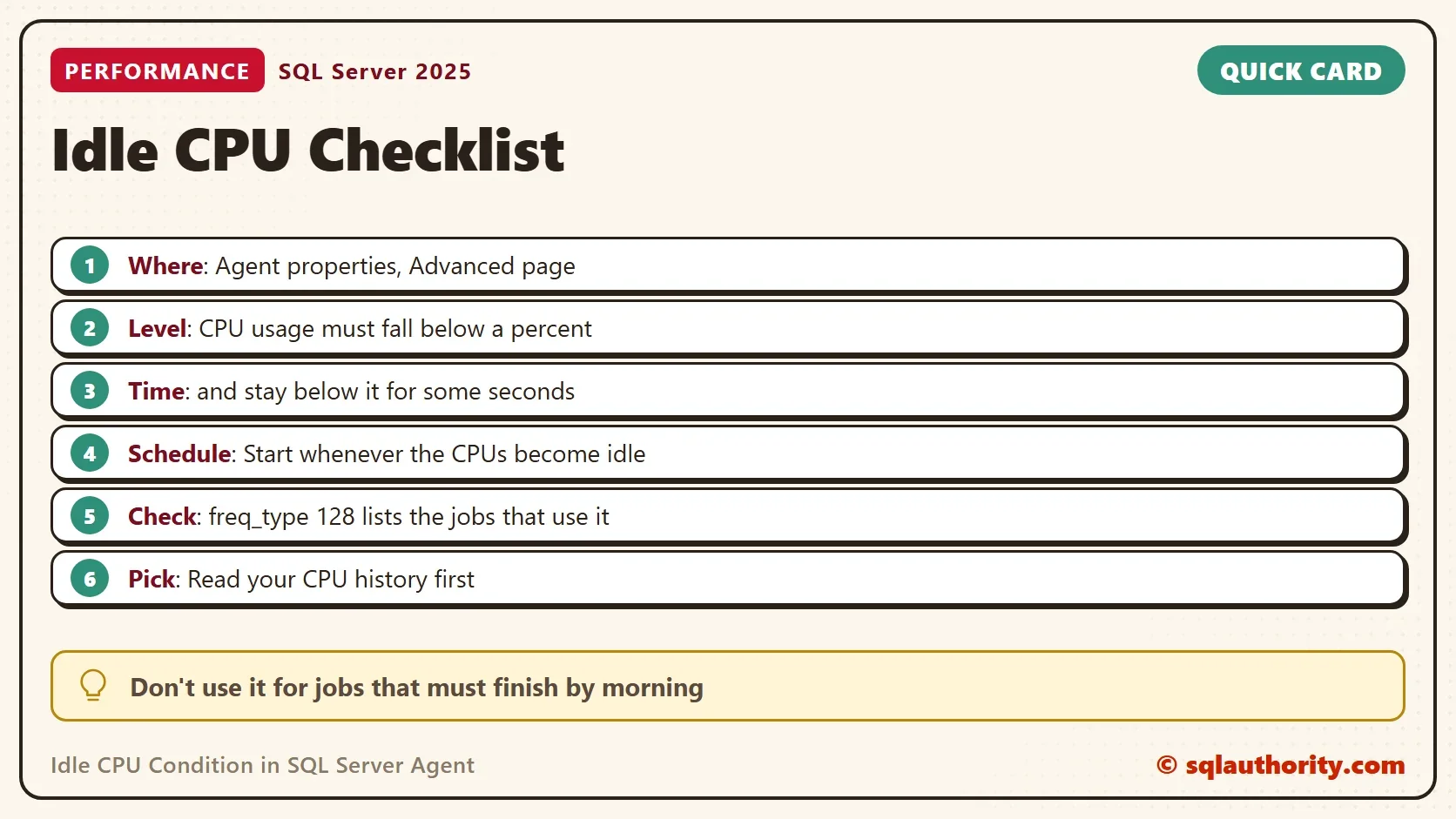
In SQL Server Management Studio 22, open Object Explorer and right-click SQL Server Agent. Choose Properties, and then the Advanced page. The section Idle CPU condition has a check box, Define idle CPU condition, and two fields.
- Average CPU usage falls below: a percent of CPU usage. The default is 10.
- And remains below this level for: a number of seconds. The default is 600.
Together they say when the CPUs are idle: average usage stays under the percent for the whole number of seconds. With the defaults, that is ten minutes under 10 percent. Check the box, set both values and save. SQL Server Agent has to run for any of this, and SQL Server Express has no Agent at all.
Make a Job Wait for Idle
Open the job, go to Schedules and choose New. Set the schedule type to Start whenever the CPUs become idle. In T-SQL the same schedule is freq_type 128 in the procedure sp_add_schedule. The Agent starts the job when the condition becomes true.
Creating a job writes to msdb, so the queries here only read. You can still audit a server for idle schedules. The next query lists the jobs that already use one.
SELECT j.name AS JobName, s.name AS ScheduleName, j.enabled AS JobEnabled, s.enabled AS ScheduleEnabled
FROM msdb.dbo.sysjobs AS j
JOIN msdb.dbo.sysjobschedules AS js ON js.job_id = j.job_id
JOIN msdb.dbo.sysschedules AS s ON s.schedule_id = js.schedule_id
WHERE s.freq_type = 128;
On this development server it returns no rows, because no job uses the idle schedule. On a server that does, confirm that the Agent has the idle condition defined.
See When Idle Jobs Started
A schedule that never fires raises no error, so history is the only proof. The next query lists the runs of every job that uses an idle schedule, newest first. Compare the start times with the quiet stretches in your CPU history, which come next.
SELECT j.name AS JobName, msdb.dbo.agent_datetime(h.run_date, h.run_time) AS StartedAt,
       CASE h.run_status WHEN 1 THEN N'Succeeded' WHEN 0 THEN N'Failed' WHEN 2 THEN N'Retry' WHEN 3 THEN N'Canceled' ELSE N'Unknown' END AS Outcome
FROM msdb.dbo.sysjobhistory AS h
JOIN msdb.dbo.sysjobs AS j ON j.job_id = h.job_id
WHERE h.step_id = 0
  AND j.job_id IN (SELECT js.job_id
                   FROM msdb.dbo.sysjobschedules AS js
                   JOIN msdb.dbo.sysschedules AS s ON s.schedule_id = js.schedule_id
                   WHERE s.freq_type = 128)
ORDER BY StartedAt DESC;
It returns no rows on this server, for the same reason as the audit query.
Pick Values From Your Own CPU History
The defaults are a guess. A better guess comes from data. SQL Server keeps one record per minute of the machine’s CPU history, for the last 256 minutes. The query below counts the minutes under a limit and finds the longest stretch of consecutive quiet minutes. Change the limit to test other percents.
DECLARE @Limit int = 10;
WITH Samples AS (
    SELECT r.[timestamp] AS Ticks,
           100 - CONVERT(xml, r.record).value('(Record/SchedulerMonitorEvent/SystemHealth/SystemIdle)[1]', 'int') AS TotalCpu
    FROM sys.dm_os_ring_buffers AS r
    WHERE r.ring_buffer_type = N'RING_BUFFER_SCHEDULER_MONITOR' AND r.record LIKE N'%<SystemHealth>%'
),
Flagged AS (
    SELECT TotalCpu, IIF(TotalCpu < @Limit, 1, 0) AS IsQuiet,
           ROW_NUMBER() OVER (ORDER BY Ticks) - ROW_NUMBER() OVER (PARTITION BY IIF(TotalCpu < @Limit, 1, 0) ORDER BY Ticks) AS GroupKey
    FROM Samples
)
SELECT COUNT(*) AS MinutesOfHistory,
       AVG(TotalCpu) AS AverageCpuPercent,
       SUM(IsQuiet) AS MinutesBelowLimit,
       ISNULL((SELECT MAX(Minutes) FROM (SELECT COUNT(*) AS Minutes FROM Flagged WHERE IsQuiet = 1 GROUP BY GroupKey) AS g), 0) AS LongestQuietStretch
FROM Flagged;
On this server, one run with a limit of 10 percent gave these numbers. The longest quiet stretch is one minute, so ten minutes under 10 percent never happened in the last four hours.
| MinutesOfHistory | AverageCpuPercent | MinutesBelowLimit | LongestQuietStretch |
|---|---|---|---|
| 256 | 23 | 1 | 1 |
A limit of 30 percent tells a different story. A second run with that limit gave 203 quiet minutes and a longest stretch of 61 minutes. On this server the defaults would leave an idle job waiting, and a 30 percent limit would start it. Your numbers will differ.
Choose the limit first, and the time second. A limit that the history meets for longer than your seconds is a limit the server can reach. Thirty percent for 600 seconds fits a history with a 61-minute stretch. Ten percent for 600 seconds doesn’t fit the history above.
Treat the result as a guide. The Agent applies its own measure of CPU usage. A quiet stretch in this history doesn’t promise that the Agent will call it idle.
When a Plain Schedule Is Better
You could argue that a fixed time is more predictable than an idle trigger. That’s true. A job on the idle schedule can wait for hours, or never start. A job that must finish before the morning can’t live with that. Use the idle condition for work that can wait. Optional maintenance on a server that is busy by day and quiet at night is a good fit.
What to Remember
Define the idle CPU condition on the Agent first, then choose the schedule type for the job. Pick the percent and the seconds from your own history, not from the defaults. Audit idle schedules now and then, because a job that never starts doesn’t raise an error.
An idle CPU is not an event, it is a condition you define and then wait for.
Published by Pinal Dave on SQLAuthority. More of my work at pinaldave.com.
Discover more from SQL Authority with Pinal Dave
Subscribe to get the latest posts sent to your email.