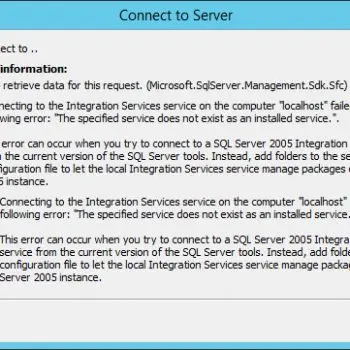
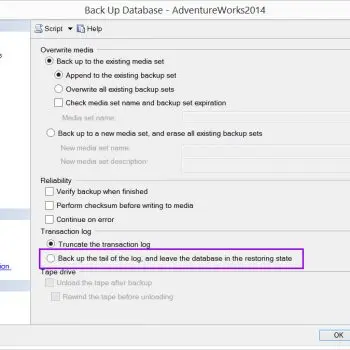
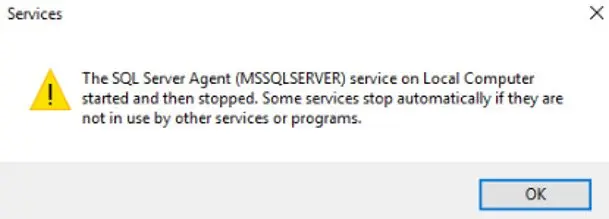
Error 5173 in SQL Server means a database file does not belong to the primary file of its database. In this 2019 hardware-recovery case, the instance started but msdb did not come online. The error log named a mismatched MSDBLog.ldf file.

What Error 5173 Means
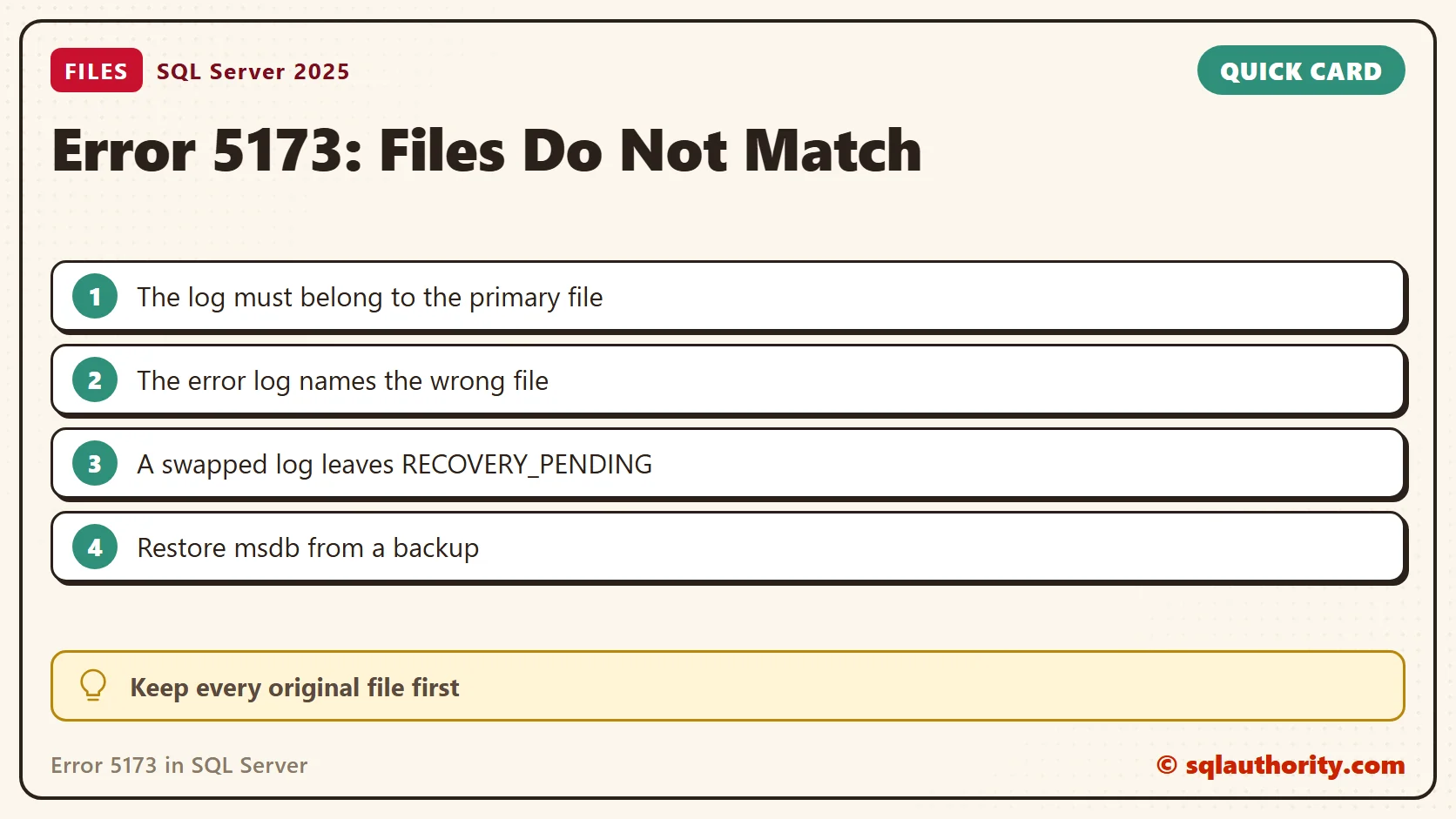
Every database file carries a header that ties it to one database. When SQL Server opens the files together, the log has to match the primary data file. If it does not, the database stays closed and the engine raises error 5173. The message names the log file, so start there.
A log file from another database causes it. So does a log that was rebuilt earlier, and so does damage to the file. I reproduced the first cause twice on SQL Server 2025.
| What I did | What SQL Server said | State afterwards |
|---|---|---|
| Attached the data file of database A with the log of database B | Msg 5173, State 6, then Msg 1802 CREATE DATABASE failed | No database created |
| Pointed the log path of an existing database at the log of another database, then set it online | Msg 5173, State 1, then Msg 5181 and Msg 5069 | RECOVERY_PENDING |
The second test matches this post’s case, because the database existed and failed at startup. Its message added the useful line Log file … does not match the primary file, and said the log came from another database or had been rebuilt.
Read the Evidence
If the instance is up, ask which databases are not online and which paths the catalog expects. The catalog shows where SQL Server looks. It does not prove that the file at that path is the right one.
SELECT name, state_desc, user_access_desc
FROM sys.databases
WHERE name = N'SalesDemo';
SELECT file_id, name, type_desc, state_desc, physical_name
FROM sys.master_files
WHERE database_id = DB_ID(N'SalesDemo')
ORDER BY file_id;
Then read the error log for the message that names the file. Search for the phrase from the error text.
EXEC master.dbo.xp_readerrorlog 0, 1, N'does not match the primary file';
Compare the file name in that line with the logical file names in the catalog. In my second test the log belonged to a different database, and its name said so. In a real incident, find where each file came from before you change anything. Compare the date and size of the log with the data file. A log far older than its data file is a clue. The folder listing shows it in seconds.
Keep Every Original File
Copy the original data and log files, the backups and the logs to a safe place before any repair. Record their paths, sizes and dates. Copy the files only while the service is stopped. A copy made during active writes is not a backup.
Fix a User Database
If the right log file exists, put it back at the path the database expects. Take the database offline, point the log file at the right path, and bring it online. In my lab, that moved the database from RECOVERY_PENDING back to ONLINE.
USE master;
ALTER DATABASE SalesDemo SET OFFLINE WITH ROLLBACK IMMEDIATE;
ALTER DATABASE SalesDemo MODIFY FILE (NAME = N'SalesDemo_log', FILENAME = N'C:\SQLData\SalesDemo_log.ldf');
ALTER DATABASE SalesDemo SET ONLINE;
SELECT name, state_desc FROM sys.databases WHERE name = N'SalesDemo';
If the log is gone and the database shut down cleanly, attach the data file. SQL Server builds a new log. That breaks the log backup chain. Take a full backup right after. Use this only when a backup is not an option.
USE master;
EXEC sp_detach_db N'SalesDemo';
CREATE DATABASE SalesDemo ON (FILENAME = N'C:\SQLData\SalesDemo.mdf') FOR ATTACH_REBUILD_LOG;
SELECT name, state_desc FROM sys.databases WHERE name = N'SalesDemo';
My scratch database came back ONLINE with a new log file. Run these on a copy first. Replace the names and paths with your own.
Fix msdb
Our client had an existing backup strategy. Restoring the msdb backup resolved this case. The backup saved us from rebuilding msdb and re-creating jobs, schedules, alerts and operators by hand.
Stop SQL Server Agent before the restore, and match the SQL Server version and servicing level of the backup. After the restore, check the jobs, the schedules, the alerts and the backup history. A job name in the list does not prove that the job still runs.
Without an msdb backup, recreating msdb loses its metadata unless another verified source has it. Rebuilding all system databases loses more. Do not delete the log or mix files from different databases. Do not force a data-loss repair on the strength of this message.
If you need help with recovery options, contact me through SQL Server consulting. Keep the original evidence and backups until the database is healthy again.
A matching file name is not proof of a matching database file, it is only a label.
Published by Pinal Dave on SQLAuthority. More of my work at pinaldave.com.
Discover more from SQL Authority with Pinal Dave
Subscribe to get the latest posts sent to your email.