
String or binary data would be truncated is the error that annoyed me for years, because it never said which column was the problem. I’ve worked with SQL Server since 2000, and it has always bothered me. The SQL Server engineering team finally fixed it, and I’m happy to write this post.

The Error
You get this error when you insert data that is larger than the data type of the column. The old message tells you it happened and nothing else:
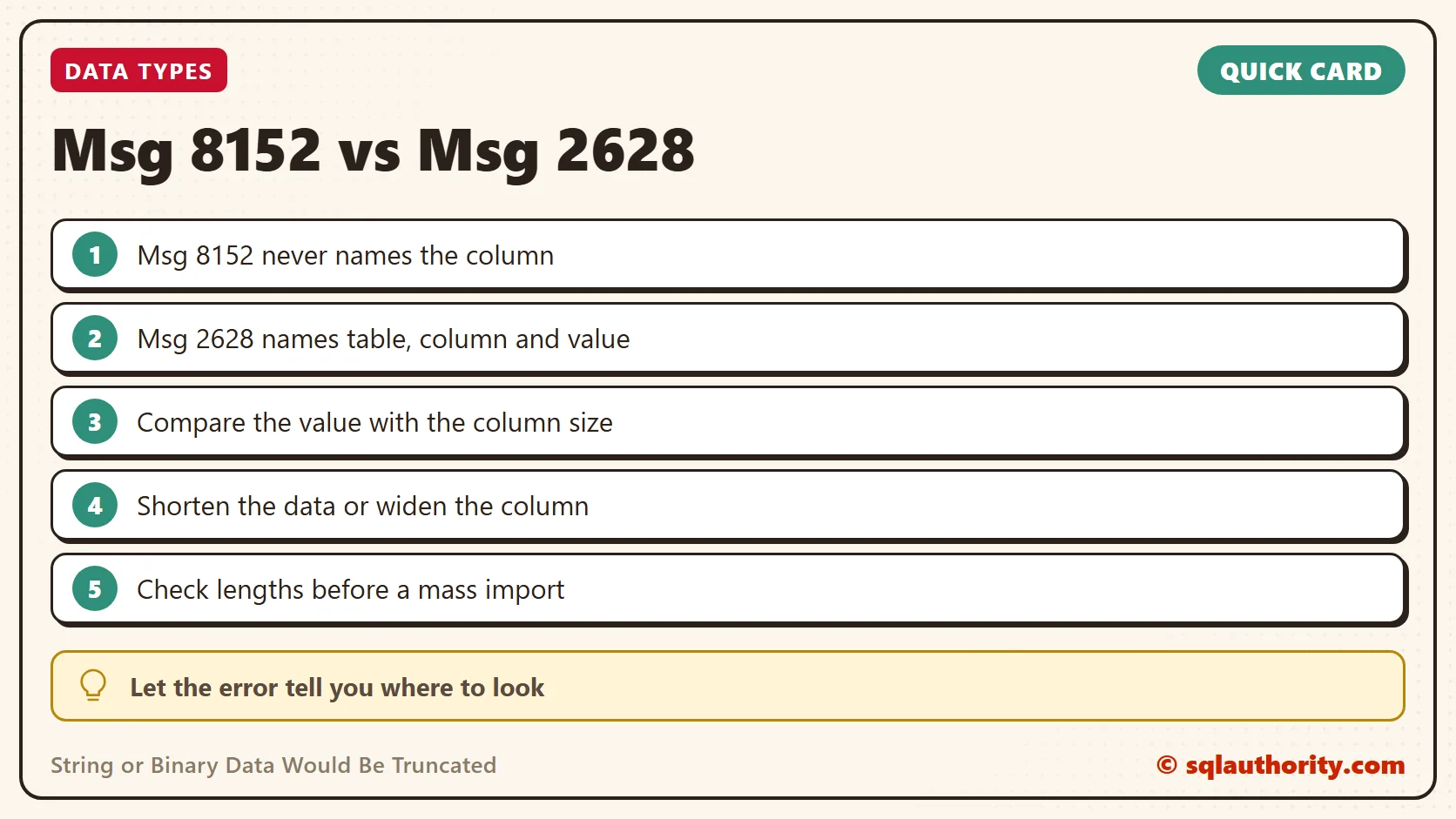
Msg 8152, Level 16, State 30, Line 4
String or binary data would be truncated.
The statement has been terminated.
Why It Hurt So Much
One bad value in one row is easy to find. It’s a different story during a mass import of many rows into a wide table with many columns. The error doesn’t say where to look, so debugging becomes guesswork.
I’ve seen people build all kinds of workarounds because of it. The error breaks your workflow so badly that an automated process turns into a manual one. I recently demonstrated this during my Comprehensive Database Performance Health Check.
A Quick Test
Here is the script. The value ElevenChars has eleven characters, and Col1 holds ten.
CREATE TABLE Table1
(Col1 VARCHAR(10), Col2 VARCHAR(10))
GO
INSERT INTO Table1 (Col1, Col2)
VALUES('ElevenChars','Cols')
GO
SQL Server 2017 answers with the Msg 8152 you saw above. SQL Server 2019 answers with this:
Msg 2628, Level 16, State 1, Line 4
String or binary data would be truncated in table
'tempdb.dbo.Table1', column 'Col1'. Truncated value: 'ElevenChar'.
The statement has been terminated.
Now the error makes sense. It names the table and the column, and it shows the value cut to the size that fits.

The Fix
Once you know the column, you have two choices. Shorten the incoming data if the value is wrong, or widen the column if the value is right. Here is the second choice for the test table:
ALTER TABLE Table1 ALTER COLUMN Col1 VARCHAR(20)
GO
Confirm It Worked
Run the same INSERT again. It finishes without an error, and the full value is in the table.
How to Prevent It
Check the longest value in your source before a mass import, and compare it with the column size. The same care applies when you change a column, as I explain in Checking Data Fits Before Narrowing a Column Data Type.
If you’re on SQL Server 2019 and still see the old message, read my follow-up post on that case. This fix alone is one more reason to upgrade to the latest version.
A good error message is not a luxury, it is the first step of the fix.
Published by Pinal Dave on SQLAuthority. More of my work at pinaldave.com.
Discover more from SQL Authority with Pinal Dave
Subscribe to get the latest posts sent to your email.


9 Comments. Leave new
Hi Pinal, this is also in place in SQL 2016 SP2 CU6… https://support.microsoft.com/en-za/help/4468101/optional-replacement-for-string-or-binary-data-would-be-truncated
Yes it does but not out of the box… we need to enable traceflag 460 after installing the necessary CU’s. In SQL Server 2019 it just works out of the box.
Wish we had an option to truncate and insert when a string is too long, ignoring the error. Usually I would not use that option, but there are definitely times where truncation and successful insert would have been highly preferable to stopping the entire import.
Hello Pinal,
remember that You can use trace flag 460 for debugging to find in which column and a row is a problem.
Is there any way for getting exact column names in error messages in SQL server 2012 version.
Kindly let me know….
What about this error (String or binary data would be truncated.) when is it thrown by the replication agent?
This command works for SQL database not for SQL DW
ALTER DATABASE SCOPED CONFIGURATION
SET VERBOSE_TRUNCATION_WARNINGS = ON;
is there an option to identify the column in Synapse
Hi Team,
We just enable this flag to Trace column name for Data Truncation.
But this seems to work for sting type field only.
Is there any way we can trace out int field having this kind of problem, please sugggest.
Thanks
is there any option to identify the column name in sql server 2012