
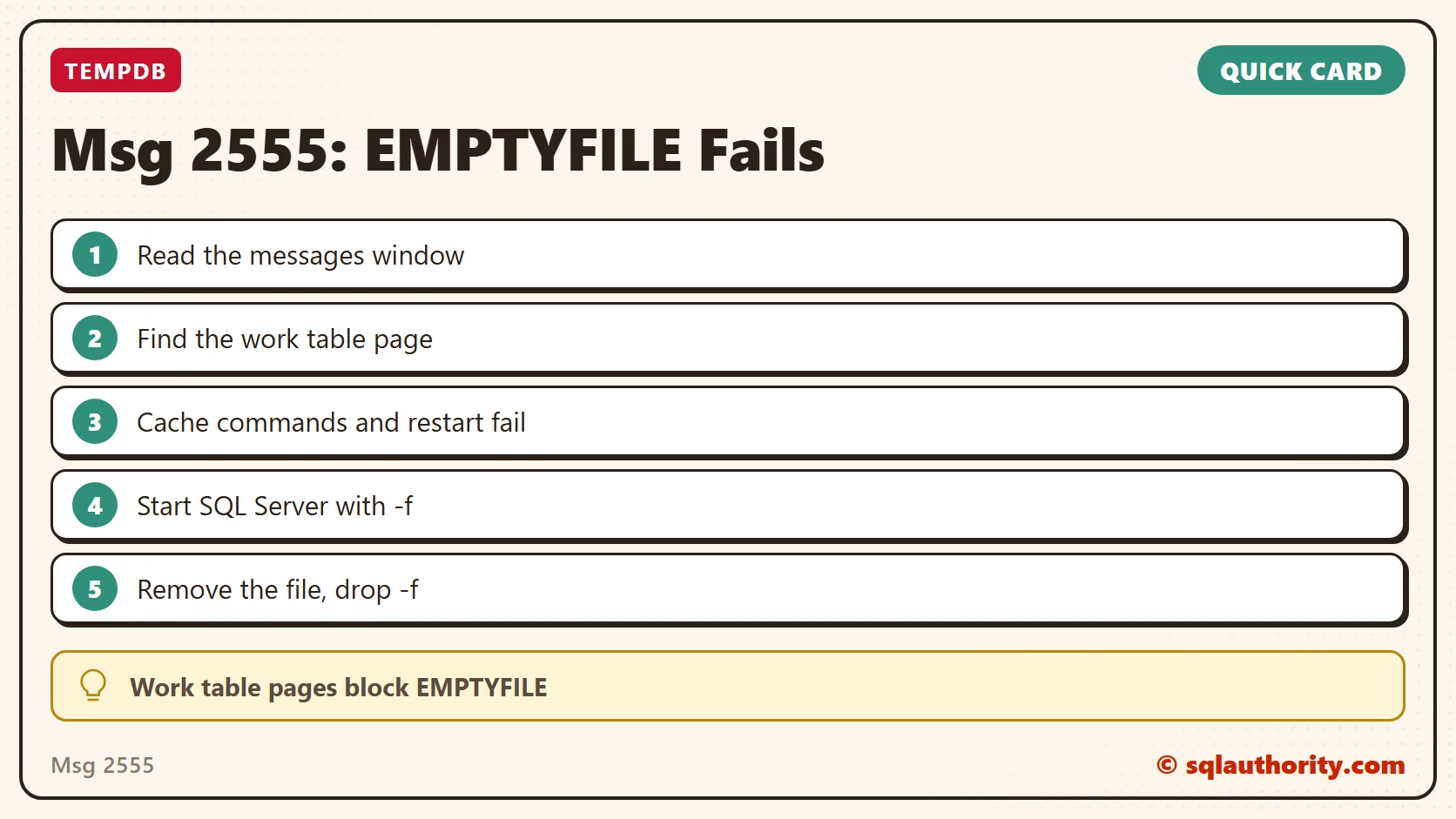
Msg 2555 stopped a client from emptying extra TempDB files with the EMPTYFILE command. The client wanted to remove the extra files, and SQL Server wouldn’t let them. Here are the steps that finally worked.

The Error
This is the error they saw:
Msg 2555, Level 16, State 1, Line 18
Cannot move all contents of file "tempdata1" to other places to complete the emptyfile operation.
What the Client Saw
My client installed SQL Server using an automated method, which kept the TempDB files on the C drive. As a good practice, they decided to add new files on the T drive. They’d then remove the files from the C drive. While removing the files from the C drive, they hit the error above.
The command they were running was this:
USE [tempdb]
GO
DBCC SHRINKFILE (N'tempdata1', EMPTYFILE)
GO
ALTER DATABASE [tempdb] REMOVE FILE [tempdata1]
GO
Why It Happens
When I double checked the messages window, I found this line:
DBCC SHRINKFILE: Page 3:39 could not be moved because it is a work table page.That is the main cause. SQL Server could not empty the file and remove it from the TempDB database.

The Fix
Based on various other blogs on the internet, we tried these commands first. They did NOT help:
DBCC DROPCLEANBUFFERS;
GO
DBCC FREESYSTEMCACHE ('ALL');
GO
DBCC FREEPROCCACHE;
GO
DBCC FREESESSIONCACHE;
GO
Even a restart of the SQL Server service didn’t help. We kept getting the same message for page 3:39.
I remember writing a post about the work table error for TempDB files, DBCC SHRINKFILE: Page Could Not Be Moved Because It Is a Work Table Page. In short, what worked was starting SQL Server with a minimal configuration using the -f startup parameter. That let us get rid of the extra files.
To do the same, add -f as a startup parameter in SQL Server Configuration Manager and restart the service. Run the file removal again. Then remove -f and restart the service once more.
Confirm It Worked
With SQL Server started using -f, we were able to remove the extra files from the C drive.
How to Prevent It
After an automated install, check where the setup placed the TempDB files. Move them to the drive you want at the start, so you don’t have to empty and remove files later.
Have you faced such a situation? What solution worked for you? Let me know in the comments.
Msg 2555 is not a stuck command, it is a page SQL Server refuses to move.
Published by Pinal Dave on SQLAuthority. More of my work at pinaldave.com.
Discover more from SQL Authority with Pinal Dave
Subscribe to get the latest posts sent to your email.




2 Comments. Leave new
f as parameter was in my case not neccessary.
I had to stop (not restart or hold and resume) SQL Server Service and after starting again I just run my query window that was still open.
I had this issue as well; there were two DATA files. One was Large and pretty full, the other small. I was trying to get rid of the small one; what i did was manually allocate more space in the larger DATA file before I ran DBCC..Emptyfile.