
I used generate scripts for a historical SQL Server 2017-to-2005 migration. It was a logical migration rather than a backward backup restore. A customer asked about this during a performance health check.

SQL Server 2005 is out of support. This customer story remains a historical compatibility example. Plan a supported destination and validate schema, data and application behavior there.
Generate a logical migration script
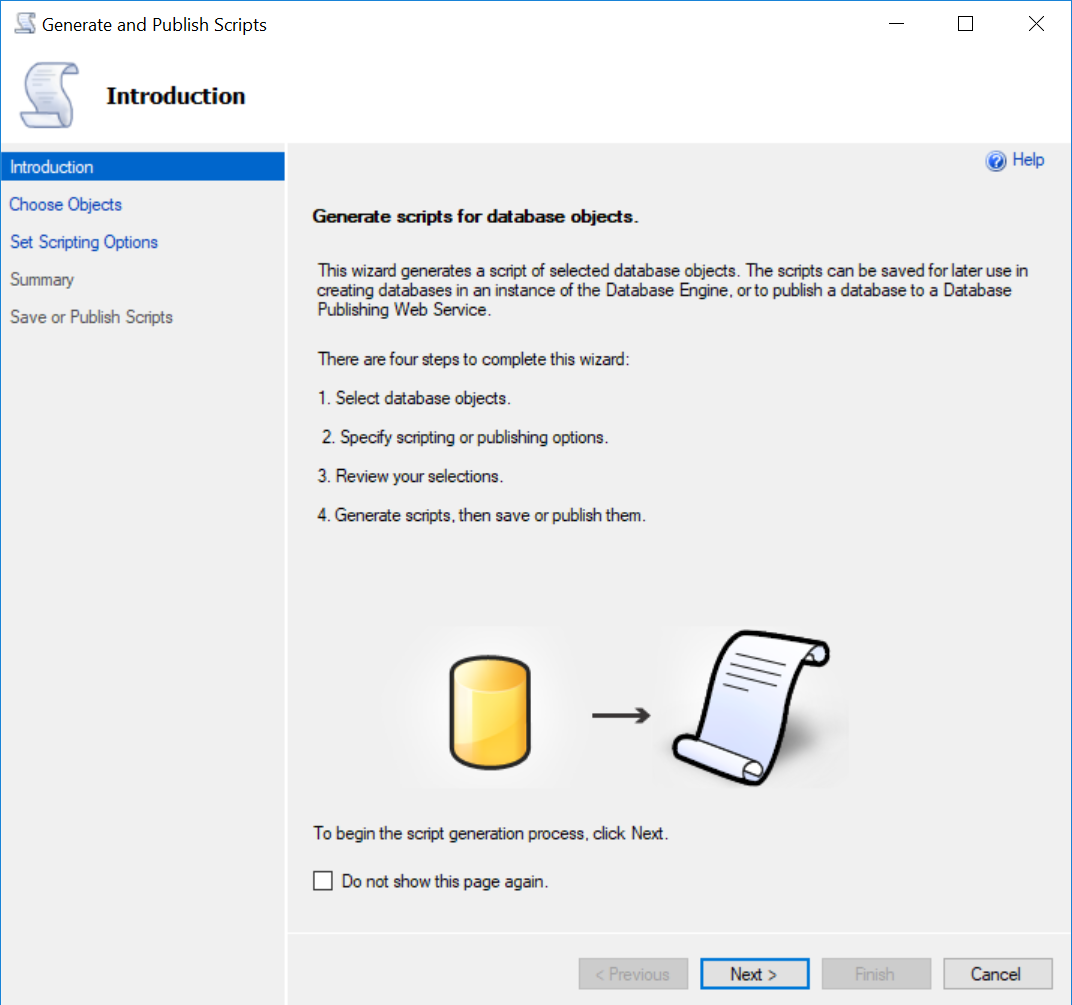
The original screenshots show the historical wizard sequence. Current SSMS releases can offer different target versions and options.
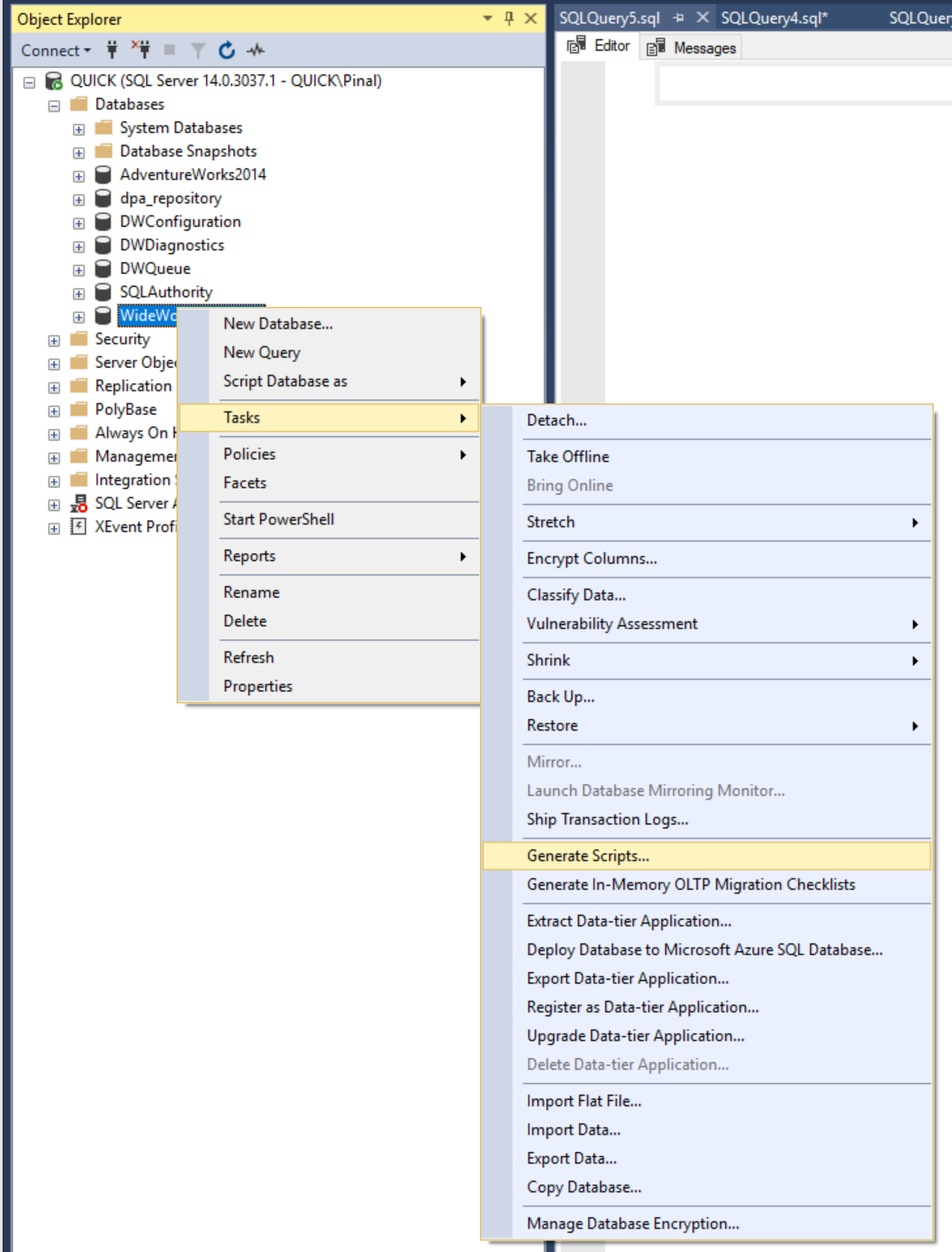
- Right-click the source database in Object Explorer. Select Tasks, then Generate Scripts.
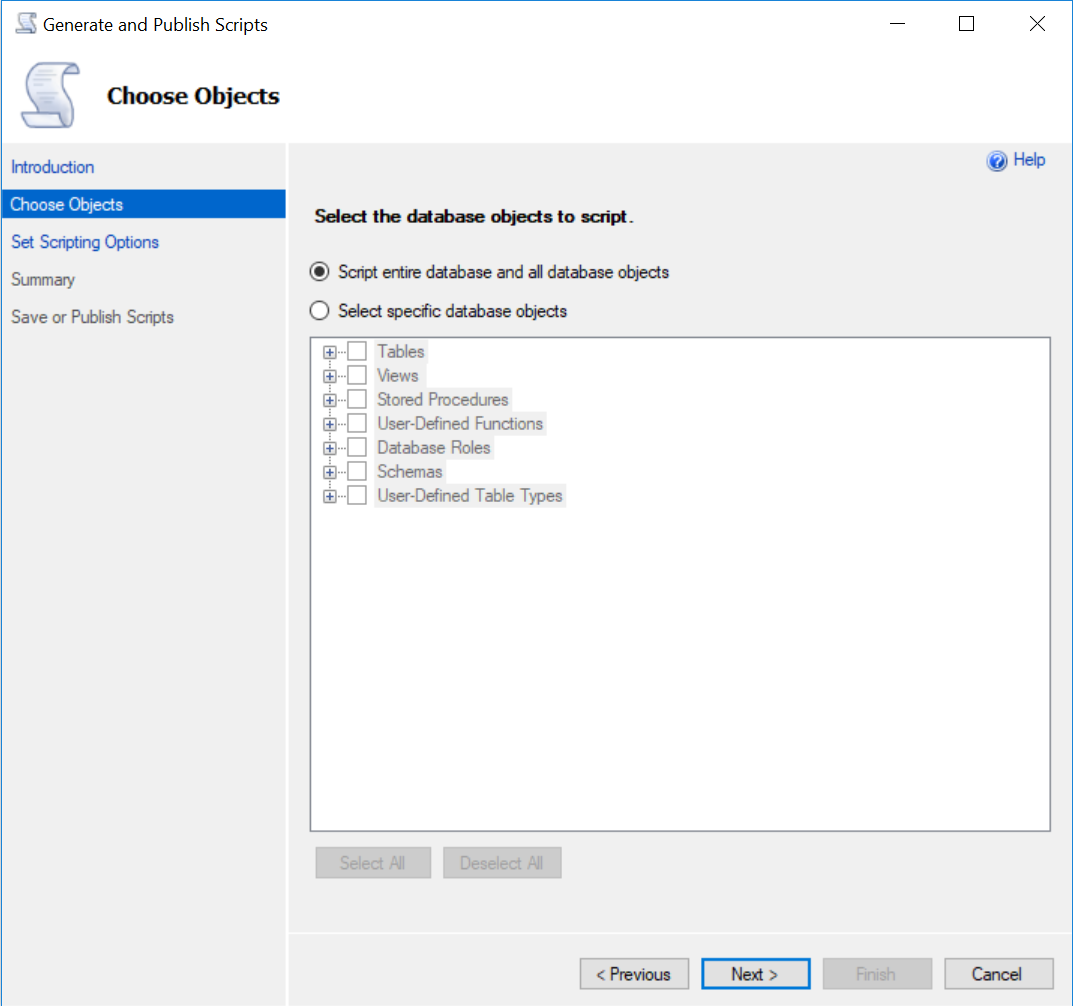
- Choose the entire database or the required objects.
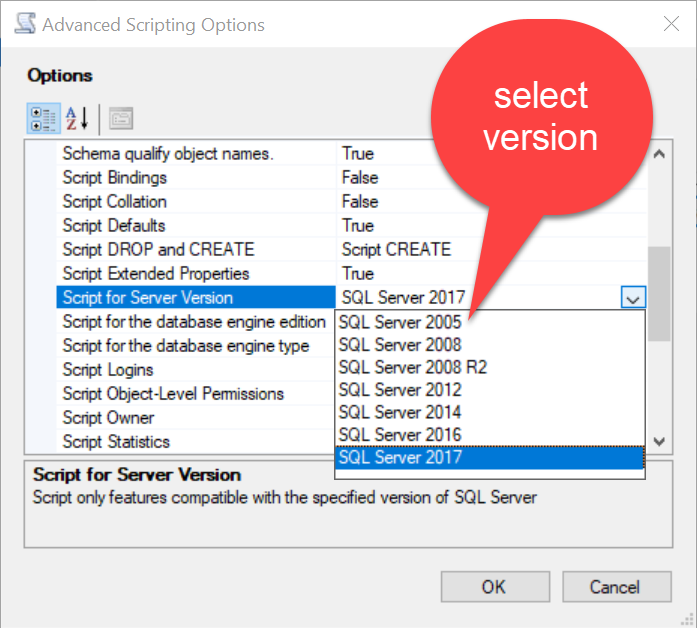
- Choose a new script-file location and open Advanced scripting options.
- Select the intended engine type and supported server version. For the historical example, the target was SQL Server 2005.
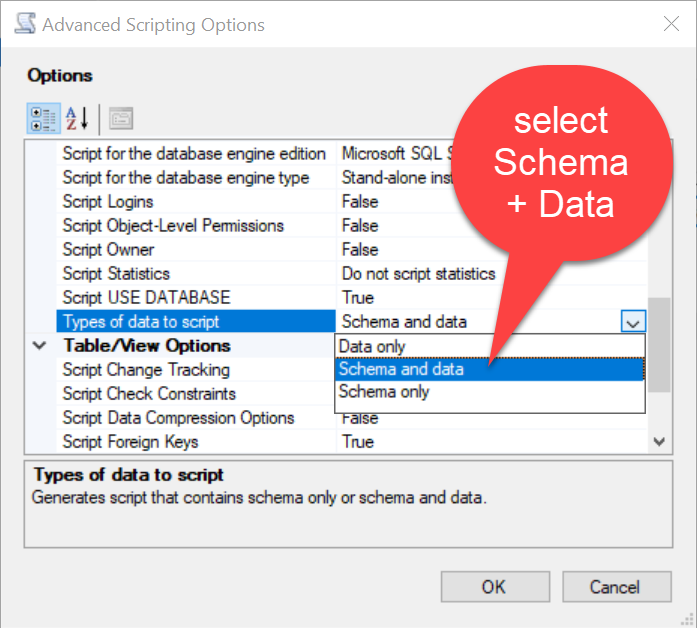
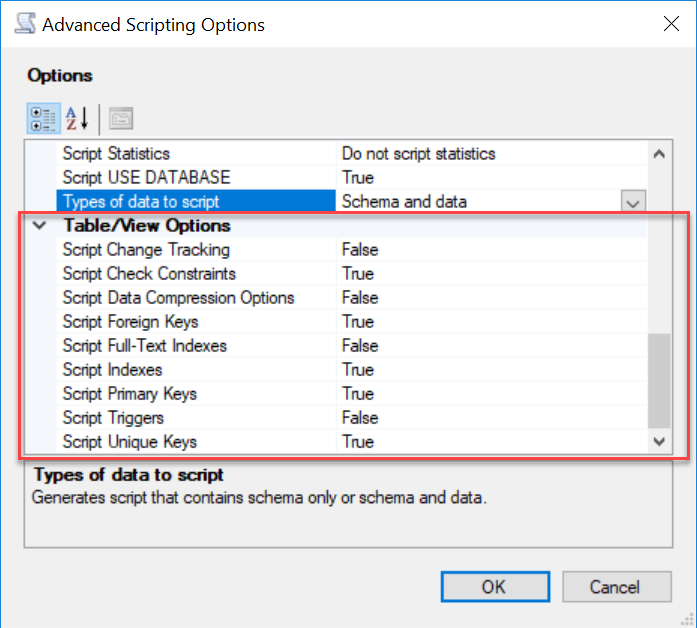
- Set Types of data to script to Schema and data. Review dependencies, indexes, constraints, triggers and permissions deliberately.
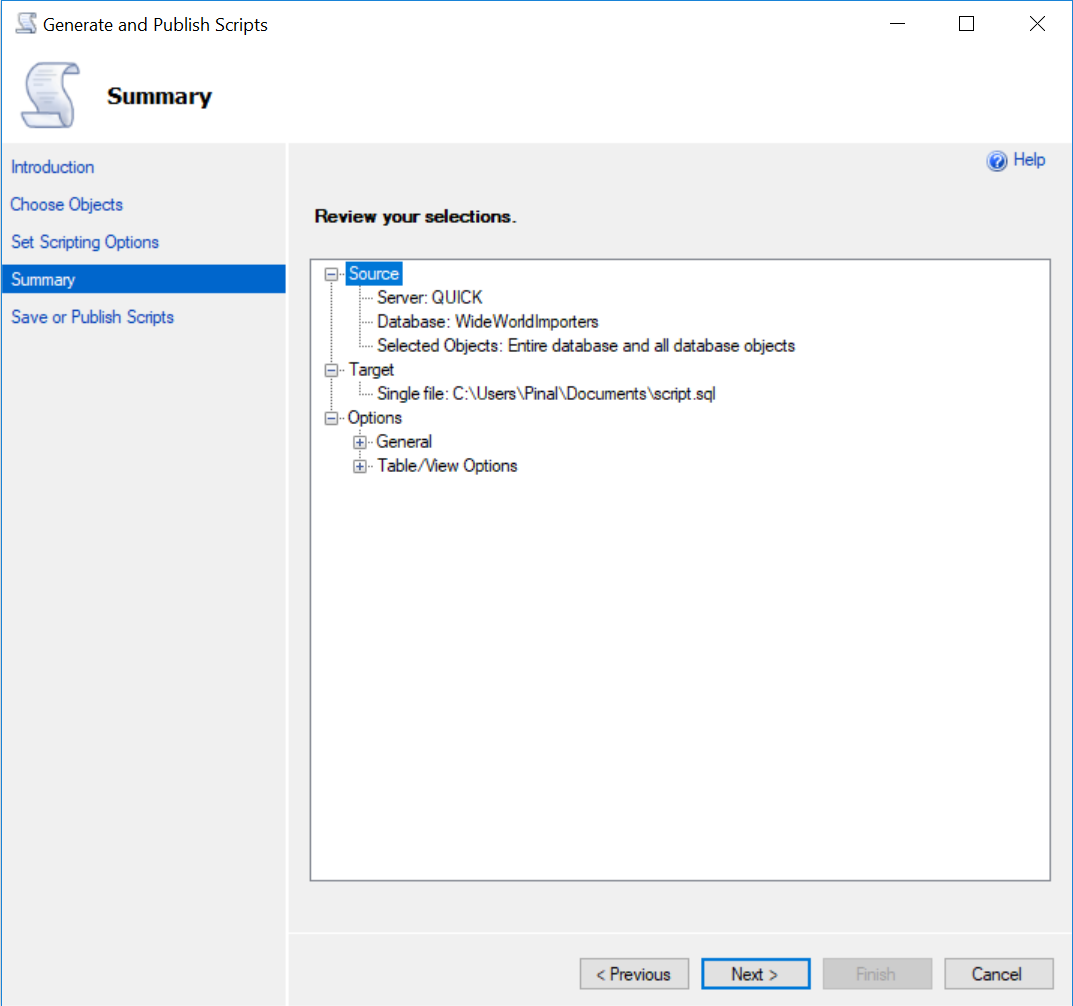
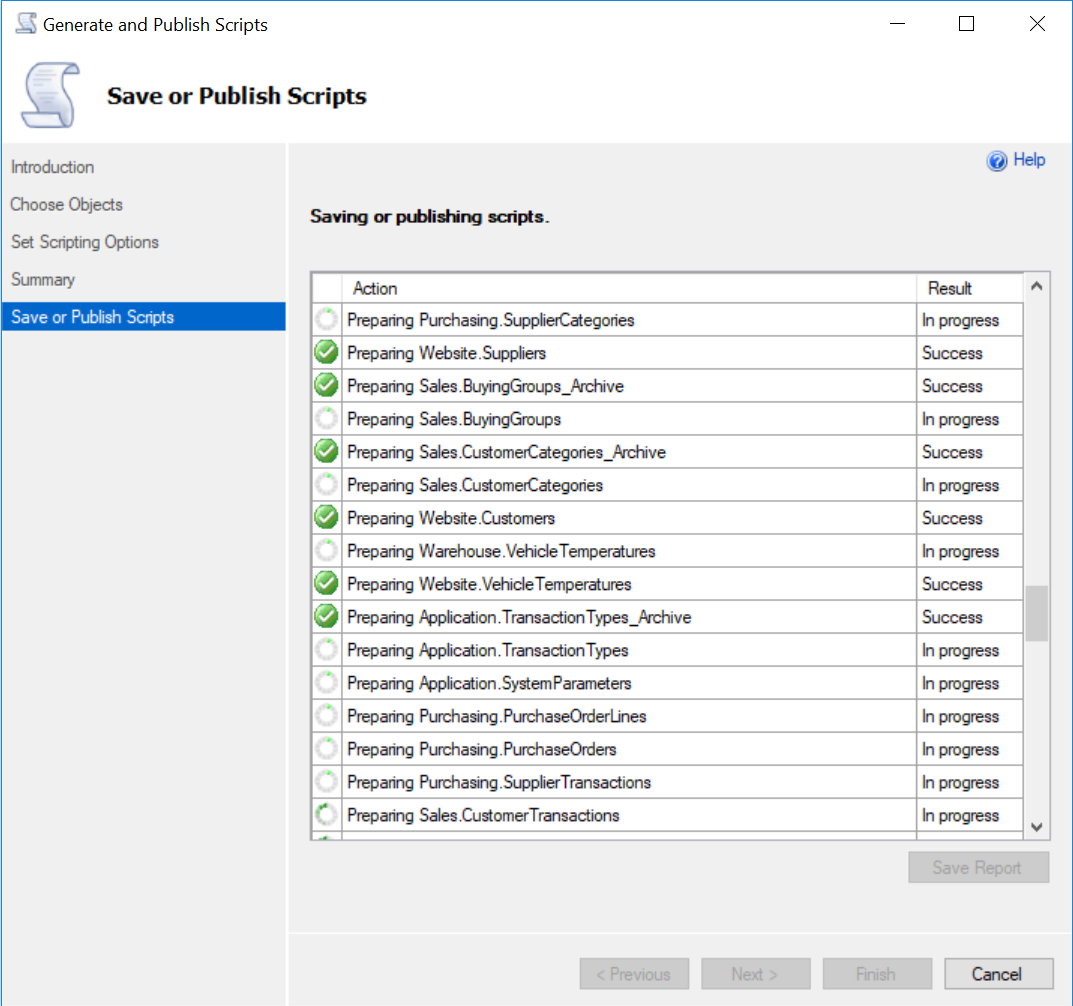
- Review the summary, generate the file and inspect the saved script before running it on a test destination.
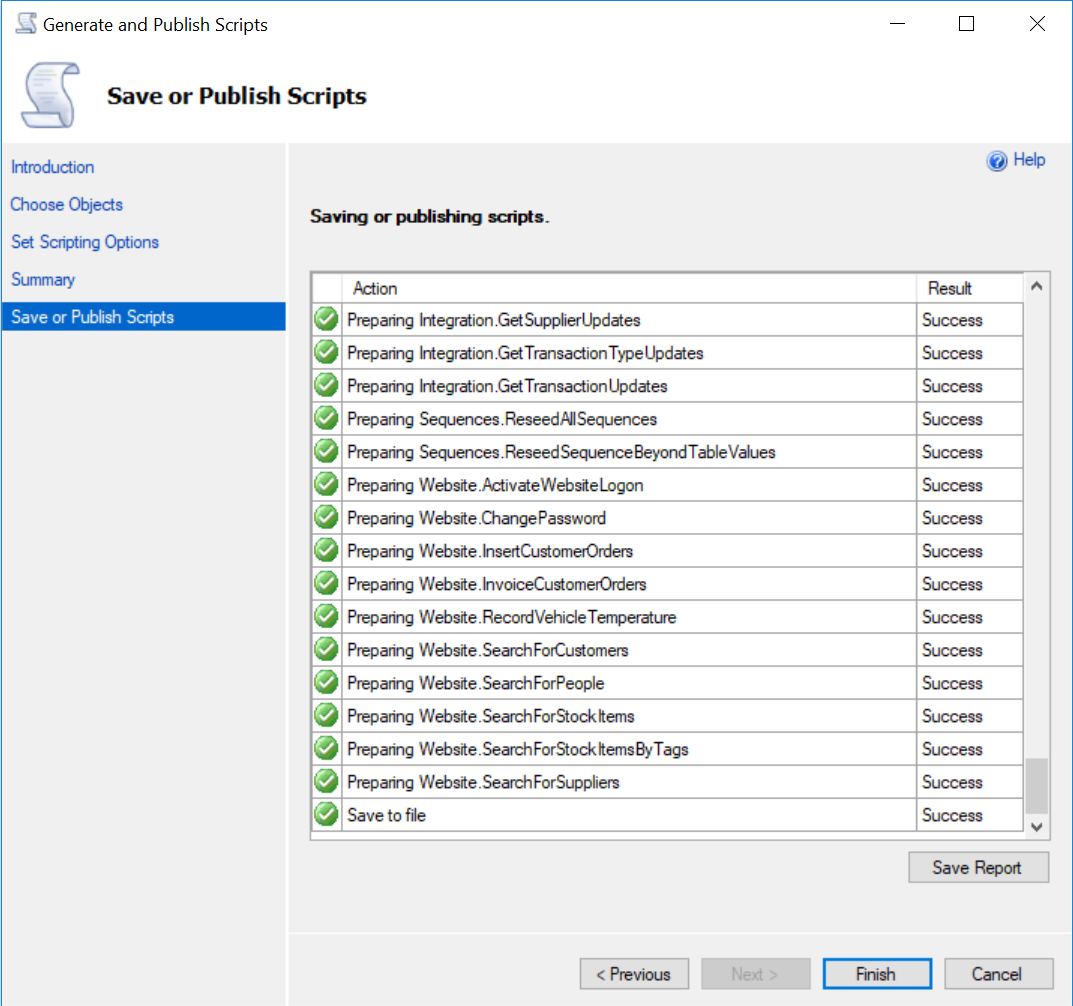
A newer backup can’t be restored to an older engine. Some newer features and types also have no older equivalent. A script target setting doesn’t guarantee migration of an arbitrary database. Large datasets may require a separate supported transfer method.
Don’t enable every option without checking its purpose. Unsupported features need explicit decisions. Validate row counts, constraints and application behavior after the transfer. Successful script generation alone doesn’t prove a complete migration.
Reference: Generate and Publish Scripts options.
Related reading
A migration script is not a backward restore, it is a logical transfer that needs compatibility checks.
Published by Pinal Dave on SQLAuthority. More of my work at pinaldave.com.
Discover more from SQL Authority with Pinal Dave
Subscribe to get the latest posts sent to your email.




1 Comment. Leave new
Hi Pinal,
What is the purpose of restoring to SQL Server 2005 from SQL Server 2017? Is there any specific reason they are doing it?
Thanks,
Srini