
Msg 5123 with operating system error 5 kept SQL Server from starting after a disk migration. The full message is CREATE FILE encountered operating system error 5 (Access is denied), and it named TempDB. One of my existing clients ran into it on a failover cluster.

The Error
This is the snippet from the ERRORLOG:
2018-08-25 22:49:04.31 spid6s CREATE FILE encountered operating system error 5(Access is denied.) while attempting to open or create the physical file 'T:\TEMPLOGS\templog.ldf'.
2018-08-25 22:49:04.32 spid6s Error: 5123, Severity: 16, State: 1.
2018-08-25 22:49:04.32 spid6s CREATE FILE encountered operating system error 5(Access is denied.) while attempting to open or create the physical file 'T:\TEMPDATA\tempdb.mdf'.
2018-08-25 22:49:04.33 spid6s Error: 17204, Severity: 16, State: 1.
2018-08-25 22:49:04.33 spid6s FCB::Open failed: Could not open file T:\TEMPDATA\tempdb.mdf for file number 1. OS error: 2(The system cannot find the file specified.).
2018-08-25 22:49:04.33 spid6s Error: 5120, Severity: 16, State: 1.
2018-08-25 22:49:04.33 spid6s Unable to open the physical file "T:\TEMPDATA\tempdb.mdf". Operating system error 2: "2(The system cannot find the file specified.)".
2018-08-25 22:49:04.33 spid6s Error: 1802, Severity: 16, State: 4.
2018-08-25 22:49:04.33 spid6s CREATE DATABASE failed. Some file names listed could not be created. Check related errors.
2018-08-25 22:49:04.33 spid6s Could not create tempdb. You may not have enough disk space available. Free additional disk space by deleting other files on the tempdb drive and then restart SQL Server. Check for additional errors in the event log that may indicate why the tempdb files could not be initialized.
What the Client Saw
The client had a 2 node cluster. They performed a planned migration of a disk in the SQL Server failover cluster. They added a new disk, swapped the drive letters and copied all the SQL Server files to it. After that, they tried bringing the SQL Server resource online, and it wouldn’t come online.
Why It Happens
The log shows that SQL Server can’t create the MDF and LDF files for TempDB. This is a Windows permissions issue. SQL Server uses its service account to create the TempDB files at startup. The client swapped the drive letters, and nobody gave that account rights on the new folders.
Because the files couldn’t be created, you then see OS error 2, the system cannot find the file specified.

How to Check
Note the folders where SQL Server is trying to create the files. You need to read the ERRORLOG in your own environment. If you don’t know where it is, see Where is ERRORLOG? Various Ways to Find ERRORLOG Location.
In the sample ERRORLOG above, the folders are T:\TEMPLOGS\ and T:\TEMPDATA\. You also need to know the account the SQL Server service runs as. My post How to Find Service Account for SQL Server and SQL Server Agent? shows how.
The Fix
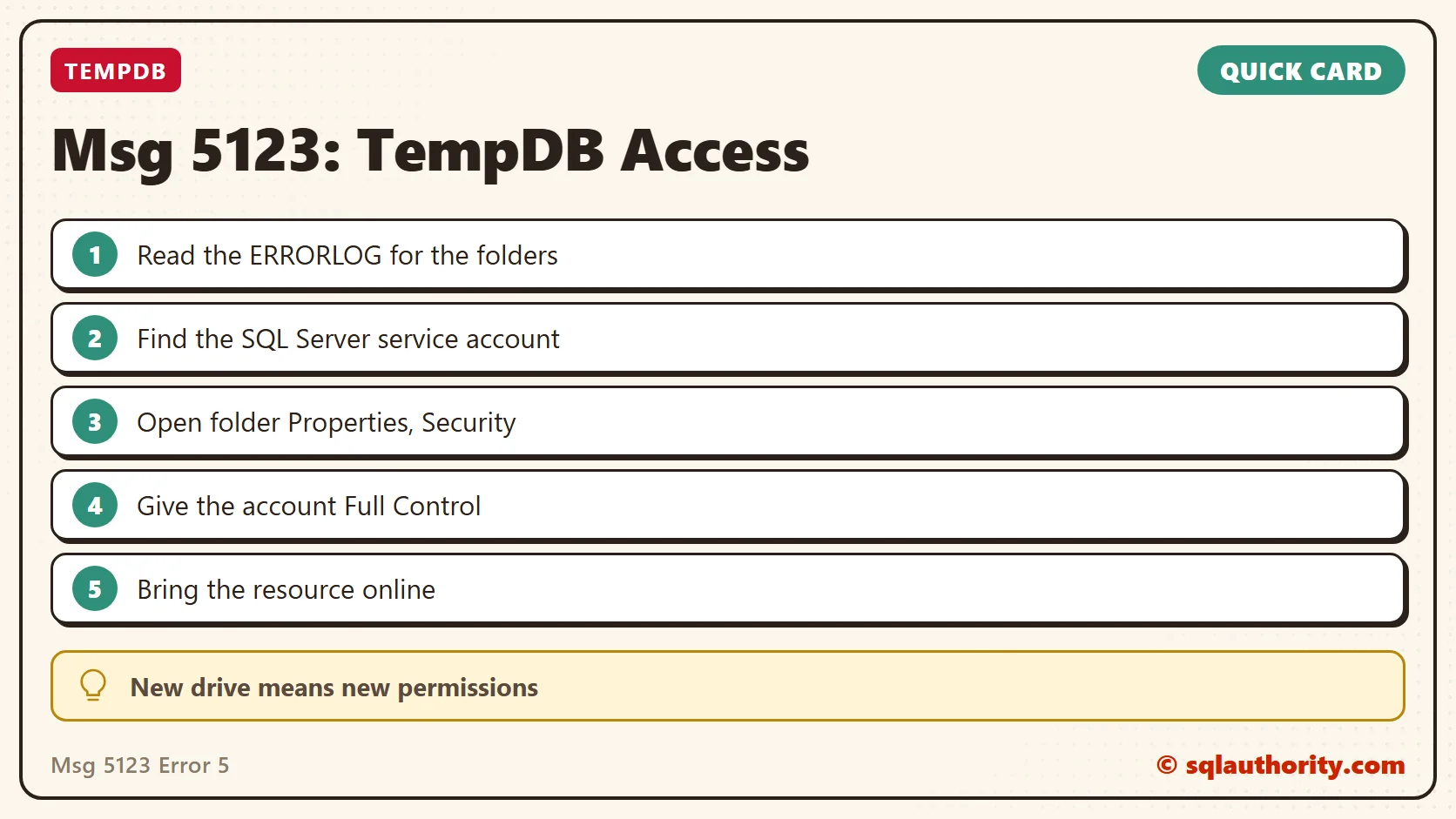
Do these steps for each folder named in the ERRORLOG:
- Right click the folder, go to Properties, then the Security tab, then the Edit button, then the Add button.
- Add the domain user, local user or group under whose account the SQL Server services run. Make sure you give it Full Control.
- Keep clicking OK to apply the changes.
Confirm It Worked
Bring the SQL Server resource online again in the cluster and read the ERRORLOG. The CREATE FILE lines for TempDB should be gone.
How to Prevent It
After you swap drive letters or copy SQL Server files to a new disk, check the service account’s folder permissions. Do it before you start SQL Server. I hope this post helps someone who isn’t a SQL DBA fix this issue.
Error 5 is not a SQL Server bug, it is Windows asking whose account is allowed in this folder.
Published by Pinal Dave on SQLAuthority. More of my work at pinaldave.com.
Discover more from SQL Authority with Pinal Dave
Subscribe to get the latest posts sent to your email.




8 Comments. Leave new
Worked perfectly for me! Thank you so much! Was stuck on this issue for a while and the only other alternative was to download a large sized update by Microsoft!
Thanks for letting me know Arjun.
Hi Pinal,
I have 2 named instances, I changed only the service account for both the instances. One instance came up and other didn’t, do you still think its a permission issue on the disks ?
Below are the errors I found from EventViewer,
CREATE FILE encountered operating system error 5(Access is denied.) while attempting to open or create the physical file ‘C:\Data\tempdb.mdf’.
CREATE FILE encountered operating system error 5(Access is denied.) while attempting to open or create the physical file ‘L:\Log\templog.ldf’.
FCB::Open failed: Could not open file C:\Data\tempdb.mdf for file number 1. OS error: 5(Access is denied.).
TIA
Hi Pinal,
Thanks for this, it worked perfectly for me and saved lot of time.
Regards,
Wil
After adding security to both mdf and ldf locations i still could not attach the databases.
Closed SSMS and opened as Administrator, which allowed me to attach the databases
thanks ! same here: attaching the MDF+LDP using SSMS openend as Administrator did the trick
Just the trick! thanks!!
Hi, while trying to create database in Visual Studio 2017, with command “Update-Database”, it seems like I can’t access SQL Server to create files. Now, I don’t understand how to make sure I have full access to server and all folders. I tried several tips from web, nothing worked. Now, I know this might be a question for someone else, but I don’t understand how to fix this problem even tho, online I everyone says that it’s account permissions problem.