
The Cluster Remote Access rule failed while I was installing a clustered instance of SQL Server. Not every problem has a clean solution, and sometimes a workaround has to carry you forward. This was one of those cases.

The Error
Setup showed this message in the user interface:
Rule "Cluster Remote Access" failed
The user running this setup must have sufficient privileges to access registry and service control manager on a remote cluster node. Administrator privileges on the remote computer are required.
What Happened
Setup couldn’t move forward, so I checked the Detail.txt file. These are the lines for the rule:
2018-01-11 17:28:25 Slp: Initializing rule : Cluster Remote Access
2018-01-11 17:28:25 Slp: Rule applied features : ALL
2018-01-11 17:28:25 Slp: Rule is will be executed : True
2018-01-11 17:28:25 Slp: Init rule target object: Microsoft.SqlServer.Configuration.Cluster.Rules.UserCheckFacet
2018-01-11 17:28:25 Slp: Remote Access Rule : Remote access check on Machine MSSQLN1 failed: Attempted to perform an unauthorized operation.
2018-01-11 17:28:25 Slp: Rule 'Cluster_IsUserAdmin' detection result: CanAccessRemoteMachine =False; on Machine MSSQLN1
2018-01-11 17:28:25 Slp: Evaluating rule : Cluster_IsUserAdmin
2018-01-11 17:28:25 Slp: Rule running on machine: MSSQLN1
2018-01-11 17:28:25 Slp: Rule evaluation done : Failed
2018-01-11 17:28:25 Slp: Rule evaluation message: The user running this Setup operation must have sufficient privileges to access registry and service control manager on remote cluster node(s). Administrator privileges on the remote computer(s) is required.
2018-01-11 17:28:25 Slp: Send result to channel : RulesEngineNotificationChannel
Why It Happens
Setup tried to reach the registry and the service control manager on a remote node, MSSQLN1. The call failed with an unauthorized operation. So the Cluster_IsUserAdmin check set CanAccessRemoteMachine to False, and the rule failed with the message about administrator privileges.
How to Check
I searched the internet and found three suggestions:
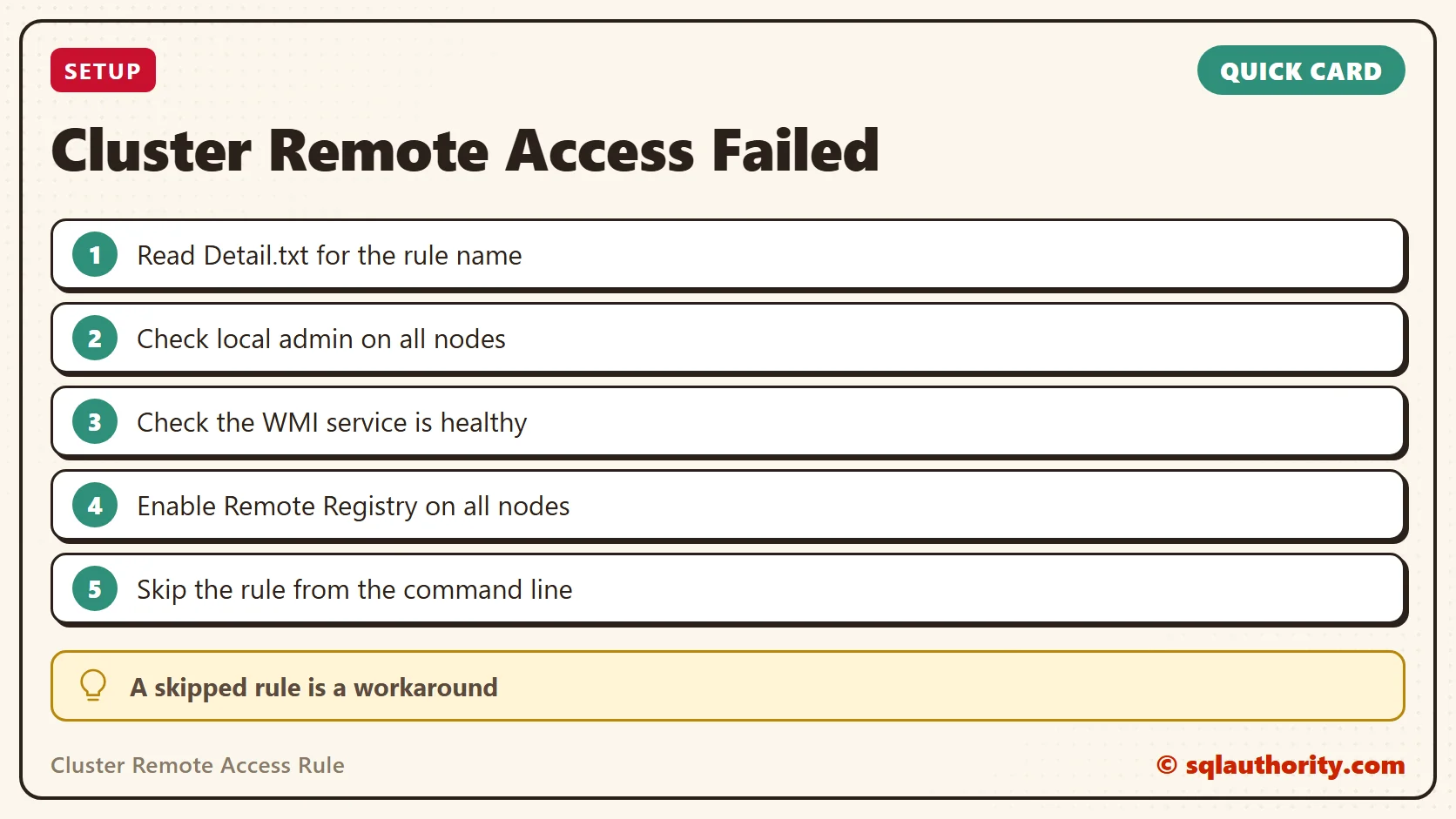
- Make sure the account you use is a domain account with local Admin rights on all the nodes.
- Make sure the WMI service is not stopped or corrupt.
- Enable the Remote Registry service on all nodes.
I verified all three, and everything was fine.

The Fix
To save time, I ran the cluster installation from the command line and told setup to skip the rule. If you look closely, the rule name in the command comes from Detail.txt: Cluster_IsUserAdmin. Here is the command I used.
Setup /SkipRules= Cluster_IsUserAdmin /Action=InstallFailoverClusterConfirm It Worked
Once I used the command, setup didn’t check the rule at all, and the installation went fine.
How to Prevent It
A skipped rule is a workaround, not a repair. Before the next install, check the three items above, so setup can reach every node on its own. Read the rule name in Detail.txt, because that’s the name /SkipRules needs.
A failed rule is not a dead end, it is a message you can read and act on.
Published by Pinal Dave on SQLAuthority. More of my work at pinaldave.com.
Discover more from SQL Authority with Pinal Dave
Subscribe to get the latest posts sent to your email.



3 Comments. Leave new
Do you mean make sure that WMI neither stop or corrupted?
I had run the command line setup command with the listed parameters and it did not skip the rule. The account I’m using is a Domain Admin account that is a member of the administrators group on each node.
Thanks for the information.. But as per your article we can proceed with only primary node while sql cluster installation.. For the 2nd node this skip option will not work,
The permanent solution is to check the group policies are assigned correctly for our user ID on below.
1. Back up files and directories
2. Manage auditing and security log
3. Debug programs
4. logon as service
Once the group policies are assigned. As a local admin we can execute the command RSOP from command prompt. From here we can check if the group policies are assigned correctly. If you find any red mak in the policies then your system admninistrator has to fix it at any cost.. This is system administartor job.