Find and replace with regular expressions can rewrite a list of column names in seconds, but the editor does not understand SQL. It only changes text, so you still check the result.

The 5 PM column list
A colleague pastes forty column names into a query window. The release is at 5 PM. Every column must be wrapped in ISNULL, with an alias so the names stay the same.
You can retype forty lines, or you can let Quick Replace do it. I prefer the second, with a few safety habits. Let me use two names so the example stays small. The names are Amount and Quantity, one per line.
Scope first, then replace
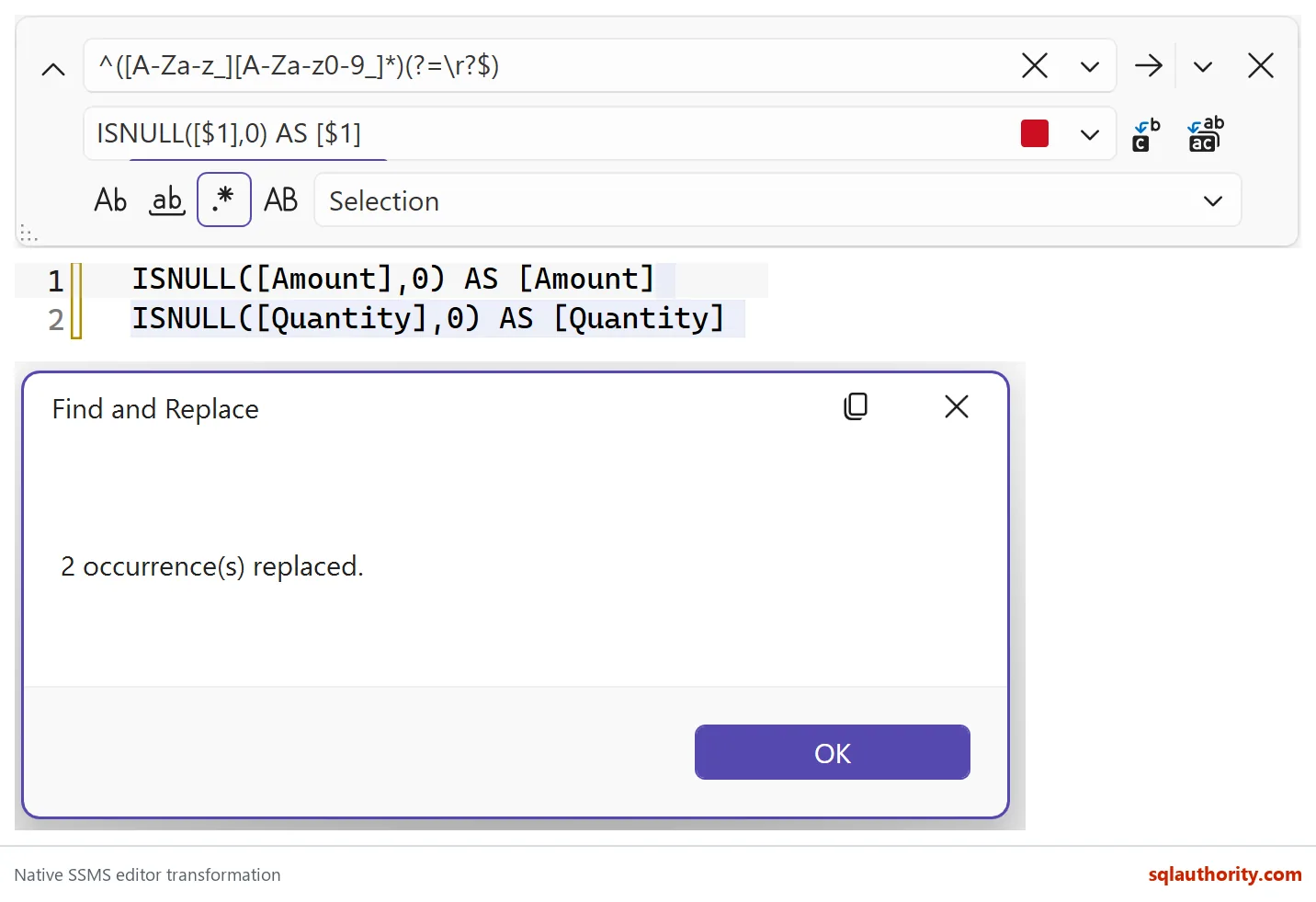
Save a copy of your script. Then select only the lines you want to change. Press Ctrl+H, switch on regular expressions (the .* button), and set the scope to Selection.
That scope setting matters more than the pattern. A replace across the whole document will happily change comments, string literals and other lists that happen to look the same. A pattern is a text rule. It has no idea which match is safe.

A capture group that rewrites each name
Here is the find pattern for a simple name on its own line:
^([A-Za-z_][A-Za-z0-9_]*)(?=\r?$)
Read it in three parts. The ^ means the start of a line. The parentheses capture the name: a letter or underscore, then any letters, digits or underscores. The last part is a lookahead. It checks that the line ends there, but it does not eat the line break, so your lines stay separate.
The replacement is:
ISNULL([$1],0) AS [$1]
The $1 is whatever the capture group found. Click Replace All and the dialog reports two replacements.
I did not add commas in the replacement. I type them by hand, and I remember that the last line gets none. Now test the new column list on a few rows, with NULLs on purpose. This temp table stands in for your real table.
DROP TABLE IF EXISTS #Sales;

CREATE TABLE #Sales
(
    Id       int PRIMARY KEY,
    Amount   decimal(12,2) NULL,
    Quantity int NULL
);

INSERT #Sales (Id, Amount, Quantity)
VALUES (1, NULL, NULL), (2, 12.50, 2);
SELECT Id,
ISNULL([Amount],0) AS [Amount],
ISNULL([Quantity],0) AS [Quantity]
FROM #Sales
ORDER BY Id;Row 1 comes back as 0.00 and 0. Row 2 keeps 12.50 and 2. The result has the right shape. The data type follows the first argument, so a decimal column stays decimal. This query checks it.
SELECT SQL_VARIANT_PROPERTY(ISNULL(CAST(NULL AS decimal(12,2)), 0), 'BaseType') AS amount_type,
SQL_VARIANT_PROPERTY(ISNULL(CAST(NULL AS decimal(12,2)), 0), 'Scale') AS amount_scale;It returns decimal and a scale of 2, so the 0 became 0.00.
Review the meaning, not only the punctuation
Zero is not a safe default for every column. Add a row that really has an amount of zero and look at the result.
INSERT #Sales (Id, Amount, Quantity) VALUES (3, 0, 0);
SELECT Id,
       ISNULL([Amount],0) AS [Amount],
       ISNULL([Quantity],0) AS [Quantity]
FROM #Sales
ORDER BY Id;Rows 1 and 3 now look the same, but row 1 was unknown and row 3 was a true zero. A report that hides that difference can mislead people. Decide per column whether zero, an empty string or no default at all is right.
My pattern also skips names with spaces or brackets on purpose. Widen it only after you decide how to quote those names. And after any replace, look at the first, middle and last line before you run the script.
One last note. The editor’s regular expressions are not the same thing as any regular-expression feature inside SQL Server. Test a pattern in the place where you will use it.
DROP TABLE IF EXISTS #Sales;Next time you face a long list, save a copy first, then let the editor do the typing.
A find and replace is not SQL knowledge, it is typing you still have to check.
Published by Pinal Dave on SQLAuthority. More of my work at pinaldave.com.
Discover more from SQL Authority with Pinal Dave
Subscribe to get the latest posts sent to your email.