
Stretch Database is the SQL Server 2016 feature that attracted me most. SQL Server 2016 was released last week, with many features for performance and stability. As the name says, it stretches your database by keeping part of it in the Azure cloud. Microsoft has since discontinued Stretch Database.
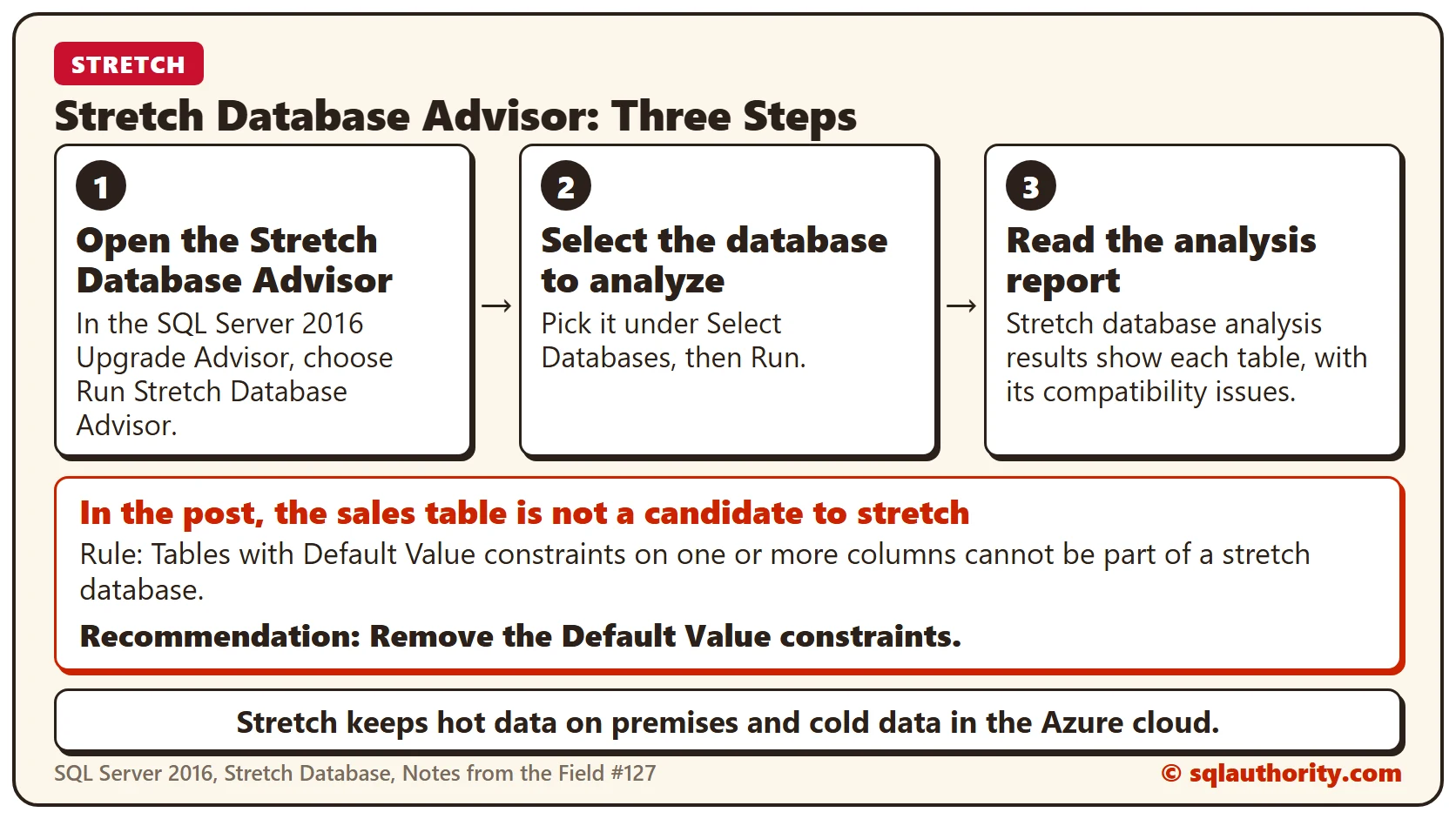

In the 127th Notes from the Field episode, database expert Kenneth Urena shows how to use Stretch Database. Kenneth is a partner at Linchpin People.
SQL Server 2016 is being released, so we all ask how to use it to improve our database procedures. One of the features the product team added is the ability to recover huge databases quickly. That is where Stretch Database comes in.
What Is SQL Server Stretch Database?
Stretch is a technology introduced in SQL Server 2016. It lets you select tables, especially huge ones. You keep part of the data in the Azure cloud and part on premises. It is one of the first steps from Microsoft toward a truly integrated hybrid database. The idea is to keep cold data in the cloud and hot data on premises.
Are All Tables Eligible to Be Stretched?
This is the first release of the technology, so it comes with many restrictions. I recommend you use the Microsoft SQL Server 2016 Upgrade Advisor and follow these steps:
- Open the Stretch Database Advisor.
- Select the database to analyze.

- Read the analysis report.
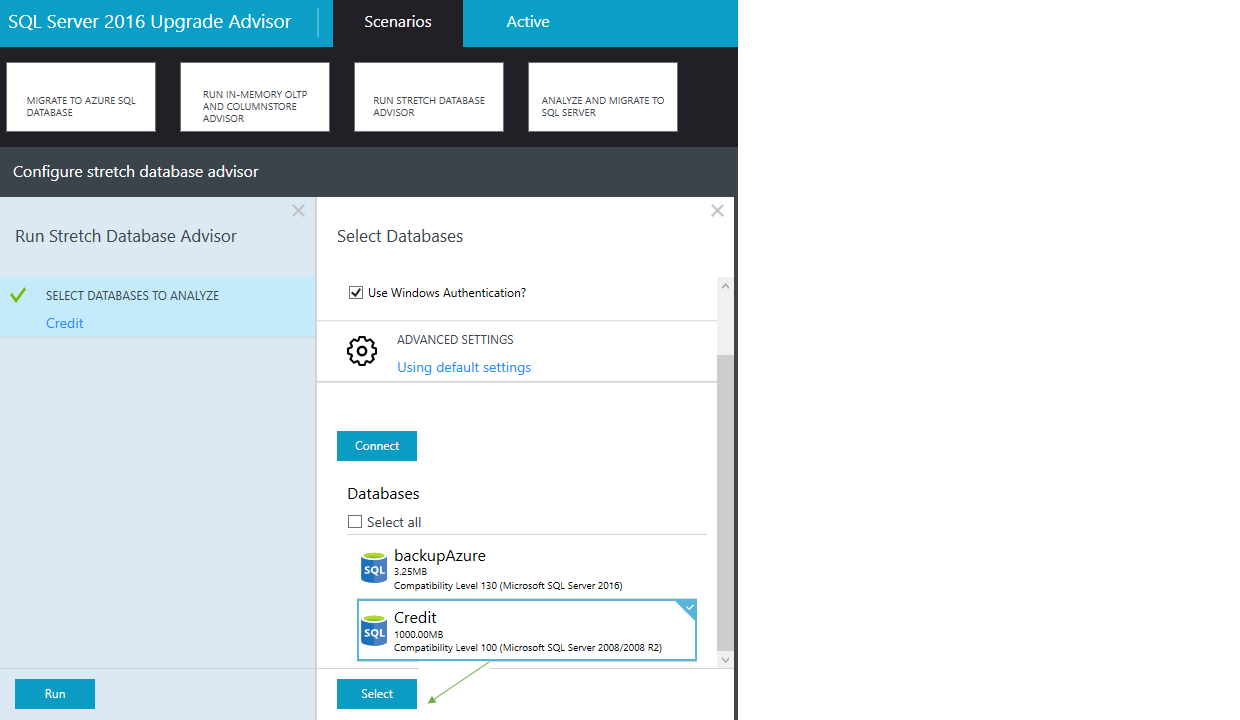
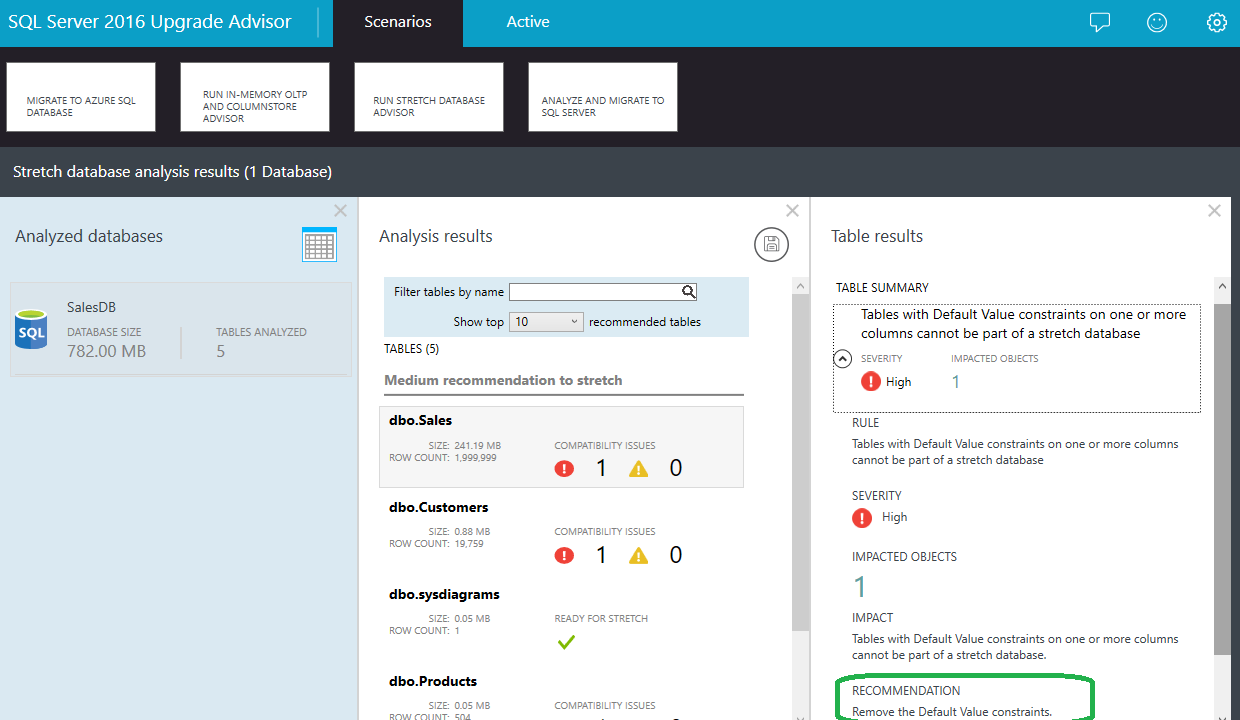
As the report shows, the sales table is not a candidate to be migrated to Stretch Database. The nice thing about the wizard is that it shows what to change to make the table eligible. In this case, you remove a constraint.
How to Start Using Stretch Database
By default, SQL Server 2016 (or at least RC3) does not come with Stretch Database enabled. To enable it, follow these steps:
- Enable Stretch Database at the instance level. Don’t worry: this only tells SQL Server that you are likely to stretch some tables.
use master
-- Enable stretch database at the instance level
exec sp_configure 'remote data archive', '1';
GO
RECONFIGURE- Select the database you want to enable for Stretch Database.

- Select the tables you want to stretch.

- Once the table is selected, you can stretch the entire table. Or click the “Entire table” link and define the criteria for which rows get migrated.

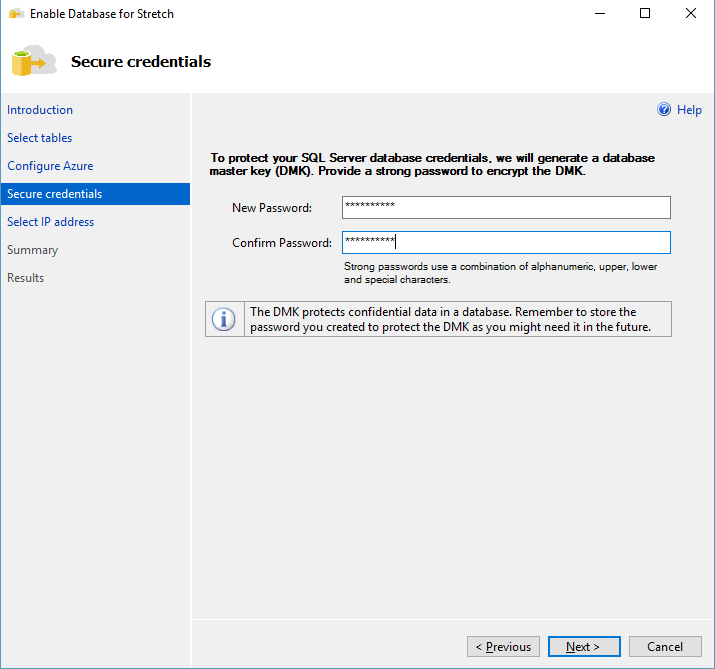
- Sign in to the Azure account that will host the cold data.

- Create a new server or use an existing one in Azure.

- Create a database master key.

- Select the address from which this database is accessed. It can also be a network subnet range.

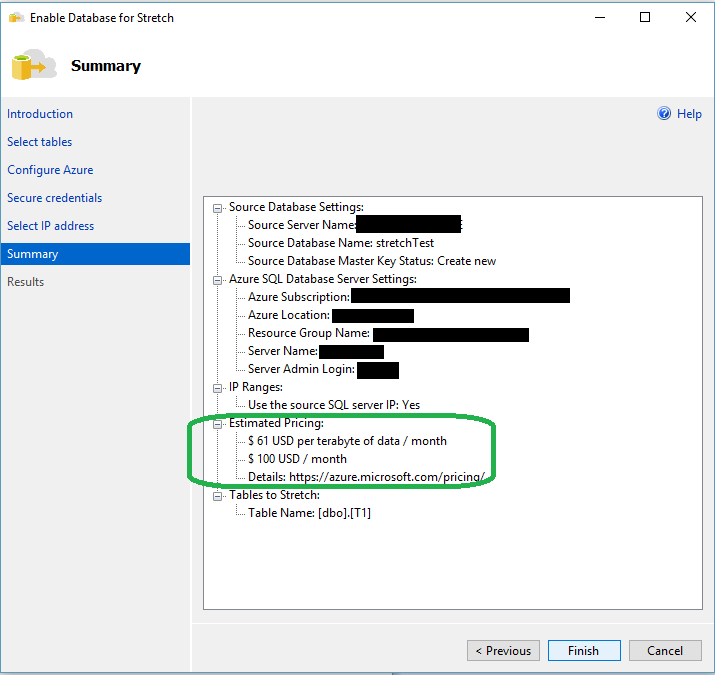
- Review the summary, including the pricing in Azure.

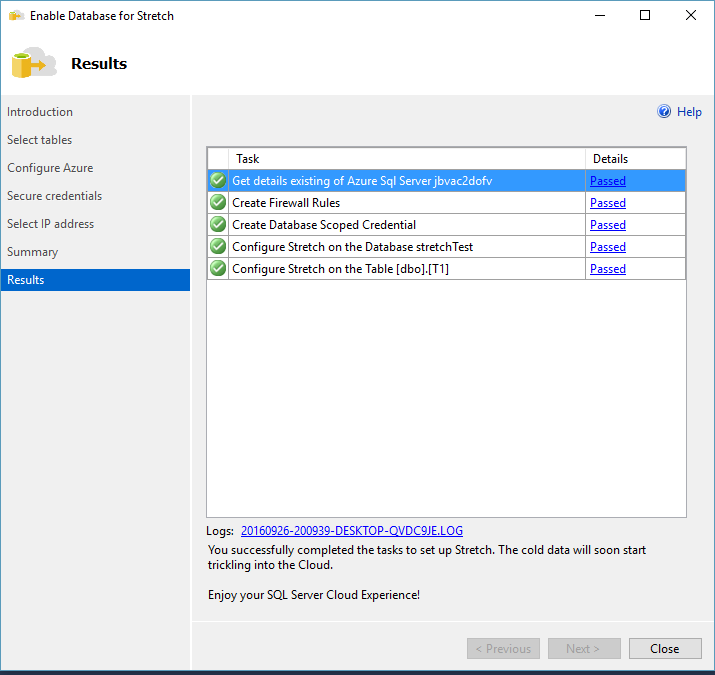
- Finally, the Stretch Database relationship is established.
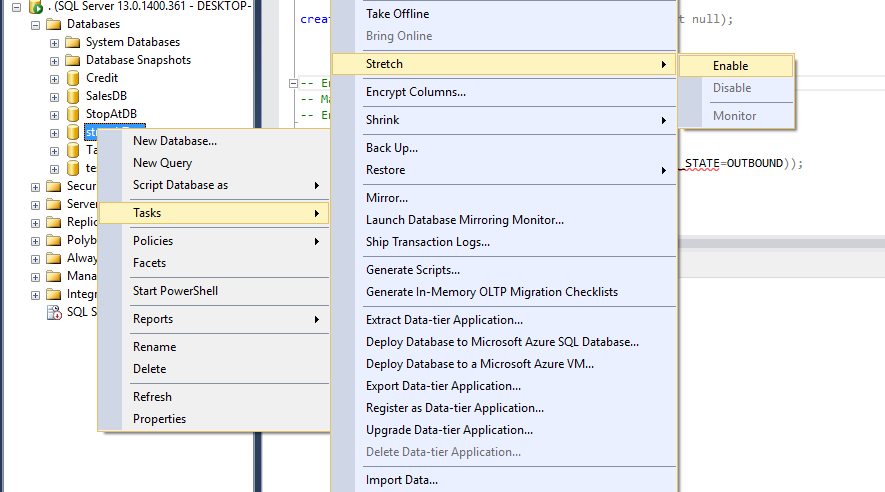



How to Monitor, Add Tables or Pause the Migration
You can monitor the status of the migration in two ways.
- Using T-SQL:
-- monitor synchronization status
select * from sys.dm_db_rda_migration_status- With the wizard: select the Monitor item in the Stretch menu.


Change the Stretch Status of a Table
You can do this by altering MIGRATION_STATE to OUTBOUND or PAUSED, as follows.
alter table T1 set (REMOTE_DATA_ARCHIVE = ON(MIGRATION_STATE=OUTBOUND));Restore a Stretched Database
Restore the database with the normal backup and restore procedure. Most of the data lives in the cloud. So at the end of the restore, you must re-establish the link to the Azure database. You can do that with these steps:
- Make sure you save the credential name. You can get it with this T-SQL:
select name from sys.database_scoped_credentials- Re-establish the link as follows:
exec sp_rda_reauthorize_db @credential = N'credential name', @with_copy = 0How to Quickly See What Is Stretched
Some changes were made to system views such as sys.databases and sys.tables. To find the databases that are stretched, run this T-SQL:
select name
from sys.databases
where is_remote_data_archive_enabled = 1
What about the tables? To find the tables that are being stretched, this query is handy:
select object_id,
name
, is_remote_data_archive_enabled
from sys.tables
where is_remote_data_archive_enabled = 1
Conclusions
- It is a great way to decrease the recovery time of a huge database when you restore from backups.
- It is a great way to decrease storage billing for historical data. The data is in Azure, and you pay only for what you use.
- It is the first release of the technology, so it comes with many restrictions. For example, no updates are allowed (up to RC3), no deletes are allowed, and the list goes on.
- Setting up a staging or pre-production environment is complicated. You cannot restore the database in staging and link it to a different Azure database.
- ALTER on stretched tables is not allowed. To modify a table, migrate the data to a new structure.
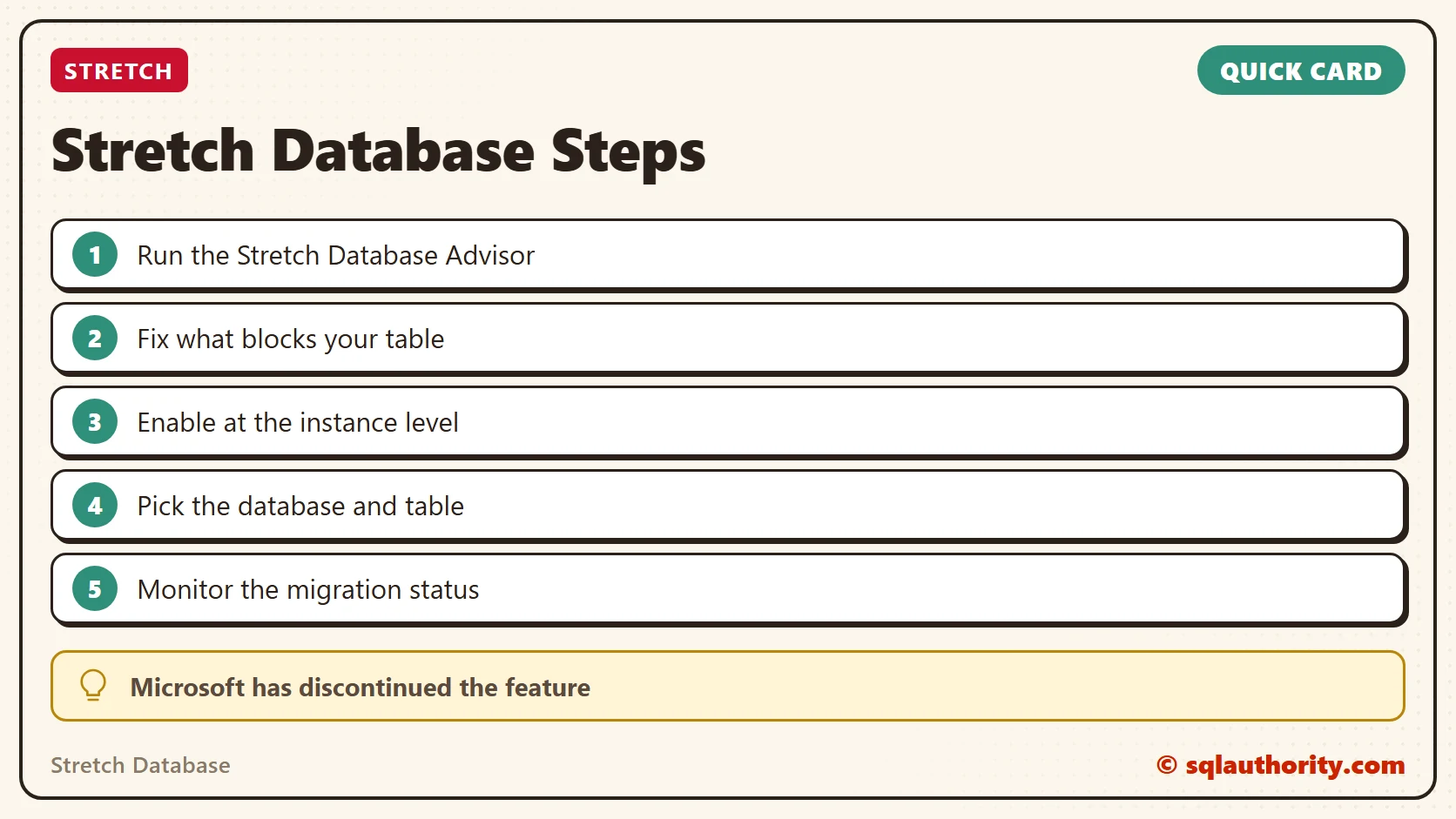
Stretch Database is not a bigger server, it is cold data in Azure and hot data on premises.
Published by Pinal Dave on SQLAuthority. More of my work at pinaldave.com.
Discover more from SQL Authority with Pinal Dave
Subscribe to get the latest posts sent to your email.



7 Comments. Leave new
There is no link attached to download the developer version in your post. I know I can download it through Microsoft website but I wanted to let you know that you need to fix your blog post.
Please go to http://blog.sqlauthority.com/2016/06/01/what-you-may-and-may-not-do-with-sql-server-developer-edition/
Next, click on the link which says “Click to Download SQL Server 2016 Developer Edition for FREE”
And follow the direction in the blog post.
Hi Pinal,
Just curious to know what would happen when we are trying to access a data which is getting migrated currently?
I have not tested it but mostly it does it in chunks.
Does the migration process holds a lock on the table and thus do we have to wait until the migration is completed?.
Can it be configured to be another internal network server instead of Azure as a cold server
No.