
At a user group meeting in Bangalore, a speaker asked the room for every way to stop and start SQL Server. We listed SSMS, net start, Configuration Manager, the Services window and sqlservr.exe. I shouted SHUTDOWN, which only gets you halfway. Then the speaker showed PowerShell, and I had forgotten it entirely. Restarting SQL Server service with PowerShell is one line. Years later I checked that line against my own machine, and it needs three corrections.
The One Line
This is what the speaker showed, and what I ran at the time:
Restart-Service -Force MSSQLSERVER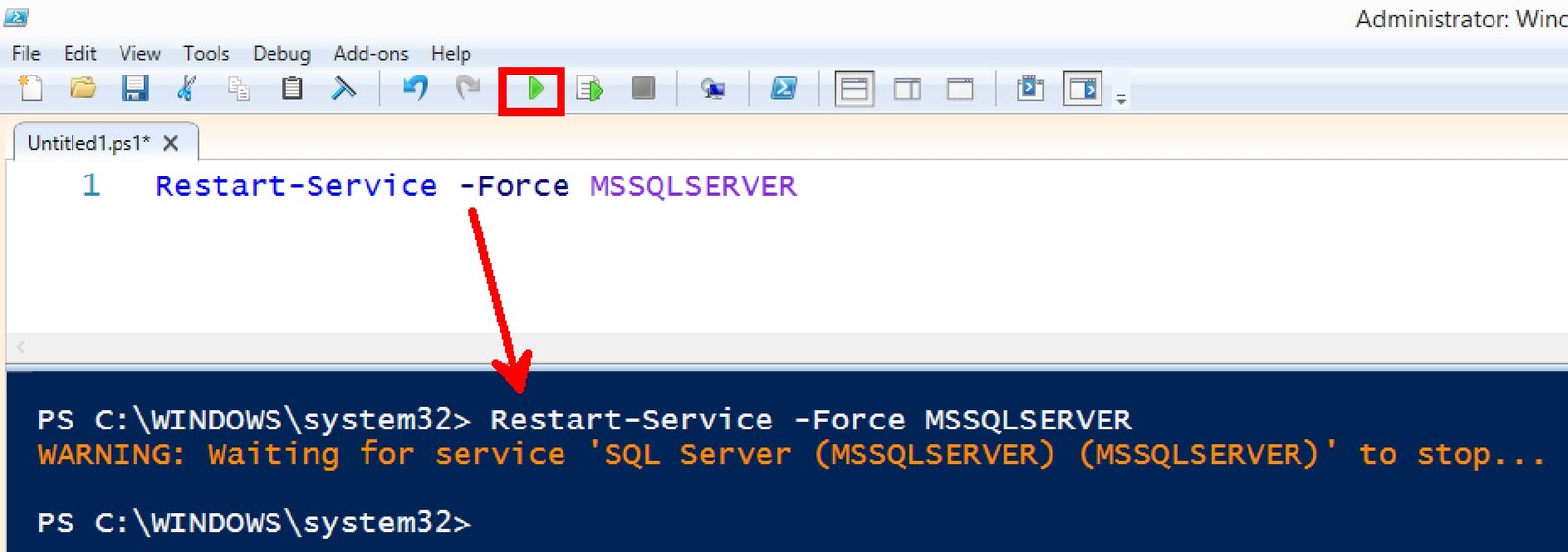
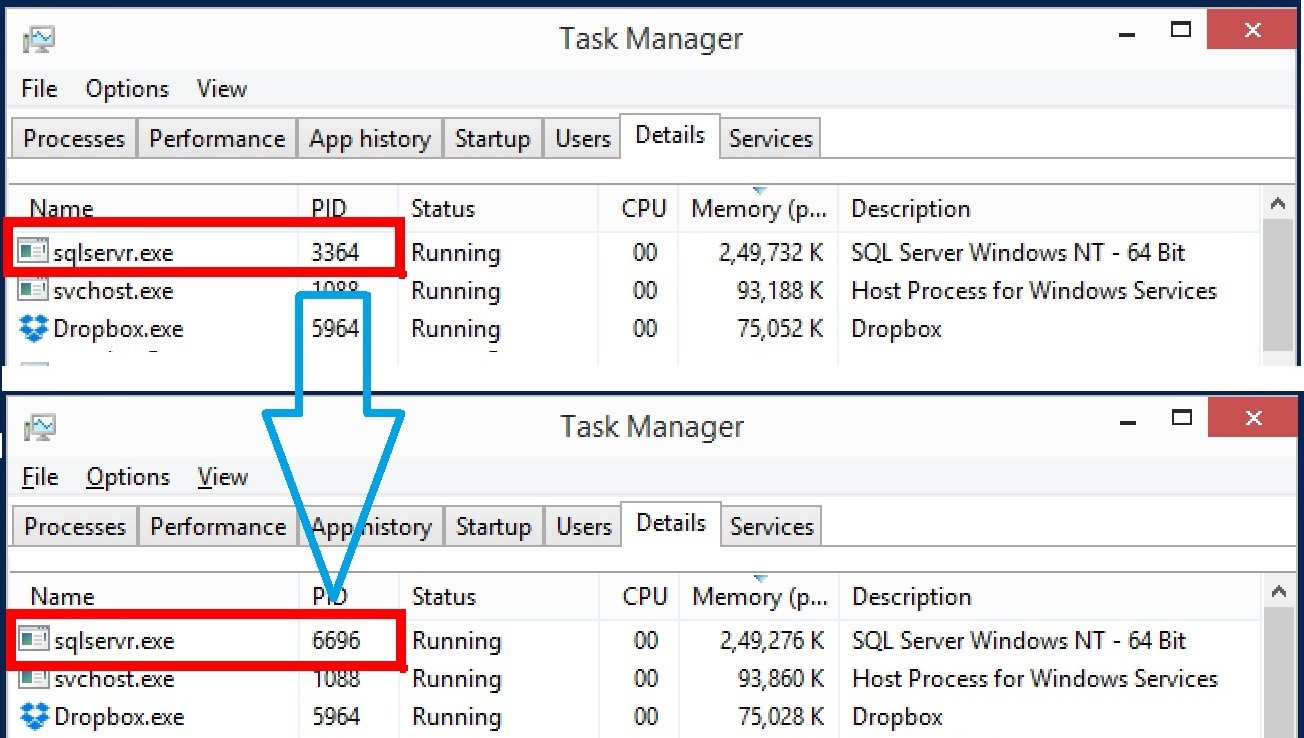
It worked. There was no output at all, so I opened Task Manager and saw that the SQL Server process had a new process ID. That was my proof that it had restarted.
Correction One: the Name Is Only Right Sometimes
MSSQLSERVER is the service name of a default instance. A named instance has a different one. On my machine the instance is called SQLDEV, and there is no MSSQLSERVER service at all:
Get-Service 'MSSQL*' | Select-Object Name, DisplayName, StatusName DisplayName Status
MSSQL$SQLDEV SQL Server (SQLDEV) Running
MSSQLLaunchpad$SQLDEV SQL Server Launchpad (SQLDEV) StoppedA named instance is MSSQL$ followed by the instance name. And in PowerShell that dollar sign matters. Put the name in double quotes and PowerShell reads $SQLDEV as a variable, finds nothing, and looks for a service called MSSQL. It fails with “Cannot find any service”, which is very confusing when you can see the service right there. I tried it. Always use single quotes:
Restart-Service -Name 'MSSQL$SQLDEV' -ForceCorrection Two: What -Force Is Actually For
-Force is not there to be forceful. It is there because other services depend on SQL Server, and PowerShell will not stop a service that others depend on unless you say so.
$s = Get-Service 'MSSQL$SQLDEV'
$s.DependentServices | Select-Object Name, Status
Name Status
SQLAgent$SQLDEV Stopped
MSSQLLaunchpad$SQLDEV StoppedSQL Server Agent depends on SQL Server. So -Force stops Agent first, then SQL Server. Here is the part people miss: Restart-Service starts the service you named, not the ones it stopped on the way. Agent stays stopped. I did not restart my working machine to prove that, so check it on a test server. But plan for it. On a server where Agent runs your backups, a quick restart can quietly switch off every scheduled job until someone notices. Start it yourself afterwards:
Start-Service -Name 'SQLAgent$SQLDEV'If you want to see what would happen before it happens, add -WhatIf. It describes the restart and does nothing. I used that on my own machine rather than restarting a server I was working on.
You also need an elevated PowerShell window. Stopping a service needs administrator rights, and an ordinary window does not have them.
Correction Three: “Running” Is Not “Ready”
Restart-Service comes back as soon as Windows reports the service as running. That is not the moment your databases are usable.
My machine happened to restart this evening, so I read the startup in the ERRORLOG:
23:02:39.847   SQL Server process started
23:02:42.080   Starting up user databases
23:02:42.090   SQL Server is now ready for client connections.
23:02:44.440   Recovery is complete.
“Ready for client connections” arrived 2.2 seconds in. Recovery finished at 4.6 seconds. For more than two seconds, SQL Server accepted logins while user databases were still being recovered. On a small test machine that gap is nothing. On a server that stopped in the middle of a long transaction, recovery can take many minutes, and an application that reconnects the moment the service is “running” will fail against a database that is still coming up.
So a restart script should wait for the databases, not the service:
Restart-Service -Name 'MSSQL$SQLDEV' -Force
Start-Service   -Name 'SQLAgent$SQLDEV'

do {
    Start-Sleep -Seconds 5
    $notOnline = sqlcmd -S '.\SQLDEV' -E -C -h -1 -W -Q "SET NOCOUNT ON; SELECT COUNT(*) FROM sys.databases WHERE state_desc <> 'ONLINE';" 2>$null
} until ($notOnline -eq '0')

'All databases online'
I ran the check query on its own and it returned 0, with every database online. I did not put the whole script through a real restart on my working machine, so try it on a test server before you trust it on production.
A Better Proof Than Task Manager
A new process ID proves the process changed. SQL Server can tell you directly when it started:
SELECT sqlserver_start_time FROM sys.dm_os_sys_info;Run it before and after. If the time moved, the restart happened. It also works from a remote session, where Task Manager is no help at all.
The lesson I took from that user group meeting still stands. I thought I knew every way to restart SQL Server, and a speaker at the Bangalore user group showed me I did not. It turns out I also did not know the one line as well as I thought.
Restart-Service is not the end of a restart, it is the start of waiting for recovery.
This post was rewritten in September 2026. It was first published on 3 November 2014.
Published by Pinal Dave on SQLAuthority. More of my work at pinaldave.com.



2 Comments. Leave new
You all forgot the other obvious method to restart SQL Server instances: reboot.
Something to add to this is to find the instance use the Get-Service command.
Get-Service ‘MSSQL$*’
Thanks @John.