[Note from Pinal]: This is the 18th episode of the Notes from the Field series, on performance statistic collection. To choose the right performance strategy, you need to know a lot about the performance of the whole server. Most organizations don’t have good strategies for it. A DBA should collect performance statistics methodically and scientifically. Let’s learn how in this episode.

In this episode of the Notes from the Field series, database expert David Klee explains how to collect performance statistics. It is a crucial issue for DBAs and developers. Linchpin People are database coaches and wellness experts for a data driven world. Read about it in David’s own words.
Performance statistics are vital for the long-term health and capacity management of an enterprise environment. With ongoing collection, you, the DBA, have the metrics of a system’s operating state whenever a performance problem is reported. That works in real time or historically. Too many times, I troubleshoot a well-known performance problem and the client has no metrics. They have nothing about the system state in the time window when end users reported it.
Let’s fix that. We need some performance statistic collection.
Why Collect Around the Clock?
Can you predict unusually high disk latency on your SQL Server archival data volume at 10:48 pm tonight? If so, become a consultant and the world is yours! For the rest of us, reality is an email tomorrow morning. It says the application was ‘slow’ last night and customer service reps got complaints. Without numbers, we can only look at the current system state to see if the reported issue still lingers.
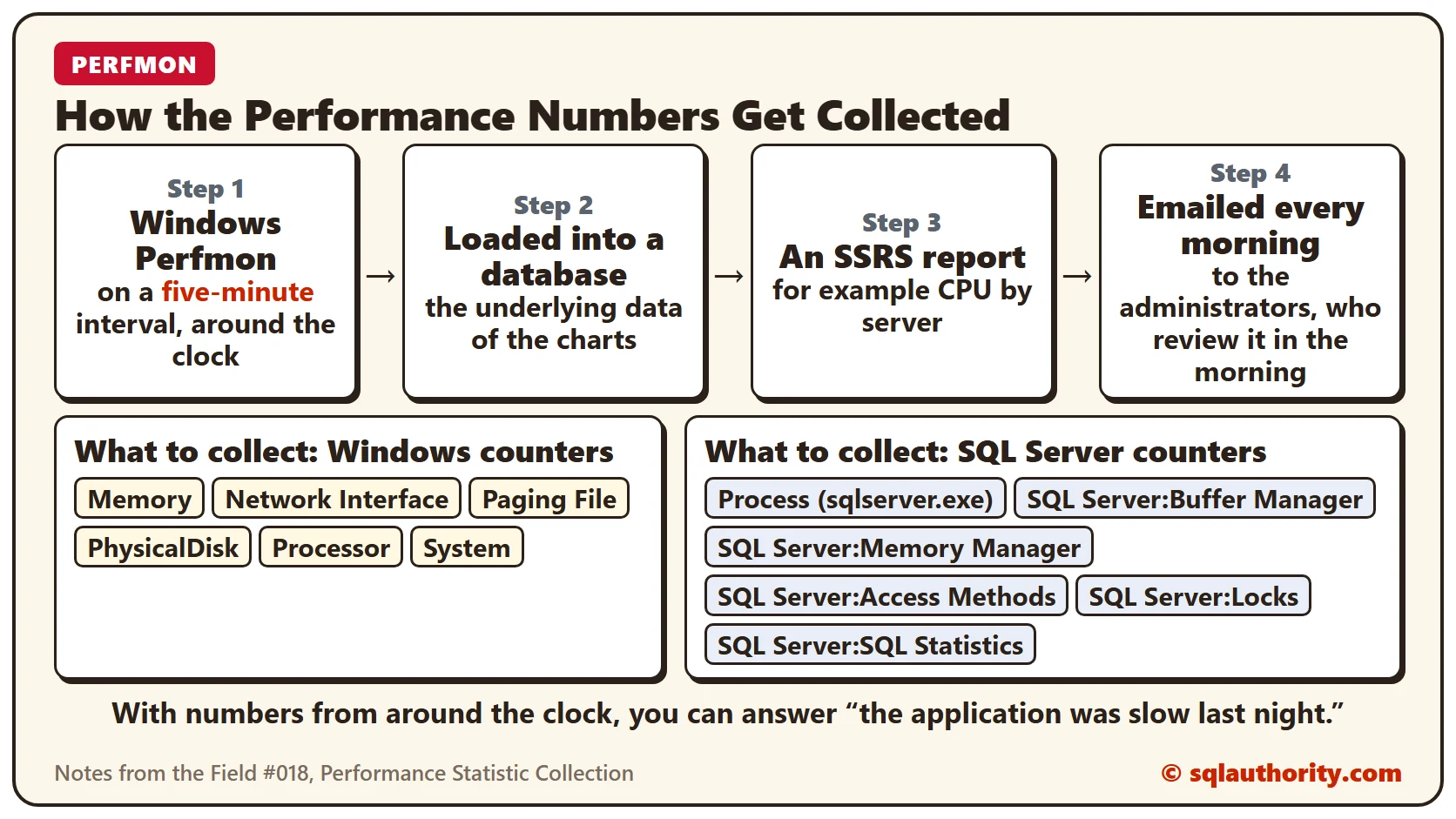
Constant, around-the-clock sampling of performance statistics is the simplest way to fix this. Wouldn’t you like to generate a chart at any time to see what your servers were doing? A simple graph, such as a CPU by server report, quickly shows when the system was busy.
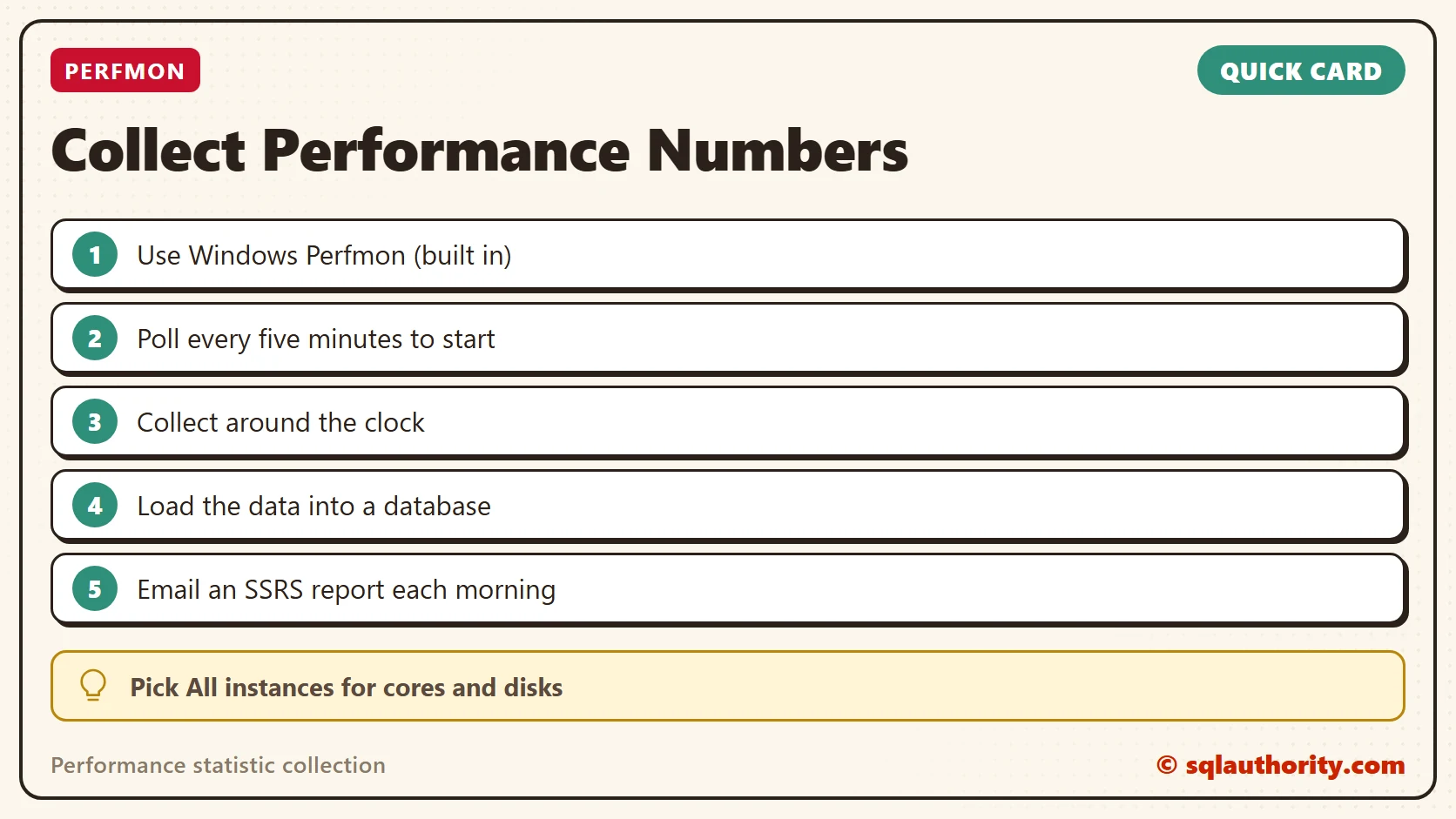
The underlying data was collected with Windows Perfmon on a five-minute interval throughout the week, and loaded into a database. An SSRS report is emailed to the administrators every morning. The DBA reviews it during the usual morning review, and an anomaly would be discovered quickly.
Methods for Collection
Many third-party utilities from your favorite tooling vendors can help with ongoing performance statistic collection. They work well, and I highly endorse any tool that makes you more efficient. But if you don’t have one, or the price is prohibitive, you already have a tool for this job. Windows Performance Monitor, or Perfmon, is built into Windows Server and can record performance statistics constantly.
Use the Microsoft TechNet directions to set up an ongoing data collector set that collects information around the clock. I generally use a five-minute polling interval to start with. If you know you have undiagnosed performance issues, increase the polling interval.
What to Collect
The lists below give Windows and SQL Server counters that cover the basics for troubleshooting current performance problems. Change the lists to fit your environment and your needs. Microsoft publishes a list of the performance counters with their descriptions.
Note: if a counter has multiple instances of a selected object, select <All instances> so the counters are separated. This gives you individual statistics for objects such as CPU cores or disk drive letters.
Windows Server Counters
| Counter Group | Counter Set |
|---|---|
| Memory | Available Mbytes |
| Page Faults / sec | |
| Pages / sec | |
| Network Interface | Bytes Received / sec |
| Bytes Sent / sec | |
| Paging File | % Usage |
| PhysicalDisk | % Idle Time |
| Average Disk Bytes / Read | |
| Average Disk Bytes / Write | |
| Average Disk sec / Read | |
| Average Disk sec / Write | |
| Disk Read Bytes / sec | |
| Disk Reads / sec | |
| Disk Write Bytes / sec | |
| Disk Writes / sec | |
| Processor | % Privileged Time |
| % Processor Time | |
| % User Time | |
| System | Processor Queue Length |
SQL Server Counters
| Counter Group | Counter Set |
|---|---|
| Process (sqlserver.exe) | % Processor Time |
| % Privileged Time | |
| SQL Server:Buffer Manager | Lazy writes/sec |
| Page life expectancy | |
| Page reads/sec | |
| Page writes/sec | |
| SQL Server:Memory Manager | Total Server Memory (KB) |
| Target Server Memory (KB) | |
| Memory Grants Pending | |
| SQL Server:Access Methods | Forwarded Records/sec |
| Full Scans/sec | |
| Index Searches/sec | |
| Page Splits/sec | |
| SQL Server:Locks | Number of Deadlocks/sec |
| SQL Server:SQL Statistics | Batch Requests / sec |
| Compilations / sec | |
| Recompilations / sec |
You can also build custom collectors for SQL Server items that WMI cannot serve. Use your favorite job scheduler to run queries against system DMOs on a schedule. Store the results in custom tables in a utility database. For a good idea of what you can collect, look at the many objects in Glenn Berry’s fantastic diagnostic queries. You can sample disk stall rates and background CPU activity this way. The same goes for instance and database level CPU, memory and disk consumption.
Now What?
What do you do with the data you collect? Let’s make sense of it! Stay tuned until next time, when we discuss how to sift through the large quantities of data we gather.
Want expert help to get started with performance statistics on your SQL Servers? Read more at Fix Your SQL Server.
Good tuning is not guesswork, it is a habit of collecting numbers before they are needed.
Published by Pinal Dave on SQLAuthority. More of my work at pinaldave.com.
Discover more from SQL Authority with Pinal Dave
Subscribe to get the latest posts sent to your email.