
Earlier I wrote an article about Detecting Current Version of MySQL Server Installation. After the post quite a few emails I received where various users suggested that there are many more ways to figure out the version of MySQL. Here are few of the methods which I received in the email.
Method 1:
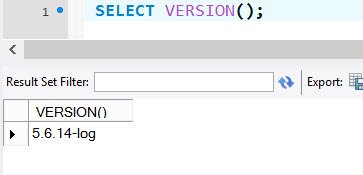
This method retrieves value with the help of Information Functions.
SELECT VERSION();
Method 2:
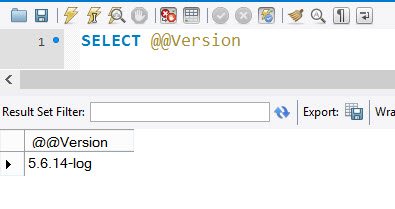
This method is very similar to SQL Server.
SELECT @@Version
Method 3:
You can connect to MySQL with command prompt and type following command:
STATUS;

Method 4:
Please refer my earlier blog post.
SHOW VARIABLES LIKE "%version%";

Let me know if you know any more method and I will extend this blog post.
Published by Pinal Dave on SQLAuthority. More of my work at pinaldave.com.
Discover more from SQL Authority with Pinal Dave
Subscribe to get the latest posts sent to your email.



1 Comment. Leave new
Curious results when using:
SELECT @@VERSION AS [SQL Version Info];
SELECT SERVERPROPERTY(‘productversion’), SERVERPROPERTY (‘productlevel’), SERVERPROPERTY (‘edition’)
Option one returns info that suggest we are on SP2 – whereas the second option returns the correct SP (4)