Here is a simple trick to backup Azure database with SkyDrive for free. To ensure your SQL Server or Azure databases remain safe, you should backup your databases periodically. And it is important to store the backups in a reliable location. Microsoft SkyDrive currently offers 7GB free, Box offers 5GB free – both are reliable and it is simple to send your backups there. SQLBackupAndFTP in it’s latest version 9 added the option to backup to SkyDrive and Box ( in addition to local/network folder, NAS drive, FTP, Dropbox, Google Drive and Amazon S3). Just select the databases that you’d like to backup and select to store the backups in SkyDrive or Box. Below I will show you how to do it in details
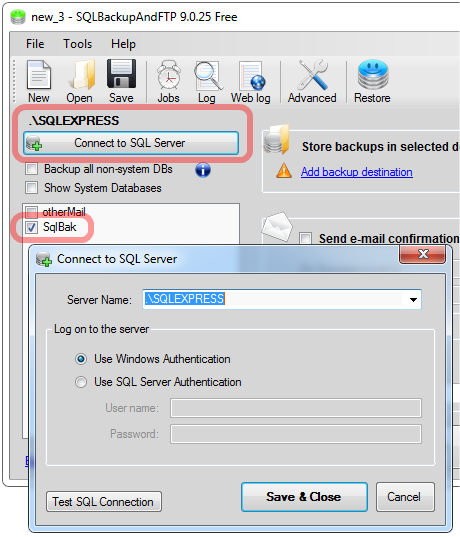
Select databases to backup
First connect to your SQL Server or Azure Sql Database. Then select the databases you’d like to backup.
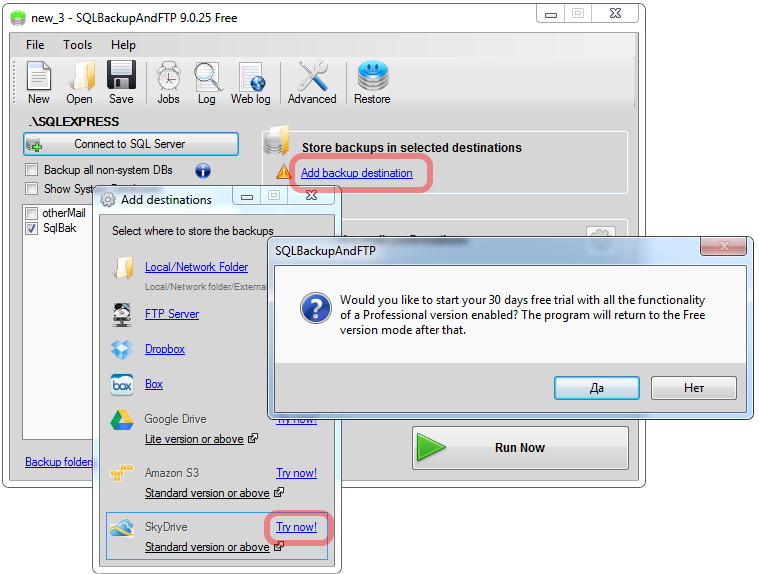
Connect to SkyDrive or Box cloud
If you have a free version of SQLBackupAndFTP Box destination is included, but SkyDrive destination will be disabled as it is available in the Standard version or above. Click “Try now” to get 30 days trial on all options
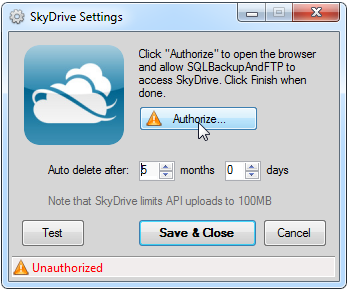
On the “SkyDrive Settings” form you’ll need to authorize SQLBackupAndFTP to access your SkyDrive. Click “Authorize…” to open SkyDrive authorization page in your browser, sign in your to SkyDrive account and click at “Allow” . On the next page you will see the field with an authorization code. Copy it to the clipboard. Box operation is just the same.
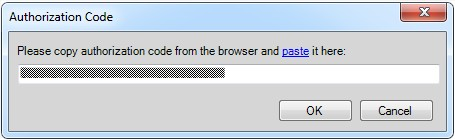
After that return to SQLBackupAndFTP, paste the authorization code and click “OK” .
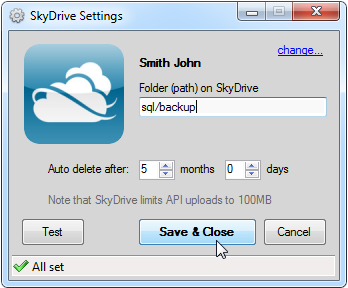
After you are authorized, you can enter the path to a backup folder. SQLBackupAndFTP will create the folder if it does not exist.
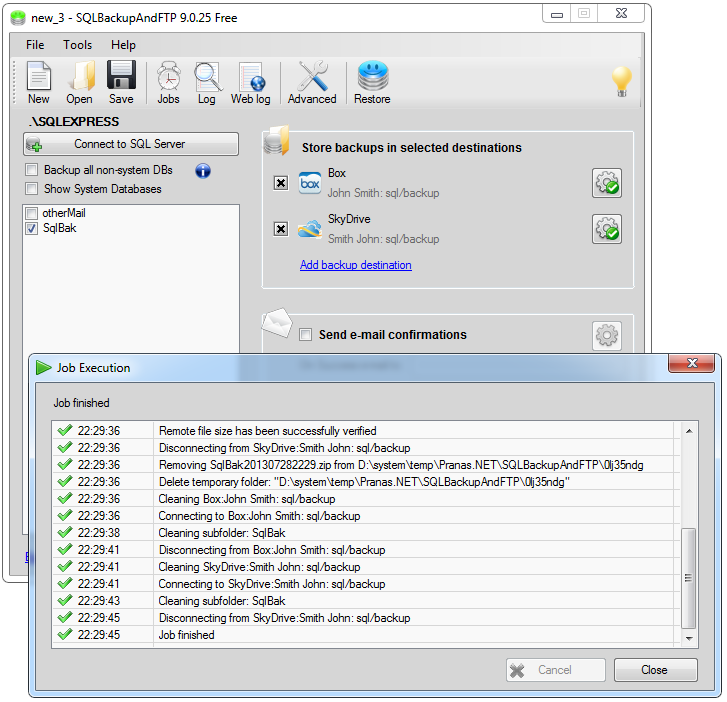
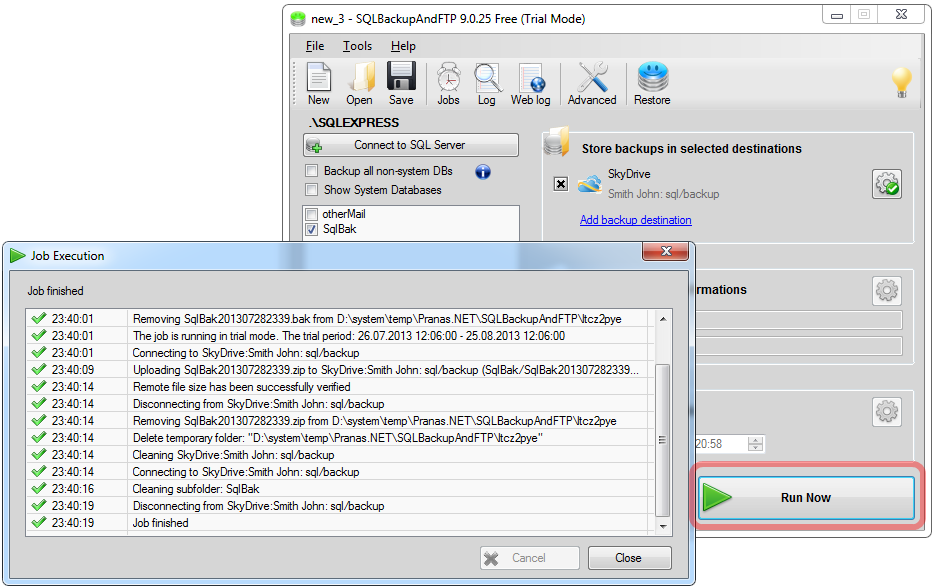
That’s all what has to be done to backup to SkyDrive or Box cloud. You can now click on “Run Now” button to test this job.
Conclusion
Whatever is your preference for storing SQL backups, it is easy with SQLBackupAndFTP. Note that at the time of this writing they are running a very rare promotion on volume licenses:
- 5–9 licenses: 20% off
- 10–19 licenses: 35% off
- More than 20 licenses: 50% off
Please let me know your favorite options for storing the backups
Published by Pinal Dave on SQLAuthority. More of my work at pinaldave.com.