Readable file sizes turn 1073741824 into 1.0 GiB, and that makes capacity talks much easier. The trick is to keep the raw bytes for sorting and math, and to format only at the very end. And to say which unit you mean.

Pages to bytes, without the overflow
SQL Server stores file sizes as a count of 8 KB pages. To get bytes you multiply by 8192. That looks harmless until a database grows past 2 GB. The page count is an int, and int times int is still an int.
Here is a 300,000 page file, about 2.3 GB. Watch the plain multiplication fail and the bigint version succeed.
DECLARE @pages int = 300000;

BEGIN TRY
    SELECT @pages * 8192 AS Bytes;
END TRY
BEGIN CATCH
    SELECT ERROR_NUMBER() AS ErrorNumber, ERROR_MESSAGE() AS ErrorMessage;
END CATCH;

SELECT CONVERT(bigint, @pages) * 8192 AS Bytes;
The first attempt fails with error 8115, an arithmetic overflow. It works on your small test database and breaks on the big production one. The second query returns 2457600000. Always widen before you multiply.
With that rule, here is the size of every file in the current database, in pages, bytes and MiB. Your files and numbers will differ from mine.
SELECT name,
       size AS ConfiguredPages,
       CONVERT(bigint, size) * 8192 AS ConfiguredBytes,
       CONVERT(decimal(28, 2), size) * 8 / 1024 AS ConfiguredMiB
FROM sys.database_files
ORDER BY file_id;
This is configured size, the room the file has. It is not used space. Those are two different measurements, so give them two different column names.
Choose the unit on purpose
Now the formatting. KB, MB and GB are used for two things. Disk vendors count in thousands, so 1 GB is 1,000,000,000 bytes. Memory and most operating systems count in 1024s. The clear names for the 1024 kind are KiB, MiB and GiB.
I use the 1024 units and print the unit next to the number. The function returns the number and the unit as two columns, and gives NULL for NULL or negative input.
CREATE OR ALTER FUNCTION dbo.ReadableSizeDemo (@bytes decimal(28, 0))
RETURNS TABLE
AS RETURN
SELECT CAST(CASE WHEN @bytes IS NULL OR @bytes < 0 THEN NULL
                 WHEN @bytes >= 1073741824 THEN @bytes / 1073741824.0
                 WHEN @bytes >= 1048576 THEN @bytes / 1048576.0
                 WHEN @bytes >= 1024 THEN @bytes / 1024.0
                 ELSE @bytes END AS decimal(19, 1)) AS SizeValue,
       CASE WHEN @bytes IS NULL OR @bytes < 0 THEN NULL
            WHEN @bytes >= 1073741824 THEN 'GiB'
            WHEN @bytes >= 1048576 THEN 'MiB'
            WHEN @bytes >= 1024 THEN 'KiB'
            ELSE 'bytes' END AS SizeUnit;
Test it at the edges. Those are the places where formatting code usually goes wrong.
SELECT b.Bytes, f.SizeValue, f.SizeUnit
FROM (VALUES (CONVERT(decimal(28, 0), NULL)), (-1), (0), (1023),
             (1024), (1048576), (1073741824)) AS b(Bytes)
CROSS APPLY dbo.ReadableSizeDemo(b.Bytes) AS f
ORDER BY b.Bytes;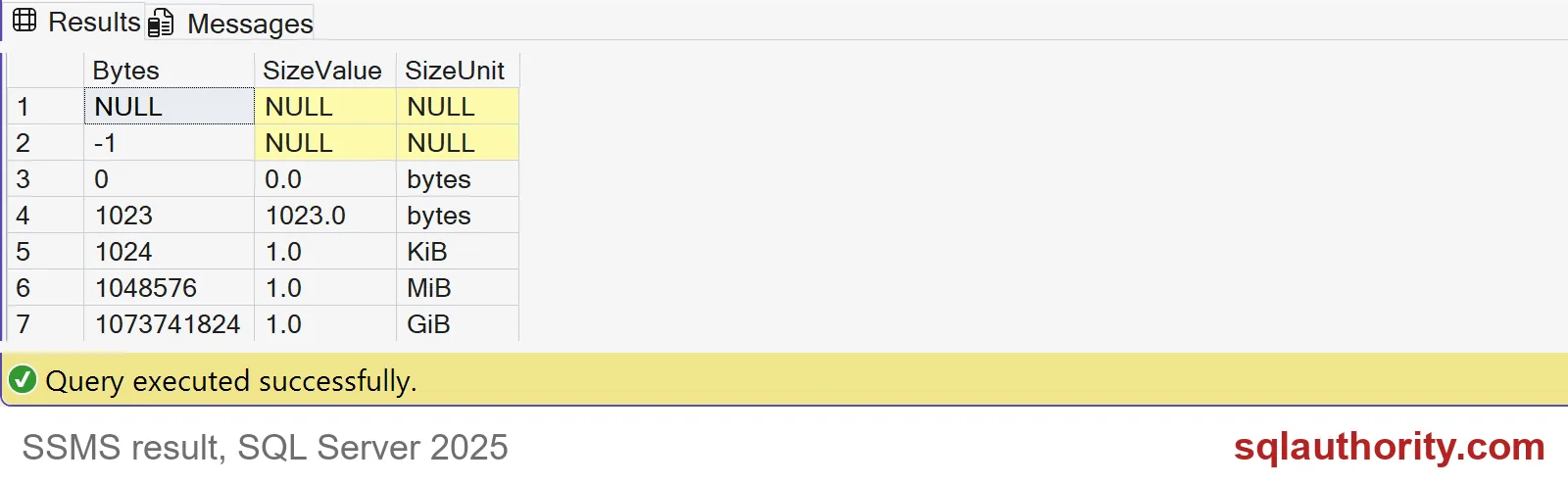
Read it row by row. NULL and -1 give NULL for both columns. Zero is 0.0 bytes and 1023 stays 1023.0 bytes. At 1024 it flips to 1.0 KiB, at 1048576 to 1.0 MiB, and at 1073741824 to 1.0 GiB.

Two traps to know about
First, rounding. A value just below a boundary can round up to the next number inside its own unit. Second, the famous drive that “lost” space. A drive sold as 500 GB has 500,000,000,000 bytes. Read in 1024 units, it is smaller than 500.
SELECT b.Bytes, f.SizeValue, f.SizeUnit
FROM (VALUES (1048575), (500000000000)) AS b(Bytes)
CROSS APPLY dbo.ReadableSizeDemo(b.Bytes) AS f
ORDER BY b.Bytes;
1048575 bytes shows as 1024.0 KiB, not 1.0 MiB. That is a presentation choice you should decide, not discover. The 500 GB drive shows as 465.7 GiB. Nobody lost anything. The two sides just used different units.
One more rule keeps reports honest. Sort and compare on the byte column, never on the formatted text. As text, “9.0 KiB” sorts after “10.0 GiB”. Backup sizes in msdb are already in bytes, so do not multiply those by 8192 again.
When you are finished, drop the demo function.
DROP FUNCTION IF EXISTS dbo.ReadableSizeDemo;Pick one unit policy, write it down, and let every capacity report use it.
A friendly size is not a new measurement, it is a clearer unit.
Published by Pinal Dave on SQLAuthority. More of my work at pinaldave.com.
Discover more from SQL Authority with Pinal Dave
Subscribe to get the latest posts sent to your email.