
Data Files and Log Files are the two kinds of file every SQL Server database needs. The data files hold your tables and indexes. The log file holds a record of every change made to them. Once you know which is which, backups, restores and disk space stop being mysterious.

Data Files and Log Files at a Glance
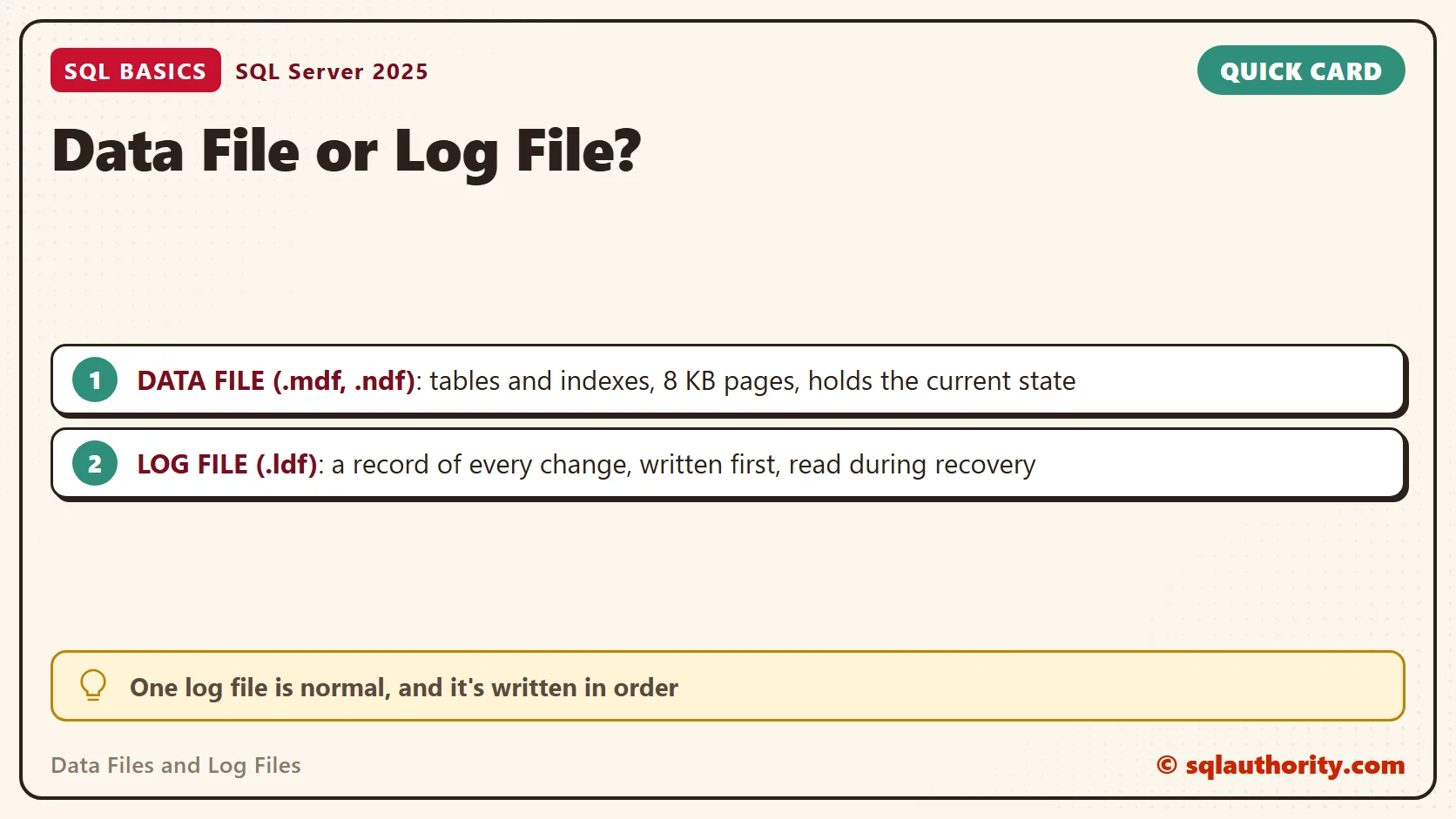
A database has at least one data file and one log file. The first data file is the primary file. It usually ends in .mdf, and it holds the startup information that points to the other files. Extra data files, called secondary files, usually end in .ndf. Log files usually end in .ldf.
Those extensions are habits, not rules. SQL Server doesn’t check them, and you could name a file anything. I keep the standard names because every other DBA expects them. Each file also has a logical name, which T-SQL uses, and a physical name, which is the path on disk. A new database starts as a copy of the model database. It begins with that database’s file layout and sizes. You can change both when you create it.
What Lives in the Data Files
Data files store your tables and indexes. Inside, SQL Server cuts each file into 8 KB pages, and every row lives on one of them. A data file shows the current state of the database. You see the rows as they stand now, not how they got there.
A database can spread across several data files. That’s useful for large databases, because the files can sit on different drives. For a small database, one data file is normal and fine. Keep it simple until size or speed gives you a reason not to.
What the Log File Does
The log file records changes. Every insert, update and delete adds a log record before the change is considered safe. The log isn’t a readable text file, and it isn’t an audit trail for users. It’s an internal record that SQL Server uses to keep the database consistent.
The log is written in order, one record after the next, and the space is reused in a wrap-around pattern. How long old records stay depends on the recovery model and on your log backups. That’s why a log can grow large on a busy system, and why the log has its own backup.
Why the Log Is Written First
Think of a shop with a shelf and a receipt roll. The shelf shows today’s stock. The receipts show how it got that way. SQL Server follows a rule called write-ahead logging: the log record reaches the disk before the changed data page does. With the default settings, a transaction can’t commit until its log records are on disk.
The data pages follow later. A background process called a checkpoint writes the changed pages to the data file. Delaying that work makes commits fast. The log write is one sequential append, while data pages are scattered across the file. (Delayed durability is the exception to waiting for the log write. It’s a database option, and it’s off by default.)
The order pays off after a crash. When SQL Server restarts, it reads the log. It replays committed changes that never reached the data file, and it undoes changes from transactions that never finished. Without the log, a power cut in the middle of a write could leave a database half changed.
List Your Files With sys.database_files
You don’t need a dialog to see your Data Files and Log Files. A query on sys.database_files lists every file in the current database. First, create the demo database. This script creates SqlBasicsFiles, a database used only for this example, when it’s missing. Later scripts drop and rebuild the demo table inside it, so run them on a test instance.
USE master;
GO
IF DB_ID(N'SqlBasicsFiles') IS NULL
    CREATE DATABASE SqlBasicsFiles;
GO
The sizes in sys.database_files are counted in 8 KB pages, so the query below turns them into megabytes. The growth column holds pages or a percentage, depending on a flag. The max_size column uses -1 for “grow until the disk is full” and 0 for “never grow”.
USE SqlBasicsFiles;
GO
SELECT name AS logical_name,
       type_desc,
       physical_name,
       CAST(CAST(size AS bigint) * 8 / 1024.0 AS decimal(12, 2)) AS size_mb,
       CASE WHEN growth = 0 THEN N'fixed size'
            WHEN is_percent_growth = 1 THEN CONCAT(growth, N' percent')
            ELSE CONCAT(CAST(growth AS bigint) * 8 / 1024, N' MB')
       END AS growth_step,
       CASE max_size WHEN -1 THEN N'unlimited'
            WHEN 0 THEN N'no growth'
            ELSE CONCAT(CAST(max_size AS bigint) * 8 / 1024, N' MB')
       END AS max_size
FROM sys.database_files
ORDER BY file_id;
On a test server running SQL Server 2025, the query returned these two rows.
| logical_name | type_desc | physical_name | size_mb | growth_step | max_size |
|---|---|---|---|---|---|
| SqlBasicsFiles | ROWS | C:\Program Files\Microsoft SQL Server\MSSQL17.MSSQLSERVER\MSSQL\DATA\SqlBasicsFiles.mdf | 8.00 | 64 MB | unlimited |
| SqlBasicsFiles_log | LOG | C:\Program Files\Microsoft SQL Server\MSSQL17.MSSQLSERVER\MSSQL\DATA\SqlBasicsFiles_log.ldf | 8.00 | 64 MB | 2097152 MB |
A new database shows two rows. One has the type ROWS, and that’s the data file. The other has the type LOG. The growth column tells you how each file expands when it fills up. Set it on purpose, not by accident.
Watch the Log Get Written First
You can see the write order for yourself. The function sys.dm_io_virtual_file_stats counts the writes each file has received. This script takes a count, inserts 5,000 rows, takes another count, runs a CHECKPOINT, and takes a third. A table variable holds the three snapshots, so one grid shows them side by side.
The script uses GENERATE_SERIES. That needs SQL Server 2022 or later and database compatibility level 160 or higher. SQL Server 2025 still needs level 160 or higher. A new database on SQL Server 2025 starts at a higher level. Run the first script before this one, because it creates the database.
USE SqlBasicsFiles;
GO
DROP TABLE IF EXISTS dbo.TeaOrder;
CREATE TABLE dbo.TeaOrder (OrderId int NOT NULL PRIMARY KEY, Blend nvarchar(40) NOT NULL);
GO
DECLARE @snap TABLE (moment nvarchar(20), file_id int, num_of_writes bigint);
INSERT @snap SELECT N'1 before', file_id, num_of_writes FROM sys.dm_io_virtual_file_stats(DB_ID(), NULL);
INSERT INTO dbo.TeaOrder (OrderId, Blend) SELECT value, N'Masala chai' FROM GENERATE_SERIES(1, 5000);
INSERT @snap SELECT N'2 after insert', file_id, num_of_writes FROM sys.dm_io_virtual_file_stats(DB_ID(), NULL);
CHECKPOINT;
INSERT @snap SELECT N'3 after checkpoint', file_id, num_of_writes FROM sys.dm_io_virtual_file_stats(DB_ID(), NULL);
SELECT s.moment, f.type_desc, s.num_of_writes
FROM @snap AS s
JOIN sys.database_files AS f ON f.file_id = s.file_id
ORDER BY f.type_desc, s.moment;
Read the LOG rows first. In my run, their count rose from 17 to 31 across the insert. Now read the ROWS rows. In my run, their count stayed at 26 after the insert and rose to 70 after the checkpoint. That fits a checkpoint writing the changed pages to the data file. Two files, two schedules, one database.
Treat those counts as one observation. Your numbers will differ, and another run can checkpoint at a different moment. Background activity and page allocation can also write to the data file before your CHECKPOINT. The write-ahead rule is documented behavior, and these counters illustrate it. They don’t prove it.
Keeping the Two Apart
On a server with more than one drive, I put the log on a different drive from the data files. Log writes are a steady stream of small appends. Data writes are scattered across the file. Mixing the two on one disk can slow both, and a single disk failure then takes both away.
How Backups Use Both Kinds of File
A full backup reads the data pages, plus enough of the log to make the copy consistent. A log backup copies the log records written since the previous log backup. Restore follows the same order: the full backup first, then each log backup, until you reach the moment you want. Data Files and Log Files both matter on the way back, so protect both.
Related Reading
What Is the Transaction Log and Why Does It Keep Growing?
Autogrowth Settings: Why 1 MB and 10 Percent Still Hurt
Pages and Extents: How SQL Server Stores Rows in a Data File
A log file is not a copy of your data, it is the record of how the data changed.
Published by Pinal Dave on SQLAuthority. More of my work at pinaldave.com.
Discover more from SQL Authority with Pinal Dave
Subscribe to get the latest posts sent to your email.




5 Comments. Leave new
Excellent explanation Pinal Much appreciated…..
Nice explanation Pinal….
But i have one more question ….what happened when we are in a process of database backup and if any customer has performed any transaction.
During this time will log file is still empty? if yes then how do we need to track the changes in log file
very nice explanation…
very helpful…. :-)
Superb sir.Explained very well.I have Clearly Understood the difference between data file and Log file. Thank you.
After the backup , my logfile is not emptied. Check well if this is correct.