
An execution plan is SQL Server showing you its working. You wrote what you wanted, the optimizer decided how to get it, and the plan is that decision written down. Learning to read one is the biggest single step from writing SQL to tuning it.
Estimated and Actual
There are two plans and the difference matters.
The estimated plan is what the optimizer intends to do. You get it without running the query, which is handy when the query takes ten minutes.
The actual plan is the same thing plus what really happened, including how many rows each step produced. That extra column is where nearly every answer lives.
In SQL Server Management Studio the estimated plan is Ctrl+L. The actual plan is Ctrl+M, then run the query.
A Plan in Text
The graphical plan is easier on the eye and the text version is easier to talk about. This ran on SQL Server 2025 against a table of 200,000 orders.
SET SHOWPLAN_TEXT ON;
GO
SELECT city, COUNT(*) AS orders, AVG(amount) AS avg_amount
FROM dbo.Orders WHERE amount > 100 GROUP BY city;
|--Compute Scalar(DEFINE:([Expr1002]=CONVERT_IMPLICIT(int,[Expr1010],0), ...))
|--Hash Match(Aggregate, HASH:([dbo].[Orders].[city]),
DEFINE:([Expr1010]=COUNT(*), [Expr1011]=SUM([dbo].[Orders].[amount])))
|--Clustered Index Scan(OBJECT:([dbo].[Orders].[PK_Orders]),
WHERE:([dbo].[Orders].[amount]>($100.0000)))Read It Inside Out
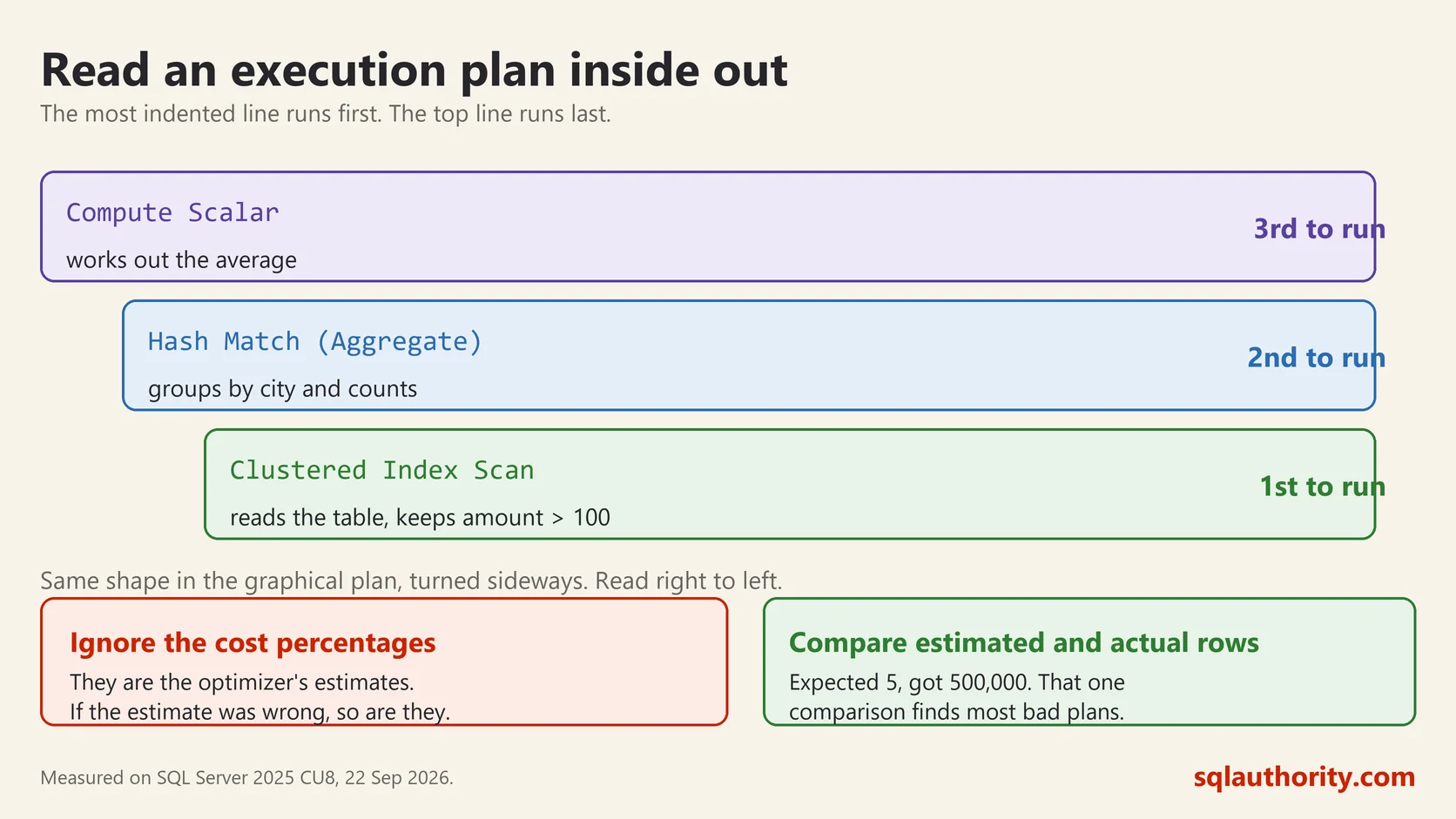
This is the rule people miss, and everything else follows from it. Execution starts at the most indented line and works outward.
So the order here is: scan the table and keep rows over 100, group those by city and count them, then work out the average. The top line is the last thing that happens, not the first.
The graphical plan has the same shape turned sideways. Read right to left and follow the arrows.
The Operators You Will Actually Meet
Clustered Index Scan reads the whole table. Fine on a small table. A warning sign on a large one when you only wanted a few rows.
Index Seek jumps straight to the rows you asked for. This is what you want.
Key Lookup means an index found the row but not every column, so SQL Server goes back to the table for the rest. One is cheap. Ten thousand is a problem, and the fix is usually an INCLUDE on the index.
Hash Match builds a hash table in memory. Normal for grouping, and for joining large unsorted sets.
Nested Loops takes each row from one side and looks it up on the other. Excellent when the first side is small, terrible when it is not.
Sort is honest work when you asked for ORDER BY. When you did not, something upstream needed sorted input, and an index might have supplied it free.
Ignore the Percentages
Every graphical plan puts a cost percentage under each operator, and people chase the biggest one. Those numbers are estimates from the optimizer, not measurements.
If the estimate was wrong, the percentages are wrong with it. The operator showing 2 percent can be the one taking all the time. Treat them as a hint and never as evidence.
What to Look at Instead
Hover any operator in an actual plan and compare Estimated Number of Rows with Actual Number of Rows. That one comparison finds most bad plans.
The optimizer chose Nested Loops because it expected 5 rows. It got 500,000. It would have chosen differently had it known. Now you know what to fix, and it is usually stale statistics, a variable the optimizer cannot see into, or a function wrapped around a column.
Two more things deserve a glance. A warning triangle on an operator is the plan telling you something plainly, often an implicit conversion or a spill to tempdb. And a thick arrow between operators means a lot of rows moved, which is easier to spot than any number.
Back It Up With Reads
SET STATISTICS IO ON;
SELECT COUNT(*) FROM dbo.Orders WHERE city = 'Perth';
16440
Table 'Orders'. Scan count 1, logical reads 42, physical reads 1Forty two logical reads to find 16,440 rows, because a nonclustered index on city exists. Without it the same query reads the whole table. The plan tells you what SQL Server did and the read count tells you what it cost, so use both.
Where to Find Plans You Missed
Query Store keeps plans after the fact, including the one from the slow run at three in the morning. It is on by default for new databases in current versions. It is the first place to look when the complaint is that something was slow yesterday.
Start with one query you already know is slow. Turn on the actual plan, run it, and find the operator where estimated and actual rows disagree the most. That habit alone will carry you a long way.
An execution plan is not a score card, it is the database explaining what it assumed about your data.
This post was rewritten from scratch in September 2026. The original, published on 2011-10-03, was a short announcement about something that no longer exists. The address is the same, the subject is now a basic idea worth keeping.
Published by Pinal Dave on SQLAuthority. More of my work at pinaldave.com.
Discover more from SQL Authority with Pinal Dave
Subscribe to get the latest posts sent to your email.



20 Comments. Leave new
Thanks for the post. In the beginning bulletted list, the item should be “FTP the backups to remote FTP server”.
Pinal, thank you for the great review of our product. To show our appreciation let me offer your blog readers an exclusive promo code that gives 10% off all of our SQL products valid till 12/01/2011. It is Pinal2011 (click on “enter promo code” link next to total price to enter it)
The tools seems to be neat looking at what you have described, especially with the coming ability to backup data into the cloud. how would this compare with Redgate backup software which is an other popular tool which is being used.
Thanks for Sharing
Its really handy tool … I guess definitely cloud feature will be great help…
Hi all,
From this blog, i got more information about this SQL Backup and FTP tool, Configure the steps are simple. Also, it will be useful for FTP and email notifications for backups and jobs. Its the good thing to share this HandyTool with blog readers.
The article is very nice,In my free time i will go thru thoroughly.
Hi,
I used this tool. It’s make easy a DBA tasks. DBAs most import task is take backup of database on regular bases. It’s a lengthy and sometime boring task. But with this tool, it’s quite easy. The great thing about this tool is, backup + encrypt + FTP + Notification (E-mail). That’s means, everyone is updated with status.
Panel thanks for sharing a great tool !!!
Vinay Kumar
great tool, i use it (the free version) since you recommend it first on your blog. thank you.
– neat tool for simple jobs. Unfortunatelly my colleague and I are monitoring 200+ instances, some of them on the terrabyte side, so we need a slightly more complex backup strategy. But if you are a developer or an accidental DBA at a small IT shop (roughly 80-85% of the world falls into this category, as a personal opinion), great tool that does a great job.
As for the rest of us, we’re still waiting for a miracle to happen :-)
I tried it today for the first time and it was very easy to follow. A year ago I wrote a program in VB6 to stop the DB, backup (mdf+log), zip,move to a network file and start db. I used timer to do one by one and the winzip to zip it. The problem I faced, when the zipping took too long my VB would go for the next script thus would cause problem. I really liked this backup program you mentioned specially the free version does all the basics. thanks to the maker of the software and to pinal.
Hi Pinal,
I have tried to test the tool on our fail-over cluster. No matter on which machine I try to install it, it always says connecting to remote instance and schedules backup using sql scripts which takes much longer time than usual and in Beta mode yet. Any suggestions to run it like a local server ?
Thanks.
Chandan
Hi Pinal,
really nice to use however My db’s are pretty big e.g. 26GB. Its quicker for me to native backup with compression rather than backup and zip.
Thanks
MJ
Really great one. Thanks for sharing the info
Really great one
have any process to access sqlserver from FTP server
Looks like good one..i will try it this week
Installed it today, solved all backup issues previously configured in days in 30min.
Nice tool for multiple database backup. But I could not find a job for restoring the full+diff+transaction logs since one click restore only serves to restore full backup.can some one help me in this regards.
I install the free version of SQLBackupandFtp. I have only one database I want to do scheluled backup.
I want to ask what is Add folder – field – what I have to Place there? (in your example is Music ….). Can it be example the same folder where is the backuping .MDF -database?
I have also problem with schelude – I get the Error: Object reference not set to an instance of an object.
I think the reason is perhaps the rightness (Windows 7). I try to give CMD: ICACLS Tasks /grant user:F but it didn´t help.
Hello,
There is no reason to backup a folder with .mdf file if you have a job to backup a database. The software has this feature just to backup your folders e.g. your documents or pictures, etc.
If you have any questions or issues, pelase contact SQLBackupAndFTP team at support page or use forum