
I have previously written about how using T-SQL Script we can convert the database access to single user mode before backup. Today, let us set single user mode using SSMS instead.
I was recently asked if the same can be done using SQL Server Management Studio.
Yes!
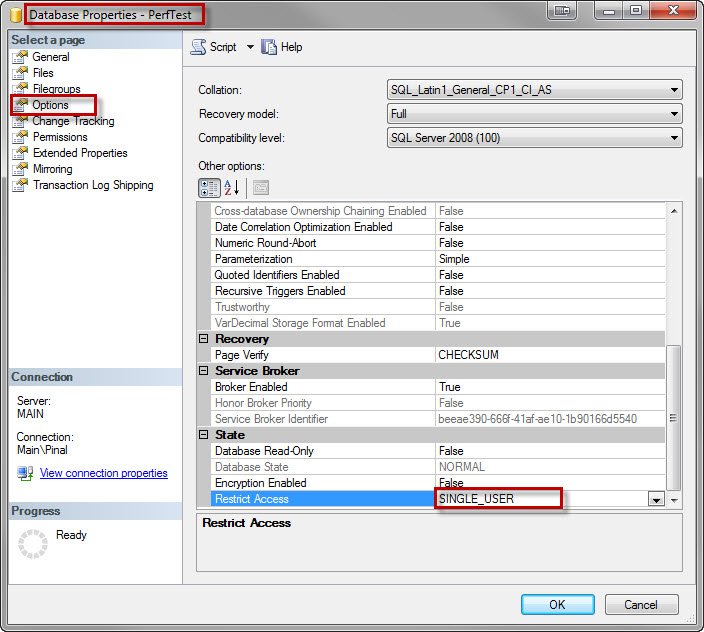
You can do it from database property (Write click on database and select database property) and follow image.
What to Check Before You Set Single User Mode Using SSMS
The option lives under Options on the database properties page, in the State section, as Restrict Access. It has three values: MULTI_USER, SINGLE_USER and RESTRICTED_USER. When you pick single user and press OK, SSMS warns you that it must close all other connections to the database. Read that message twice. Anyone working in that database gets disconnected, and their open transactions roll back.
A few things I check before and after:
- Who is connected. Run
sp_who2first so you know whose work you are about to stop. - Who grabs the one seat. The single connection goes to whoever connects first. An application, a SQL Server Agent job or even another SSMS window can take it before you do, and then you are the one locked out.
- Whether you need it at all. Restricted user mode lets in only members of db_owner, dbcreator and sysadmin. It is often enough for maintenance and far less painful.
- Switching back. The most common mistake is finishing the work and forgetting to return to MULTI_USER. Users will remind you, loudly.
If you do get locked out, find the session that holds the connection with sp_who2. Check what it is before you end it with KILL, because it may be a job doing real work. Better still, plan the change for a quiet time and tell users first, so nobody loses work in the middle of a busy afternoon.
Single user mode is really useful for a restore over an existing database, or for DBCC CHECKDB with a repair option, which requires it. If you prefer a script, ALTER DATABASE with SET SINGLE_USER WITH ROLLBACK IMMEDIATE does the same job in one line and is easy to repeat.
Published by Pinal Dave on SQLAuthority. More of my work at pinaldave.com.



5 Comments. Leave new
hi Pinal
I can’t see the pic..
would you please right down the structure too???
tnx
if i have 30 database in single instance, do i need to go one by one and change in to single user mode to take the backup ?
Also how do i take the back of complete 30 database in a single click ? Do we have any way through GUI mean SQL mangement Studio