
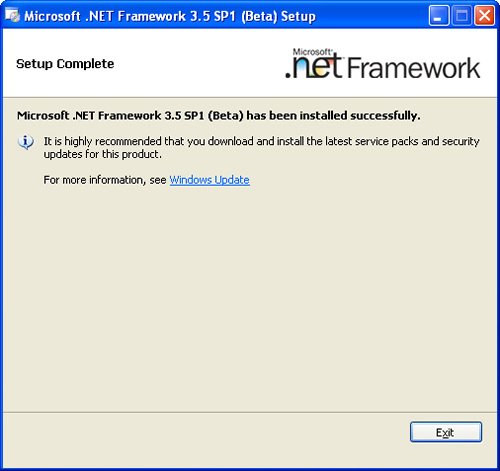
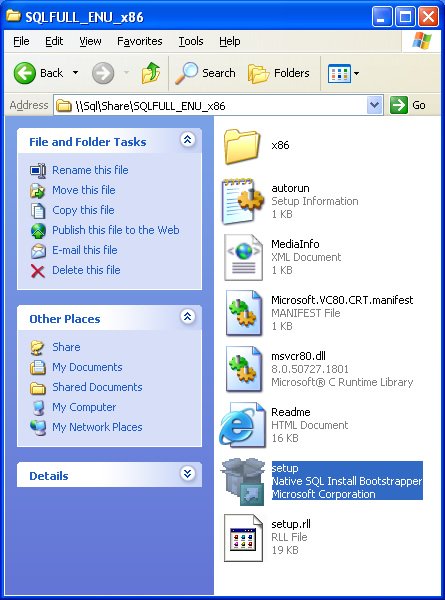
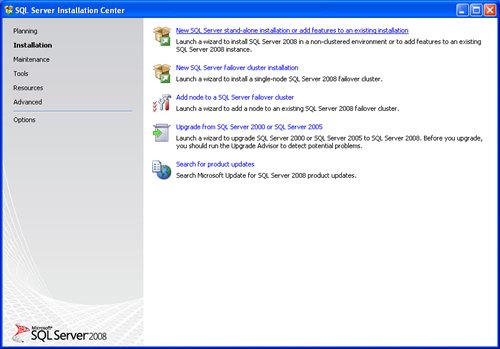
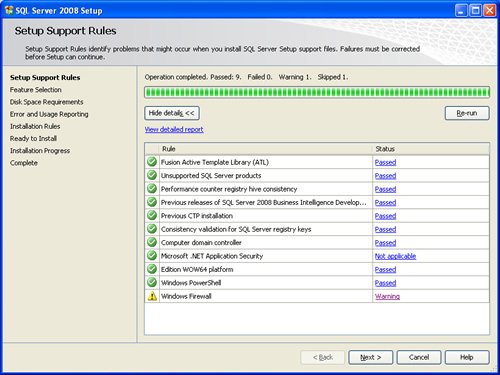
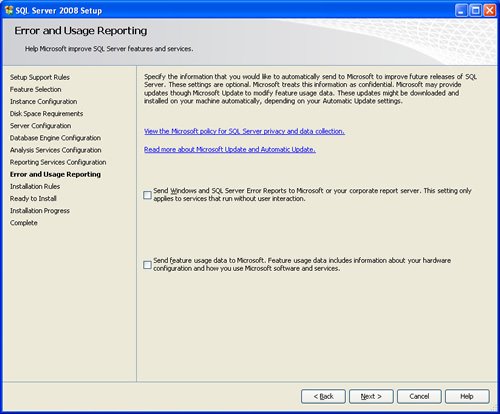
SQL SERVER 2008 has been released for some time and I have got numerous request about how to install SQL Server 2008. I have created this step by step guide Installation Guide. Images are used to explain the process easier.
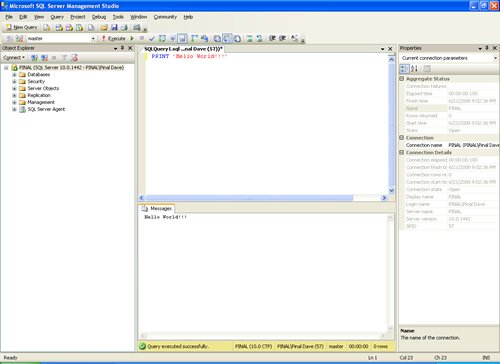
SQL Server 2008 is a major improvement from SQL Server 2005. Honestly, I still see lots of people still using SQL Server 2000. I would like to say it is time to upgrade and move to the next version of SQL Server. In SQL Server 2000, DBA had to use two different tools to maintain the database as well as the query database, specifically SQL Server Enterprise Manager and SQL Server Query Analyzer. With the release of SQL Server 2005 both of these tools are combined into one tool: SQL Server Management Studio. For a while DBA who were fans of Query Analyzer requested to bring it back, but as they keep on using SQL Server Management Studio (SSMS) they realized that it was much more convenient if every task related to SQL Server could be accomplished using SSMS. With the release of SQL Server 2008 Microsoft has upgraded SSMS with many new features as well as added tons of new functionalities requested by DBAs for long time.








Reference : Pinal Dave (https://blog.sqlauthority.com)




402 Comments. Leave new
Thank you
I trying to install SQL Server 2008 on Windows 7 ultimate 32bit but it doesn’t want to when it surpose to install Setup Support Files. Also doesn’t want to install MS Visual Studio 2008.
What could be the problem
Please help
hi
I’m trying to install sql server 2008 on vista and at the time of final installation it is showing “is not a valid login or you don’t have permission” hey dude please help me…
Akshay
very very thanx sir penal dave ,,,you solved my problem ,,so nice of you…
this is very useful …
its worked out thanks…
good document for fresher
very nice……….thank u alot!
thanks its very help u so nice
i have server 2008 server ent. now my SQL is not opening, cannot connect to database. what to do
Hii,
Very nice post, and nicely explained with the help of images.
thank you allot
sqqlserver instance name is allready exist for this m getting problem..so give solution 4 dis…plz
Plz Sir ! I need your help, I tried this procedure but failed to Install.. Got several errors during Installation…
Help Plz…
I need help, please! I have installed the program, but I am stuck at the screen where it’s asking for server name. I downloaded to my laptop, I don’t know what name to put, and the installation will not be completed until I do so. Thank you.
Thanks a lot Pinal.
My question is: the installation process asks me to put down a server name. I have downloaded the program into my laptop, what name should I put when it asks for the server name? Where should I go to to find that name? Thank you.
Hi Dave,
I am still having problems installing SQL Server 2008 R2. No matter what I do i keep getting the following message:
“Specified Credentials that were provided for the SQL Server Service are not valid.
Provide a valid Account & PW
Error 0x84B40000
Am installing on Server 2003 SP2. Part of a Domain. No internet access.
Appreciate any help
Sripathy
Thanks Pinal,
It really helped me a lot….
Hi…
I have installed sql server 2008 R2 (sql management studio _X64 ENU) in windows 7 ultimate.
I mentioned server name as (local).
While connecting i am getting the following error.
cannot connect to (local)
Additional information
network related or instance specific error has occurred while establishing connection to sql server.server was not found or not accessible.Verify that the instance name is correct and that SQL server is configured to allow remote connection.(Provider:Named Pipes Provider,error-40-could not open a connection to Sql server)(Microsoft sql server,error:2)
Kindly assist me to resolve this issue.
Thank You.
Hi,
This post was very useful, but images not load now… :(
I installed SQL server 2008 R2 Evaluation version on my Windows 7 home OS .The installation went successfull..when i go to Start > All programs > Microsoft SQL Server 2008 R2 folder is is empty..i dont know why..but when i go ro Run command and type ssms.exe the management studio opens up.
Can anybody help me out why i am not able to see anything under SQL Server 2008 folder in programs?
Thanks Pinal,
Your post helped us a lot in installing sql 2008 on windows server 2008 R2.
Dear All need your advises as I can not connect to my SQL Server 2008R2 here is the situation:
SQL Server 2008 R2 64 Bit installed in Windows 2008 Server (64 Bit)
Installed SQL client 2008 R2 in Win XP SP3 (32 BIt)
I can not connect to server SQL 2008 Server with this XP work station, although the server browser services was started, but can connect to other SQL server with 32 Bit environment.
Kindly advice for solving this problem