
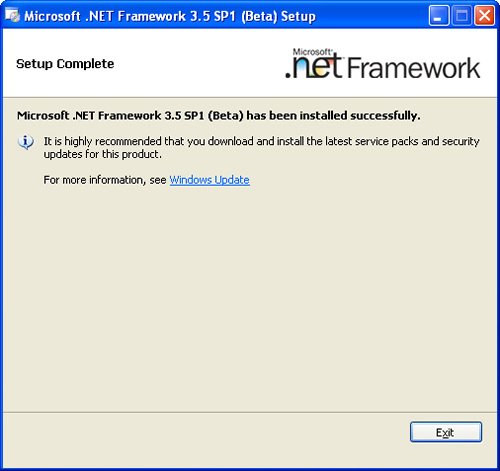
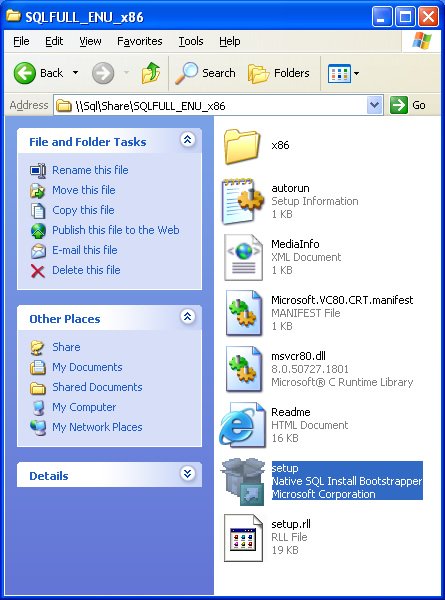
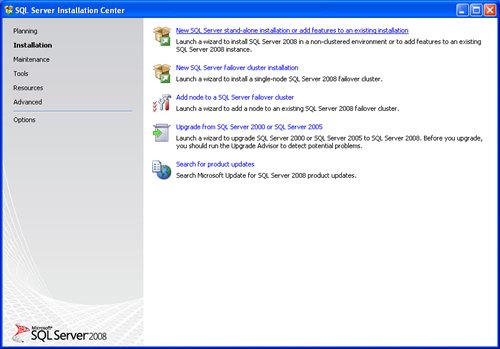
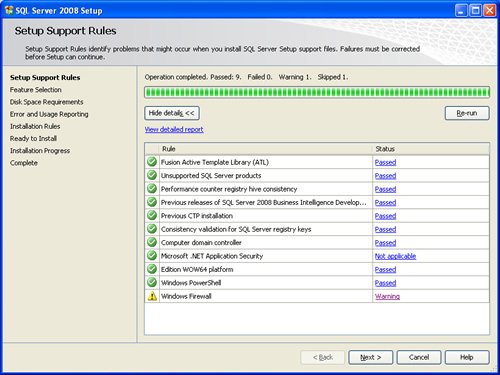
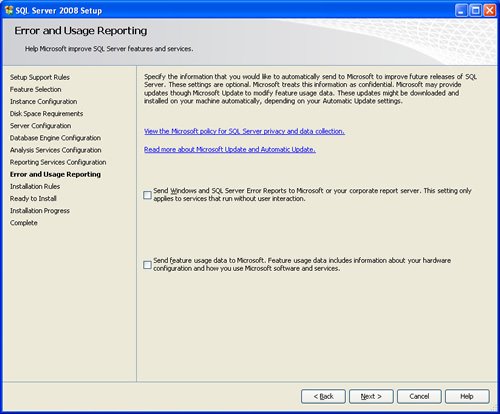
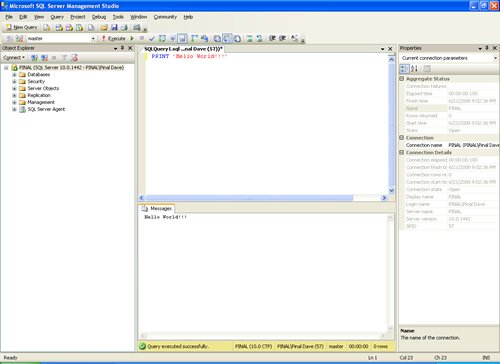
SQL SERVER 2008 has been released for some time and I have got numerous request about how to install SQL Server 2008. I have created this step by step guide Installation Guide. Images are used to explain the process easier.
SQL Server 2008 is a major improvement from SQL Server 2005. Honestly, I still see lots of people still using SQL Server 2000. I would like to say it is time to upgrade and move to the next version of SQL Server. In SQL Server 2000, DBA had to use two different tools to maintain the database as well as the query database, specifically SQL Server Enterprise Manager and SQL Server Query Analyzer. With the release of SQL Server 2005 both of these tools are combined into one tool: SQL Server Management Studio. For a while DBA who were fans of Query Analyzer requested to bring it back, but as they keep on using SQL Server Management Studio (SSMS) they realized that it was much more convenient if every task related to SQL Server could be accomplished using SSMS. With the release of SQL Server 2008 Microsoft has upgraded SSMS with many new features as well as added tons of new functionalities requested by DBAs for long time.








Reference : Pinal Dave (https://blog.sqlauthority.com)




402 Comments. Leave new
Sorry, to say that, but:
The way you described setting the users is definitely the way you should NOT do it…it is hardly recommended to use a different user for each service!
The images are not coming up, only getting the red X icons on this page.
They are displayed correctly. Check your internet policy and see if they are blocked
Dear sir/madam
Sql installation am getting this below error
error 03 how can i solve ,
Hi
I am installing SQL Server 2008 R2 on Server but When I try to map a Datafile to Shared location it gives an error message that Shared location or in this case Y drive is not a valid drive? I dont want to install Datafiles on C since its not large enough so I want to store all datafile in Shared location but getting error that it is not a valid drive? does it have to do with read write access?
Appreciate your input.
Hey Pinal,
Its a very nice blog and quite useful.
Well i have also posted an article based on the same topic.
So the link is:
www. sqlservergeeks .com/articles/ sql-server-bi/32/installation-guide-for-sql-server-2008
Thank you so much finally i am able to install SQL Server in my system.
Wish u had a live video demonstration it would be much more helpful as we would be able to understand what exactly is goin on
If you are trying to install SQL-2008 and you also have visual studio 2008 installed with service pack one (SP1) and get the error
“A previous release of Microsoft Visual Studio 2008 is installed on this computer. Upgrade Microsoft Visual Studio 2008 to the SP1 before installing SQL Server 2008”
Then welcome to the Microsoft beta testing program even if you purchased the faulty software.
With XP the most common solution seem to be renaming the registry key
HKEY_LOCAL_MACHINESOFTWAREMicrosoftDevDivVSServicing9.0
And replacing ‘9.0’ with ‘9.0Old’ however this does not solve the problem if you are using windows 7 and the only solution I managed to find that worked was to uninstall VS2008 and all the components and to then install SQL-2008 and finally reinstall VS2008.
This really has made a gr8 help to me..
thanks dude..
Nice Blog..
Thanks
Really Helpful
Thanks
Hi,
Myself uday,I want to install on SQL server 2005 on windows 7 of 64 bit.Can u help me.when i try to install in get the error message i.e “The program you want to run is not compatible”.
Kindly provide your suggestion on this.
Thanks
Uday
Make sure you meet all of the requirements first, operating system, memory, ect.
very good article. it was helped me to install sql server 2008.
Thank you
Ganesan K
thank you friend; i was stuck at the server configuration screen trying to avoid account/password setup for my standalone pc and you saved me!
good but You have to explain what to do at each diagram
This is a superb guide. Thanks
Its easy and workable………… thanks
i am not applicable for Sa user
Database Engine – Failed
Full Text – Success
Replication – Failed
Analysis Service – Success
Reporting Services – Failed
Integration Services – Skipped
Client Tools – Skipped
SQL Server Books Online – Skipped
BIDS – Skipped
Please help… What did i do wrong and how can i correct this?
i am install .net frame for 64 bit win7 but there is error that the set up will say it is all ready install and after installing sql 2008 it say install .net framework ,so what can i do